
What a theme is
A theme is your channel’s look for widgets: the fonts, the text and accent colours, the panel behind each piece, its rounding and spacing, and — if you want — some custom CSS of your own. Every overlay draws with a theme, so changing the theme restyles every overlay that uses it, live in OBS, without touching a Browser Source.
Your channel always has at least one theme, My theme, and one theme is the Active one. Every overlay follows the Active theme unless you pin it to another, so switching the Active theme changes the look of your whole stream in one step.
You need a widget to try this on. Add a widget to OBS takes you from the New widget dialog to a Browser Source; everything below happens in a widget’s editor.
1. Open the Theme tab
- Open any widget’s editor.
- Choose Theme at the top of the left panel, between Add and Media.
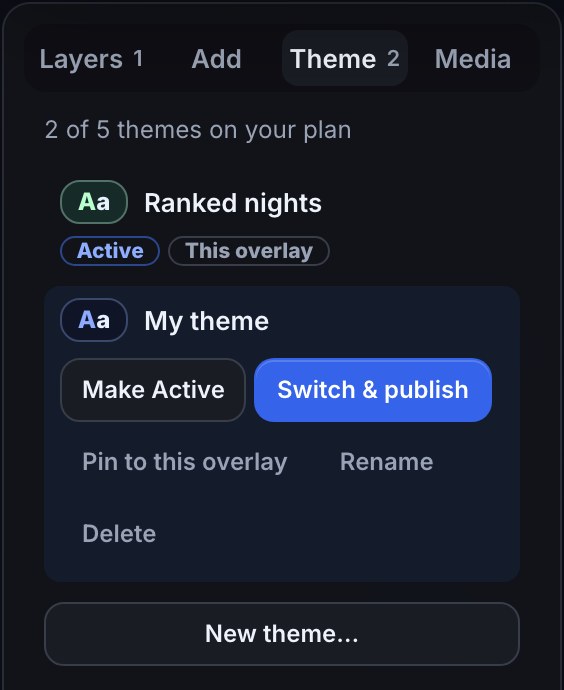
- The tab lists your themes, the Active one first. Active marks the theme every overlay follows, and This overlay marks the one the overlay you are editing draws with.
- Click a theme to open it. The canvas previews your overlay in it, and the right panel shows its Look, so you can edit it with your own overlay in front of you.
2. Change a theme’s look
- Open the theme in the Theme tab, or click an empty part of the canvas so nothing is selected. The right panel then says which theme you are editing, for example Editing My theme (Active).
- Change the fonts, colours, panel and spacing under Look. The canvas follows as you type.
- For finer control, open Advanced — custom CSS. Theme CSS applies to every overlay using that theme; the overlay’s own Custom CSS below it applies to this overlay only, and wins when the two disagree.
- Press Publish. Every overlay using the theme updates in OBS within a few seconds.
Theme edits are draft changes like any other edit: they wait in your draft, the chip in the top bar counts them, and nothing reaches OBS until you publish. Arrange your overlay explains the draft, Publish and History.
3. Make a new theme
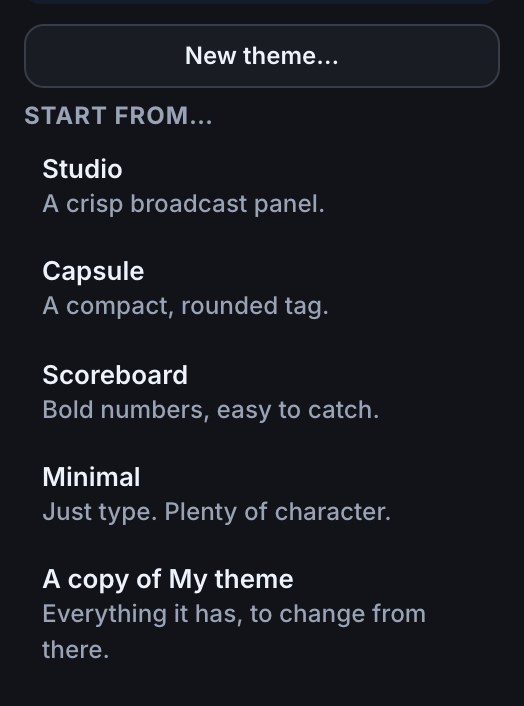
- In the Theme tab, press New theme….
- Under Start from…, pick a starter — Studio, Capsule, Scoreboard or Minimal — or A copy of the theme you have open, to change from there.
- The new theme opens straight away with a name like Capsule. To rename it, open it and press Rename.
- It is in your draft, not yet on stream: publish when you are happy with it.
4. Switch the Active theme
- Open the theme you want in the Theme tab.
- Press Make Active to switch in your draft, then look over your overlays and press Publish.
- Or press Switch & publish to do both in one click. If your draft holds other changes too, it asks first, because Publish always sends everything that is waiting.
Every overlay that follows the Active theme restyles in OBS at once. The previous theme is kept, so switching back is the same two steps.
5. Pin one overlay to a theme
With two or more themes, one overlay can keep its own theme while the rest follow the Active one — a starting soon screen in a calmer look, for example.
- Click an empty part of the canvas so nothing is selected.
- Under Theme, change This overlay uses from Active theme to the theme you want. It is shown as (pinned).
- Publish. Switching the Active theme later leaves this overlay alone.
You can also pin from the Theme tab: open the theme and press Pin to this overlay, or Unpin: follow Active to undo it. Deleting a theme an overlay is pinned to moves that overlay back to the Active theme.
6. Give one layer its own values
A layer draws with its overlay’s theme, field by field, and can change any field for itself.
- Select the layer and scroll its settings to Style. It says which theme it follows, for example Follows My theme.
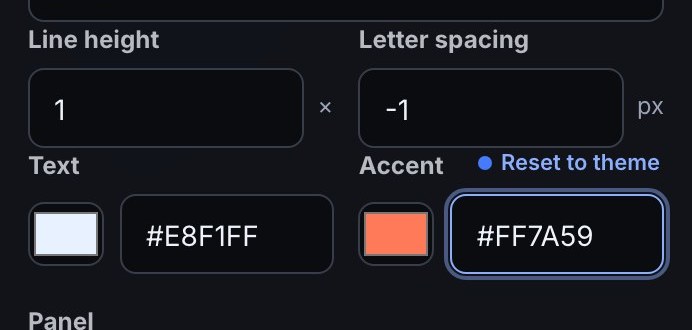
- Change a field — the accent colour, say. That field now belongs to this layer: a dot and Reset to theme appear beside it, and every other field keeps following the theme.
- Press Reset to theme beside a field to hand it back, or Reset all to theme at the top of Style for every field at once.
Because a layer keeps only the fields you changed, a later change to the theme still reaches every field that layer did not change.
How many themes you can keep
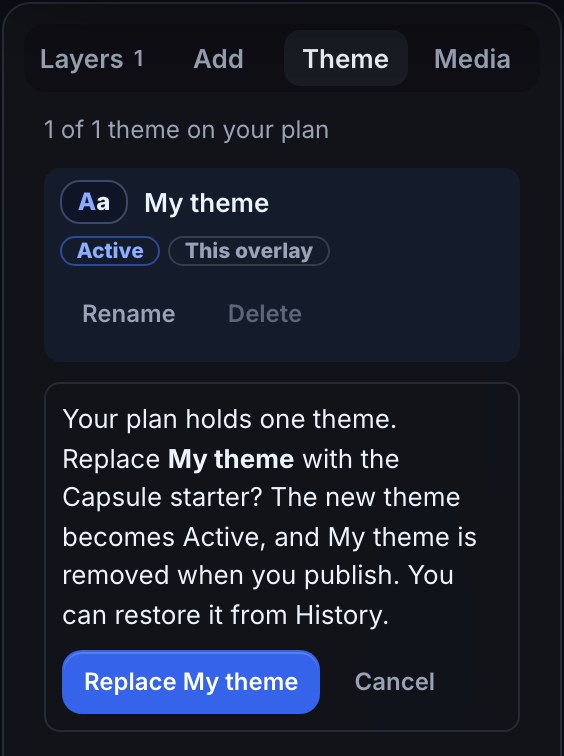
How many themes your channel can keep depends on your plan: 1 on Free, 5 on Plus and 20 on Pro. Every style control, every starter and every setting on this page works on every plan; only the number of themes differs. What your plan includes lists yours as Widget themes under Limits, and the Theme tab says how many you have, for example 1 of 1 theme on your plan.
At your limit, New theme… becomes Replace My theme… (it names the theme you have open):
- Press Replace My theme… and pick what to start from.
- The editor asks first: the new theme becomes Active, and the one it replaces is removed when you publish.
- Press Replace My theme, look it over and publish.
Replacing is restorable. History in the top bar lists the version you published before the replace; Restore to draft puts its themes back, and publishing restores the old look.
A worked example
A cosy daytime look and a high-contrast look for competitive nights, on a Plus channel:
- In the Theme tab, press New theme… and start from Scoreboard. Rename it Ranked nights.
- With Ranked nights open, set the accent to your team colour under Look.
- Press Publish. A new theme is not Active, so My theme stays marked Active and your usual look stays on stream; Ranked nights is saved for later.
- On a ranked night, open Ranked nights and press Switch & publish. Every overlay that follows the Active theme — your gameplay overlay, your alerts, your chat box — changes in OBS at once.
- Your starting soon overlay is pinned to My theme, so it keeps the cosy look either way.
What you should see
- The Theme tab listing every theme, the Active one first and marked Active, and the overlay’s own theme marked This overlay.
- The canvas previewing a theme as soon as you open it, before anything is published.
- After Switch & publish, every overlay that follows the Active theme changing in OBS within a few seconds, with no change to its Browser Source — and pinned overlays staying as they were.
- A changed layer field showing a dot and Reset to theme, and every other field of that layer following the theme.
- This overlay uses appearing under Theme once your channel has two or more themes.
If something looks wrong
- A theme change shows on the canvas but not in OBS: theme edits wait in your draft like any edit. Press Publish.
- New theme… reads Replace … instead: your channel is at its plan’s theme limit. Replace a theme, or delete one you no longer use first.
- Delete is greyed out: that theme is Active. Make another theme Active first.
- One layer ignores a theme change: it overrides that field. Select it and press Reset to theme beside the field, or Reset all to theme.
- One overlay ignores the Active theme: it is pinned. Set This overlay uses back to Active theme.
- Your custom CSS stops a theme colour showing: the overlay’s own Custom CSS is drawn after the theme and wins. Remove the rule from the overlay’s CSS, or move it into Theme CSS.
- The chip reads Not saved — fix the highlighted fields after editing a theme: a value was refused, and the message sits beside the field. Fix it and the draft saves again.
Was this guide helpful?
Thanks. Your answer helps us decide which guides to improve.