
Before you start
This guide maps what you already built in StreamElements onto the closest thing in Bloopbot. A command is a flow, and what you see in OBS is a widget you build in its own editor — Widgets, separate from the flow canvas, in the same Bloopbot dashboard.
Commands and permissions
StreamElements’ Custom Commands panel, its user level and its cooldowns become a flow with a trigger and, where you need one, a check node:
| In StreamElements | In Bloopbot | Notes |
|---|---|---|
| A custom command | A flow with a Chat command trigger (create your first chat command) | The trigger’s Command field is the word without the prefix; Also responds to is the alias list. |
| Permission level: Everyone / Subscriber / VIP / Moderator / Broadcaster | A Who can trigger check, At least set to the matching level | That is Bloopbot’s full ladder for this check. Moderators and the broadcaster always pass regardless of what you pick. |
| Permission level: Regular | A Has a role check, Roles left at its default Regulars | A different check node from Who can trigger: Has a role reads People → Regulars (or any other role you name), and the broadcaster and moderators pass it by default too — see reward viewers and recognise regulars. |
| Global cooldown / user cooldown | A Cooldown check with Whole channel and/or Per viewer durations | Both bots let you set a channel-wide and a per-viewer cooldown on the same command; Bloopbot also lets moderators or you skip it. See add permissions and cooldowns. |
| Timers | A flow with an On a timer trigger | See post a recurring chat message. |
| Spam filters (links, caps, symbols, blacklist/whitelist) | The channel-wide filters on Moderation | Settings applied to every message, not a flow you draw — see set up moderation helpers. |
| Loyalty points, earned by watching | Bloopbot loyalty points, configured on Loyalty, read with !points/!watchtime/!top | Separate systems and separate balances — a viewer’s StreamElements points do not carry over. See reward viewers and recognise regulars. |
| The Stream Store (spend loyalty points on a streamer-defined reward) | No catalogue equivalent — build the same shape as a flow, the way Bloopbot’s own !give does | Bloopbot has no store record listing redeemable items. What it does have is the same underlying move: a Read points & watch time step, a check that the balance covers the cost, then a Set a variable step that subtracts loyalty_balance — exactly how the built-in !give flow spends points. A Giveaway with a ticket cost is the closest ready-made version of “spend points for something” — see run a giveaway in chat. |
| Overlays and alerts (one browser source for everything) | Bloopbot widgets — a hosted overlay you design once, added to OBS as its own Browser Source | Alerts are layers on a widget you build; see add a widget to OBS and show alerts on stream. |
| Song requests | The Song requests flow pack, playing through your own linked Spotify account | See let chat request songs. Song requests and hosted widgets may not be available on your channel yet — check what your plan includes. |
Variables
StreamElements documents $() and ${} as interchangeable — $(uptime shroud) and ${uptime shroud} are the same call — while Bloopbot only ever uses $(…):
| StreamElements | Bloopbot | Notes |
|---|---|---|
$(user) / ${user} | $(user) — a Chat command trigger’s “Who typed it” | Same meaning: whoever ran the command. |
$(touser) / ${touser} | $(touser) — “First word, or the viewer” | Also literally named touser in Bloopbot. |
$(1) … $(9) / ${1} … ${9} (positional arguments) | $(1) … $(9) work the same way in any flow text field; the full remainder is $(query) | All nine work — the Starter pack’s own !deaths +5 counter reads the amount as $(3). Only $(1) and $(2) appear in the trigger’s own tray and Insert… menu; further words you type by hand, or read the whole thing with $(query). |
$(count) / ${count} / ${getcount} (per-command counters) | A declared variable plus a Set a variable action, read back as $(var.name) | Declare the variable once on Variables, then a Set a variable step adds to it — the Starter pack’s own !deaths counter is built exactly this way. See keep a counter with variables. |
$(random.pick 'a' 'b' 'c') | No direct equivalent | There’s no node that returns a random pick from a written-out list of choices. A Random chance check can send different viewers down different branches, but each branch is its own wired-up reply, not one field with a list in it. |
$(uptime) / ${uptime} | Partial: the Insert… menu’s Stream group offers how long ago ($(data.stream.started_at_ago), a human string like “3 hours”) and minutes ago ($(data.stream.started_at_ago_minutes)) | It keeps counting after the stream ends, so pair it with a Stream status check if you only want it while live. |
$(channel.game) / ${channel.game} | Partial: the Stream info changes trigger hands on Category and Title | Only at the moment you change them — there is no token that reads the current category on demand. |
A field that accepts variables shows an Insert… menu listing exactly what that step can read, so you don’t have to remember the exact token.
Recreate your top commands
Do this once your channel is signed in.
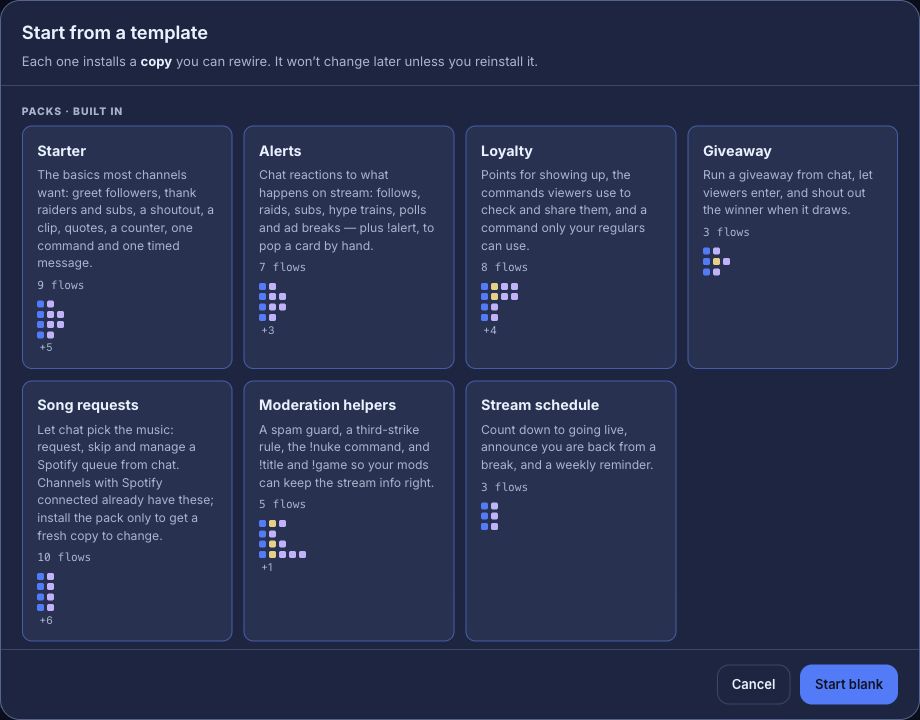
- Open Flows → Explore packs and install the Starter pack for the everyday commands and stream reactions it covers, including its own
!deathscounter (mods add to it with!deaths +) as a working example of a StreamElements-style tally. - For anything Starter doesn’t cover, press + New flow → Start blank, add a Chat command trigger, and connect a Chat message action with your reply text.
- Add a Who can trigger, Has a role or Cooldown check in front of the action for anything that had a permission level or a cooldown in StreamElements.
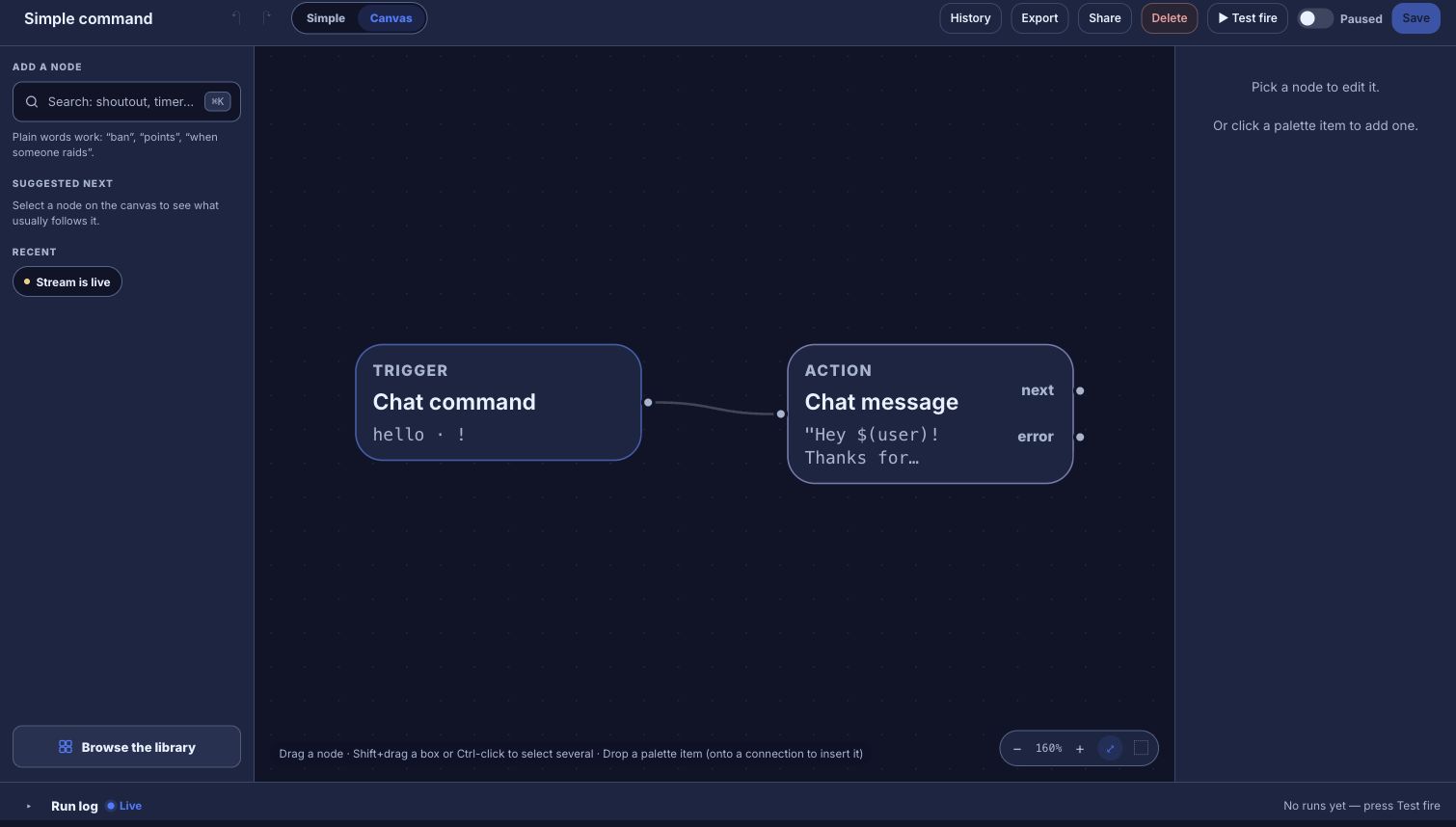
A worked example — a public !discord command with a moderator-only !setdiscord to update the link:
- On Variables, declare a text variable named
discord_urlwith your current invite link as its starting value. - Build a flow: Chat command (
discord) → Chat message readingJoin us: $(var.discord_url). - Build a second flow: Chat command (
setdiscord) → Who can trigger (At least: moderator) → Set a variable (discord_url, set to$(query)) → Chat message readingDiscord link updated. - Save both, then test as below before you rely on them live.
Recreate timers and filters
For a StreamElements timer, add an On a timer trigger to a new flow and connect it to a Chat message; set the interval, or specific days and a time. See post a recurring chat message.
For StreamElements’ spam filters, open Moderation and configure the equivalent filter directly — it applies to every message and isn’t something you build as a flow. See set up moderation helpers.
Move your overlay and alerts
StreamElements plays alerts through the same single browser source as the rest of its overlay. In Bloopbot, build a widget with the alert layers you need in the Widgets editor, then add its own Browser Source in OBS — add a widget to OBS and show alerts on stream walk through both. Widgets may not be available on your channel yet — check what your plan includes.
- Build the new widget in Bloopbot first, with its alert layers configured the way you want them to look.
- Use Simulate → Test events in the editor’s top bar to check an alert plays and looks right, with its “Also play on the live overlay in OBS” box left unticked so nothing reaches a real viewer.
- Press Publish. OBS only ever shows a widget’s last published version — nothing you build reaches OBS until you publish it.
- Add the widget’s OBS URL as a new Browser Source, sized to your canvas, alongside your existing StreamElements source — don’t replace it yet. An alert layer’s own Test on stream… button sends one real test to OBS so you can confirm it, without waiting for a real event.
- Once you’re happy, remove the StreamElements Browser Source from your scene so only one overlay is answering the same alert.
Turn off the old bot
For each command, timer or filter you’ve rebuilt, switch off the StreamElements original — in the StreamElements dashboard, not here — once its Bloopbot flow is live and doing the same job. Leaving both running is what causes duplicate replies and, for alerts, two overlays drawing the same event at once.
When you’re ready to retire the StreamElements chatbot entirely, use Part in its dashboard’s Chatbot section (or the !bot part chat command) to remove it from your Twitch chat, and consider /unmod-ing its account in Twitch chat once it has left.
Check it before you rely on it
Bloopbot draws a clear line between a simulated check and something that actually reaches Twitch or OBS:
- Test fire, in the flow editor’s top bar, runs the flow as a dry run and records what would have happened — it does not post to real chat and does not touch a real viewer’s cooldown or points.
- In the widget editor, Simulate → Test events plays in the preview only, until you tick “Also play on the live overlay in OBS”; an alert layer’s own Test on stream… sends one real test to OBS — either way, OBS only ever shows what you last Published.
- A real check means typing the command in your own Twitch chat, or triggering the real event, and watching for the actual reply or alert, exactly once.
Troubleshooting
- You get two replies, or two alerts. StreamElements and Bloopbot are both still answering the same command, timer or event. Turn off the one you’re retiring, and for alerts remove the matching OBS Browser Source — see “Turn off the old bot” and “Move your overlay and alerts” above.
- The command does nothing. Check the flow is live rather than paused, and that a Who can trigger, Has a role or Cooldown check isn’t quietly stopping it for the account you’re testing with. Fix a flow or connection walks through the rest.
- The reply shows
$(var.discord_url)or$(user)literally, instead of the value. The variable was never declared on Variables, or the token is misspelled — check it against the Insert… menu on that field rather than retyping it from memory. - The reply shows
[count: use $(var.…) — see docs/flows.md §3b]. That’s Bloopbot’s deliberate placeholder for a literal$(count)or${count}left over from StreamElements — there is nothing to count without a declared variable. Replace it with a variable and a Set a variable step, as in “Recreate your top commands” above. - The overlay is blank in OBS. An alert layer stays blank until an alert plays on it — use Simulate → Test events or an alert layer’s own Test on stream…, and confirm you’ve pressed Publish and the Browser Source points at the current widget URL. Fix a flow or connection covers the rest of the OBS checks.
Was this guide helpful?
Thanks. Your answer helps us decide which guides to improve.