
What you can do
A Spin Wheel is a wheel of segments on your overlay — challenges, prizes, the next game — that spins when a flow tells it to. Bloopbot picks where it lands, fairly, and every screen showing the wheel spins the same spin and stops on the same segment at the same moment. When it stops, a flow can say the result in chat or do anything else a flow can do.
You make the wheel in the overlay editor, give it as many segments as you like up to 24, and decide how likely each one is. Your moderators spin it by typing !spin, or you can spin it from a channel points reward or a Stream Deck key.
Before you start
- You need an overlay in OBS. Put widgets in OBS shows how to add one as a Browser Source.
- Spinning a wheel comes with every channel's overlays: the Spin a wheel step is part of Hosted widgets in Flows → Your plan. What your plan includes explains the panel.
1. Make a wheel
- Open Widgets and open the overlay the wheel should appear on, or press New overlay and choose Wheel under Start with.
- In an existing overlay, press Add on the left and choose Wheel under Goals & games.
- Select the Wheel layer. In its Content tab on the right, press New wheel. It starts with six example segments.
- Rename it under Wheel name — flows find a wheel by this name, so something short like
Challengesworks best. - Change the segments: each row is a colour, a label and a weight. A bigger weight is a bigger slice and a better chance, and the percentage beside each row is its chance of landing there. Add segment adds one, × removes one. A wheel has 2 to 24 segments.
- Press Publish. Studio saves the wheel and its layer in the draft while you edit; Publish puts both on stream together.
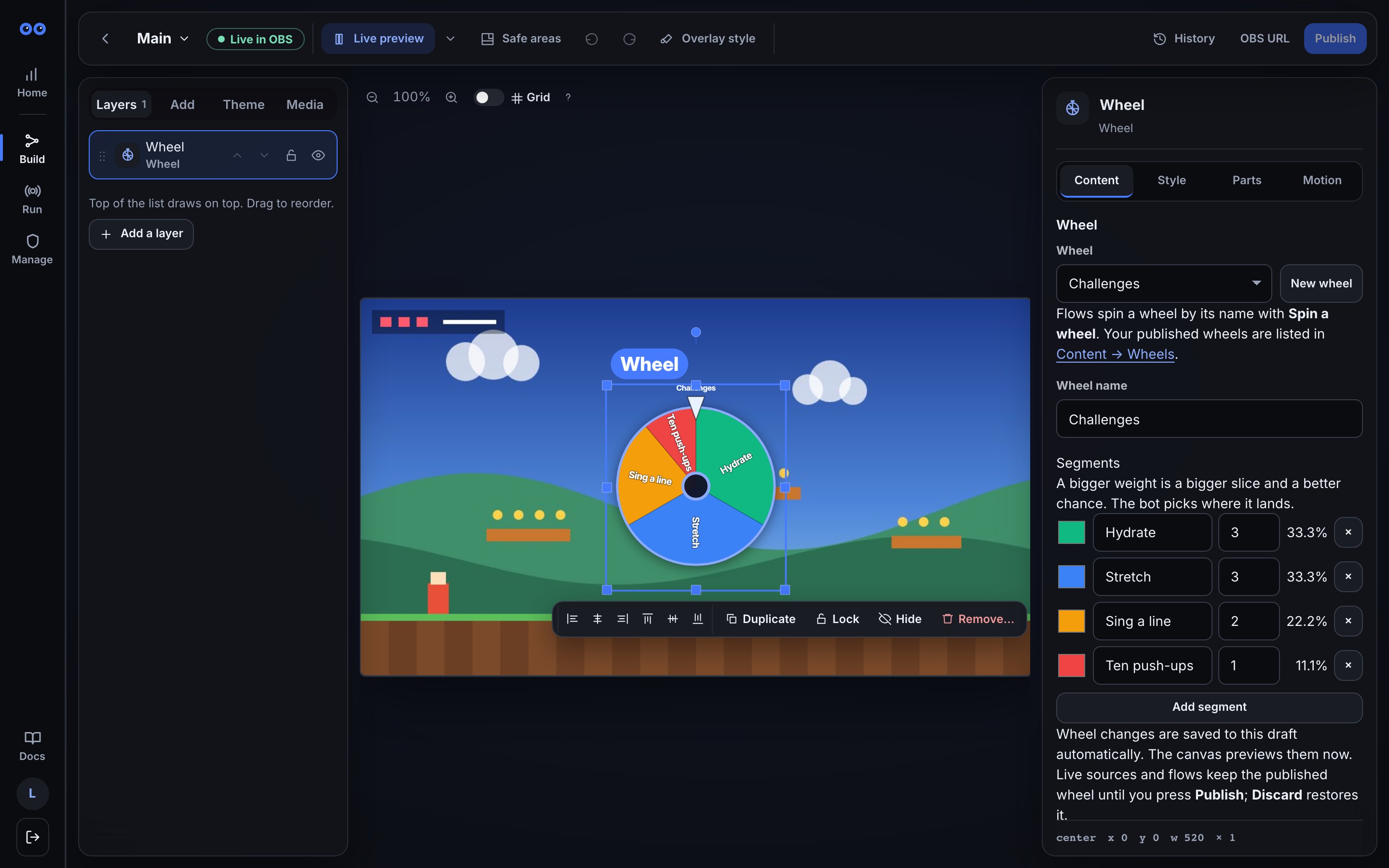
The canvas shows the wheel as you edit it. To watch it spin, open Simulate in the top bar and press Test spin under Test events. A test spin picks its own segment on the canvas; it runs no flow and nothing is said in chat.
2. Choose how it looks
The Wheel layer's panel also has:
- Wheel — which of your wheels this layer shows. One overlay can hold several Wheel layers, each showing a different wheel.
- Show the wheel’s name — the name above the wheel.
- Show where it lands under the wheel — the landed segment's label under the wheel after a spin.
- Keep the result up for — how long the landed segment stays lit, 0 to 60 seconds. After that the wheel stays where it stopped.
Size the wheel by dragging its corners on the canvas, like any layer; Arrange your overlay covers placement. The pointer sits at the top and the wheel takes your overlay theme's accent colour for its rim and cap.
Press Publish to put the layer on stream.
3. Spin it from chat
The Mod commands pack has two flows for the wheel. Open Flows → Explore packs, choose Mod commands and install Spin the wheel (!spin) and Say where the wheel lands. They arrive paused; switch them on.
- Spin the wheel (!spin): a moderator types
!spinand your wheel spins for 6 seconds. With several wheels, they type the wheel's name after it:!spin Challenges. If the wheel is still spinning, chat is told to wait for it to land. - Say where the wheel lands: when a wheel stops, chat hears 🎡 The Challenges wheel landed on Hydrate!
Only one spin runs on a wheel at a time. A !spin while it is still turning is refused rather than queued, so a burst of commands spins it once.
4. Build your own spin flows
Two steps in the node library do everything the wheel does:
- Spin a wheel (an action): set Wheel to the wheel's name — leave it blank to spin your only wheel — and Spin for (seconds), from 3 to 20. It follows busy when the wheel is still spinning, and error with the reason in
$(from.<step>.message)when there is no such wheel. - Wheel lands (a trigger): runs once when a wheel stops. Only this wheel narrows it to one wheel by name. Its tokens are
$(segment)(the label it landed on),$(index)(its number, 1 for the first segment),$(wheel)(the wheel's name) and$(user)(who spun it, when a viewer did).
To let viewers spin it with channel points, make a flow that starts from On a reward redeemed and adds Spin a wheel — Reward redemptions shows how to pick the reward. To spin it from a Stream Deck key, start the flow from a webhook as Webhooks describes.
A Wheel lands flow can do more than talk: put Set a variable after it to count how often a challenge came up, or Show alert to play an alert for a jackpot segment, with a Check a value step that looks at $(segment) first.
A worked example: challenge wheel
- In your main overlay, add a Wheel layer and make a wheel called
Challengeswith four segments: Hydrate (weight 3), Stretch (weight 3), Sing a line (weight 2) and Ten push-ups (weight 1). The panel shows their chances: 33.3%, 33.3%, 22.2% and 11.1%. - Press Publish to put the wheel and its layer on stream together.
- Install Spin the wheel (!spin) and Say where the wheel lands from Mod commands, and switch them on.
- A moderator types
!spin. The wheel spins on your overlay, slows, and stops on Sing a line, which lights up with its label under the wheel. - As it stops, chat reads 🎡 The Challenges wheel landed on Sing a line!
What you should see
- The wheel on your overlay, at rest, with the segments you published.
- On
!spin, a spin of the length the flow set, landing on one segment, with that segment lit and its label underneath for as long as Keep the result up for says. - The same spin on every Browser Source and preview showing the wheel, landing at the same moment — including one you open or refresh halfway through the spin.
- One chat line per spin from Say where the wheel lands.
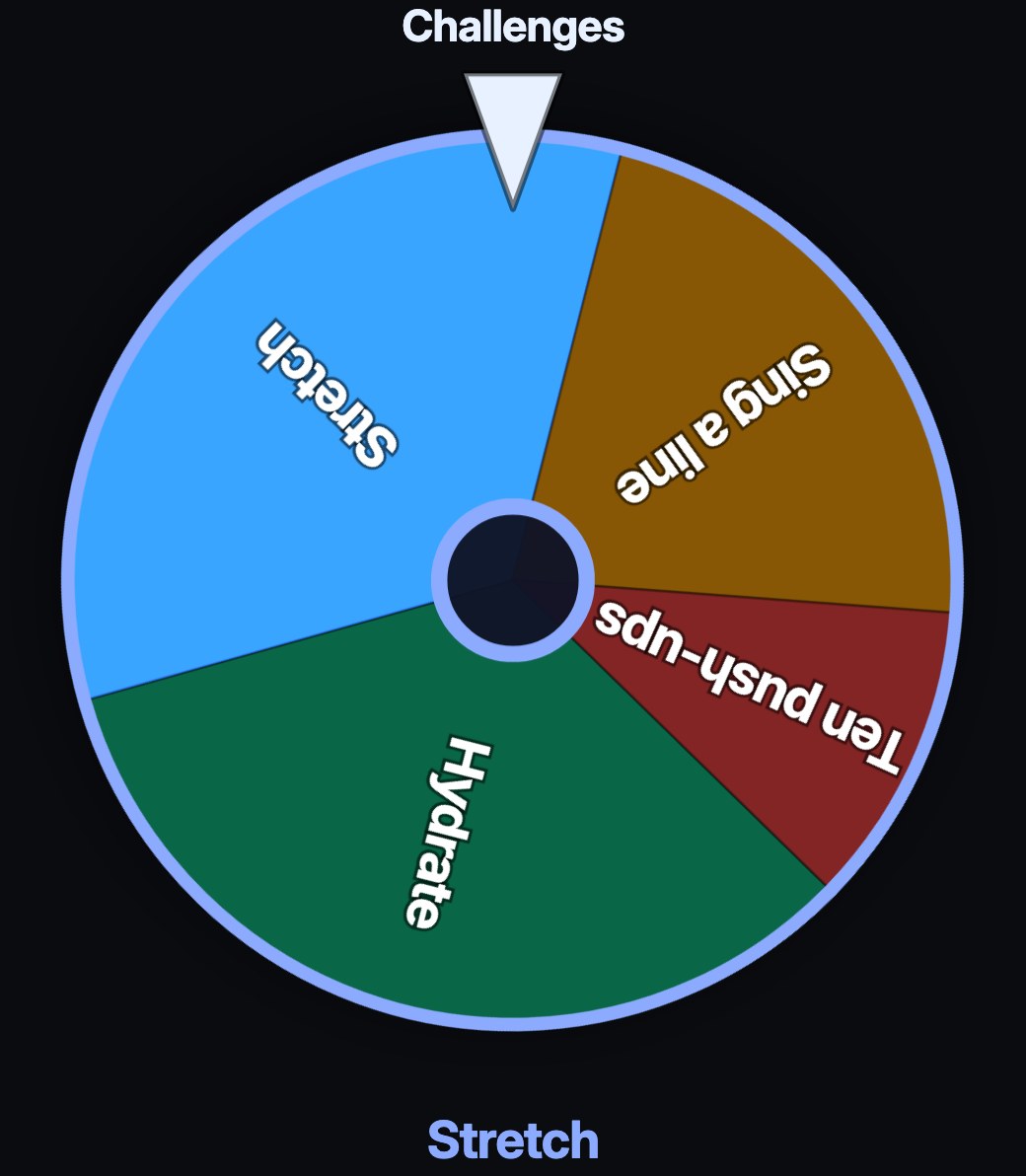
If your system asks for reduced motion, the wheel does not spin: it moves straight to where it lands and lights that segment.
Troubleshooting
- The layer draws nothing: it has no wheel chosen, or the wheel it showed was deleted. Select the layer and pick a wheel under Wheel.
!spinsays there is no wheel: the name after!spindoes not match any wheel. Wheel names ignore capitals but must otherwise match.!spinasks which wheel: you have more than one, so name the one you mean after!spin.- Nothing happens on
!spinfrom a viewer: the built-in command is for moderators and you. Permissions and cooldowns shows how to open it to more people — add a cooldown if you do. - The segments on stream are old: check the Studio preview, then press Publish. If you pressed Discard, Studio restores the last published wheel.
- Studio says a wheel was deleted elsewhere: reload Studio to pick up the current wheel list, then make your edit again.
- A spin was refused as still spinning long after it stopped: a spin stays busy until its result has been reported, which takes at most a few seconds after it lands.
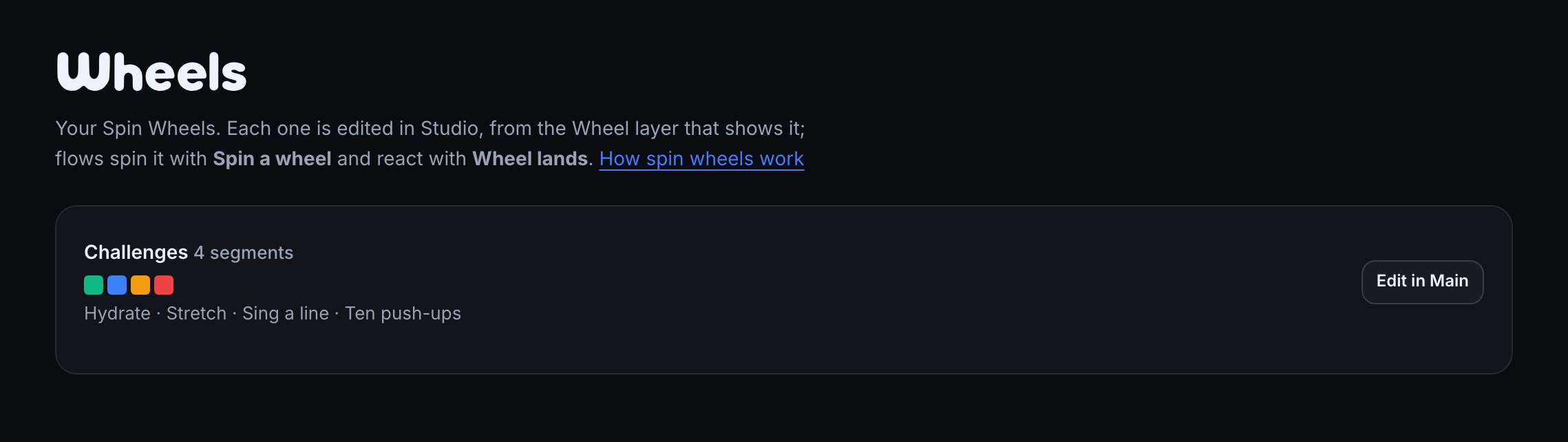
- To see or tidy all your wheels at once, open Content → Wheels. Each wheel lists the overlays that show it — including one whose change is not published yet, marked (unpublished) — with a link into the editor. A wheel no overlay shows can be deleted there; one still on an overlay cannot, so remove its Wheel layer or pick another wheel for it first.
Was this guide helpful?
Thanks. Your answer helps us decide which guides to improve.