
1. Create an overlay and choose its data
For HTML, CSS and JavaScript authored inside Studio and shared in a pack, use a Custom graphic layer. Use the separate custom overlay below when you want to draw your own HTML file in OBS. For an overlay designed inside Bloopbot, copy its URL instead (see Add an overlay to OBS). You need access to Overlays, OBS on your streaming computer and a file you can save there.
- Open Overlays and expand External HTML overlays below your designed overlays. Its Custom overlays section holds the named HTML sources you host yourself.
- Enter a name such as Starting soon data and press Create overlay. Each named overlay gets its own private connection.
- Under Data access, select the event types your page needs. Enter any variable names and specific records it may read, one per line, Enter any Flow message names, such as
celebration, then press Save access. A new overlay has no access until you choose it.
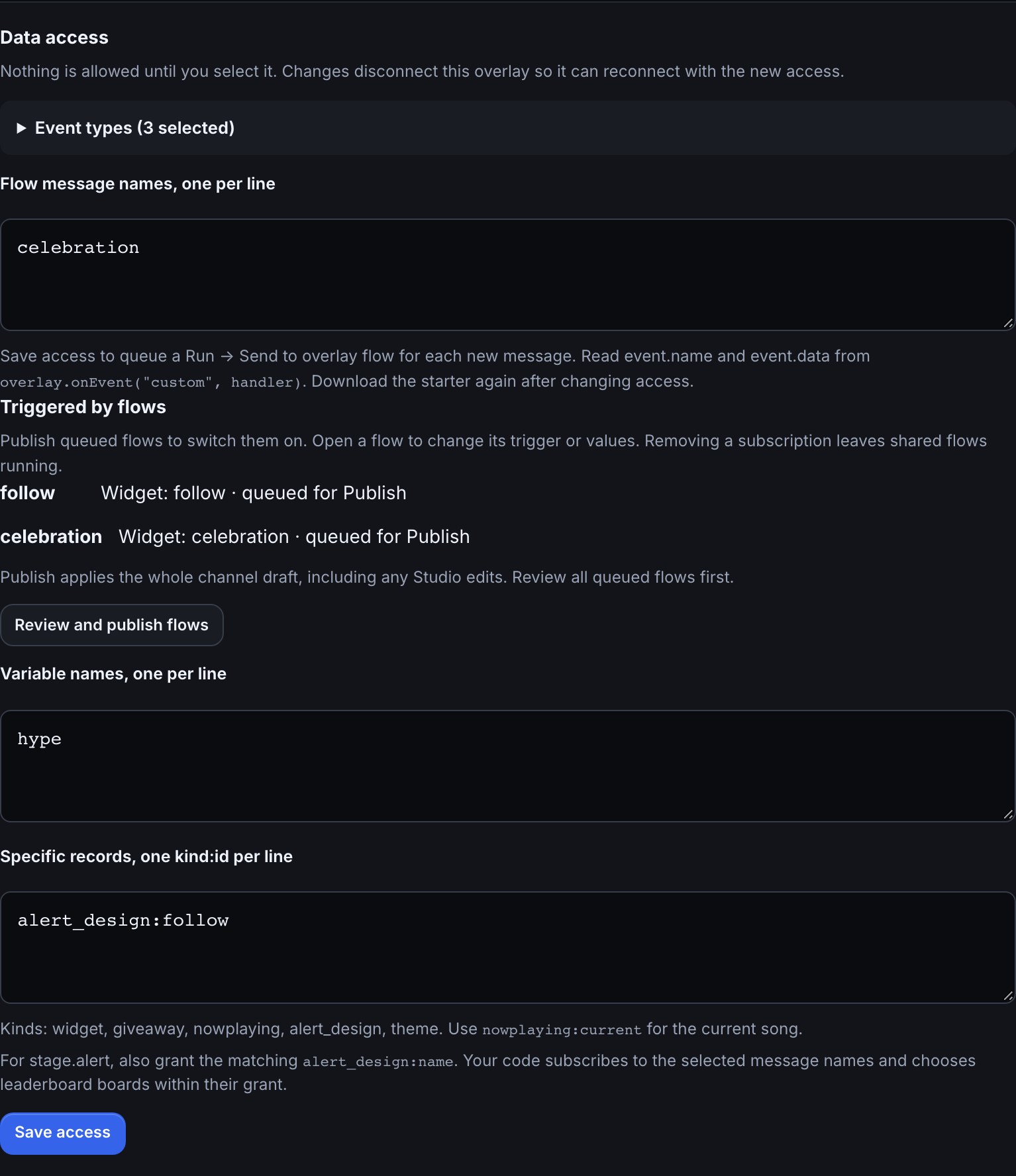
Selecting follow queues or reuses a Follow → Send to overlay flow. Named messages queue or reuse a Run → Send to overlay flow when you save access. Under Triggered by flows, check that every selected alert and message has a flow. Choose Review and publish flows, review the whole channel draft (including any Studio edits), and choose Create and switch on. After publishing, the link opens the flow so you can change its trigger and values. Off or skipped flows do not send messages. Removing a subscription leaves the flow running for any other widgets that use it.
For example, a follower animation needs the follow event and its enabled flow. An alert design also needs stage.alert and the matching alert_design:name record. Use nowplaying:current for the current song. The developer guide lists all event types, record kinds and SDK methods.
2. Save the file and connect OBS
- Press Download starter HTML. The file is a transparent example and contains no credential. Save it on the computer that runs OBS; a file on another computer is unavailable to OBS.
- Enter that file's full path under Starter file path on your streaming computer and press Save path. For example:
/Users/you/overlays/bloopbot-overlay.html. - Select the copy icon (Copy OBS URL). In OBS, add a Browser Source, paste the address into its URL field, set it to 1920 × 1080, and leave Shutdown source when not visible unticked so the overlay keeps working with OBS while its scene is off screen (see Let it work with OBS). Alerts from your alert queue then play only where OBS shows the overlay, and wait while it is hidden (alerts in more than one scene).
- Keep the scene visible. Select the refresh icon (Refresh status) on the named overlay. The heading should show a connected source.
For alerts, press Test published output… on an alert layer after connecting your source. The copied URL is private, although the page does not display it. Anyone who has it can read the data you chose for this overlay, and a page opened with it can also report what OBS is doing and act as your channel's OBS link, which can start your flows. Treat it like a password: keep it out of screenshots, public repositories and shared files. The rotate icon (Rotate private URL…) makes the old one stop working, and with it any page using it; paste the new URL into every OBS source that used it.
A downloaded starter subscribes to the selected events and message names. Download it again after changing access. For a message, use overlay.onEvent("custom", handler) and check frame.name; your flow’s Values arrive in frame.data. You can edit the HTML to draw your own design, or build with the npm package. The developer guide includes both ways. Grant each event or record that your code requests. If a request is not granted, the SDK reports it as a diagnostic and continues with the allowed data.
Let it work with OBS
Your own overlay can tell Bloopbot what OBS is doing and switch scenes for your flows, the same way a designed overlay does (see Control OBS from flows). There is nothing to set up: an overlay page built on Overlay SDK 1.2 or later does it on its own when it runs in an OBS Browser Source. The starter you download now uses 1.3.2.
- Check the script line in your HTML file. It ends in
overlay-sdk-1.2.0.jsor a later version. An older version never works with OBS this way; change the number, save the file and refresh the source in OBS. - To let flows switch scenes or save replays, open the Browser Source's properties in OBS and raise Page permissions to the level the OBS guide's table gives for that action.
- For this overlay to keep working with OBS while its scene is off screen, untick Shutdown source when not visible on its Browser Source. Or keep a designed Bloopbot overlay open in OBS as well. Once it works with OBS, alerts from your alert queue play only in the copies OBS is showing, as on a designed overlay (alerts in more than one scene).
For example, after step 2 at Advanced access to OBS, a flow with Switch OBS scene to BRB switches OBS to BRB through this overlay, and a flow that starts on OBS changed scene runs when you switch scenes yourself. If several overlays are open in OBS, Bloopbot uses one of them at a time, so nothing runs twice.
To keep one overlay out of it, ask whoever made the page (or your AI assistant) to start it with createOverlay(subscriptions, { obs: false }). That page then never reports OBS's events and never acts on OBS. OBS overlay shown/hidden cannot watch it either.
Build an overlay from the brief
Select a named overlay and select the copy icon (Copy AI brief). The brief names that overlay's selected data and leaves out its private URL.
- Paste the brief into your AI assistant and describe the overlay you want.
- Save the HTML it gives you on your streaming computer.
- Enter its full path, save it, then copy the new OBS URL into your Browser Source.
- Check the scene in OBS. For an alert, choose Test published output… on an alert layer and confirm Play it on stream. This queues a test on your overlay; it does not send a Twitch event.
The flow editor's Test fire checks the flow's decisions separately. Its simulation does not send an alert to OBS. The SDK's local simulation also stays on your computer and never opens a live connection.
Fix missing or duplicate output
If nothing appears, make the OBS scene visible, check the saved file path and select the refresh icon (Refresh status). A zero count means the source is not connected to this named overlay. If it connects but an event is missing, check both Data access and the event names requested by your code. For alerts, grant stage.alert and the relevant alert_design:name record.
If an event never appears, check Triggered by flows: publish queued flows and switch Off flows on in the flow editor. Check the Send to overlay message name or alert format matches your subscription.
The current starter reconnects automatically after a connection stops receiving traffic. Keep its state handler so your page can show when it is reconnecting; download a fresh starter when updating an older page.
If an event appears twice, check for duplicate OBS Browser Sources and multiple enabled flows responding to the same event. Test one source and one event path at a time. After changing access, the source reconnects with the new grants. After rotating the private URL, every OBS source using the old URL needs to be updated.
Was this guide helpful?
Thanks. Your answer helps us decide which guides to improve.