
What a tutorial is
A tutorial is Pebble, Bloopbot’s robot, showing you how to do one job on the real pages of your dashboard. The page dims except for the control you need, Pebble sits beside it and says what to do, and a ghost hand shows the move once before you try it. Nothing is a video or a mock-up: you press the real buttons, and your overlay, flow or setting is really made.
Pebble notices when each step is done, so you never tick anything yourself. For the few steps Bloopbot can’t watch, such as opening your streaming app, the card shows Next. Some steps have Do it for me, which does the fiddly part for you.
Finish a tutorial and Pebble gives you its sticker. A tutorial runs only for you: your progress is yours, and a helper on your channel keeps their own.
Your first overlay
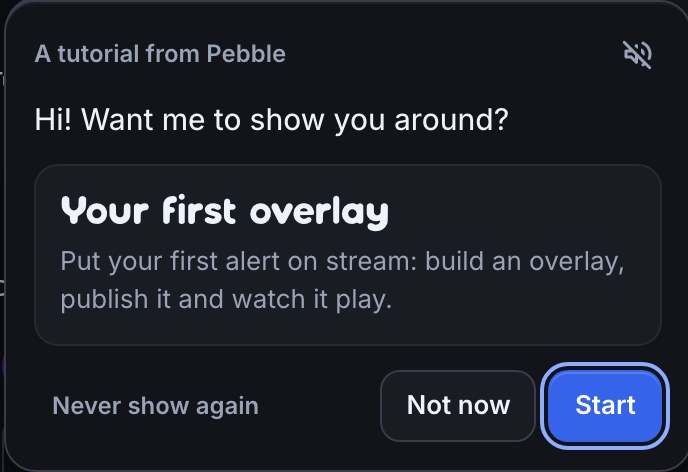
Your first overlay is where every new channel starts. Right after you sign in with Twitch you land on Overview, where Pebble offers it. Press Start to begin; Not now leaves it waiting on the Tutorials page, and Never show again turns it off. If you already had a channel before tutorials arrived and haven’t made an overlay yet, Pebble offers it once.
You build one alert, start to finish, and watch it play:
- Pebble says hello and shows the path an alert takes: Twitch, then a flow, then your overlay, then your streaming app. Each stage lights up as you complete it.
- If Twitch hasn’t told Bloopbot whether you’re an Affiliate or Partner, Pebble asks. A channel without a Twitch level builds a follower alert; Affiliates and Partners build a sub alert.
- Make an overlay on Overlays (or let Pebble make one called “My alerts”), then drag the alert onto the canvas in Studio.
- Change the alert’s message, or skip that step, and press Publish. Publishing also makes the flow that plays the alert; Pebble takes you to look at it.
- Copy the overlay’s address and tell Pebble what you stream with: OBS Studio, Streamlabs Desktop, Meld Studio or something else. Pebble shows where the address goes in that app.
- Press Test on stream. The tutorial finishes when the test alert really plays in your streaming app, so a source that isn’t visible in your current scene, or one that isn’t this overlay, keeps it waiting, and Pebble says what looks wrong. Test alerts and check OBS delivery covers the same checks.
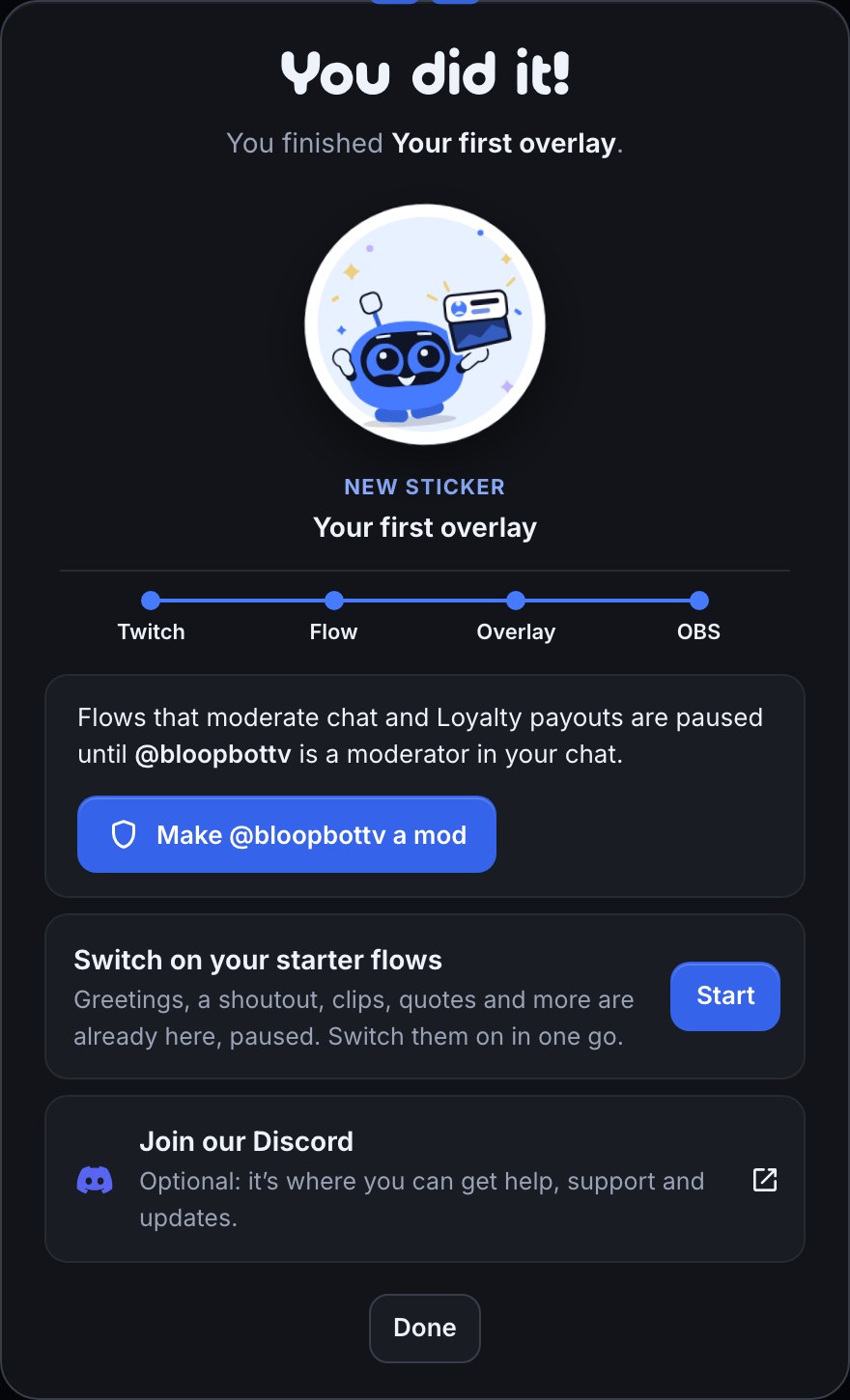
When the alert plays, Pebble celebrates and gives you the sticker. The last card makes your bot a moderator in one press (Make @your_bot_username a mod), so its flows can run, and offers what to do next. Below them is an optional card to join the Bloopbot Discord for help, support and updates; it opens in a new tab, and skipping it changes nothing. While a tutorial is on screen, any Discord invite from your sign-up link steps aside and comes back when the tutorial hides.
The Tutorials page and Pebble’s sticker book
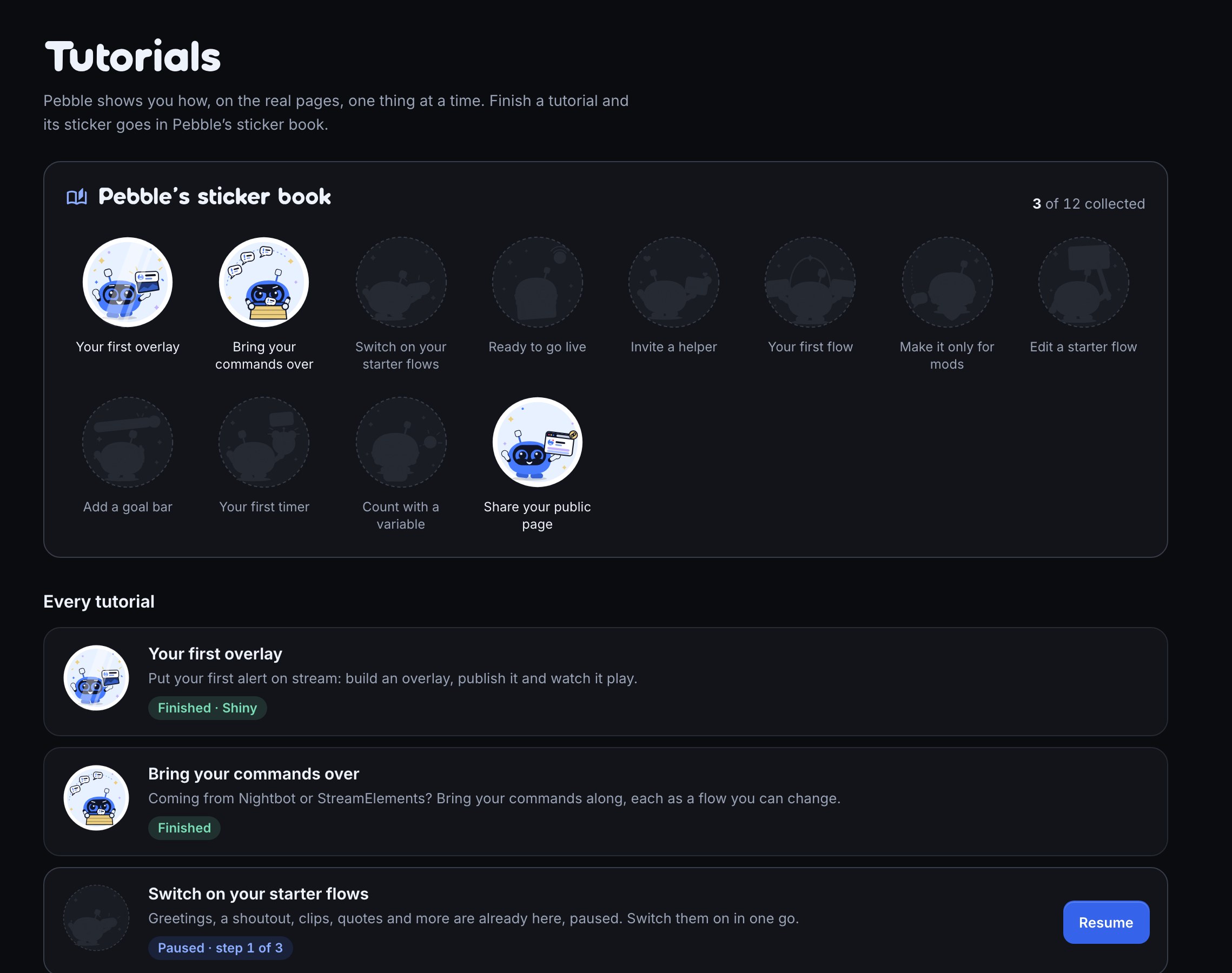
Open Tutorials in the sidebar (the button with the graduation cap near the foot of the strip, or Tutorials in the phone menu). The page has two parts:
- Pebble’s sticker book shows one slot for every tutorial you can see. A finished tutorial’s sticker is in full colour; the others are silhouettes. The count, such as 3 of 12 collected, sits at the top.
- Every tutorial lists a card for each one, with what it teaches and where you stand: New, In progress, Paused, Finished or Turned off. A card’s button reads Start, Resume or Start again, and opens the page where that tutorial’s next step happens. A finished tutorial has no button, because its sticker is already yours.
Shiny stickers
Some stickers turn shiny later. Your first overlay’s sticker shines when the first real alert plays on your stream, not a test, but a real new follower or sub. If your dashboard is open, Pebble tells you straight away (“Your first real follow alert just played on stream!”); otherwise you’ll see it on your next visit. Stickers are private to your channel’s team, and there are no points or levels.
The Tutorials button and the Continue card
You don’t have to remember to come back. The Tutorials button on the sidebar’s strip shows a ring that fills as stickers are collected, and a dot when something is waiting: a tutorial Pebble would like to offer, a new shiny sticker or a paused tutorial. Press it for a small panel:
- Continue names the tutorial you’re part-way through, with its step and a Resume button.
- Next up names the next tutorial to try, with a Start button.
- Open sticker book goes to the Tutorials page.
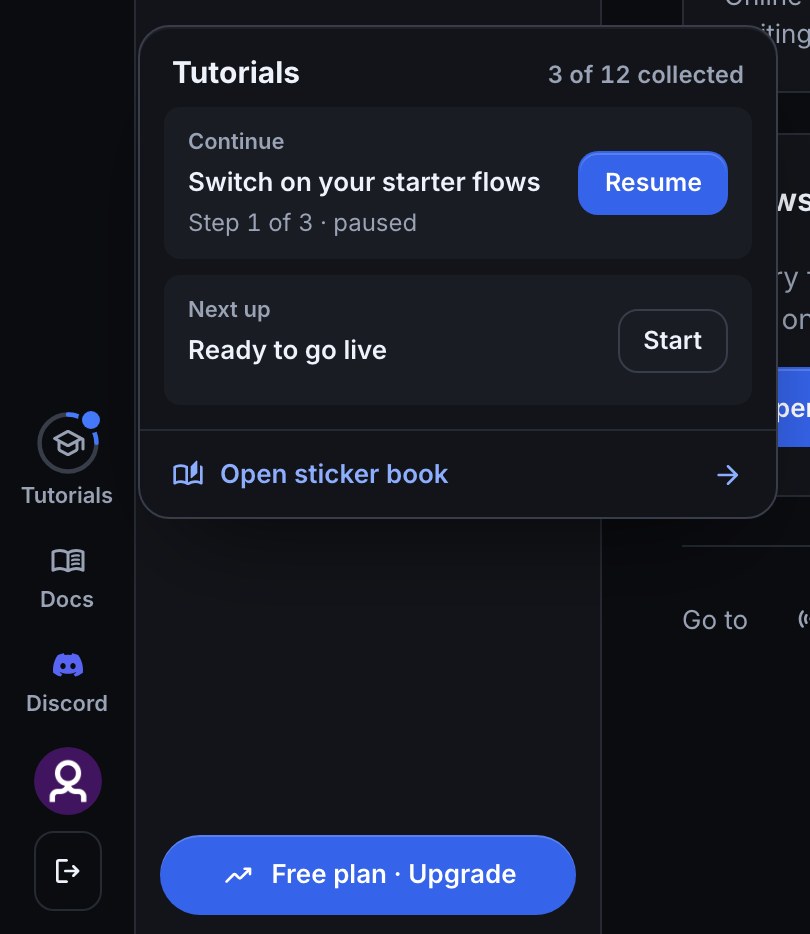
While a tutorial is paused or running, Overview carries the same thing as a card: Continue: the tutorial’s name and the step, with a Resume button.

While a tutorial runs
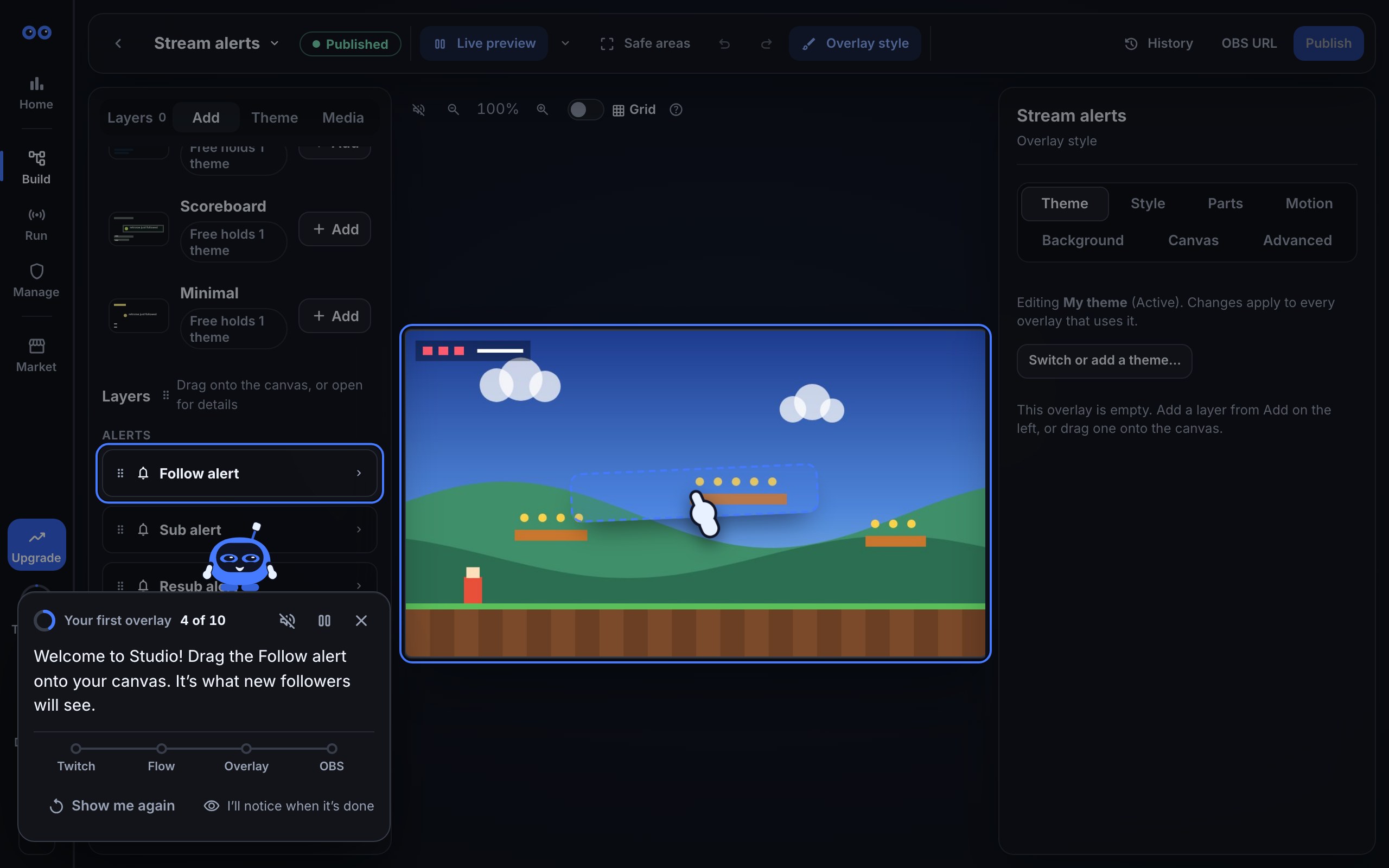
Pebble’s card shows the tutorial’s name, a ring and a step count (“step 4 of 10”), then what to do. Along the bottom:
- Next moves on from a step Bloopbot can’t watch. A step it can watch says I’ll notice when it’s done instead.
- Skip step appears on steps you can pass over, such as changing an alert’s message.
- Show me again replays the ghost hand’s demonstration.
- Do it for me does the step for you where Pebble can, such as making your first overlay.
- Take me there appears when the next step is on another page. Pebble also lights up where that page lives in the sidebar, so you learn where things are.
Icons at the top of the card:
- The speaker turns Pebble’s chirps on or off. They’re off until you turn them on.
- The pause icon (Pause the tutorial) asks “Pause the tutorial? I’ll keep your place.” Choose Pause and carry on with your day; the tutorial waits on the Tutorials page, the rail button and Overview until you press Resume. Pressing Escape from the card or the highlighted control asks the same question.
- The close icon (Never show this again) asks “Turn this tutorial off?” Choose Never show again and it won’t pop up again. It stays on the Tutorials page as Turned off, and Start again brings it back with your progress kept.
Keep going in either question changes your mind.
If you use the keyboard, press Alt+Shift+P to jump to Pebble’s card from anywhere on the page, and again to return to where you were. Tab from the highlighted control goes straight into the card.
If you leave a step alone for a little while, Pebble gives you a gentle nudge. With reduced motion turned on in your system, Pebble fades between places instead of flying, and the ghost hand doesn’t travel.
The tutorials
Tutorials appear in the order Bloopbot would suggest them. Pebble offers at most one a day, and only when it fits where your channel is; you can start any you can see from the Tutorials page at any time.
| Tutorial | What you do |
|---|---|
| Your first overlay | Build, publish and test a follower alert (a sub alert if you’re an Affiliate or Partner) so it really plays in your streaming app. |
| You made Affiliate! Add a sub alert | After Twitch makes you an Affiliate, add a sub alert to an overlay you already have. |
| Bring your commands over | Bring commands over from Nightbot or StreamElements, each as a flow you can change. Offered when Pebble finds them. Coming from Nightbot and Coming from StreamElements cover the importer. |
| Switch on your starter flows | Turn on the greetings, shoutout, clips, quotes and more that are already on your channel, paused. |
| Ready to go live | Before your first stream: check your overlay, an alert, your bot and your flows, then meet Live. |
| Invite a helper | Bring in an editor who builds with you, or one of your moderators to run the stream. See Share the work with mods and editors. |
| Your first flow | Build a !lurk command from nothing: a trigger, a reply, Test fire and the Live switch, then try it in your chat. See Create your first chat command. |
| Make it only for mods | Add a Who can trigger check so only moderators can use a command, and see where your Commands page lists it. |
| Edit a starter flow | Open one of the flows that came with your channel and make its message sound like you. |
| Add a goal bar | Put a bar on stream that fills as followers or subs come in. |
| Channel points alert | Make a channel points reward pop up on stream every time a viewer redeems it. For Affiliates and Partners; see Trigger alerts, sounds and replies with channel points. |
| Your first timer | Make your bot speak up every few minutes, only while you’re live and chat is awake. See Post a recurring chat message. |
| Count with a variable | Declare a number your bot remembers, then build a !death command that adds one and says the count. See Keep a counter with variables. |
| Share your public page | Turn on your public page, then copy the one link for your Twitch bio. See Make your public page your one link. |
Who sees which tutorials
Each person sees the tutorials that fit what they can do on the channel.
- Owners see all of them. Ready to go live and Invite a helper are for owners only, because they check the bot and the team.
- Editors see the ones about building: overlays, alerts, flows, variables, the importer and the public page. They find Your first overlay on the Tutorials page rather than being offered it, because first run belongs to the owner.
- Moderators you’ve let into the dashboard don’t have any tutorials yet. Their Tutorials page says so, and the sidebar has no Tutorials button.
- You made Affiliate! Add a sub alert appears once Twitch has made your channel an Affiliate or Partner, and Channel points alert is for Affiliates and Partners, since only they have channel points.
Progress belongs to each person. An editor pausing, skipping or turning off a tutorial changes nothing for the owner. When an editor finishes Your first overlay, though, the channel counts as set up, so Pebble stops landing the owner on first run.
If something looks wrong
- Pebble says a step isn’t done, but it is. Pebble re-checks every few seconds and whenever you return to the tab. Give it a moment, or reload the page.
- Pebble says the control has gone. Pebble scrolls it into view and says where it went if it can’t find it. Check you’re on the right channel and page, or press Take me there.
- The test alert never plays in OBS. The tutorial waits for a real play. Test alerts and check OBS delivery and OBS is blank or the test never arrives cover the usual causes: the source hidden in the current scene, or the wrong address.
- You turned a tutorial off by mistake. Open Tutorials and press Start again on its card.
- No Tutorials button. It’s shown to owners and editors. A moderator’s dashboard shows only the pages that run the stream.
- A card didn’t appear for a tutorial. Pebble offers one a day at most. Open Tutorials and press Start to begin any tutorial you can see.
Was this guide helpful?
Thanks. Your answer helps us decide which guides to improve.