
Before you start
You need an overlay in OBS. Add a widget to OBS takes you from New overlay to a Browser Source; a countdown is one more layer on it.
A Countdown layer counts in one of three ways:
- For a length of time — five minutes of Be right back, say.
- To a time of day — Starting soon, down to 20:00.
- Count up — a stopwatch: how long you have been live, or on this boss.
The clock runs on Bloopbot, not in OBS. Every overlay that shows a Countdown layer of the same name shows the same time, and refreshing a Browser Source, or closing OBS and opening it again, keeps the time it had.
1. Add a Countdown layer
- Open Widgets and open the overlay you use for your break or starting scene, or press New overlay and choose one of the Countdown starting points under Start with: Be right back, Starting soon or Stopwatch.
- On an existing overlay, choose Add on the left and drag the Countdown card from Chat & info onto the canvas, or click it to drop it in the middle.
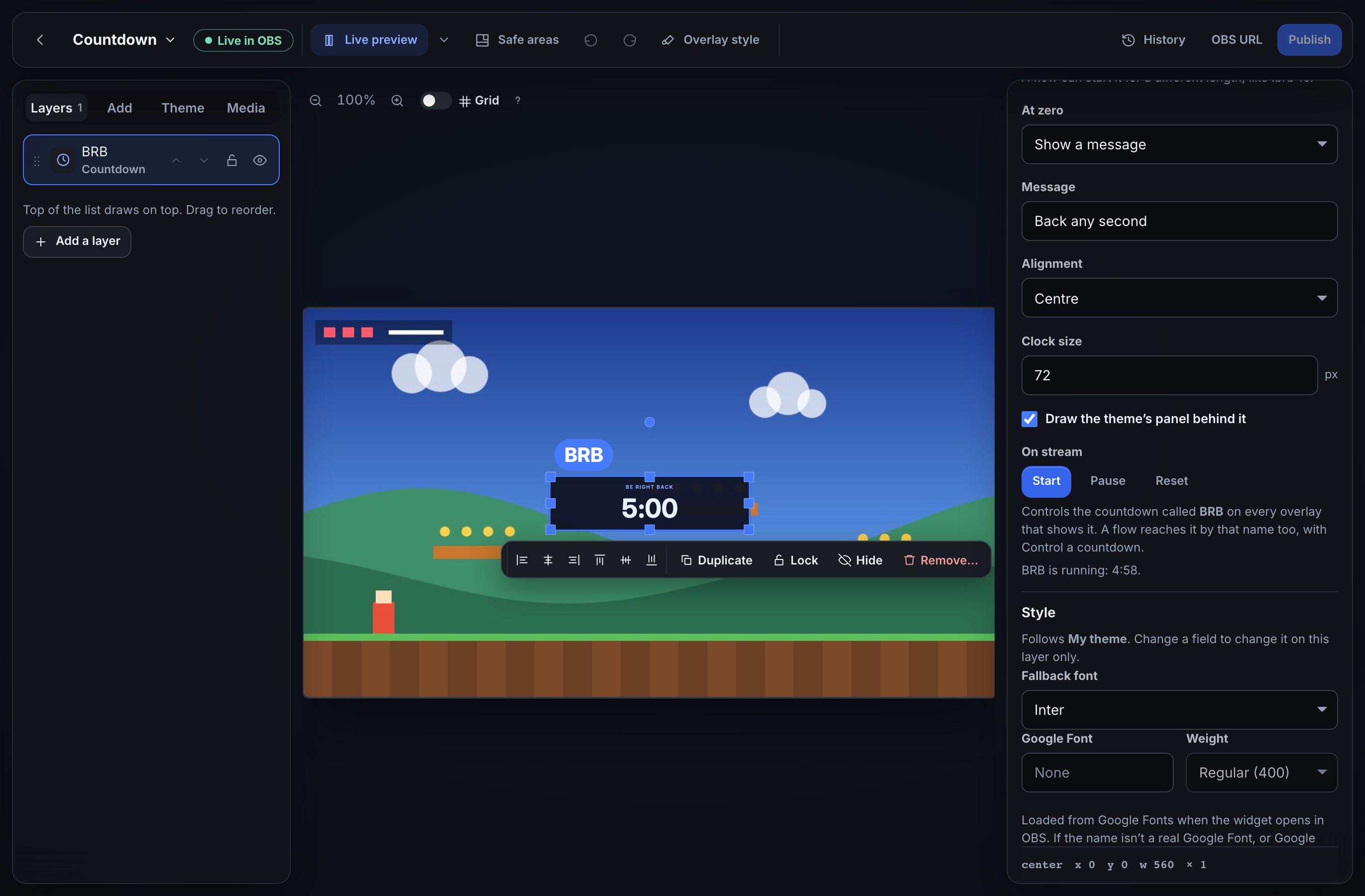
- The layer is called BRB. Its name is what chat commands and flows use to reach it, so keep it, or give it a name of its own under Layer name — Starting soon, Intermission. Rename a layer while its countdown runs and the layer lets go of it: it shows its idle look under the new name, and the running countdown carries on under the old one until it ends or you reset it.
- Under Settings, choose what it Counts: For a length of time with its Length in minutes, To a time of day with the time it Counts to, or Count up.
- Choose what it shows At zero: Show a message (the Message field, such as Back any second), Stay at 0:00, or Hide the layer.
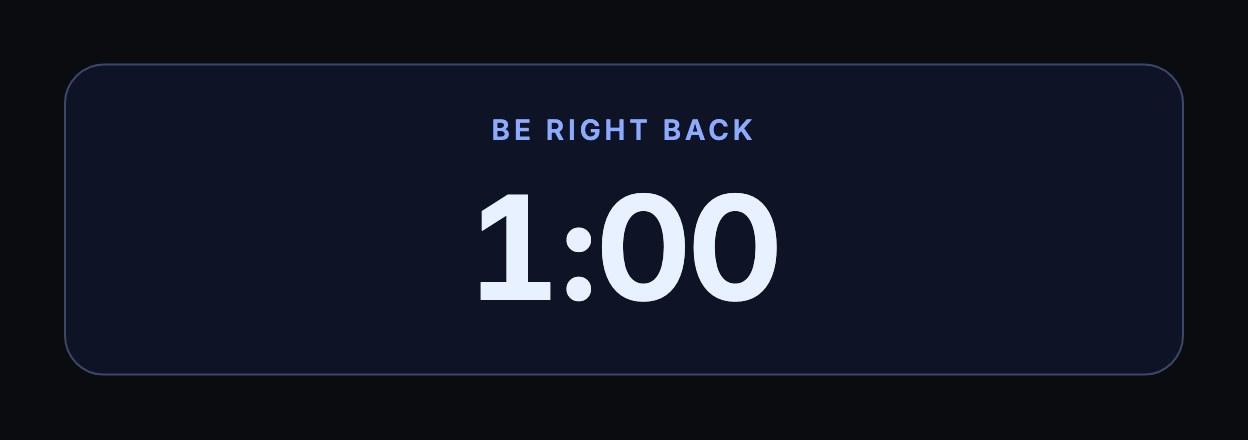
- Give it a Heading if you want one, such as BE RIGHT BACK, and set its Alignment and Clock size. It is drawn in your overlay’s theme, like every other layer.
- Press Publish to put the layer on stream.
Until it is started, a layer counting a length of time shows that whole length; the others show 0:00.
2. Start, pause and reset it from the editor
Select the layer and use the buttons under On stream:
- Start starts the countdown on every overlay that shows a layer with this name. On a paused countdown, it carries on from where it stopped.
- Pause stops it where it is. A paused countdown stays paused until you start or reset it, even across a restart of OBS.
- Reset takes it back to how the layer looks before it is started.
The line under the buttons says what happened: BRB is running: 5:00. These buttons act on stream straight away — there is nothing to publish, and they work on a layer you have not published yet, which then shows the running countdown once you do.
3. Start it from chat with !brb
The Mod commands pack holds Be right back: !brb. Open Flows → Explore packs, choose Mod commands and install that flow — see Use templates and flow packs — then turn it on.
A mod, or you, types !brb 5 in chat. The Countdown layer called BRB starts at five minutes and the bot says Be right back! Back in 5:00. !brb on its own starts the layer’s own length, and !brb 10 while it is running starts it again at ten minutes.
!brb is made for a layer that counts For a length of time. A number after it always counts down that many minutes, whatever the layer is set to count; !brb on its own starts the layer the way it is set, so on a Count up layer the reply reads Back in 0:00 — change the reply to suit, or point the command at a layer that counts a length of time.
The flow is four steps you can change: the Chat command trigger, a check that only mods run it, Control a countdown, which names the layer to control and the minutes to use, and the Chat message that answers. Point it at another layer by changing its Countdown layer field, or copy it for a !starting command. If no Countdown layer has that name, the flow says so in chat instead.
Control a countdown can also Pause, Reset or Add time — a number of minutes, or a negative number to take time off, such as a !more 2 command that adds two minutes.
4. Do something when it ends
A flow that starts with the Countdown ends trigger runs once when a countdown reaches zero. Leave Only this countdown blank to run for any of them, or name one, such as BRB. The trigger offers $(name), the countdown that ended.
For example, to say you are back:
- Open Flows, press + New flow, and choose the Countdown ends trigger. Set Only this countdown to BRB.
- Add a Chat message step: We're back — thanks for waiting!
- Save the flow and turn it on.
The widgets reach zero on their own clock, exactly on time; the flow follows within a few seconds. A countdown you pause or reset before zero never ends, so the flow does not run for it, and a count-up never ends at all.
The flow runs at most once for each time a countdown ends — never twice, even if the moment is handled twice. On a rare hiccup at that exact moment it can be missed, so a countdown that ends on screen without your flow running is not something to fix in the flow.
Counting to a time of day
To a time of day counts to the next time the clock reads the time you set — later today, or tomorrow if that time has passed.
It uses the time zone of your Schedule, the one you pick when you add a stream on the Schedule page. If you have never added a stream there, the editor’s Start uses the time zone of the computer you press it on, and a flow uses UTC. Once started, a countdown is fixed to that moment: changing a time zone later does not move it.
Style it with custom CSS
A Countdown layer draws a panel, a heading and the clock, which your overlay’s custom CSS can style by these names:
| Selector | What it is |
|---|---|
.w-countdown | The layer’s panel. |
.w-countdown .w-caption | The heading above the clock. |
.w-countdown-time | The clock, or the message at zero. |
.w-countdown[data-state="running"] | The panel while it counts. The other states are idle, paused and ended. |
For example, .w-countdown[data-state="paused"] .w-countdown-time { opacity: 0.5; } dims the clock while it is paused. Style parts with custom CSS shows where to put it.
What you should see
- Before it starts: the layer’s length, such as 5:00, or 0:00 for the other two ways of counting.
- Once started: the clock counting down, or up, on every overlay with a layer of that name, all showing the same time.
- At zero: your message, 0:00, or nothing, as the layer says, and any Countdown ends flow running a few seconds later.
If something looks wrong
- !brb answers No Countdown layer is called "BRB": no published overlay has a Countdown layer with that name. Check the layer’s name under Layer name and press Publish, or change the flow’s Countdown layer field to match.
- The countdown does not move in OBS: check that the Browser Source uses the overlay’s current URL and its scene is visible. A countdown that was paused stays paused — press Start.
- Two overlays show different times: they are showing layers with different names. Give them the same name to share one countdown.
- The countdown shows the wrong time of day: see Counting to a time of day for which time zone it uses.
- The Countdown ends flow did not run: check it is turned on and that Only this countdown matches the layer’s name. A countdown paused or reset before zero does not end.
- The buttons under On stream say countdowns are not available: a Countdown layer may not be available on your channel yet.
- A button, or !brb, answers Countdowns are busy or unreachable right now: nothing changed. Try again in a moment.
Was this guide helpful?
Thanks. Your answer helps us decide which guides to improve.