
Before you start
You need an overlay in OBS: Add a widget to OBS takes you from New overlay to a Browser Source, and everything below happens in that overlay’s editor. Alerts come with every channel, and so do the Show alert, Play media and Alert queue steps that drive them. So does a media library for their pictures and sounds: every channel can upload 25 MB, paid plans hold more, and the Media storage line under Limits in What your plan includes shows yours.
- An alert layer is where one alert draws on an overlay. It shows one alert design: the look, text, picture and sound of that alert.
- A design belongs to your channel, not to one overlay, so you can place it on as many overlays as you like and change it from any of them.
- Every alert, and every file a flow plays, waits its turn in one alert queue and plays one at a time, so nothing overlaps or talks over anything else.
- A real alert needs its Twitch event — a follow, a raid. Every test in this guide works without going live, and says whether viewers will see it.
1. Add an alert to an overlay
- Open Widgets and click the overlay that should show the alert.
- Choose Add on the left of the editor. The Alerts group has one card per alert type: Follow alert, Sub alert, Resub alert, Gift sub alert, Cheer alert, Raid alert, Redemption alert and Custom alert. A card already placed on this overlay is marked On this overlay.
- Drag a card onto the canvas to drop it where you let go, or click it to add it in the middle.
- Read the message at the bottom of the editor. The first time you add a type, Bloopbot makes its design and a flow that plays it: “Added the raid alert — its flow Alert: raid is created when you publish.”
- Press Publish. The editor says Published — OBS updates now. Created flow Alert: raid. The new flow is switched on, and your overlay in OBS has the layer.
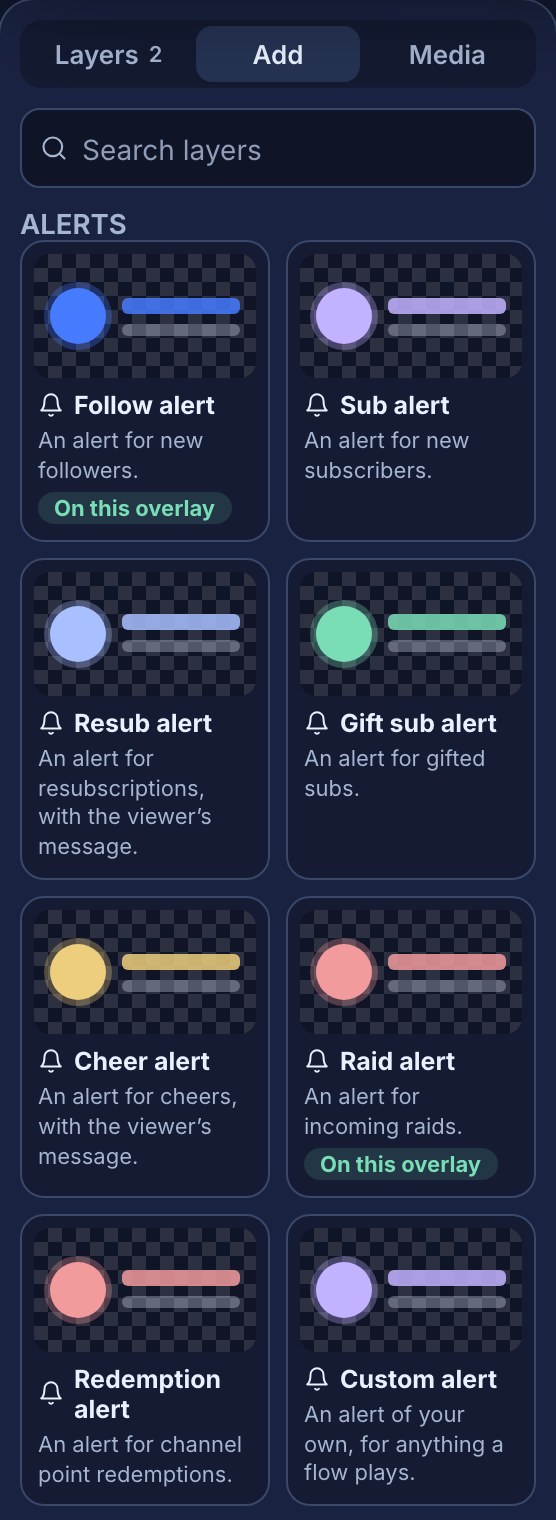
Adding a type your channel already has a design for makes nothing new: it places that design, and the message says “Placed your existing raid alert — same design as your other overlays.” Custom alert makes a new design named custom-1 (then custom-2, and so on) with no flow, for a flow of your own to play with Show alert. Redemption alert asks which reward plays it: pick it under Plays on (step 4).
The same design can sit on several overlays at once — raids big in the middle of your gameplay scene and small in a corner of your chatting scene. The layers share the design; only their place and size on each canvas differ.
2. Change how the alert looks
Click the alert on the canvas, or its row under Layers. The panel on the right edits the design the layer shows, named in its header: Alert · shows the raid design. When the design is placed on another overlay too, the panel says so — Also on Gameplay — edits here change it there too.
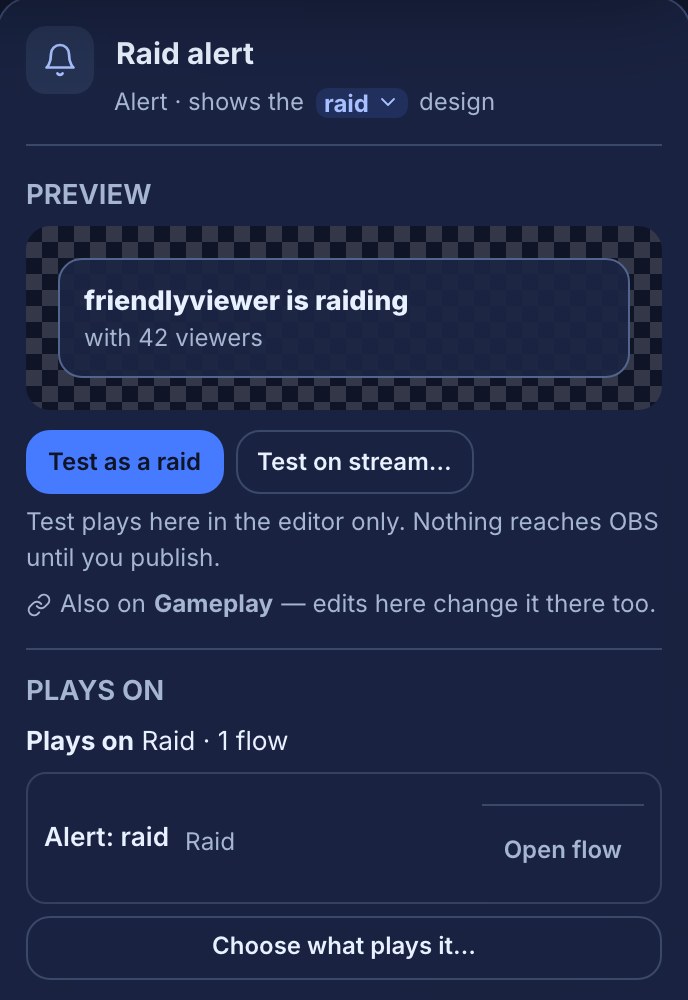
- Preview shows the design at card size with sample words, above its two tests (step 5).
- Text: Title and an optional Subtitle, which can use
$(name),$(amount),$(months),$(tier),$(message)and$(viewers)— Insert… adds one — and Show the viewer’s message. - Image & sound: Image (step 3), Video, Sound and Volume, each picked from your media library.
- Motion: how long it stays On screen, and how it animates in and out.
- Alert queue settings, at the bottom: Gap between alerts and the Queue limit. They are shared by every alert and media layer on your channel.
The design name in the header is a menu. Show a design switches this layer to another of your designs; New design copies the one shown under a new name, for this layer only; Rename design… and Delete design… are covered in step 4. A design name is lowercase letters, numbers, - or _.
Your changes save to your draft as you make them. OBS keeps showing the published design until you press Publish — see Arrange your overlay, step 5.
3. Show the viewer’s avatar
Under Image & sound, Image offers Their avatar, From library or None. Their avatar shows the Twitch profile picture of whoever the alert is about: the follower, subscriber, cheerer or redeemer; the raiding channel for a raid; and the gifter for gifted subs.
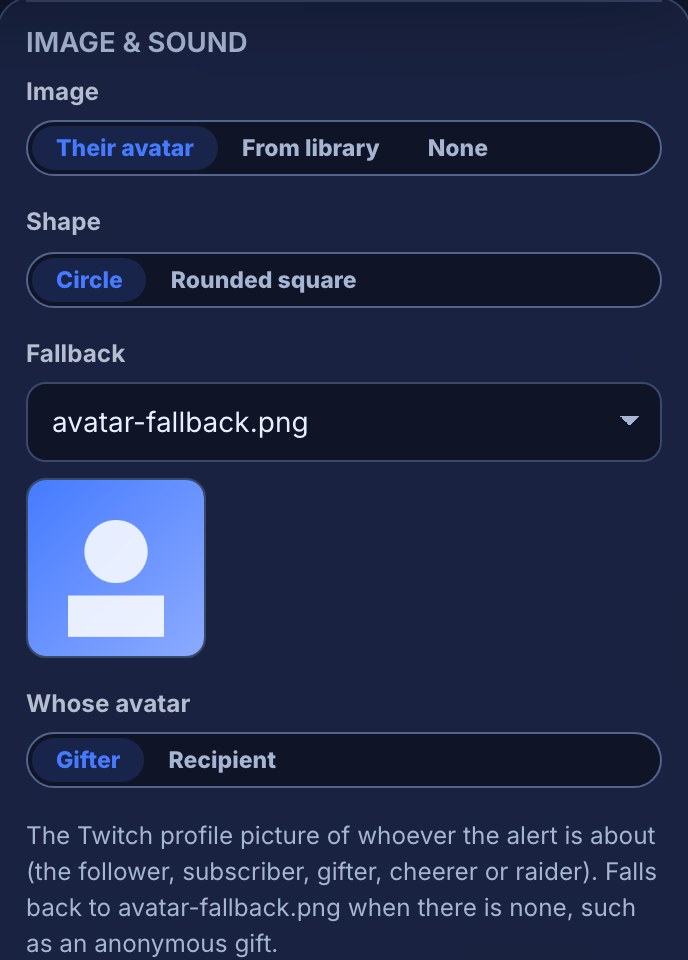
- Choose Their avatar.
- Pick a Shape: Circle or Rounded square.
- Pick a Fallback from your media library for when there is no avatar to show, or leave it on None for no picture.
- On a design that plays on Gifted subs, Whose avatar appears: Gifter or Recipient. For a gift of several subs at once, Recipient shows the first person who got one.
- Publish.
A flow’s Show alert step has an Avatar of field. Leave it blank for whoever triggered the flow, or give a Twitch name, with or without @ — a shoutout command sets it to $(1) so the card shows the channel being shouted out.
- The fallback shows straight away, with no wait, for an anonymous gift, a name Twitch does not know, a picture that will not load, or when Twitch takes longer than half a second to answer. An alert never waits for a picture.
- Someone who has just changed their picture may appear with the old one for up to an hour.
- A design with a Video plays the video instead of the picture.
- Tests from the alert panel show your own Twitch picture. Alerts sent by a script with a write key show the fallback.
4. Choose what plays it
Plays on says which flows play the design, for example Plays on Raid · 1 flow, with a row per flow naming its trigger and an Open flow link. A flow with checks before its Show alert step is marked (with conditions), because not every event gets through. maybe played by 2 flows counts flows that choose their design from a variable, so whether they play this one depends on the event. A design no flow plays reads No flow plays this yet.
- Press Choose what plays it….
- Tick each event that should play this design: Follow, Sub, Resub, Gifted subs, Cheer, Raid or Channel points redemption. For a cheer, type a number in Minimum bits before you tick it, or leave it empty for any cheer; a raid has Minimum raiders; a redemption needs its reward chosen first.
- Each tick adds an ordinary flow named after the design — Alert: raid, or Alert: custom-1 on cheer for a design named after something else — and its row reads created when you publish. Untick it to take it back. Unticking a flow that is already live turns it off when you publish.
- To have only your own flows play the design — a command, a timer, a webhook — leave every event unticked. That is Only when a flow plays it.
- Press Done, then Publish.
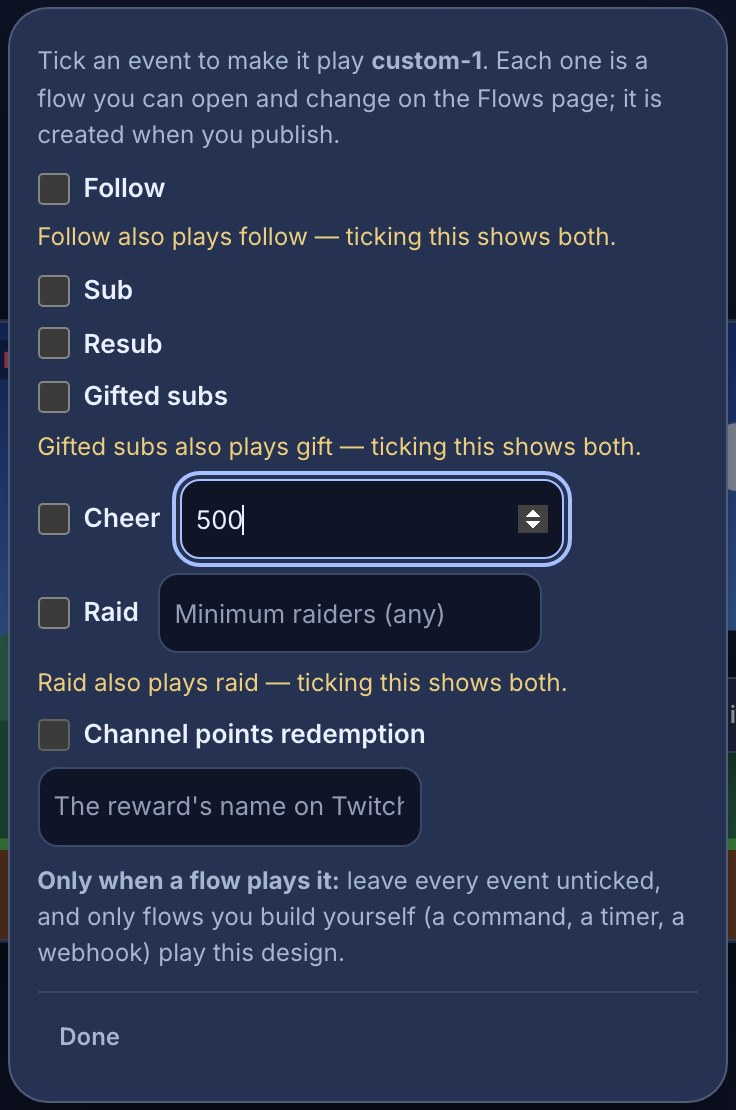
A yellow line such as “Raid also plays raid — ticking this shows both” means another design already plays on that event. Tick it anyway and both alerts play, one after the other.
The picker only ticks flows that do nothing but show this alert. Anything else — a chat command, extra checks, a thank-you in chat — is a row with Open flow, and you change it on the Flows page like any flow. Starting from Flows instead? The Alerts pack in the flow marketplace installs the same kind of flows, plus Show an alert from chat: a moderator’s !alert raid Ada plays the raid design for Ada without a chat reply.
Renaming a design (Rename design… in the header’s menu) renames it on every overlay that shows it, and the flows that play it by name follow when you publish — their rows read renamed to this design when you publish. Deleting one (Delete design…) that flows still play lists them and offers Turn them off or Move them to the Trash, so no flow is left playing a design that is gone. It all happens when you publish, and a layer that showed the design then draws nothing until you pick another.
5. Test it
There are two tests in the alert panel, and they reach different places:
| Test | Where it plays | What it plays |
|---|---|---|
| Test as a raid (or Test on the layer’s toolbar) | The editor’s canvas only. Nothing reaches OBS. | The design in your draft, with sample words |
| Test on stream… | Your live overlay in OBS — viewers see it. It asks first: Play it on stream. | The published design, with a sample viewer called Ada. It joins your real alert queue, waits its turn and shows on the Live page as Test · raid. It never posts to Twitch chat. |
| Simulate in the top bar → Test events | The canvas, and OBS as well if you tick Also play on the live overlay in OBS | A test for every alert type on this overlay |
| Test fire in the flow editor | Nowhere: it is a dry run | The flow on a made-up event. Its Run log shows whether the checks passed and says it “would play” the alert. |
Test on stream… answers in a sentence under the button: Playing now on your overlay., Queued — number 2 in line., or one of the notes under If something looks wrong. It plays the design itself, whether or not a flow plays it, so the conditions in a flow are not checked by it — use the flow’s Test fire for those. Test alerts and check OBS delivery covers checking the Browser Source itself.
6. Play images, videos and sounds
A Media layer is where a flow’s Play media step shows an image or a video, and plays a sound. Media waits its turn in the same queue as your alerts, so a sound never plays over an alert.
- Add a Media layer from Add and put it where the pictures should appear. Its Fit is Fit inside the box or Fill the box.
- Open the Media tab on the left of the editor — or Media library on the Widgets page — and drop your files in: PNG, JPEG, GIF or WebP pictures, and MP3, OGG, WAV or WebM sounds and clips, up to 5 MB each. Every channel can upload 25 MB; paid plans hold more, and the Media storage line under Limits in What your plan includes shows how much yours holds.
- In a flow, add Play media and choose its File, Seconds on screen (1 to 60; a video or a sound stops when the time is up) and Volume.
- Publish the overlay, and switch the flow on.
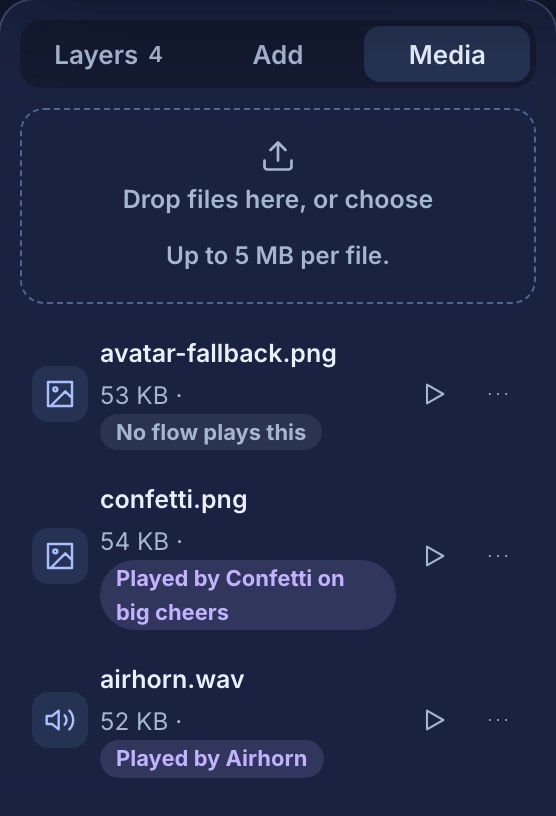
Each file in the list says what plays it — Played by Airhorn, or No flow plays this — so you can see what a file is for before you delete it. For example, a chat command !airhorn with one Play media step playing airhorn.wav for 3 seconds plays the sound on every open overlay that has a Media layer, in its turn after any alert already playing. Media reaches only overlays with a Media layer.
7. Control the queue while you are live
The Live page has an Alerts card. It says what the queue is doing — Idle, Playing (with what is on screen, who or what sent it and the seconds left), Paused, or Waiting for an overlay with alerts in OBS — and lists Up next.
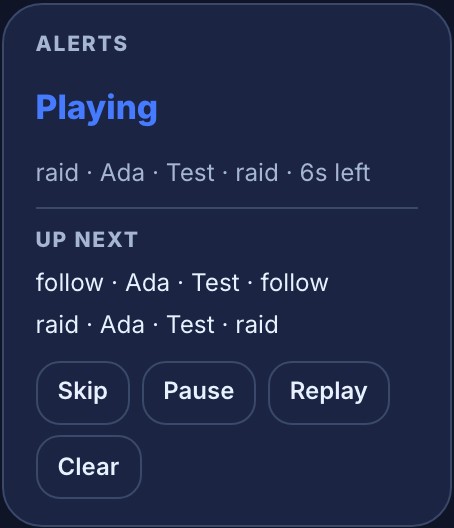
- Skip ends what is on screen, and the next one starts.
- Pause holds the queue: new alerts wait until you press Resume.
- Replay plays the last one again.
- Clear throws away everything waiting; what is on screen finishes.
A flow can do the same with the Alert queue step. Its Do field is Skip what’s on screen, Pause the queue, Resume the queue, Replay the last one or Clear the queue — for example a !skipalert command for your moderators, behind a Who can trigger check. An alert that has waited ten minutes without playing is dropped rather than shown late.
If your alerts are in more than one scene
Every open copy of an overlay plays each alert, sound and all, and so does every other overlay that shows the same design. OBS keeps a Browser Source running while its scene is hidden, so two scenes that both hold alert layers play every alert twice — you hear the sound twice even though you see it once.
- In OBS, open the properties of each Browser Source that holds an alert or Media layer.
- Tick Shutdown source when not visible.
- Press OK. The source now closes when you switch away from its scene and reopens when you switch back, so only the scene on screen plays.
An alert that arrives while no open overlay shows its design waits in the queue and plays as soon as one does.
A worked example: raids big, follows small
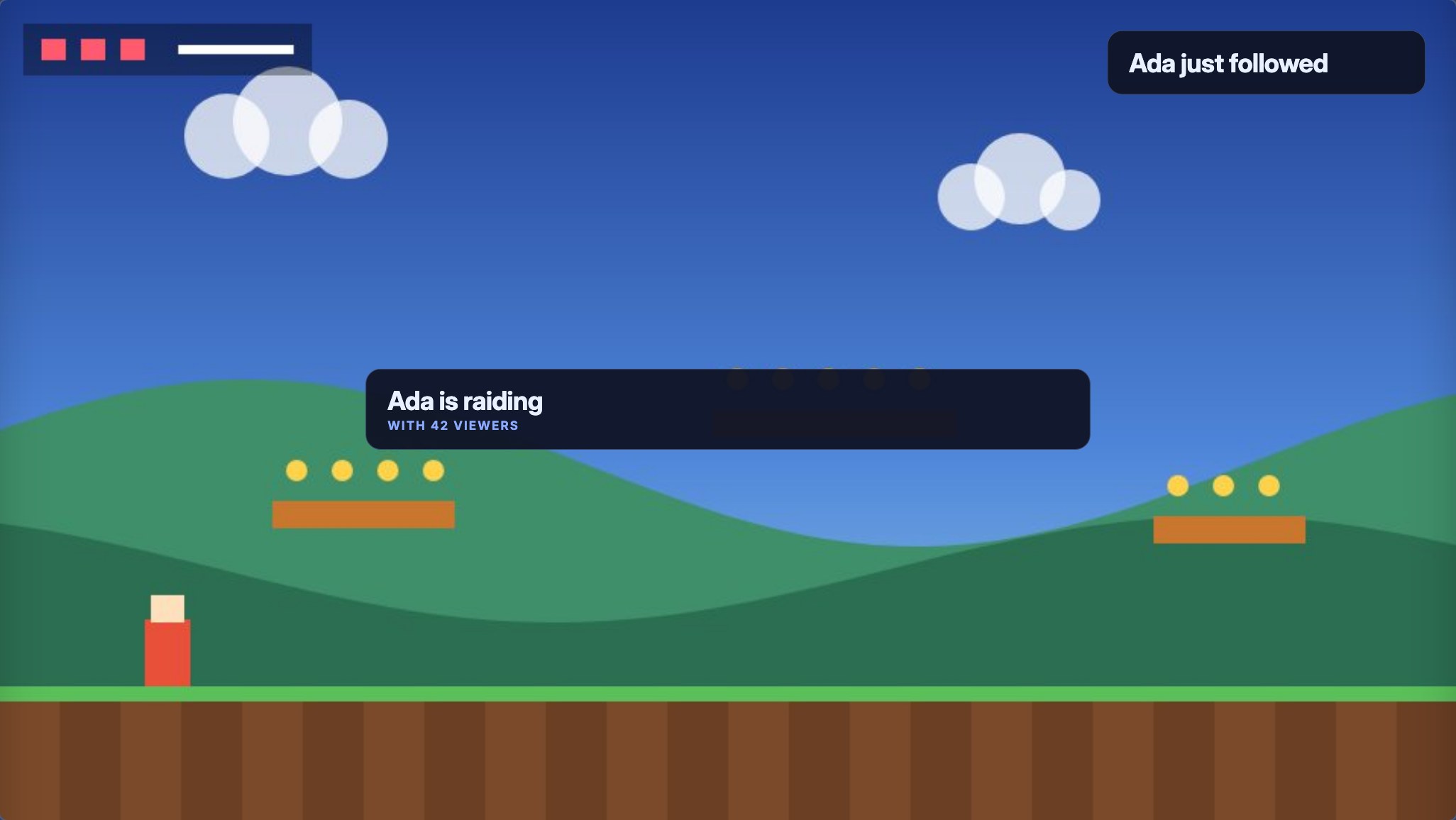
Your gameplay scene should show a raid across the middle of the screen and a follow tucked into the top-right corner, and your chatting scene should show the same raid alert.
- Open your Gameplay overlay, choose Add and click Raid alert. It lands in the middle of the canvas. Drag the handle on its right edge until it spans about half the canvas.
- Choose Add again — adding an alert switches the left panel to Layers — and click Follow alert, then drag it into the top-right corner of the canvas. The line at the bottom of the settings panel shows where it is, for example
x 566 y -361 w 640. - Press Publish: “Published — OBS updates now. Created flow Alert: raid. Created flow Alert: follow.”
- Open your Just chatting overlay and add Raid alert there too: “Placed your existing raid alert — same design as your other overlays.” Its panel now reads Also on Gameplay. Publish.
- With the Gameplay scene visible in OBS, select the raid layer and press Test on stream…, then Play it on stream. Do the same for the follow.
- Tick Shutdown source when not visible on both Browser Sources.
What you should see
- Under Plays on, Plays on Raid · 1 flow with the row Alert: raid and Open flow; on the Flows page, Alert: raid and Alert: follow, both switched on.
- Test on stream… answering Playing now on your overlay., and the card on the overlay in OBS.
- The Live page’s Alerts card reading Playing with raid · Ada · Test · raid, and the follow under Up next until the raid has finished.
- One alert at a time, with the queue’s gap between them.
- A real raid on your channel playing the raid design on every overlay that shows it, once — only the scene on screen plays it.
If something looks wrong
- The layer draws nothing and its panel says This layer shows the … design, which doesn’t exist any more: the design was deleted. Pick another from the design menu in the panel’s header, then publish.
- A banner says Your old Alert box was retired. Its settings weren’t carried over — add alert layers from Add. Nothing of the old one plays any more, so add a layer for each alert type you want, then publish.
- A flow is marked as needing attention because it used the old Overlay card step: its message says that action was retired and names the Alerts pack. Install the Alerts pack from Flows → + New flow, or replace the step with Show alert.
- Nothing plays on a real event: Plays on reads No flow plays this yet, or its flow is turned off. Tick the event under Choose what plays it… and publish, or turn the flow on from Open flow.
- Test on stream… says OBS does not have the raid design yet. Publish, then test again. The design is only in your draft.
- It says Queued, but no overlay open in OBS right now shows the raid design: no open overlay has a layer for that design. Make the scene with it visible in OBS; the alert plays as soon as one is open.
- The Alerts card reads Paused: press Resume. It reads Waiting for an overlay with alerts in OBS: open the scene that holds your alert layers, or press Resume.
- A sound plays twice: the overlay is in two scenes, or open twice. Tick Shutdown source when not visible on each Browser Source (see several scenes).
- Two different alerts play for one event: two designs both play on it. Their Plays on lines show it; untick one.
Was this guide helpful?
Thanks. Your answer helps us decide which guides to improve.