
Before you start
This guide maps what you built in Streamer.bot onto the closest thing in Bloopbot. Both tools start something when a trigger fires; the difference is where they run and how you build them.
- Streamer.bot is an app on your Windows PC. Its actions run there, so the app has to be open for them to work.
- Bloopbot runs your flows on its own servers. There is nothing to install: you build flows in a browser, on any computer, and your chat commands and moderation filters keep answering chat when your PC is off. Your overlays are still Browser Sources, so they show only while OBS is open.
There is no importer for Streamer.bot. Streamer.bot keeps its actions on your PC, so Bloopbot has nothing to read them from: you rebuild the actions you use most as flows, using the tables below. Bloopbot works with Twitch; if you also use Streamer.bot for YouTube, Kick or Trovo, keep it for those.
Actions and triggers
A Streamer.bot action is a list of sub-actions that one or more triggers start. In Bloopbot the same job is one flow: a trigger, optional checks and one or more actions, drawn as connected steps on a canvas (build a flow on the canvas).
| In Streamer.bot | In Bloopbot | Notes |
|---|---|---|
| An action and its sub-actions | A flow | Each sub-action becomes a step you connect on the canvas. A straight line of steps can use the Simple form instead. |
| A chat command trigger | A flow with a Chat command trigger | Command is the word without the prefix, and Also responds to holds aliases — see create your first chat command. |
| Twitch event triggers (follow, sub, cheer, raid and the rest) | The Twitch event triggers in the node library, such as those under Subs, raids & follows | The Stream events and Alerts packs start from them — see use templates and flow packs. |
| A channel point reward trigger | A flow with an On a reward redeemed trigger | Pick the reward from the Reward field — see respond when a viewer redeems a reward. |
| A timed action | A flow with an On a timer trigger | Set an interval, or days and a time, and keep Only while live on for a reminder that should post only during a stream — see post a recurring chat message. |
| A Stream Deck button that runs an action | A flow with an On a web request trigger | The trigger gives the flow its own private URL; a Stream Deck action that calls a web address runs the flow — see start a flow from a URL. |
| Imported actions from the extensions site | Flow packs, the Community group in Explore packs, and shared flow files | See browse packs and share, import and restore flows. Bloopbot can’t read Streamer.bot’s own imports. |
Logic and variables
| In Streamer.bot | In Bloopbot | Notes |
|---|---|---|
| If / Else sub-actions | A check step with its own exits, such as Check a value, Who can trigger or Cooldown | Each check has a path for when it passes and one for when it doesn’t; connect each to what should happen next. |
| Switch sub-action | Several checks in a row, or AI: route by meaning for a message that could mean one of several things | Bloopbot has no single step that compares one value against a list of cases. AI: route by meaning may not be available on your channel yet — see ask the AI judge in a flow. |
| While sub-action | For each | For each repeats its item branch once per item in a list, such as each gifted-sub recipient or each song in the queue. There is no loop that repeats until a condition changes. |
| Global variables | A channel variable, declared on Variables | Declare it once, change it with Set a variable, read it as $(var.name) — see keep a counter with variables. |
| Per-user variables | A variable with viewer scope | Viewer scope keeps a separate value for each viewer. |
| Arguments a trigger passes to its action | $(...) values such as $(user), listed in each field’s Insert… menu | Each step hands on its own values; the Insert… menu shows exactly what a field can read. |
What doesn’t map
Some of what Streamer.bot does depends on running on your PC. Bloopbot doesn’t, so these have no equivalent:
- Your own C# code. Bloopbot flows are built from steps, with no place to type code. If you need your own logic, run it as a service of your own at a public
https://address and call it with a Web request step, or have your script start a flow through its On a web request URL — see start a flow from a URL, or call one. Web requests and webhook triggers may not be available on your channel yet — check what your plan includes. - Apps and hardware on your PC. Bloopbot can’t reach OBS through its WebSocket, Streamlabs Desktop, Meld, VTube Studio, Voicemod or anything else on your computer, and a Web request step never calls a local or private network address. A Stream Deck key can still start a flow by calling its URL, as above.
- Switching OBS scenes and sources. Bloopbot shows things in OBS through hosted overlays you add as Browser Sources, but it does not change your scenes.
- Other platforms. Bloopbot works with Twitch. YouTube, Kick and Trovo are not connected.
If you rely on these, keep Streamer.bot running for them and move the chat side to Bloopbot, making sure the two never answer the same command.
Rebuild your top actions
- Sign in, then open Flows → Explore packs and install the Starter pack. It brings everyday commands and stream reactions, paused, so you can read how each one is built before you turn it on.
- List the Streamer.bot actions you use every stream. For each one, start from the closest pack flow, or press + New flow → Start blank and add the trigger from the tables above.
- Add a step for each sub-action that did something visible: a Chat message, a Set a variable, a check in front of an action that was limited to mods or rate-limited.
- Press Save, then Test fire to see which steps ran in the Run log.
A worked example — a !deaths counter that mods add to, which in Streamer.bot is usually a global variable and two actions:
- On Variables, declare a number variable
deaths, channel scope, starting at0. Or install the Counter templates from the Starter pack, which do all of this for you. - Build a flow: Chat command (
deaths) → Chat message readingDeaths: $(var.deaths). - Build a second flow: Chat command (
deaths, subcommand+) → Who can trigger (At least: moderator) → Set a variable (deaths, add1) → Chat message readingDeaths: $(var.deaths).
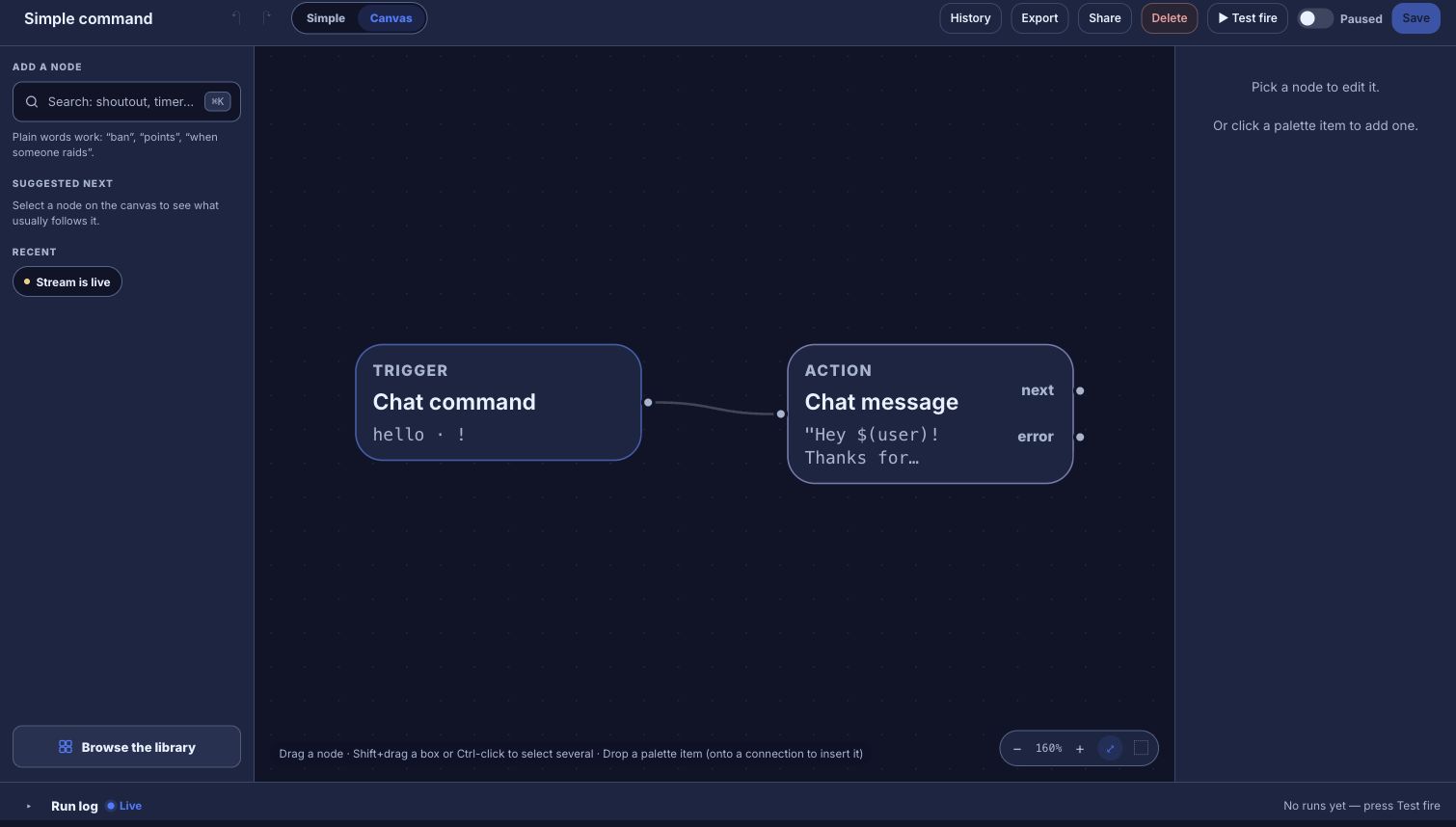
Expected result: a moderator types !deaths + and the bot answers with the new count; anyone typing !deaths sees it; your PC being off changes nothing.
Move your overlays
Streamer.bot overlays are pages you build yourself against its local server. In Bloopbot, an overlay is a hosted widget you design in the Widgets editor and add to OBS as its own Browser Source, with alerts, a chat box, a goal bar, now playing and more as layers — see add a widget to OBS and show alerts on stream. A goal bar or label can show one of your variables, so a flow that changes the variable changes what’s on screen. Hosted widgets may not be available on your channel yet — check what your plan includes.
If you have an HTML overlay of your own you want to keep, connect your own HTML widget explains how to add it.
Turn off the old action
Once a Bloopbot flow does the same job, turn off or delete the matching action in Streamer.bot. If both are running, both answer the same command or event, and chat sees two replies. When nothing you still need is left in Streamer.bot, you can close it.
Check it before you rely on it
- Test fire, in the flow editor’s top bar, runs the flow as a dry run and records what would have happened. It does not post to real chat or change a real value.
- A real check means typing the command in your own Twitch chat, or triggering the real event, and watching for the reply exactly once.
- To prove the bot doesn’t need your PC, turn the flow on, shut your streaming PC down, and type the command from your phone.
Troubleshooting
- You get two replies. Streamer.bot and Bloopbot are both answering. Turn off the Streamer.bot action — see Turn off the old action.
- The command does nothing. Check the flow is live rather than paused, and that a Who can trigger or Cooldown check isn’t stopping it for the account you test with. Fix a flow or connection covers the rest.
- A Stream Deck key does nothing. The flow is paused, or the URL was rotated. Copy the current URL from the On a web request trigger again — see start a flow from a URL.
- A node shows a lock. Your channel doesn’t include that step yet. Nothing else about the flow changes — see what your plan includes.
- The reply shows
$(var.deaths)literally. The variable isn’t declared on Variables, or the name is misspelled. Pick it from the Insert… menu instead of typing it.
Was this guide helpful?
Thanks. Your answer helps us decide which guides to improve.