
Before you start
This needs your song requests working: Spotify linked to the channel and the request flows on. If a song typed in chat does not reach the queue yet, start with letting chat request songs.
Nothing here needs a new Twitch permission, and it never posts to chat: the widget reads the queue you already have.
1. Add a widget with a Now playing layer
- Open Widgets and press New overlay.
- Give it a name you will recognise among your overlays.
- Under Start with, choose Now playing, then press Create overlay.
- The editor opens on the canvas, with the panel drawing the song that is playing right now and the requests queued behind it, and the layer’s settings on the right.
Already have an overlay you want it on? Open it, choose Add on the left, and drag the Now playing card onto the canvas, or click it to drop it in the middle — every type is offered on every overlay.
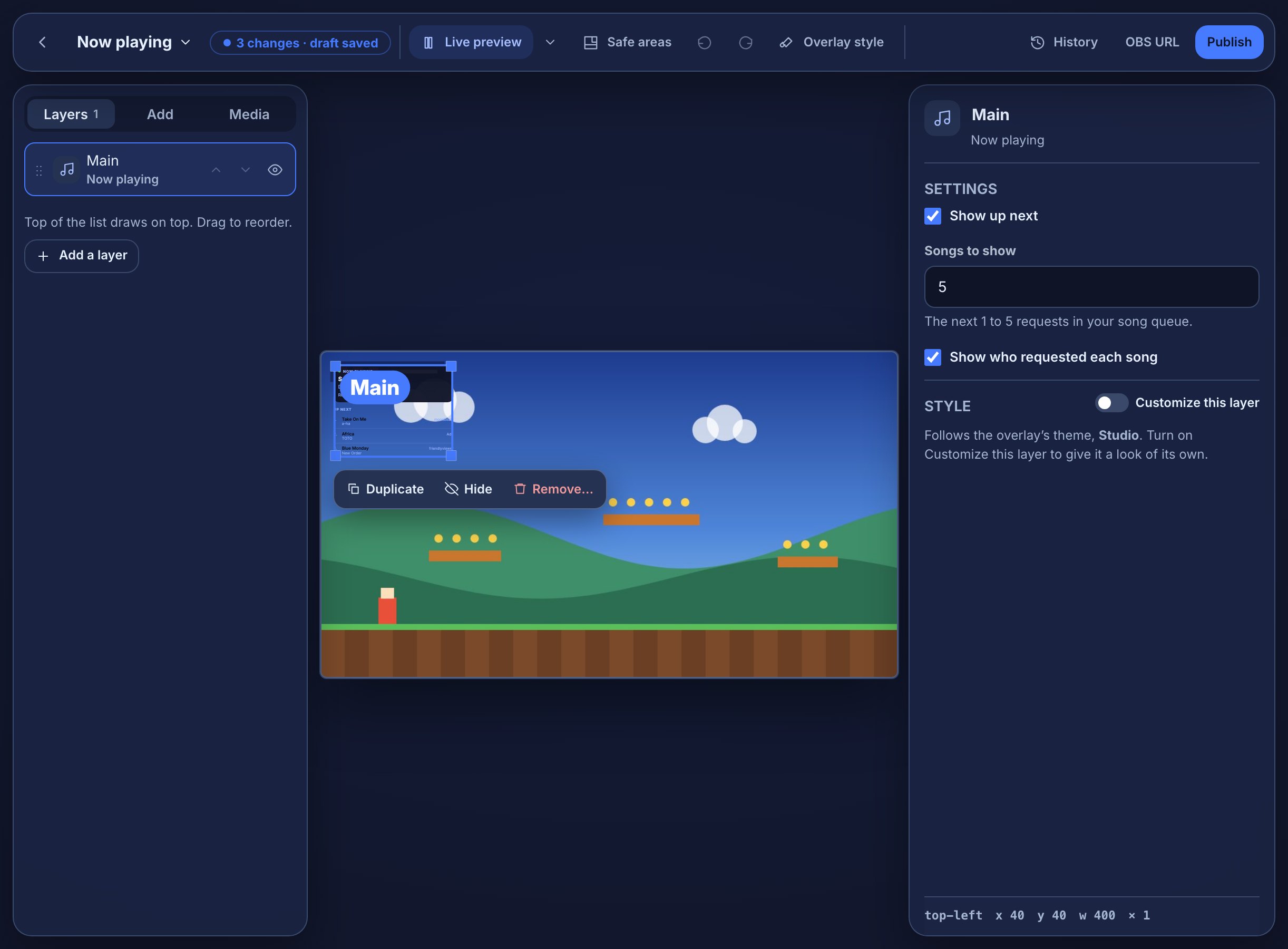
Three settings on the right shape the list under the track:
- Show up next — the requests queued behind the current song. Turn it off to show the current track alone.
- Songs to show — how many of them, from 1 to 5.
- Show who requested each song — the viewer’s name beside the track and each request.
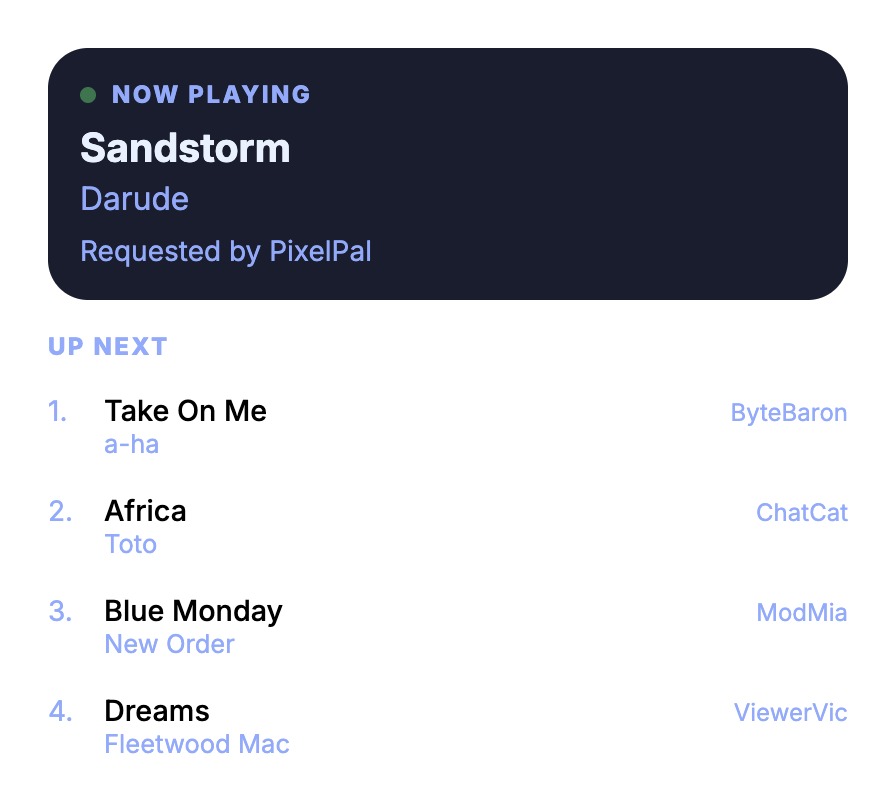
The heading Now Playing and a refresh every five seconds are built in. Changes go into your draft; press Publish to put them on stream.
2. Put it on stream
- In the widget’s editor open OBS URL — in the bar along the top, beside Publish — and press Copy OBS URL. You can also use Copy URL beside the widget in the widget list.
- In OBS, add a Browser Source to the scene that should show the song and give it a name you will recognise.
- Paste the URL into the URL field, leave Local file off, and set the size to 1920 × 1080.
- Place the source where you want the song to appear, and keep its scene visible while you check it.
A worked example
You want the song and the queue in the bottom-left corner of your scene, under your camera. Add a Now playing widget, copy its URL and paste it into a Browser Source sized 1920 × 1080. In the widget’s editor, drag its box on the canvas to the corner you want — the box moves with it — and press Publish. A viewer types !sr Sandstorm in chat: the request is accepted, the song starts, and within five seconds the widget reads Now Playing, Sandstorm, Darude, with the requests queued behind it numbered underneath.
The box you move is the widget’s own size and position on a 1920 × 1080 canvas, which is why a 400-wide box suits a corner.
What you should see
- The heading Now Playing, the track that is playing, its artist and who asked for it.
- An Up next list: as many requests as Songs to show, numbered, each with its requester unless you turned that off.
- No song playing when nothing is playing — the empty state, not an error.
- A new request appearing within about five seconds of being accepted, with nothing to do in OBS.
If you already pasted the old URL into OBS
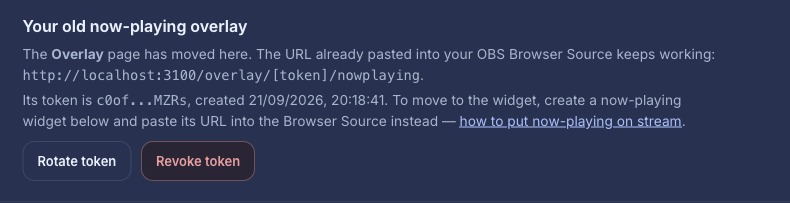
The old /overlay/<token>/nowplaying address still works, so a stream showing it right now does not go blank. What moved is the page that managed it: the old Overlay page has been retired, and its address now takes you to the channel’s Widgets page instead.
There, a card names the token your old link uses and offers Rotate token and Revoke token on it. To move over, create the Now playing widget above and paste its URL into the Browser Source in place of the old one: one copy-and-paste, and nothing else in your scene changes.
If nothing shows
- Nothing is playing. The widget shows the queue, and a queue only has a current track while a song is actually playing.
- Spotify is not linked, or the request flows are off — see letting chat request songs.
- The songs were queued in Spotify itself. This widget reads the queue built from requests in your channel, not Spotify’s own queue.
- The Browser Source is in a scene that is not visible, or sits behind a full-screen capture. Keep the scene visible while you check it.
- You rotated the old token: the URL already in OBS stops working and the source shows an invalid-token message. Rotate or revoke from the Widgets card, then paste the widget URL into the source.
- The source is the wrong size: a 1920 × 1080 source is what the editor’s canvas shows, so the widget lands where you put it.
Was this guide helpful?
Thanks. Your answer helps us decide which guides to improve.