
Get help with your setup
Optional Help me explains the saved request flow and Spotify connection. A connected account does not prove that a request was accepted, a playback device is active or music played. Review the existing flow before enabling it; setup does not request a sample song.
Before you start
Viewers type !sr and a song name or Spotify link in Twitch chat, or redeem a channel points reward, and the song joins your Spotify queue behind whatever is playing. Bloopbot never presses play for you, so nothing cuts off the song that is on. Song requests are included on every plan, Free too, and run on Bloopbot: there is no desktop app or browser extension to keep open.
You need:
- Spotify Premium on the account you play music from.
- Your own Spotify app, made for free in Spotify’s developer dashboard in about five minutes (step 1).
- Spotify open and playing on the device you stream from.
To show the current song and the queue on stream, add a Now playing layer in OBS once requests work.
1. Set up your Spotify app and link your account
Each Bloopbot channel uses its own Spotify app. It is free and takes about five minutes. Song requests require Spotify Premium on the account that owns the app. Only the channel owner can do this; editors see the status but cannot change it.
- Sign in as the channel owner, open Settings › Connections and find the Spotify card. Keep it open: it shows the exact Redirect URI you need, with a copy icon (Copy the redirect URI).
- In another tab, open developer.spotify.com/dashboard, signed in with the Spotify account you play music from, and choose Create app.
- Give the app any name and description. Under Redirect URIs, paste the Redirect URI copied from the Spotify card. It must match exactly.
- Under Which API/SDKs are you planning to use? tick Web API, then save.
- Open the new app’s Settings. Copy its Client ID and Client secret into the Spotify card and press Save Spotify app. The card then shows your Client ID and Secret saved.
- Press Link Spotify. Spotify opens in a new tab: approve the permissions as the same Spotify account that owns the app, then close that tab. Back on Connections, the card refreshes and its status changes to Connected.
- Open Spotify on the device you stream from and start a track before testing a request.
Linked Spotify before this change? Your card shows Needs reconnecting and song requests are paused. Set up your own app with the steps above, then press Re-link Spotify. Your queue settings and blocks are kept.
2. Check the request flows
Open Flows and look for the Song requests group. Linked Spotify channels may already have these flows. If they are missing, open + New flow and install the Song requests pack — eleven command flows plus Song request status, which answers !srstatus. Installing it also declares the five song variables (step 4) with a sensible starting value each. Flows you already have are kept as they are, so nothing is duplicated: review their live switches and command names instead.
When the pack gets a newer version, Marketplace → Installed offers it. A pack flow you have not edited is updated in place and keeps its on/off switch and history. A flow you have edited is asked about: Keep mine leaves your changes, and Use the new one takes the new version and keeps yours in the flow's History (Update what you added).
If you also installed the AI helpers pack, Smart !sr is the request flow to run: it checks the same song variables before it spends anything, lets the AI pick the track, and skips a song that is already in the queue before it spends anything on screening it. Your copy picks the decisions up on its own: a request flow installed before they existed is brought up to date the next time it is checked, with the gate and the duplicate check spliced in ahead of its request step. step 5 walks through how the pieces fit, so you can add them to a flow of your own.
The Song requests page checks this for you. Once Spotify is linked, if no song request flow is on, a Song request flows row above the queue says Viewers can’t request songs from chat yet. Press Add to open the Song requests pack’s review on the right, then press its button to add the flows, paused. The row then offers Switch on, or Open flow to look first. If your request flow is only paused, the row names it instead, with Open flow and Switch on.
3. Try a request
With the relevant flows enabled, type !sr followed by a song name in Twitch chat. Open Song requests to inspect the queue.
| Default command | Purpose |
|---|---|
!sr song name | Request a song. A refused request is answered with the reason; !sr on its own does nothing |
!song | Show the current track |
!queue | Show upcoming songs |
!srstatus | Where you stand: how full the queue is and what you already have in it — or, if !sr would turn you down right now, why |
!wrongsong | Take back your last request |
!skip | Moderators skip the current song |
!remove 2 / !remove @name | Moderators remove the second queued song, or that viewer’s latest request |
!sron / !sroff | Moderators switch song requests back on or off for the whole channel |
!srblock / !srunblock | Moderators keep a track, an artist or a viewer out of the queue, or let them back in: !srblock user @name, !srblock track and a Spotify track link, or !srblock artist and a Spotify artist link |
These are the pack’s defaults. If you rename a command in its flow, viewers must use your new name.
After !sr, viewers can type a song name or paste any Spotify song link, just as Spotify hands it out:
- a link from the share menu, such as
https://open.spotify.com/track/…?si=…, including regional ones likeopen.spotify.com/intl-de/track/… - a short share link from the phone app, such as
https://spotify.link/…, which Bloopbot opens to find the song - a Spotify URI, such as
spotify:track:… - a Spotify search link, which is searched for as the words in it
A link to an album, playlist, artist, podcast or audiobook is turned down with a line that says what it is, such as “That's a Spotify playlist link, not a song. Paste the link to one song.” A link Spotify cannot find gets “That Spotify link doesn't lead to a song Spotify can find.” Neither is searched for as words, so a pasted link never queues some other song.
Blocking a viewer by name checks the name with Twitch first. A name Twitch does not know gets “No Twitch user called … — check the spelling.” and nothing is blocked; a name it knows is blocked for good, even if that viewer changes their name later.
To put the queue on screen rather than in chat, add a Now playing widget: put now-playing on stream walks through it. The widget reads this same queue, so a request shown in chat appears on screen too.
4. Set limits and troubleshoot
A limit is changed in one place: open Variables, edit the value and save. The five song variables that shape requests are channel variables, and installing the Song requests pack — or the Song request template on its own — declares them for you:
| Variable | What it decides | Starts at |
|---|---|---|
song_requests_on | Whether requests are open at all | on |
song_max_queue | How many songs may be waiting | 20 |
song_per_viewer | How many songs one viewer may hold | 2 |
song_wait_seconds | How long a viewer waits between requests | 60 |
song_block_dupes | Whether the same song can be requested twice | on |
What reads these values is a check, not the request step: the shipped request flows open with Can they request a song?, which measures the queue and the viewer against all five before anything is searched for, and step 5 shows how it works. A flow of your own obeys them only if it carries that check, or comparisons of its own. Your moderators can switch requests off and on from chat with !sroff and !sron — those two flows set song_requests_on for you, and the value on Variables follows.
Blocked tracks, artists and viewers are a separate list. Moderators change it from chat with the pack’s !srblock and !srunblock commands, flows change it with Block or unblock, and you can change it on the Song requests page (step 6). No limit is listed on that page, because the variables are where the numbers live.
If requests fail, check the Spotify card on Connections shows Connected, an active playback device, the flow’s enabled state and the Run log. A successful flow dry run does not prove Spotify can play on your device.
When Spotify cannot be reached, !sr answers the same way as when nothing matches: “Couldn’t find that song. Try being more specific, or paste a Spotify link.” If every request gets that line, even for a song you know exists, check the Spotify card on Connections, then open the flow’s Run log: the Find a song step shows whether the search failed and why.
The refusal you will see most often in chat is “No active Spotify device. Open Spotify on the stream PC.” It means Spotify is not playing on any device Bloopbot can reach. Open Spotify on the machine you stream from and start a track, then ask again — requests join the queue from that point on.
The queue keeps itself up to date while you are playing. If you take a requested song out of your Spotify queue, or Spotify drops it, Bloopbot notices within about a minute: the song leaves !queue, and the viewer gets their slot back so they can request something else. The same works the other way — when a requested song finishes, or you skip it, it stops counting against the queue limit straight away, without anyone having to run a command.
Until it has been skipped, a removed song still counts against the viewer’s share and wait, so !sr then !wrongsong cannot slip extra songs into your Spotify queue. Skipping happens within about half a minute of the song starting, so the first seconds of it can still play.
5. Gate a flow on the limits
The node library has a step called Can they request a song?, under Music beside the song request steps. It checks a request against your five song variables — requests on, the queue size, songs per viewer and the wait between requests — and goes on by Allowed or Refused. A refusal hands on Why they were refused, a sentence you can say straight to the viewer, such as Queue is full (20 songs max). Try again later. It queues nothing, says nothing and reaches Spotify for nothing.
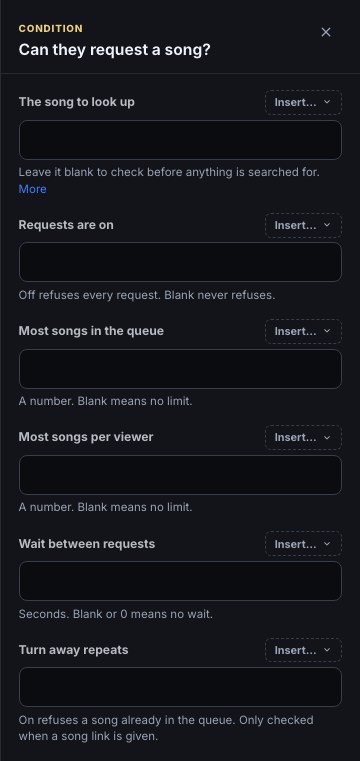
Each rule is a field that reads its variable — Most songs in the queue reads $(var.song_max_queue), and so on — so changing a number on Variables changes every flow that checks it. Clear a field to drop that rule from this one check, or type a number over it to use a different limit here only. The song to look up is left blank before the search; given the track link Find a song settled on, the step also turns away a song that is already in the queue while song_block_dupes is on.
The shipped !sr flow is built from it, and makes two decisions:
- Only if something was typed after
!sr. A bare!srstops here without a word. - Can they request a song?, with no song yet. Refused goes to one Chat message replying with
$(from.builtin_sr__rules.reason), so every refusal — requests off, not set up, blocked, the queue full, their share used, still waiting — is one line with the right reason in it, sent as a reply to their message. - Find a song, Spotify’s first match for what they typed. Nothing found, or Spotify not answering, goes to one Chat message replying with
Couldn’t find that song… - A second Can they request a song?, with The song to look up pointed at the found track. Requests are on, Most songs in the queue, Most songs per viewer and Wait between requests are left blank here — those four were already checked by the first one — while Turn away repeats keeps reading
$(var.song_block_dupes), so this second check asks only whether the song is already queued, using the variable you set. Its Refused goes nowhere, so a repeat is skipped quietly. - Request a song, whose own reply says where the track landed in the queue.
Expected result: set song_max_queue to 2 on Variables while two songs are waiting, and !sr answers @you Queue is full (2 songs max). Try again later. without searching; set it back and the same request is queued. Song request status (!srstatus) is the same check with nothing after it but two lines: the reason, or how full the queue is and how many of the songs are theirs.
Two changes people often make to their copy:
- Answer a bare
!sr. Add a Chat message such as@$(user) type a song name or a Spotify link after !sr, like !sr Mr. Brightside.and wire the first Only if step’s false output to it. - Say why a repeat was skipped. Add a Chat message, set to reply, reading
$(from.builtin_sr__dupe.reason)and wire the second check’s Refused output to it. The reason names who asked for the song first.
For a rule of your own — a different line per refusal, or a limit that is not one of the five — use Check song request limits instead. It hands each fact on as a value, Songs in the queue now, Songs this viewer has queued, Seconds until they may ask again and, given a track link, This song is already in the queue and Who asked for the queued copy, and an Only if step compares one with a variable. Wait between requests is where its wait lives: left at $(var.song_wait_seconds) it follows your variable.
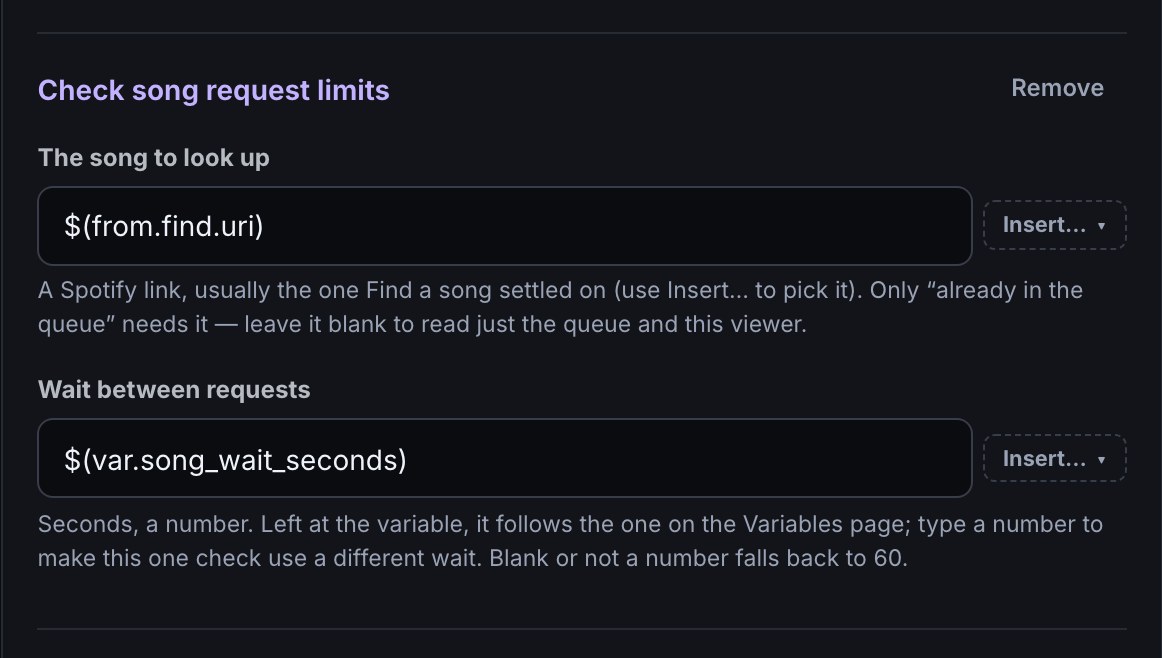
A worked example, for a flow that should stop at ten songs with a line of its own:
- Add Check song request limits in front of the step that requests the song. Leave The song to look up blank to read just the queue and this viewer.
- Add an Only if step after it and fill both sides from Insert… — or drag a data wire from the check’s tray: Songs in the queue now in the first box, is at least as the comparison, and
10in the second. - Wire the Only if step’s true output to a Chat message reading
Queue is full — try again once something plays., and its false output to the request step.
Expected result: with ten songs already waiting, the viewer gets your line and nothing is searched for or queued; with nine, the request goes through.
The queue’s own length is remembered for you too, so a message can use it with no flow logic at all: Insert… lists it under Channel data → Song queue as Songs in the queue, with minutes since the queue last changed beside it, which is where $(data.song_queue.length) comes from. That record carries the queue and nothing else — the limits are the variables — and it refreshes whenever the queue changes.
The queue itself is on the same menu. Channel data → Song queue → The songs in the queue is the whole queue, in order, one entry per waiting song with its title, its artist and who asked for it. Put it on a For each step and the branch runs once per song — inside it $(item.title) is the song and $(item.requester) is whoever asked — which is how a flow reads out what is coming up next or thanks the viewer at the front. One pass covers up to 50 songs.
Smart !sr, in the AI helpers pack, is the same shape with the AI picking the track and screening out troll uploads; Smarter song requests with AI walks through it.
6. Moderate the queue from the dashboard
Open Song requests to see what is playing and what is waiting, and to act on it without typing in chat. You and your editors can use every control here, and a moderator you have let in on Team can skip, remove, block and clear songs, though not touch the Spotify connection. Nothing on this page is announced in chat: viewers only notice that a song has gone, or that a request is refused.
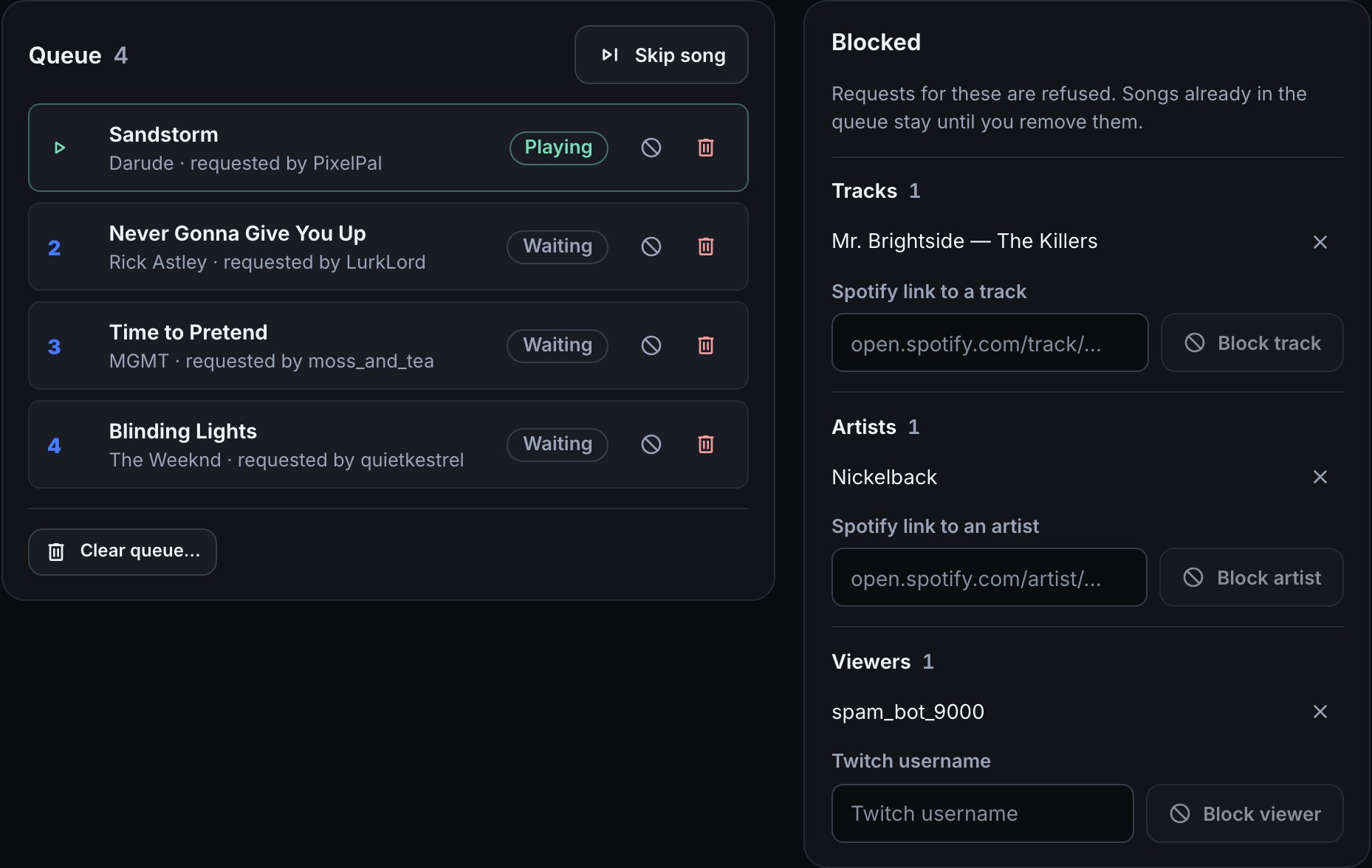
- Remove a song. Press the bin icon on its row. The song leaves the queue. If Spotify already has it, the page tells you it will be skipped when it comes up (why), and the viewer can request another once it has been.
- Skip the song that is playing. Press Skip song. Spotify moves on to the next track, the same as
!skip. This needs Spotify linked and something playing. - Clear the queue. Press Clear queue…, then Clear the queue to confirm, or Keep them to back out. Every waiting song is removed, and songs Spotify already had are skipped as they come up.
- Block from a row. Press Block… on the row and choose Block this song, Block and the artist’s name, or Block and the viewer’s name. The block starts straight away and that song leaves the queue; if Spotify already has it, it is skipped when it comes up. Other songs already queued by the same artist or viewer stay until you remove them.
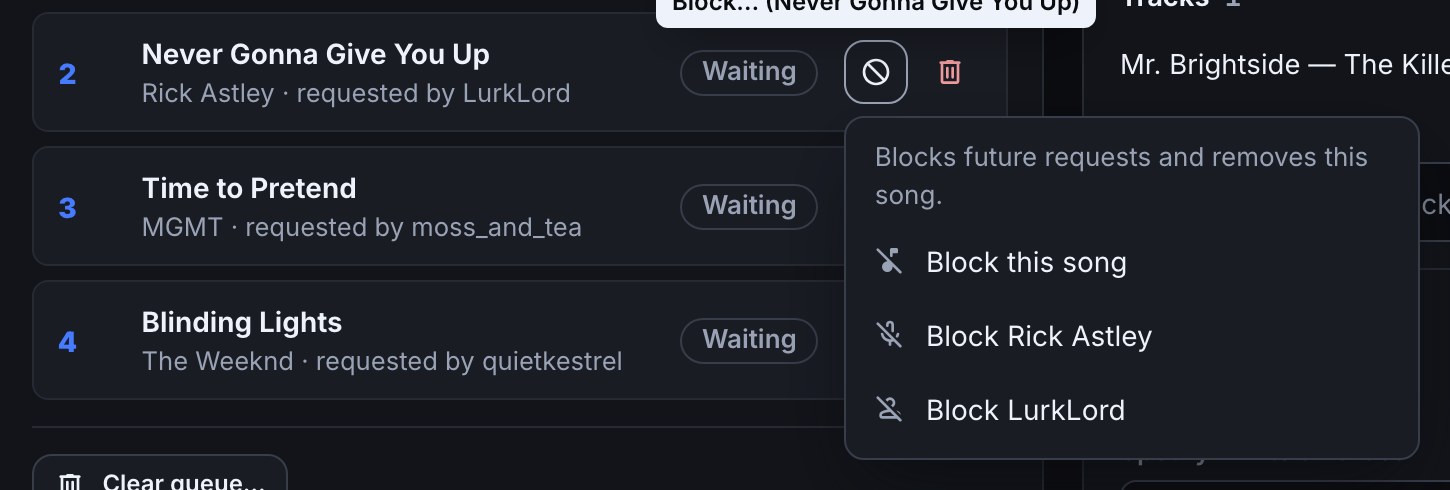
Blocking an artist blocks the track’s first artist, so Spotify has to be linked to look it up. For a song with several artists, block the others by link from the Blocked card.
The Blocked card lists every blocked track, artist and viewer by name, including blocks made from chat with !srblock. Press the cross beside an entry to unblock it. To block something that is not in the queue:
- Under Tracks, paste a Spotify track link, such as
https://open.spotify.com/track/…, and press Block track. - Under Artists, paste a Spotify artist link and press Block artist.
- Under Viewers, type a Twitch username and press Block viewer. The name is checked with Twitch first, and a name Twitch does not know is refused with nothing blocked.
Expected result: the entry appears in its list, and the next !sr for that track, by that artist or from that viewer is refused with the reason in chat.
A block made before names were saved shows as Track with no saved name or Artist with no saved name. It still works, and its link opens it in Spotify so you can see what it is.
If an action is refused, the page says why above the queue. For example, Skip song and Block by artist are greyed out while Spotify is not linked, and a song another moderator already removed answers That song is no longer in the queue.
Take requests with channel points
A reward lets viewers spend Twitch channel points on a song instead of, or as well as, typing !sr. It needs Channel Points on your Twitch channel (check which Twitch features your channel can use).
- On Twitch, open Channel Points → Manage Rewards and make a reward, such as Song request. Turn on its option that asks the viewer to enter text, so they can type the song.
- In Bloopbot, open Flows, choose + New flow, then Start blank. Add On a reward redeemed and pick your reward in its Reward field.
- Add a Request a song step after it. Its Song field already reads
$(query), the text the viewer typed, and Reply in chat answers them the way!srdoes. - To hold reward requests to the same limits as
!sr, add Can they request a song? between the two and connect its Allowed path to Request a song. - Save the flow and switch it on, then redeem the reward yourself with a song name.
Expected result: the song joins your Spotify queue under the viewer’s name, the reply appears in chat, and the request shows on the Song requests page and on a Now playing layer.
- Test fire uses the example reward Hydrate! and its viewer, Thirstygamer. Temporarily choose Any reward in the trigger to test the wiring, then pick your reward again. Request a song reads dry run and records a simulated request without contacting Spotify. Redeem your reward on Twitch to check the real connection.
- Points are not given back on their own when a request is refused or the song is not found. Refunding from a flow only works for a reward Bloopbot created; see keep or refund the points.
- Playing a sound or showing an alert for a reward works the same way: play a sound or show an alert.
Was this guide helpful?
Thanks. Your answer helps us decide which guides to improve.