
Twitch overlays that come alive
Pick a ready-made layout for gameplay, just chatting, starting soon, be right back or stream ending, add it to OBS as one Browser Source, and it fills with your alerts, chat, goals and the song that's playing. Bloopbot hosts it, so there is nothing to download, and no plan limits how many you make.
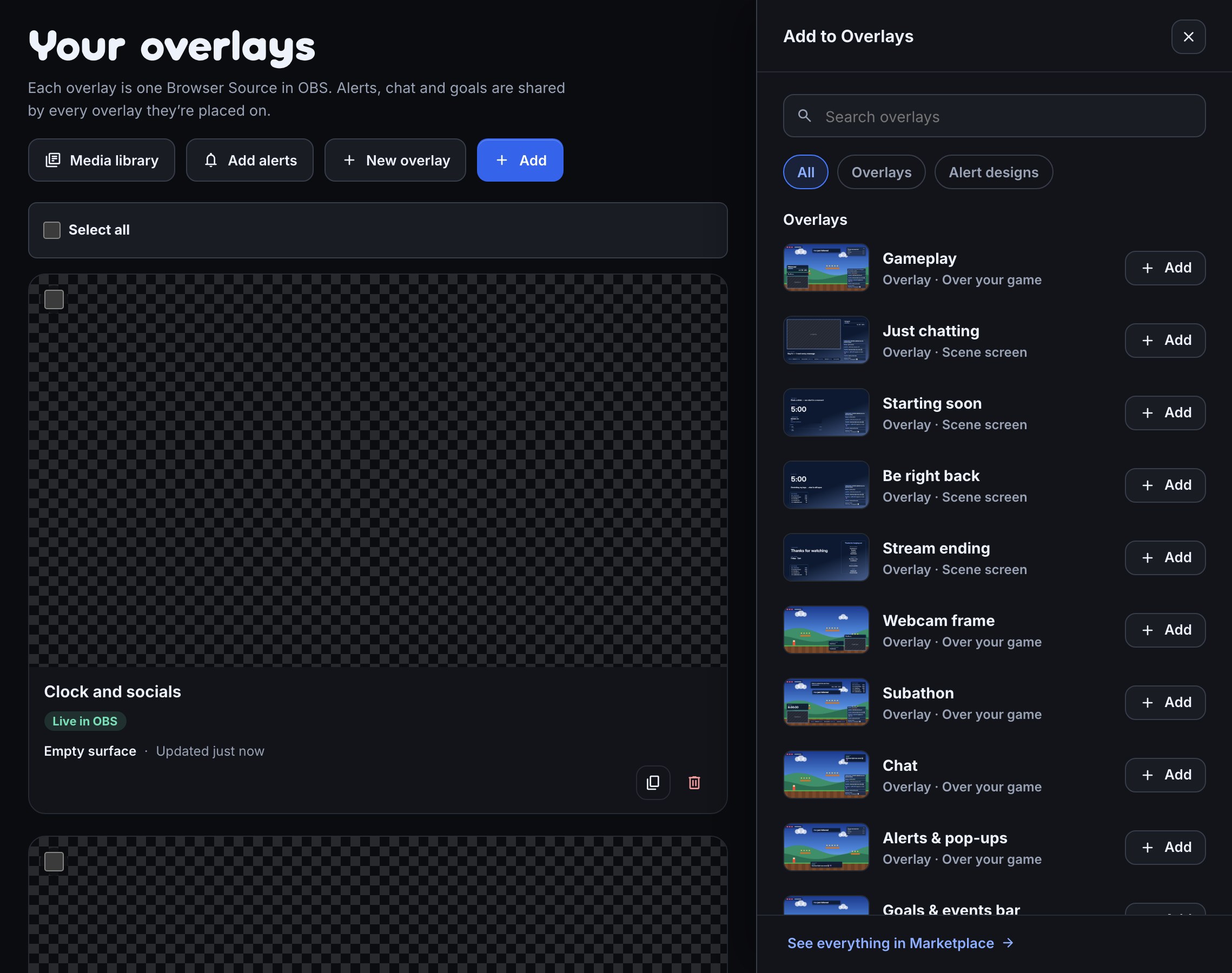
A whole layout, not just a frame
Each ready-made overlay is a complete scene drawn in your theme. Add one, then move, restyle or remove any part of it.
| Overlay | What's on it |
|---|---|
| Gameplay | A camera frame with your name, a goal, polls and predictions, chat and alerts, around your game |
| Just chatting | A big camera frame with a topic line, supporters, a goal, chat and alerts, on its own backdrop |
| Starting soon | A welcome line, a five-minute countdown, what is playing, chat and alerts |
| Be right back | A five-minute countdown, a status line, top gifters, chat and alerts |
| Stream ending | A thank-you, when you are next live, top gifters and rolling end credits |
Switch your theme and every overlay changes with it: text, panels, camera frame and backdrop. Start from a ready-made overlay shows how to add one.
Overlays that know what's happening
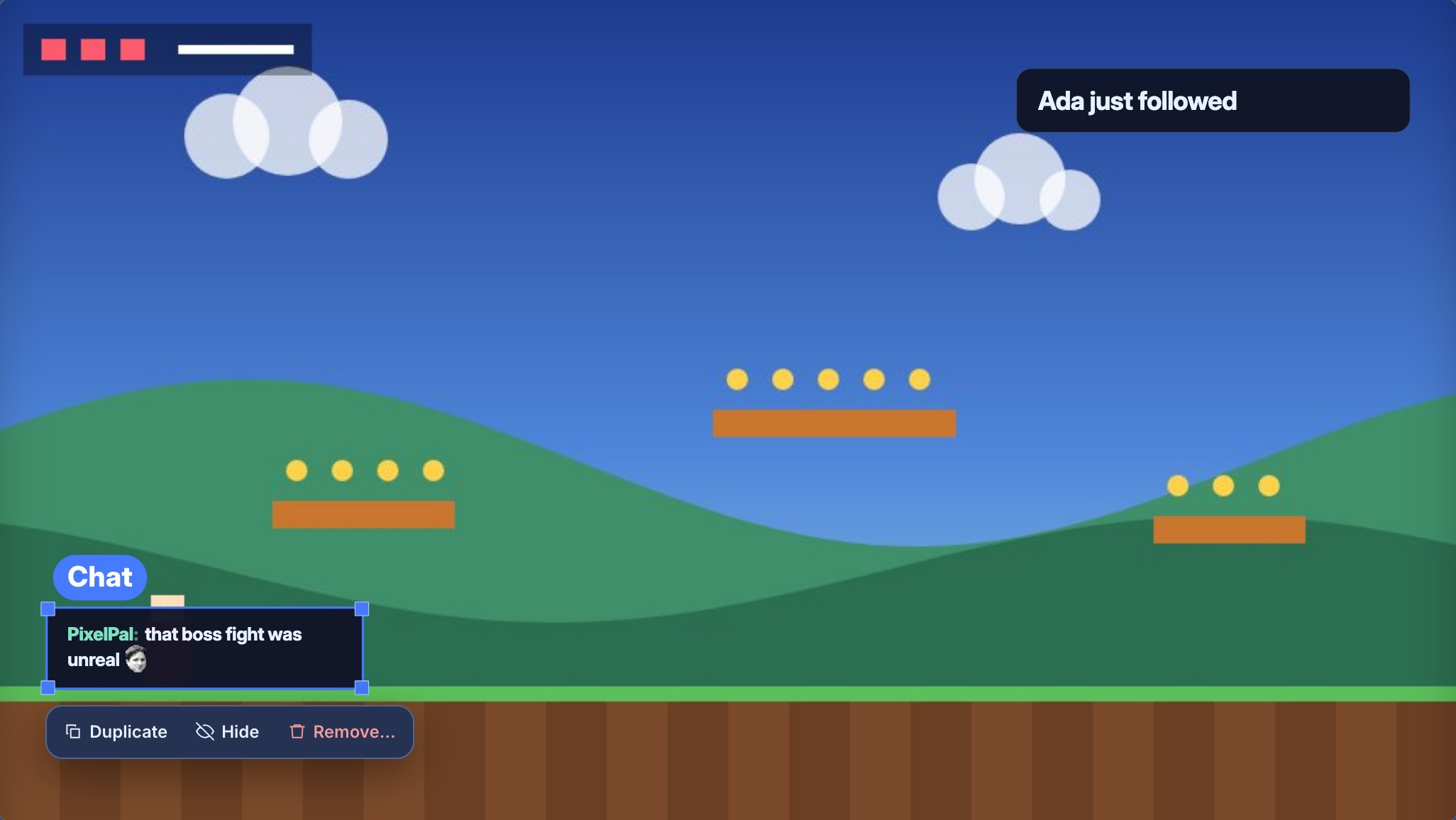
A static PNG can't tell anyone who just followed. Bloopbot's overlays are connected to your channel, so they show it as it happens:
- Alerts for follows, subs, gifts, cheers and raids, playing one at a time from one queue.
- A chat box, goal bars, an event list, a countdown and a supporter ticker.
- Now playing for song requests, a giveaway panel and chat games on stream.
Your flows can drive them too: a !deaths command can bump a counter on screen, and a raid can show a layer and hide it again.
Add it to OBS once
Every overlay has its own address. Add it to OBS as a Browser Source at 1920 × 1080, and every change you publish appears there by itself, with nothing to re-import. Add the Browser Source walks through it.
Make your own
Start from an empty overlay and add layers from the Add tab, or write your own in HTML, CSS and JavaScript beside a live preview. On Pro, you can also describe one to Claude or ChatGPT and let it build the draft for you to publish.
Common questions
Are the overlays free? Yes. Overlays, alerts and themes work on every plan, and no plan limits how many overlays you build. Paid plans hold more themes and more media storage. See what your plan includes.
Does it show my camera? An overlay frames your camera but never shows it. Put your camera source above the overlay in OBS and size it to the frame.
Do I need to keep a program open? Only OBS. Bloopbot hosts the overlay and your alerts and commands run on its servers.
Put your first overlay on stream.
Sign in with Twitch, add a ready-made overlay and paste its address into OBS.