
Before you start
You need an overlay in OBS. Add a widget to OBS takes you from New overlay to a Browser Source; an Emote Wall is one more layer on it.
An Emote Wall shows the emotes in your chat as they are sent — Twitch emotes and your channel's BTTV, FFZ and 7TV emotes, animated ones included. It never shows the words of a message or who sent it. It works on its own: you do not need a chat box on the same overlay, or anywhere else.
1. Add an Emote Wall layer
- Open Widgets and open the overlay you want it on, or press New overlay and choose one of the Emote Wall starting points under Start with: Floating up, Bouncing or Combos only.
- On an existing overlay, choose Add on the left and drag the Emote Wall card from Chat & info onto the canvas, or click it to add it over the whole canvas. Drag its edges to keep emotes to one part of the screen.
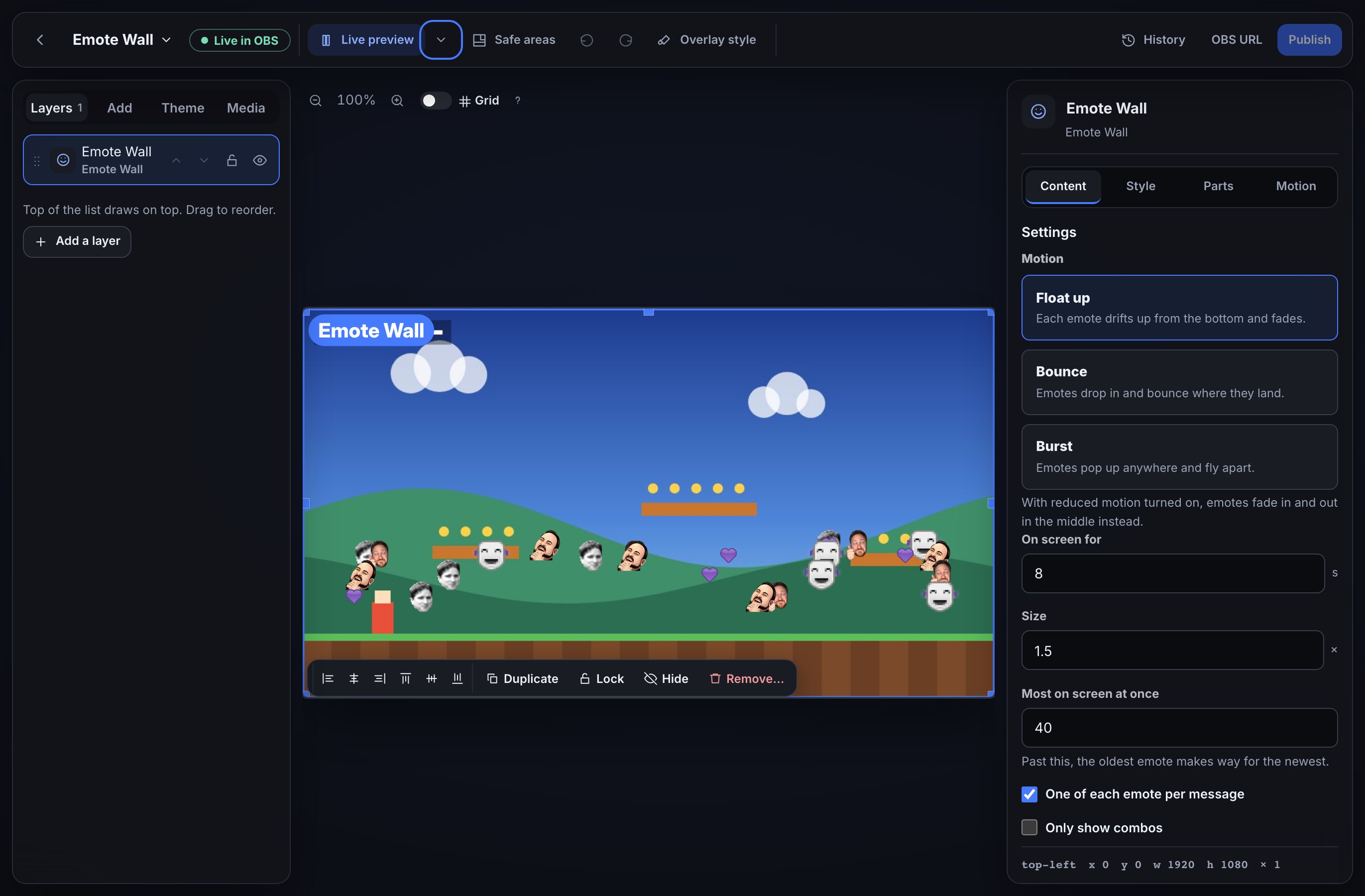
- In Content → Settings, pick its Motion: Float up (each emote drifts up from the bottom and fades), Bounce (emotes drop in and bounce where they land) or Burst (emotes pop up anywhere and fly apart).
- Set On screen for (2 to 30 seconds per emote), Size (0.5× to 4×) and Most on screen at once (1 to 150). Past that number, the oldest emote makes way for the newest, so a spammed emote never floods the screen.
- Leave One of each emote per message on to show Kappa Kappa Kappa as one Kappa, or turn it off to show all three.
- Press Publish to put the layer on stream.
2. Show only the combos
Turn on Only show combos to keep the wall quiet until chat gets going. Two more settings appear:
- Sent at least — how many times an emote has to be sent, 2 to 50.
- Within — in how many seconds, 1 to 60.
For example, 3 times within 10 seconds: the first two PogChamps show nothing, the third one appears, and every further PogChamp appears too for as long as chat keeps sending it that fast. Each emote counts on its own, and with One of each emote per message on, one message counts once however many times it repeats the emote.
3. Try it before you go live
With the layer selected, open Simulate in the top bar and press Test emotes. It sends a few chat messages made only of Twitch's own emotes — Kappa, <3, :D, SeemsGood and LUL — and with Only show combos on, it sends each one enough times, fast enough, to reach your combo.
The test plays on the canvas only, unless you tick Also play on the live overlay in OBS — then viewers see it too, and a chat box on the same overlay shows the test messages as well. Nothing about the test reaches Twitch chat.
4. Rain emotes from a flow
A flow can make emotes rain down your Emote Wall whenever you like: on a new sub, a raid, a channel points reward or a chat command. The Rain emotes step drops a burst of emotes on the wall, a few at a time, and they move, size and fade the way the layer's own settings say.
The quickest start is the Emote rain on a sub flow in the Alerts pack:
- Open Flows → Explore packs and open Alerts.
- Install Emote rain on a sub (or the whole pack) — see Use templates and flow packs — and switch it on. If you already use Alerts, choose Review updates in the pack and select it; your other alerts stay as they are.
- The next time someone subscribes, 30 emotes rain down every Emote Wall on your overlays.
To build your own, for example a !rain command your mods can use:
- Open Flows, press + New flow, and choose the Chat command trigger. Name the command rain, and add a Who can trigger check set to moderators if only mods should use it.
- Add a Rain emotes step (under Overlay) and fill in its fields, described below. For this command, set Emotes to
$(query), whatever the mod typed after!rain. - Save the flow and turn it on.
The Rain emotes step has three fields:
- Emotes: the emote names to rain, separated by spaces, such as Kappa LUL catJAM. You can use variables here. Leave it empty to rain the emotes in the message that started the flow (the emotes in the chat line, or in a resub message), or, when there is no message, a few Twitch favourites: Kappa, LUL, Kreygasm, SeemsGood, HeyGuys and VoHiYo.
- How many: how many emotes fall on each Emote Wall, from 1 to 100.
- Emote Wall layer: optional. The name of one Emote Wall layer, as it is called in your overlay, when you only want the rain there. Leave it empty to rain on every Emote Wall.
With Emotes set to $(query), a mod types !rain LUL catJAM — or just !rain Kappa — and the wall fills with them. The names can be Twitch's own global emotes, your channel's BTTV, FFZ and 7TV emotes, and any Twitch emote in the message that started the flow, including your channel's own sub emotes when a subscriber types them.
Test fire in the flow editor shows what the step would rain in the Run log without putting anything on your overlay. To see the rain itself, send the command in your chat, or use the flow for real, with the overlay open in OBS.
What you should see: every open overlay with an Emote Wall layer — in every scene and on every computer — rains the same emotes at the same moment, a few at a time over a second or two. A wall set to Most on screen at once keeps to that number, so a large rain on a small setting recycles its oldest emotes as new ones fall. Only show combos does not hold a rain back: combos are about chat. An overlay opened after the rain has fallen does not replay it.
If a rain does not show:
- The Run log says Add an Emote Wall layer to an overlay first. — the channel has no Emote Wall layer yet, or its overlay was never published. Add one as in step 1 and press Publish.
- It says No Emote Wall layer is called … — the Emote Wall layer field does not match any layer's name. Check the spelling, or leave the field empty.
- It says None of these are emotes the Emote Wall knows — none of the names in Emotes is an emote it can show. Emote names are case-sensitive: kappa is not Kappa. A Twitch emote that is neither a global emote nor in the message that started the flow cannot be found by name; a BTTV, FFZ or 7TV emote must be in your channel's set or that site's global set.
- The run log shows the rain but nothing appears: check the overlay is open as a Browser Source in OBS, and that you pressed Publish after adding the Emote Wall layer.
Style it with custom CSS
Each flying emote is one part, Emote, which you can give a fill, a border or rounded corners under Parts (Style one part at a time). Your overlay’s custom CSS can style it by these names:
| Selector | What it is |
|---|---|
.w-emotewall | The layer’s box that emotes fly across. |
.w-emotewall-emote | One flying emote. |
.w-emotewall-emote[data-anim="rise"] | An emote using Float up; also bounce, explode, and fade under reduced motion. |
.w-emotewall-img | The emote’s picture. |
.w-emotewall-zw | A 7TV overlay emote stacked on the one before it. |
For example, .w-emotewall-img { filter: drop-shadow(0 0 8px gold); } gives every emote a golden glow. Style parts with custom CSS shows where to put it.
What you should see
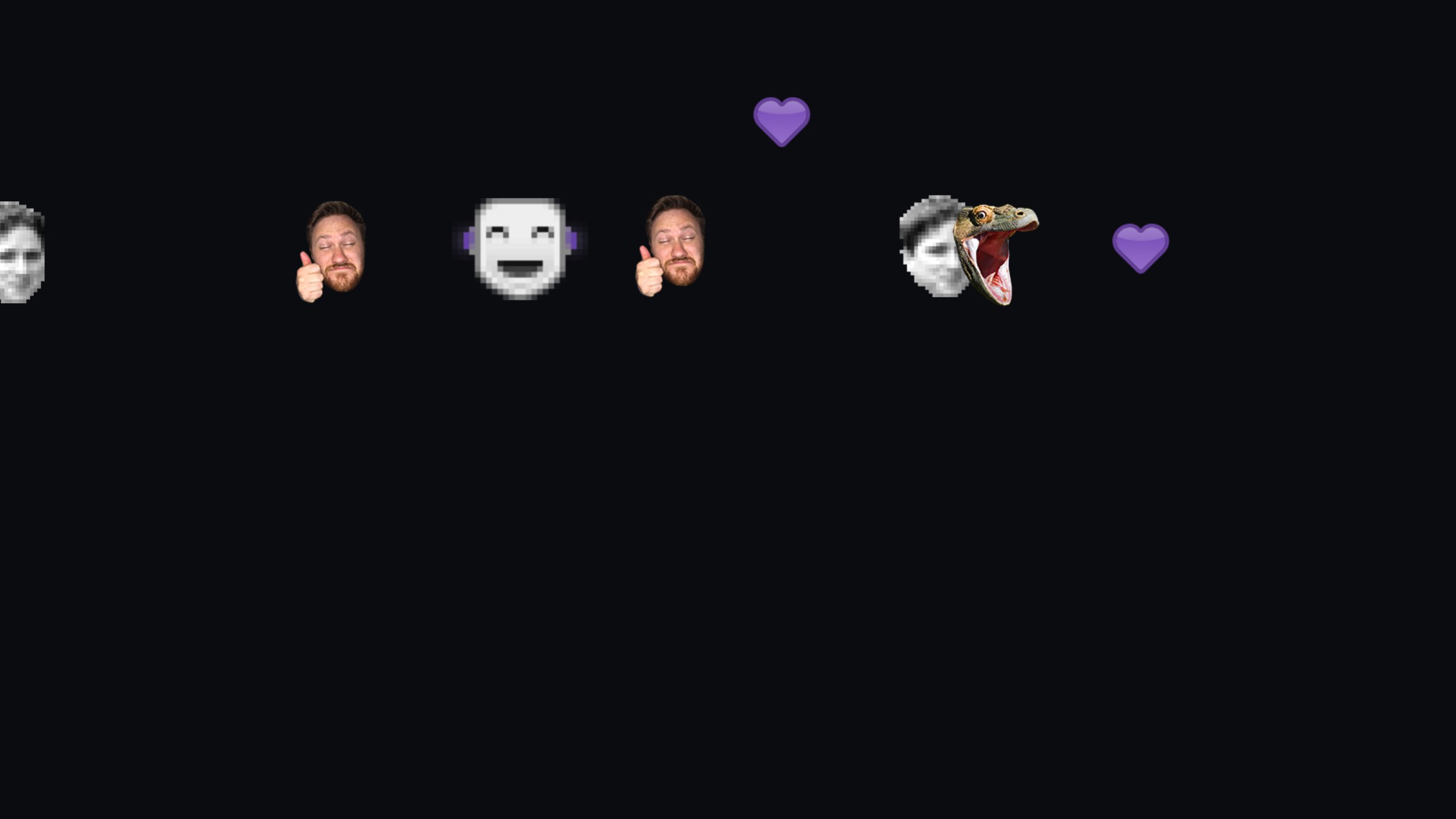
- Each emote chat sends, moving the way Motion says, for as long as On screen for says.
- Animated emotes playing as they fly.
- A 7TV overlay emote (such as a rain or a hat) drawn on top of the emote before it, not on its own.
- With Only show combos on, nothing until an emote reaches the combo, then that emote each time it is sent.
- If your computer asks apps to reduce motion, each emote fades in and out in the middle of the layer instead of moving, and animated emotes hold still.
What it does not do
- It does not show text, names, badges or cheers — only emotes.
- A message a moderator deletes, or a user whose messages are cleared, does not pull their emotes back off the wall: they are gone within On screen for anyway. Your chat box is where moderation shows.
- It does not replay emotes sent before the overlay was opened, or a rain that fell before then. When OBS reloads the Browser Source, the wall starts empty.
- A BTTV, FFZ or 7TV emote shows only when it is in your channel's own set or that site's global set, the same as in a chat box. Twitch emotes always show.
If something looks wrong
- Nothing appears when chat sends emotes: check the overlay is open as a Browser Source in OBS and Publish was pressed. The wall only listens to chat while it is open somewhere.
- Only some emotes appear: Only show combos may be on, or Most on screen at once may be low for a busy chat.
- One particular emote never shows: its picture could not be loaded from the site that hosts it. Other emotes keep working.
- Emotes fade in the middle instead of moving: your computer is set to reduce motion, and the wall follows it.
- Emotes appear in only part of the screen: the layer's box is smaller than the canvas. Select it and drag its edges out.
Was this guide helpful?
Thanks. Your answer helps us decide which guides to improve.