
Before you start
A giveaway is a record with its own rules: the prize, the word that enters it, how many winners there are, and how a winner claims it. You set it up once, open it when you are ready, and every line chat sees comes from a flow — so the wording is yours to change.
- Bloopbot connected to your channel so it can read and answer chat: Get started with Bloopbot walks through it.
- The Giveaway pack, from Flows → Explore packs. It brings the flows a giveaway runs on: the
!giveawaymod commands (one flow per command — Open a giveaway, Close a giveaway and the rest),!enter, keyword entry, the confirm word, and the winner announcement. If the Flows list already holds flows such as Giveaway status or Enter the giveaway, yours came with the pack earlier — check what is there instead of installing a second copy. - Points, if a ticket is to cost anything: loyalty points are what a ticket spends. A giveaway whose ticket cost is 0 needs nothing here.
- The bot account as a moderator, as for any flow that reads and answers chat — the Setup guide’s Give the bot mod step.
Giveaways are included for every channel. Drawing more than one winner needs a plan that includes it, and the editor says so when your channel does not hold it: your plan shows what you have.

1. Set the rules
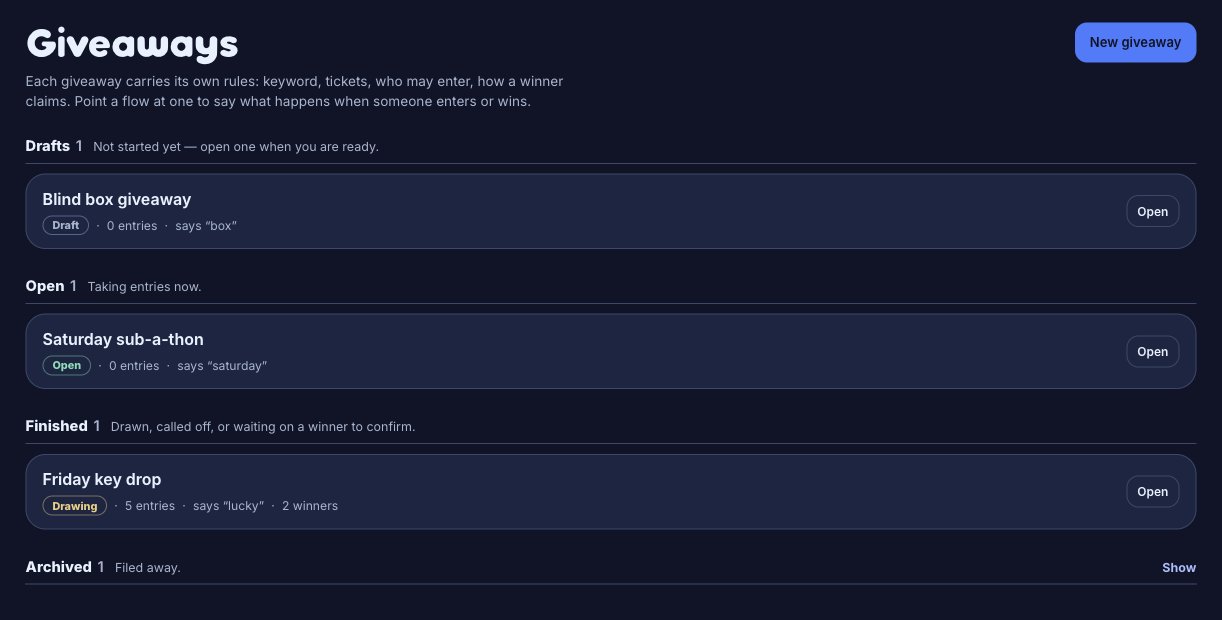
Open Giveaways in the sidebar, under Live, and press New giveaway. A new giveaway starts as a Draft: nothing in chat can see it yet.
- Give it a Title — the prize as chat reads it, such as “Friday key drop” — and a Description for your own notes.
- Set Winners. One is the usual case.
- Set the Keyword: the one word that enters the giveaway, such as
lucky. Only one open giveaway can hold a keyword at a time, and it is not a command, so it takes no prefix. - Decide what a ticket costs. Ticket cost (points) is spent per ticket, Max tickets each is how many one viewer may hold, and First ticket is free takes the cost off the first one they take.
- Give subscribers, VIPs and regulars luck if their tickets should weigh more. The best multiplier a viewer qualifies for is the one used; multipliers never stack.
- Under Who may enter, tick Must be following, pick roles, or set a watch-time minimum. Nothing ticked means anyone.
- Under Claiming the prize, choose whether a winner says a word to confirm (In chat) or is final the moment they are drawn (None). With chat confirmation, set the Confirm word (one word,
!claimby default), the Seconds to confirm, and whether a new winner is drawn when that window runs out. - Leave Opens and Closes empty to open and close it yourself, or fill them in to run it to a schedule.
Press Save. The giveaway is still a draft, so nothing reaches chat yet.
2. Let chat enter
- Press Open in the Run panel. The badge changes to Open, and the pack’s flow says so in chat: 🎉 Friday key drop is open! Type lucky to enter.
- Type the keyword in chat as a viewer would:
lucky. That line enters them. The pack’s defaults keep a successful entry quiet, so watch the Entries list on the page rather than chat. - A viewer who wants more than one ticket types
!enter 3, or!ticket 3, and is charged for each ticket.!enter maxtakes the most they can hold. - Watch the run panel: the entry count and points spent refresh on their own, and the entries list shows each viewer with their tickets, badges and watch time.
A refusal is said back to the viewer in the giveaway’s own words — not following, the wrong role, too little watch time, not enough points, or already holding every ticket they can. If chat says nothing at all, the keyword flow is usually paused or was never installed; the last section covers that.
3. Close it and draw a winner
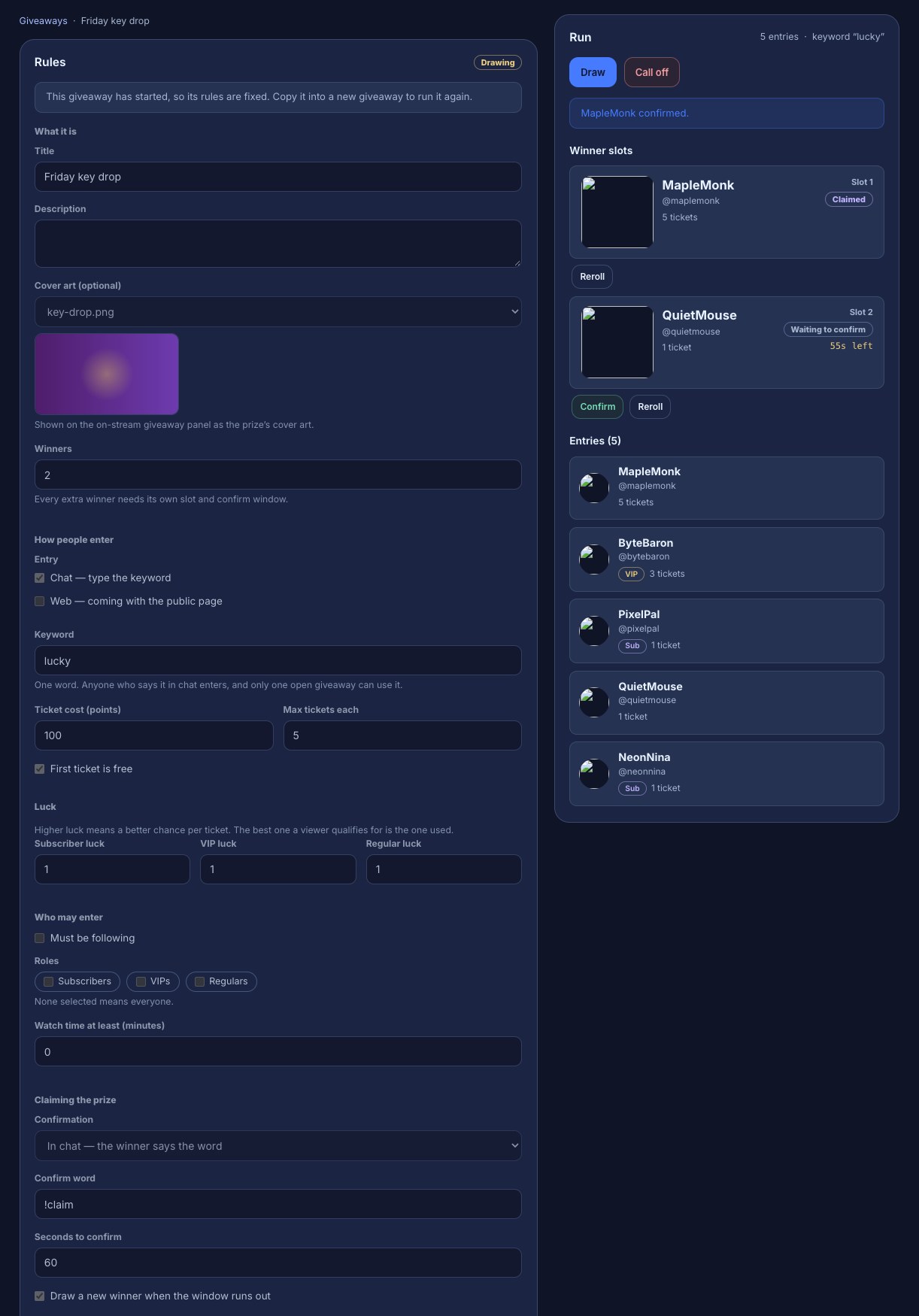
Everything about the giveaway is on one page: the rules on the left, what it is doing right now in the Run panel on the right.
- Press Close to stop entries, or Close and draw to do both at once. Entries stop the moment either is pressed.
- The Draw button fills the empty winner slots at random. It closes an open giveaway first, so it is always safe to press.
- Each winner appears as a Winner slot card with their avatar, tickets and a countdown for the confirm window. Chat hears who won from the pack’s announcement flow.
- A winner types the confirm word to claim. You can also press Confirm on the slot yourself — that is what to do when the prize was handed over on stream.
- Press Reroll on a slot to replace that winner with a fresh draw from everyone who has not won yet. The slot card shows the replacement.
- When every slot is confirmed the giveaway reads Finished. Press Archive to file it away under the collapsed Archived shelf.
When a confirm window runs out and the giveaway is set to draw a new winner when it does, that slot is redrawn on its own and the card shows the new winner.
4. Run it from chat
Moderators can drive the whole giveaway from chat. Each command is its own flow, named for what it does — Open a giveaway, Close a giveaway, Draw a winner, Reroll a winner, Confirm a winner, Cancel a giveaway and Giveaway status — so you can change one, or switch it off, without touching the rest.
| Command | What it does |
|---|---|
!giveaway open [keyword] | Opens a giveaway, taking the keyword typed after the command |
!giveaway close | Stops entries; end and stop work too |
!giveaway draw | Draws the winners; roll and pick work too |
!giveaway reroll [slot] | Redraws one slot; without a number it is slot 1 |
!giveaway confirm <name> | Confirms that winner for them |
!giveaway cancel | Calls the giveaway off and refunds the points — the broadcaster only |
!giveaway | Anything else says where the giveaway stands |
An operation on a giveaway that is not in the right state says why in chat. !giveaway cancel is quieter: only the broadcaster can call a giveaway off, and it does nothing at all for anyone else — no chat line, so it reads the same as a typo to a moderator who tries it.
5. Put the moments on stream
The Giveaway pack also shows three giveaway moments on your overlay as alerts: the giveaway opening, a winner being drawn, and a winner confirming. Each is its own flow, and each plays the alert design it names: Giveaway opened alert plays your giveaway-open alert design, Giveaway winner alert plays giveaway-winner, and Giveaway claimed alert plays giveaway-claimed.
- Install the Giveaway pack from Flows → Explore packs if it is not in your Flows list yet.
- On an overlay, add a Custom alert layer for each moment and rename its design to the name that flow uses — or point each flow’s Design field at a design you already have.
- Open Giveaway opened alert, Giveaway winner alert and Giveaway claimed alert and enable the ones you want.
A missing design is not an error: the run continues, nothing is shown for that moment, and the run log says which design name it wanted. Arranging your overlay covers placing alert layers, and Add a widget to OBS covers putting the overlay in OBS.
6. Put the giveaway panel on stream
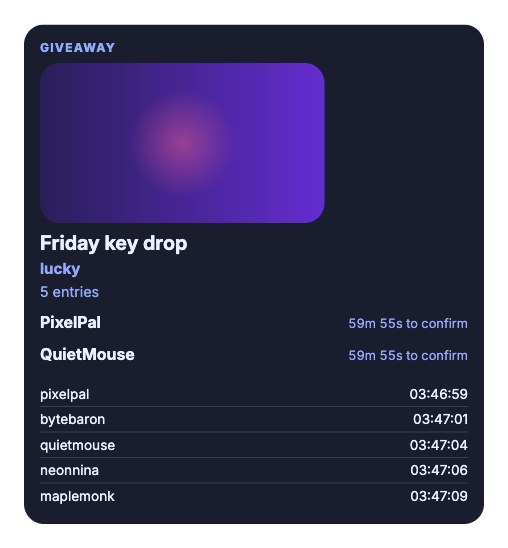
Chat runs the giveaway; the Giveaway widget is where viewers watch it. One panel follows the giveaway you are running and shows the prize and its cover art, the keyword, how many entries are in, the last few people who entered, and the draw itself.
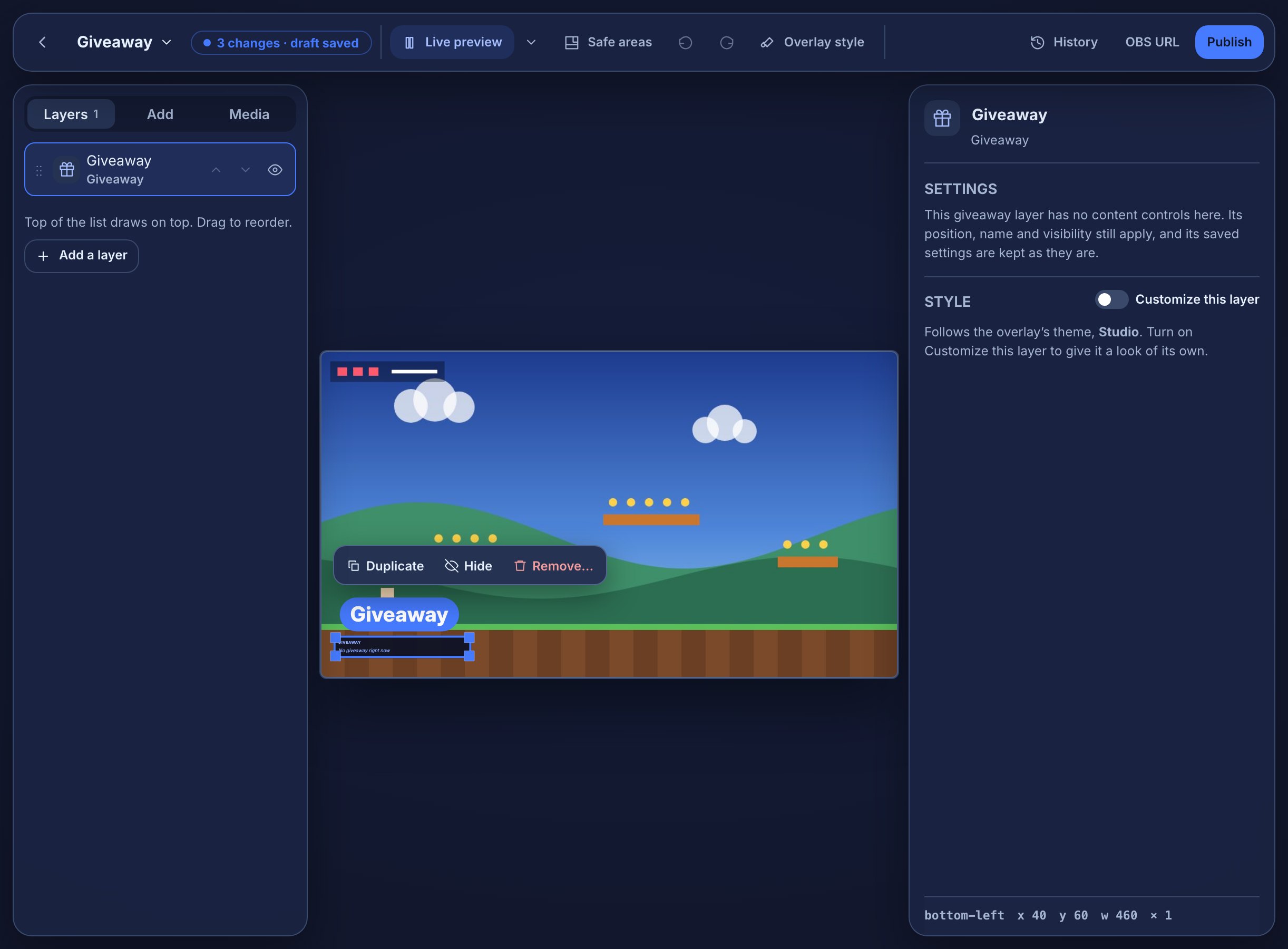
- Open Widgets, press New overlay, choose Giveaway under Start with and give it a name. Start with offers two starting points: Giveaway panel, a corner card, and Big reveal, a wider one that draws the draw out longer and lists more entrants.
- Press Create overlay. Adding a Giveaway layer to an overlay you already have works the same way, from Add on the left of the editor. Press Publish to put it on stream.
- Give the prize a picture on the Giveaways page: Cover art sits beside the title and is picked from your media library. It is optional, and setting it needs no Twitch permission.
- Copy the widget’s OBS URL and paste it into an OBS Browser Source, 1920 × 1080 with a transparent background — the same as any other widget.
- Open the giveaway. Everything else on the panel follows from the record: the keyword, the entry count and the last few entrants appear as chat enters.
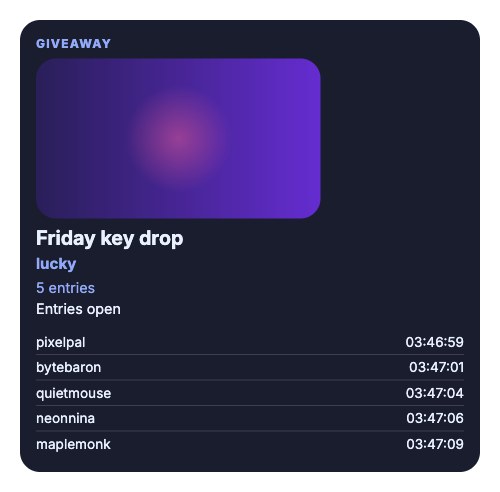
While entries are open the panel counts down to the close time you set, or reads Entries open when the giveaway has no scheduled close. A giveaway that is still a draft draws its card with Not open yet, and nothing at all is drawn once one finishes or is called off.
Then the draw. Press Draw on the giveaway (or Close and draw, or !giveaway draw in chat) and the panel takes over: each winner slot spins in turn and lands with that winner’s name and their confirm window counting down beside it. Redrawing a slot spins that slot again with the fresh draw.
What you should see
- The heading Giveaway above the prize, with your cover art above it when the giveaway has one.
- The keyword, the entry count and the last few entrants, updating as chat enters.
- A countdown to the close time while entries are open, or Entries open when there is none.
- At the draw: the reel spinning per slot, then each winner with their own confirm countdown.
- Nothing at all once the giveaway finishes or is called off — the panel clears rather than freezing on the last winner.
If something looks wrong
- The card reads Not open yet: the giveaway is still a draft. Open it on the Giveaways page.
- The card reads No giveaway right now: there is nothing to show, because no giveaway has been created on the channel yet.
- The card reads Entries closed — drawing next: entries have stopped and the draw has not run yet. Press Draw on the giveaway.
- No cover art: the giveaway has none, or the file it used has been deleted from your media library. A missing file draws no art rather than a broken picture — pick another under Cover art.
- The panel is showing a different giveaway: two are running, and it follows the one you opened most recently. Run one at a time.
- The panel cleared in the middle of a stream: the giveaway finished, or someone called it off. Points spent on tickets go back to their viewers — see the note under step 3.
- Nothing is drawn at all: the layer may be hidden in the widget editor, or the Browser Source may not be in a visible scene.
- A cover image will not delete from the media library: a giveaway still points at it, and the message names the giveaway. Change or clear its Cover art first, then delete the file.
A worked example: Friday key drop
Two winners, a follow lock, tickets that cost points, and a minute to claim.
- Create the giveaway: Title
Friday key drop, Keywordlucky, Winners2, Ticket cost100, Max tickets each5, and First ticket is free on. - Tick Must be following and leave the roles clear. Leave the claim rules on chat confirmation, word
!claim, 60 seconds, with Draw a new winner when the window runs out on. - Save, then press Open. Chat reads 🎉 Friday key drop is open! Type lucky to enter.
- A viewer types
lucky: their first ticket is free and they are in. A second viewer types!enter 5and is charged for five tickets. A viewer who does not follow you is told they need to follow to enter. - Press Close and draw. Two winner cards appear, chat says who won and asks each of them to type the confirm word, and the cards count their windows down.
- One winner types
!claiminside their window; chat confirms them. The other lets the window run out, so that slot is redrawn and the card shows the replacement, who then types the word. - When both are confirmed the giveaway reads Finished. Press Archive.
What you should see
- On Giveaways: a Drafts section holding the giveaway before you open it, then Open with the entry count and the keyword it answers to, then Finished, and Archived as a shelf you can show and hide.
- In chat while it is open: the opening line from the pack, one entry per viewer who types the keyword, and a refusal said back to anyone who cannot enter.
- On the run panel: the entry count and the points spent, every entry with its viewer’s tickets and badges, and one card per winner slot with its countdown.
- On Flows → Run log: a run for the keyword or
!enter— carrying the refusal reason when one happened — and a run for each!giveawaycommand a moderator typed. - Nothing at all in chat until you press Open: a draft is invisible to viewers.
Troubleshooting
- The keyword enters nobody: the giveaway is still a draft, its keyword flow is paused, or the word typed is not the one on the record. Check the badge and keyword on the page, then the flow’s live switch.
- Nothing happens for one particular word: only one open giveaway can hold a keyword, so another open giveaway in the channel may own that word.
- A viewer cannot enter and chat does not say why: the refusal line is a connection in the flow. Open the keyword entry flow and check that the enter node’s rejected output is wired to a chat message.
- Drawing reports nothing to draw from: nobody entered while it was open. A redraw only replaces a winner who already exists, so create a new giveaway for another draw.
- A viewer types the confirm word and nothing happens: the word has to match the record’s Confirm word exactly, be typed inside the countdown, and come from the winner the slot is waiting on. The slot card shows which state that winner is in.
- Drawing more than one winner is refused: that needs a plan that includes it. Set Winners to one, or check your plan.
- The overlay shows nothing at a giveaway moment: no alert layer on your overlays shows the design the flow asks for, or that design does not exist. The run log says which name it wanted.
- Chat never says who won: the winner announcement and the confirm-word flow are separate flows of their own — the announcement runs on the draw, and the confirmation line only after a winner types the word. Check both are installed and live.
Was this guide helpful?
Thanks. Your answer helps us decide which guides to improve.