
What you can do
Every channel has a public page at bloopbot.com/c/<your channel>. It shows your full Twitch bio, whether you're live with a Watch on Twitch button, your open giveaways, your store and each viewer's prizes.
You can also add your own links: YouTube, Discord, TikTok, merch, a tip page or anything else. They sit right under your live status as big buttons, so the page works as the one link in your Twitch bio and panels.
On Plus and up, you can add your schedule, recent broadcasts, top clips, YouTube uploads, an About section, a Work with me section for brands, and your gear. You choose which sections show, their order and the fonts viewers see across the page.
Before you start
- Custom links are part of the Plus plan and up. Your bio, live status, giveaways and store show on every plan. What your plan includes shows what your channel has.
- Sections are also part of Plus and up. Schedule, broadcasts and clips come from Twitch; set up your Twitch schedule if you want it to appear here.
- Page fonts are part of Plus and up. Browse Google Fonts for family names you want to use.
- Your bio comes from Twitch. To change it, edit it in your Twitch profile settings; the page shows the new one within a few minutes.
Add your links
- Open Public page in the sidebar, under Content.
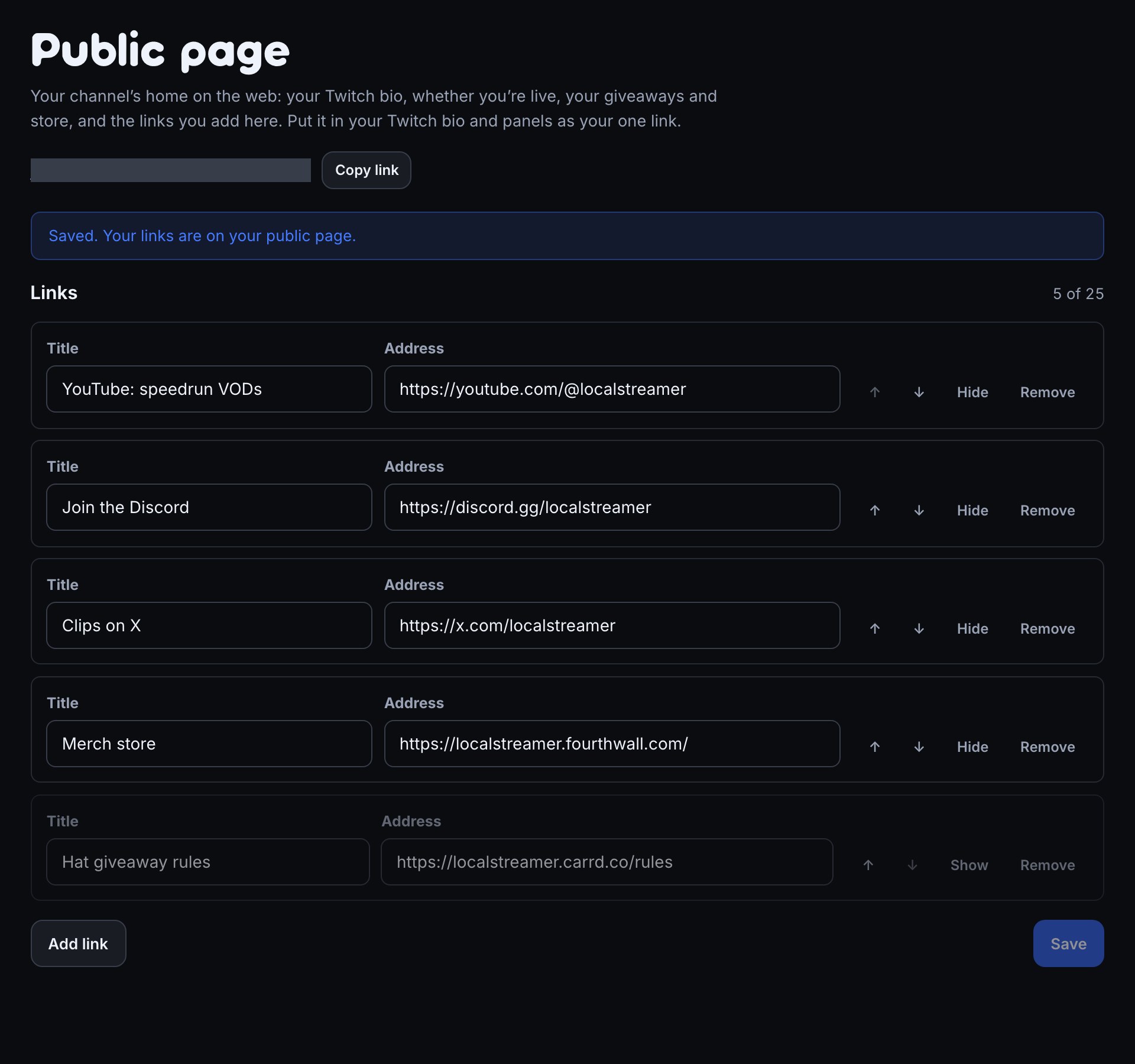
- Click Add link.
- Give it a Title, such as
YouTube: speedrun VODs, and an Address, such asyoutube.com/@you. You can leave offhttps://; it is added for you. - Add as many as you like, up to 25.
- Click Save.
Each link shows the site's own icon, the small picture a browser shows in its tab, such as YouTube's red play button. Bloopbot fetches it from the site a few seconds after you save; reload your page to see it.
A site that has no icon Bloopbot can use keeps a simple one picked from its address: video for YouTube, Twitch and Kick, chat for Discord, social for X, Instagram, TikTok, Bluesky, Threads and Facebook, a bag for shops like Fourthwall, Etsy, Ko-fi and Patreon, and a plain link for anything else.
Order and hide links
- Use ↑ and ↓ to move a link. The page shows them in this order.
- Hide keeps a link but takes it off your page, for example a giveaway link between events. Show puts it back.
- Remove deletes it when you save.
Nothing changes on your page until you click Save.
Choose your sections
The Sections list under your links on Public page shows every part of your page below your live status.
- Tick Show for each section you want viewers to see.
- Drag a section into place, or use ↑ and ↓.
- Fill in any section that needs your text or a channel address.
- Click Save sections.
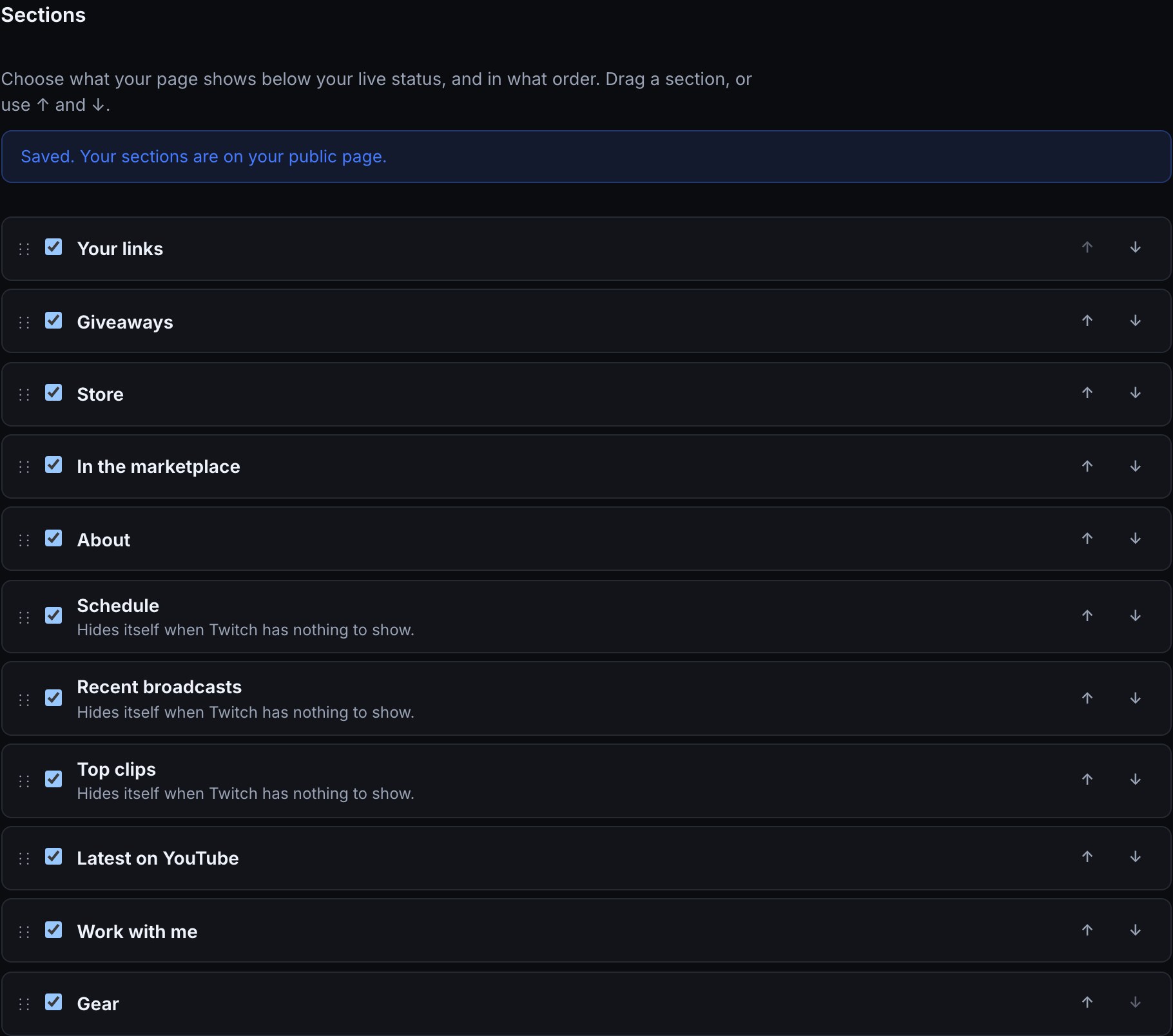
Your live status and any prize waiting for a signed-in viewer stay at the top.
Choose page fonts
- Under Page fonts, enter a Google Fonts family name in Heading font and another in Body text font. For example, use
Playfair Displayfor headings andOpen Sansfor paragraphs. - Click Save sections, then open your public page to see both fonts.
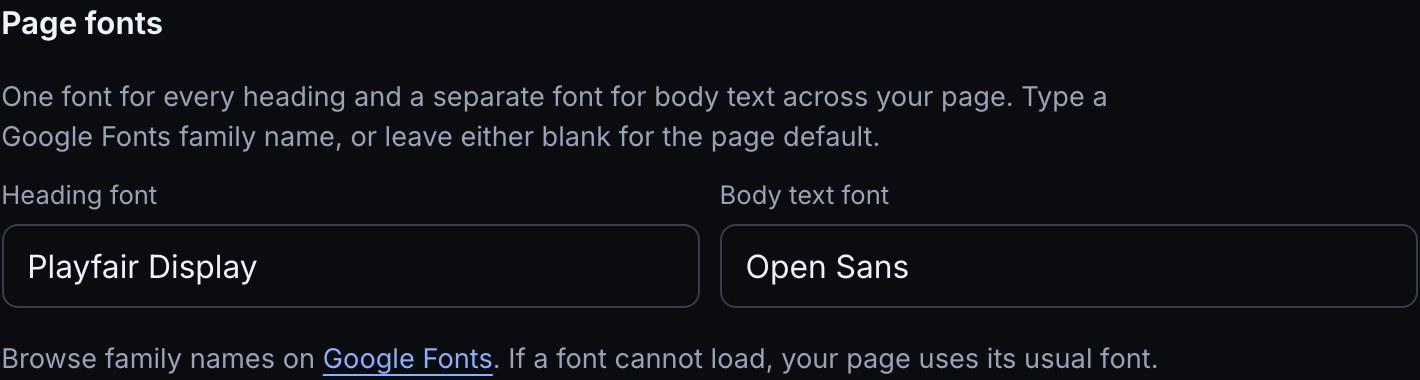
Each choice applies across the whole page, including sections you add later. Leave either field blank to use the page's usual font for that text. Your choices stay saved if your plan changes, and show again when your plan includes page sections. If a font cannot load, the usual font appears instead.
Schedule, broadcasts and clips
These three sections read from your Twitch channel, with nothing to fill in on this page:
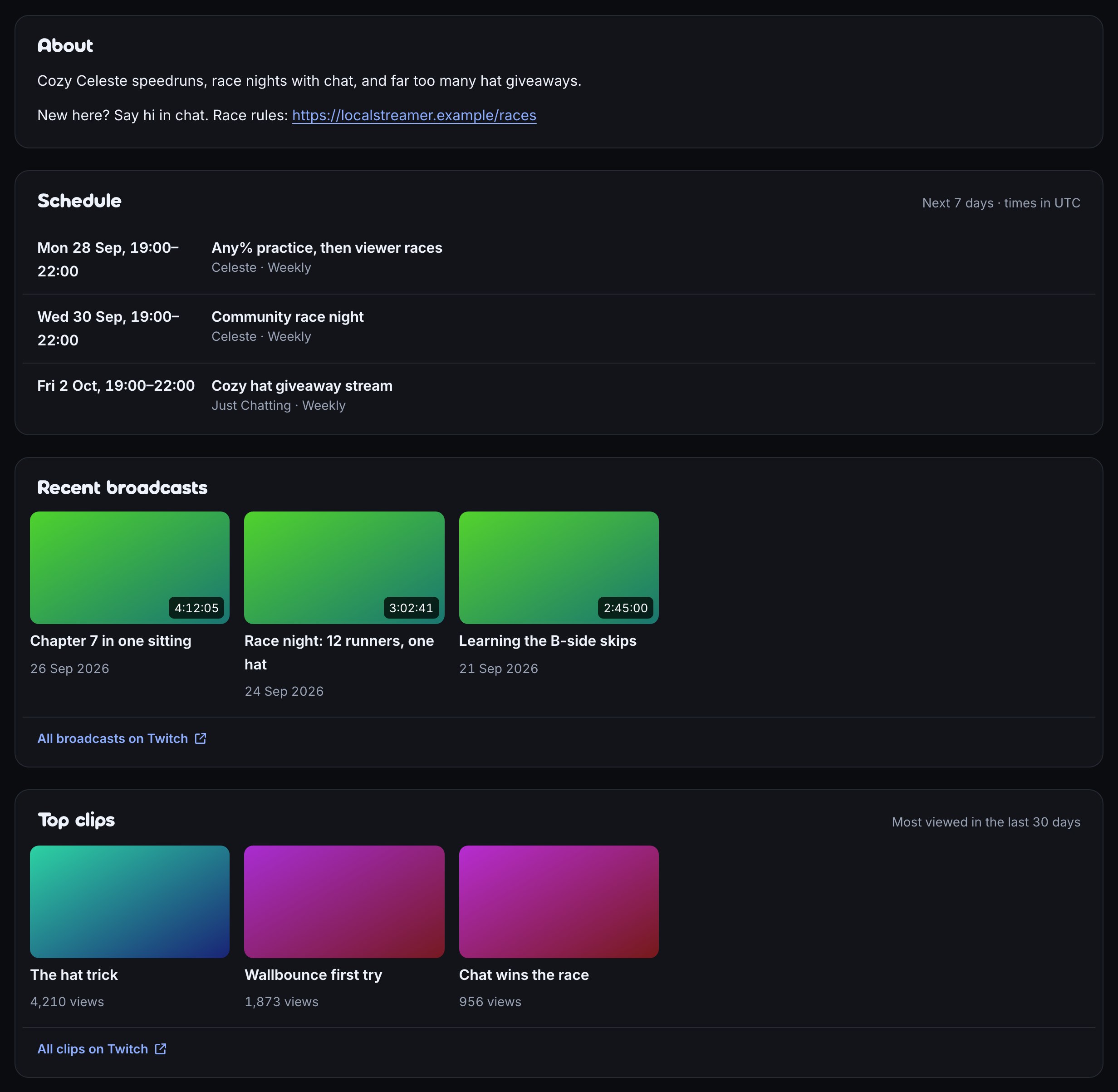
- Schedule shows your upcoming streams for the next 7 days and a note during a scheduled break. Times are shown in UTC.
- Recent broadcasts shows up to six saved past broadcasts, with their length.
- Top clips shows up to six of your most viewed clips from the last 30 days.
A section hides itself when Twitch has nothing to show. Twitch changes can take about 10 minutes to reach your page.
About and Work with me
Use About to introduce yourself and your stream. Work with me tells brands and sponsors how you collaborate. You can add a contact button there by choosing Email address or Web address and filling in the field beside it. Choose No contact button to remove it.
Each text field holds up to 2,000 characters. Leave a blank line between paragraphs. An address starting with https:// becomes a link; other formatting appears as plain text.
Your YouTube uploads
- Under YouTube channel, enter your channel address, such as
youtube.com/@you, or your@handle. - Tick Show for Latest on YouTube and click Save sections.
Bloopbot finds the channel when you save and shows up to six recent uploads. New uploads can take about 30 minutes to appear.
Your gear
- Under Gear, click Add item.
- Enter a Group, such as
Audio, an Item, such asShure MV7, and an optional Link. - Add up to 50 items. Items in the same group appear together.
- Click Save gear. Tick Show for Gear in the Sections list and click Save sections if you have not done so yet.
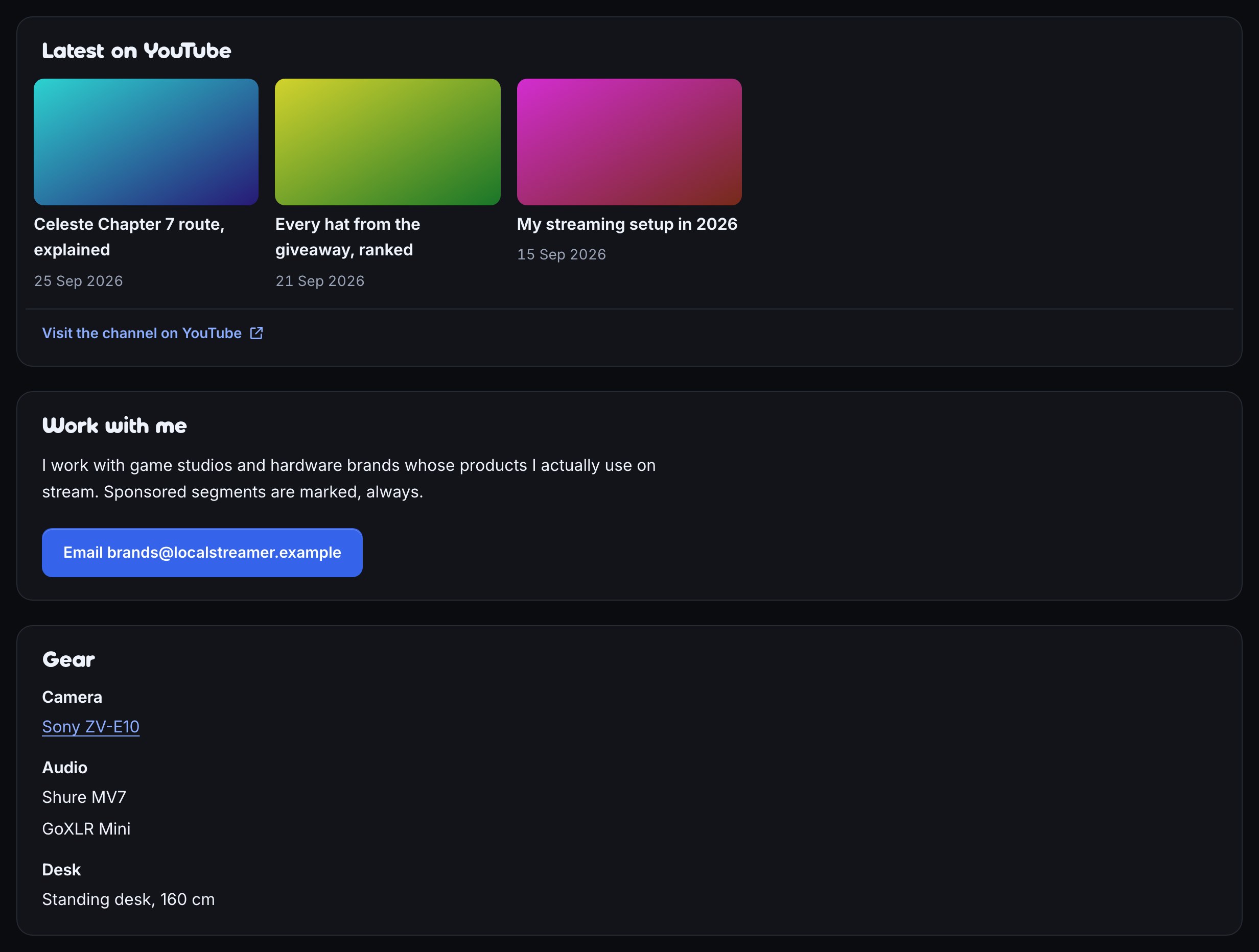
What viewers see
Open your page with the link at the top of Public page, or click Copy link and paste it into your Twitch bio, panels or a chat command.
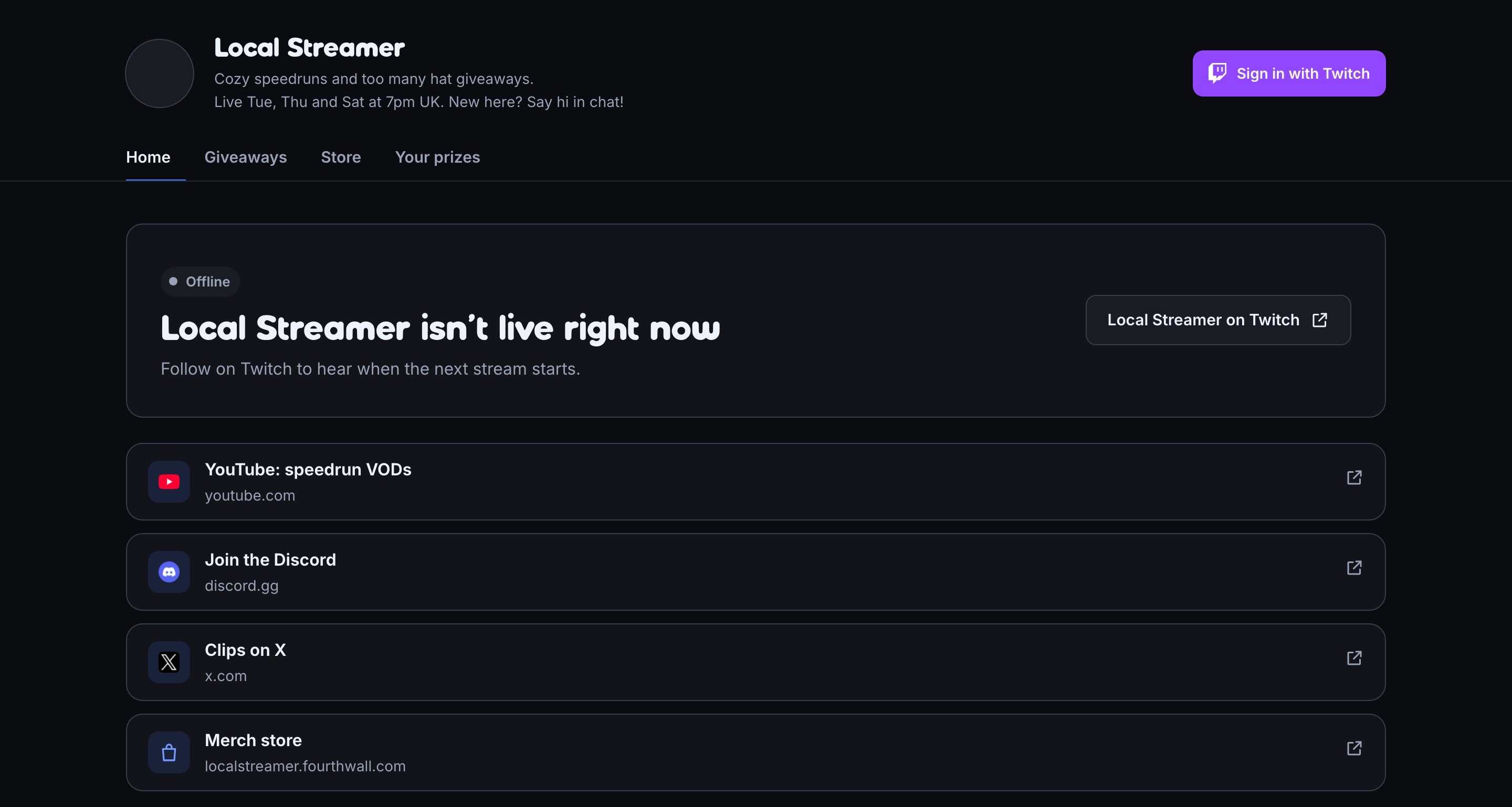
Viewers don't need to sign in to see your page or use your links. Links open the site directly.
On the Free plan, the bottom of every page has a short Stream on Twitch? box that tells viewers who stream they can get a page like yours with Bloopbot. On Plus, Pro or Legacy the box is gone, and your page ends with your own content. See What your plan includes.
Use your own domain
On the Pro plan, your public page can open at a domain you own, like live.yoursite.com, instead of bloopbot.com/c/<your channel>. Use your own domain for your public page shows how.
Troubleshooting
- "Use a web address that starts with https://": the address isn't a web page. Only
https://andhttp://addresses can be added; email and app links can't. - "Keep the title to 60 characters": shorten the title; the address shows under it anyway.
- My links don't show on my page: check that they aren't hidden and that you clicked Save. If the Public page says links come with the Plus plan, your plan doesn't include them right now; your links are kept and show again once it does.
- A link shows a simple icon instead of the site's own: some sites don't offer one Bloopbot can use, or refused the request. Bloopbot tries again the next day whenever you open Public page. When a site changes its icon, your page picks up the new one within a week.
- My bio is out of date: it comes from Twitch. Change it there and reload your page after a few minutes.
- Schedule, Recent broadcasts or Top clips doesn't show: check that you ticked Show and saved your sections. Twitch may have no scheduled stream in the next 7 days, saved past broadcast or clip from the last 30 days. Recent Twitch changes can take about 10 minutes to appear.
- "We couldn’t find that YouTube channel": open the channel address in your browser to check it. Enter the address from your channel page, such as
youtube.com/@you, instead of a video's address. - "YouTube didn’t answer": try Save sections again in a minute.
- My sections don't show: check Show and click Save sections. If Public page says sections come with Plus, your current plan doesn't include them; your settings are kept and return when the plan includes sections again.
- A page font doesn't show: check the family name on Google Fonts, then click Save sections. A font blocked by the viewer's connection falls back to the page's usual font.
Was this guide helpful?
Thanks. Your answer helps us decide which guides to improve.