Spotify song requests from your chat
Viewers request songs with !sr, the queue plays through your own Spotify account, and a now-playing overlay shows it on stream.
New channels can’t join yet. Already using Bloopbot? Sign in.

What chat can do
The Song requests pack installs the commands as flows, so you can rename any of them or change what they say.
| Command | What it does |
|---|---|
!sr song name | Requests a song, or a Spotify link. A refused request is answered with the reason |
!song | Shows the current track |
!queue | Shows the songs coming up |
!srstatus | Tells a viewer how full the queue is and what they have in it, or why !sr would turn them down |
!wrongsong | Takes back the viewer’s last request |
!skip, !remove | Moderators skip the current song or remove a request |
!sron, !sroff | Moderators open or close requests for the whole channel |
!srblock, !srunblock | Moderators keep a track, an artist or a viewer out of the queue, or let them back in |
Requests join your Spotify queue behind whatever you’re playing. Bloopbot never presses play for you, so nothing cuts off the song you and chat are listening to.
Limits are steps you can see
Every request runs through a flow, and the limits live in five variables you change on one page: whether requests are open, how many songs can wait, how many one viewer can hold, how long they wait between requests, and whether the same song can be requested twice.
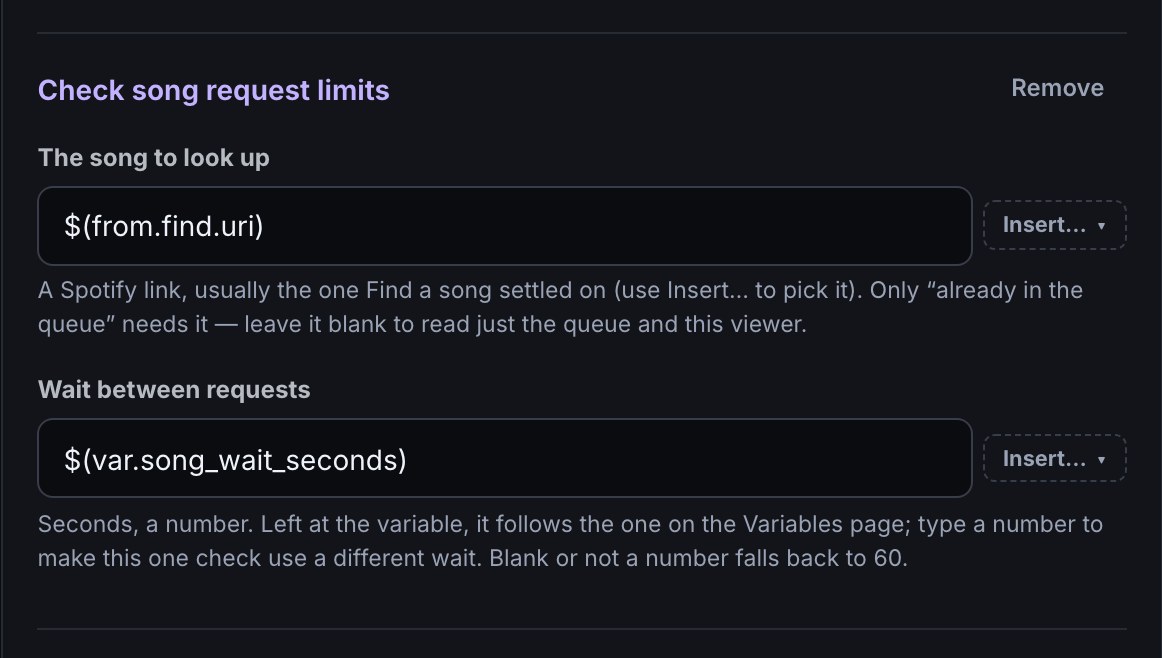
The Can they request a song? step checks a request against all five before anything is searched for. A refusal comes with a sentence you can send straight to the viewer, such as Queue is full (20 songs max). Try again later.
Want a rule of your own, such as a different line for each refusal? The Check song request limits step hands each fact to the next step — songs in the queue, songs this viewer has queued, seconds until they may ask again — so you can compare it with a number of your own. See gate a flow on the limits.
On stream
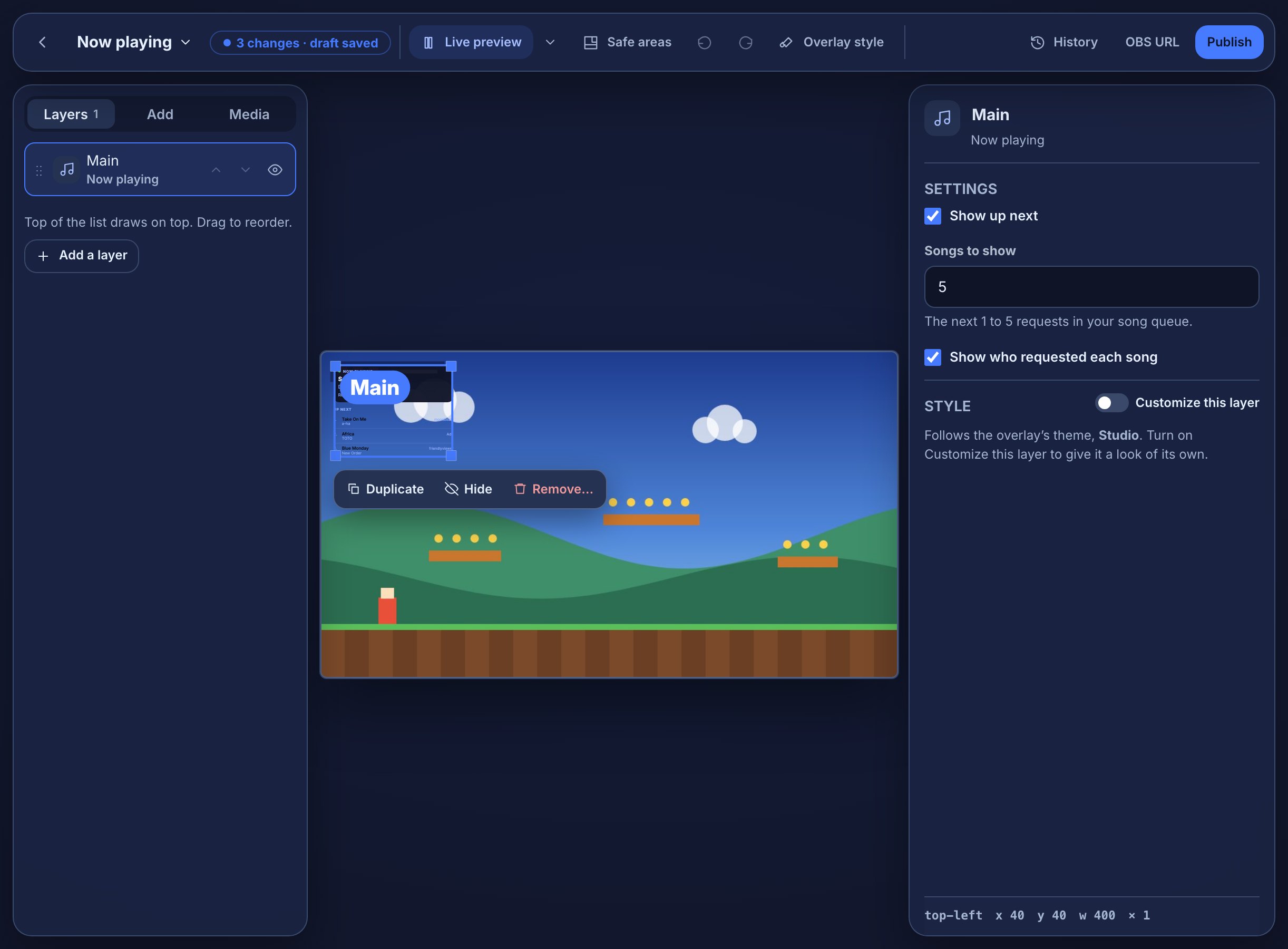
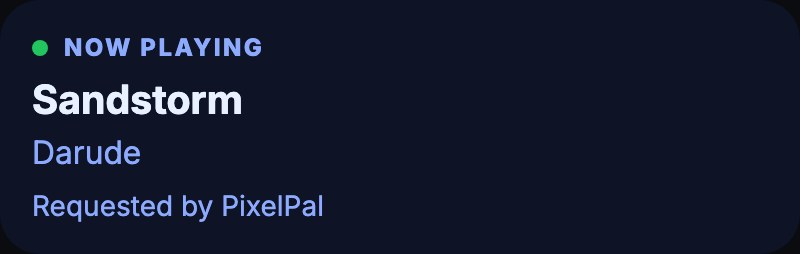
Add a Now playing layer to one of your overlays and OBS shows the track that’s playing, the requests coming up next and who asked for each one. It reads the same queue as chat, so a request confirmed in chat appears on screen too. See put now-playing on stream.
Help from AI, if you want it
Optional AI steps sit inside the same flows:
- Smart !sr lets the AI pick the track the viewer meant out of several Spotify results, and screen out troll uploads.
!findsongsuggests a track from an artist and a clue, such as that Bowie astronaut song, without queuing it.- Plain-English song requests lets viewers ask for a song in a sentence, with no
!sr. - A smarter
!wrongsongswaps a mistaken request for the runner-up the search found.
These may not be available on your channel yet. Smarter song requests with AI shows what each one needs.
Before you start
- Spotify Premium on the account you play music from.
- Your own Spotify app, which you create for free in Spotify’s developer dashboard; the guide walks through it step by step.
- Spotify open and playing on the device you stream from.
Song requests may not be available on your channel yet — check what your plan includes.
Set up song requests.
Link Spotify, install the Song requests pack and try !sr on your next stream.
New channels can’t join yet. Already using Bloopbot? Sign in.