
Custom Twitch overlays in your own code
Add a Custom graphic layer in Studio and write HTML, CSS and JavaScript beside a preview that plays as you type. Tell it which events and variables to listen for, test a raid without going live, then publish to the Browser Source already in OBS.
Custom graphics come with every plan, Free included.
Code beside the preview
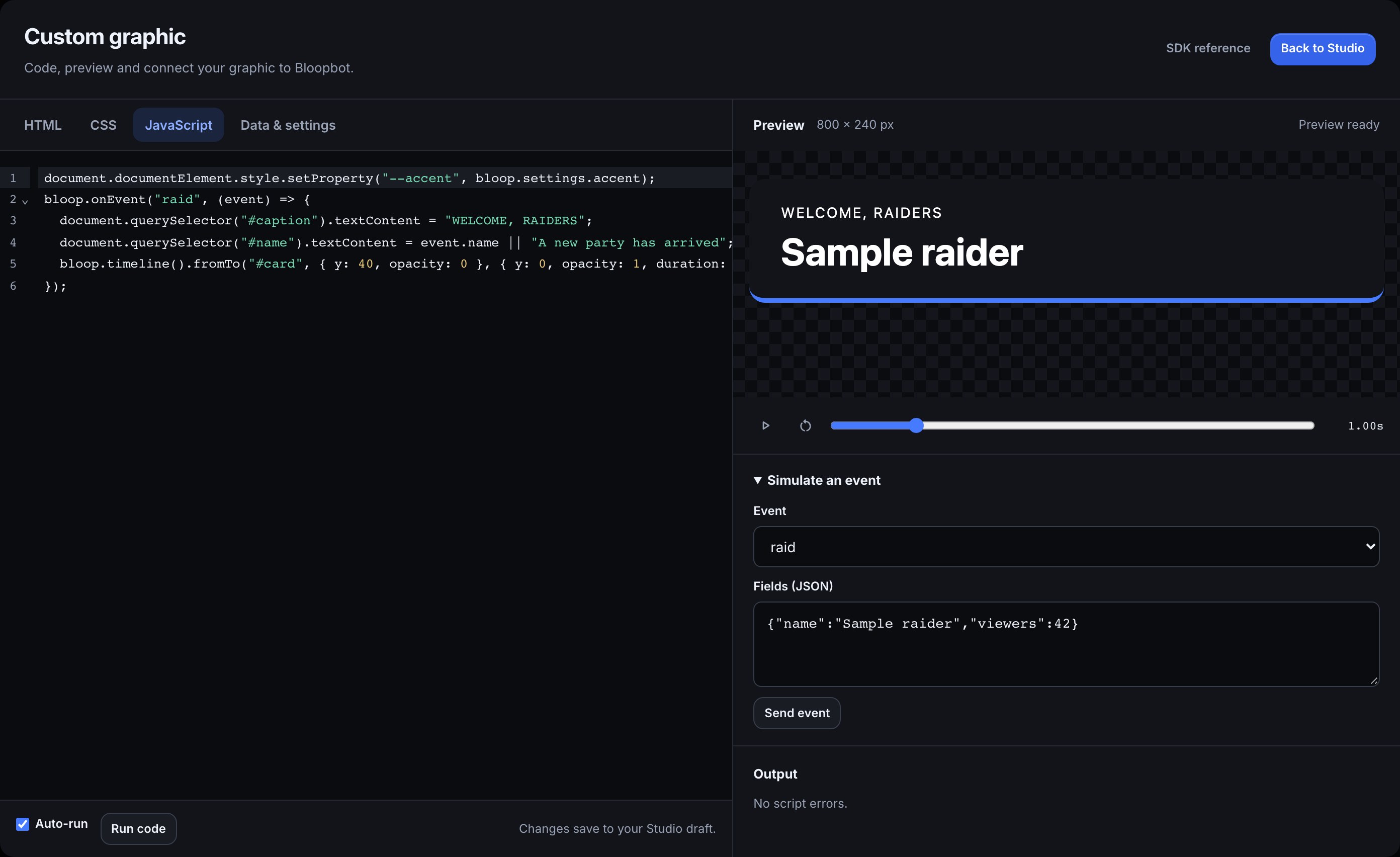
A Custom graphic is a layer like any other in Studio, so it can fill the whole overlay or sit beside your chat box and alerts. Edit graphic code opens a workspace with HTML, CSS and JavaScript tabs on one side and the preview on the other. Auto-run refreshes the preview a moment after you stop typing, and Output shows script and loading errors.
The starter is a raid card with an Accent colour setting. This is its whole JavaScript:
document.documentElement.style.setProperty("--accent", bloop.settings.accent);
bloop.onEvent("raid", (event) => {
  document.querySelector("#caption").textContent = "WELCOME, RAIDERS";
  document.querySelector("#name").textContent = event.name || "A new party has arrived";
  bloop.timeline()
    .fromTo("#card", { y: 40, opacity: 0 }, { y: 0, opacity: 1, duration: .6 })
    .to("#card", { opacity: 0, y: -20, duration: .4 }, 5.6);
});
Completions, types and error checks cover the bloop SDK and any library you turn on. Find, format, line wrapping and full screen are in the toolbar.
What your code can use
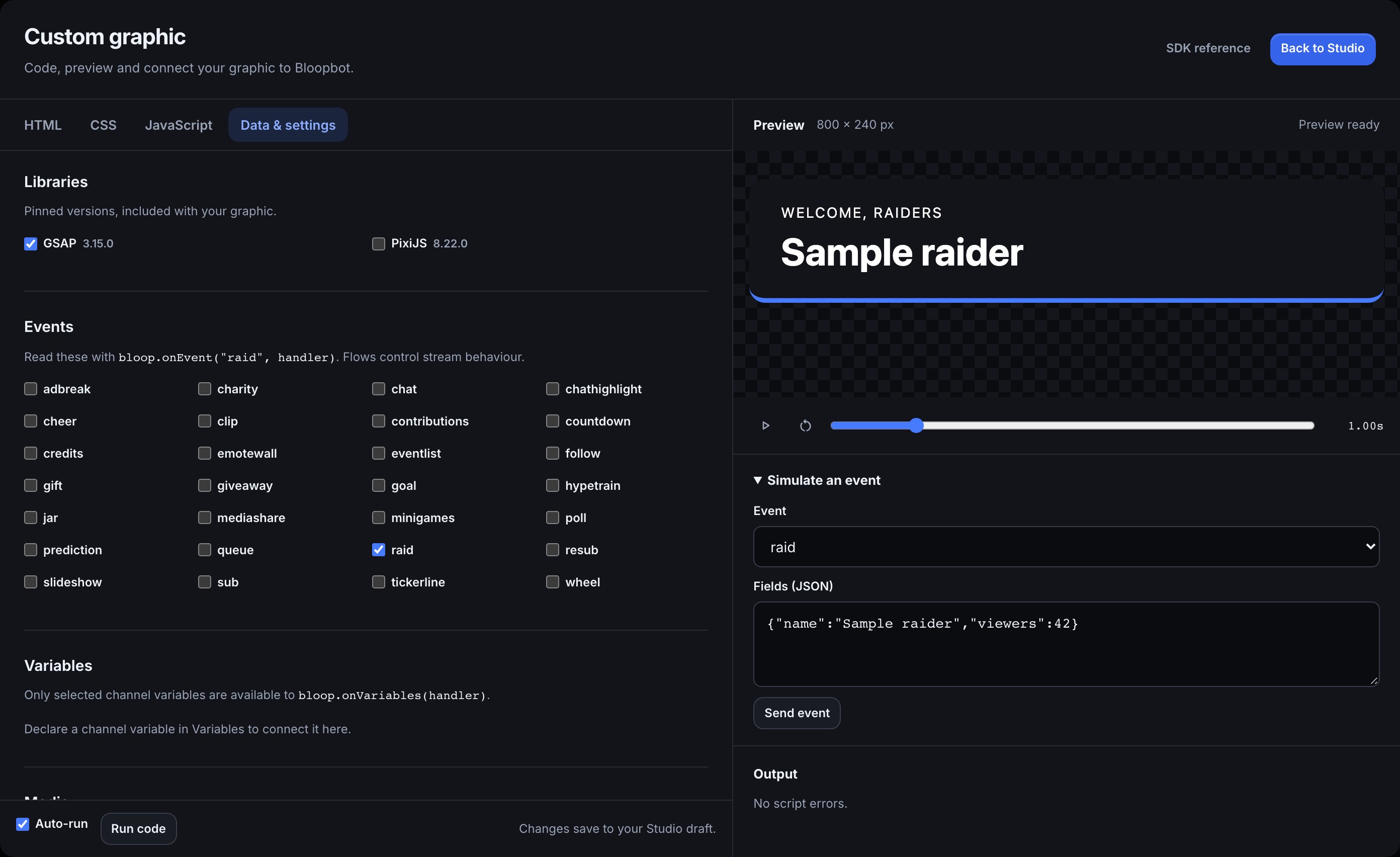
Under Data & settings you choose what the graphic receives. It gets only what you select:
| You select | Your code reads it with |
|---|---|
| Events: follow, sub, resub, gift, cheer, raid | bloop.onEvent("raid", handler) |
Channel variables, such as a wins counter | bloop.getVariables() or bloop.onVariables(handler) |
| Files from your media library | bloop.assets.portrait |
| Text, colour, number, on/off or choice settings | bloop.settings.accent |
Named flow messages, such as celebration | bloop.onEvent("custom", handler) |
GSAP, PixiJS, Three.js and Phaser are bundled at pinned versions; tick the ones you want. Google Fonts load from your CSS. Settings you expose show up in the normal Studio panel, so you can change a colour or a line of text later without opening the code.
Test a raid without going live
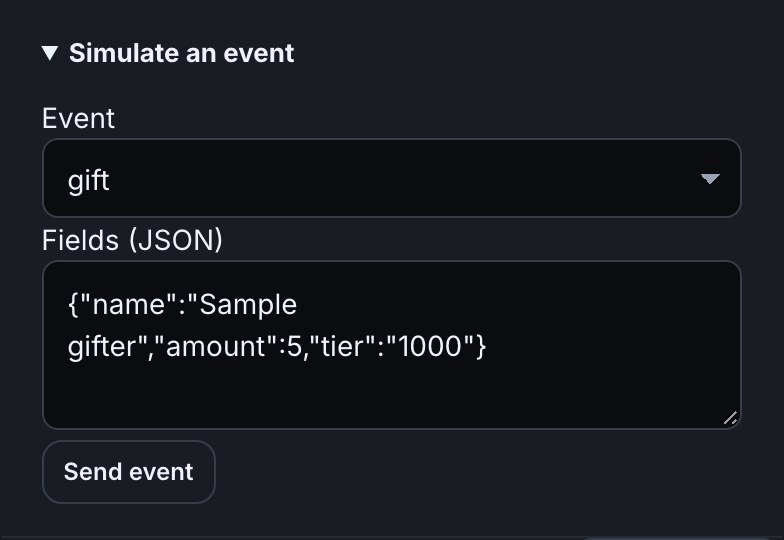
Pick an event under Simulate an event and its sample fields fill in, such as {"name":"Sample raider","viewers":42} for a raid or a name, amount and tier for gifted subs. Edit them if you like, then press Play preview or Send event. Drag Preview time to look at any moment again: the graphic reruns and replays the events up to that point. GSAP timelines, bloop.schedule() and bloop.onTick() all follow that clock, so a paused frame stays paused.
The main Studio canvas has the same Simulate controls, so you can check the graphic in place with your other layers. None of this reaches Twitch, a flow or OBS.
Flows decide when it plays
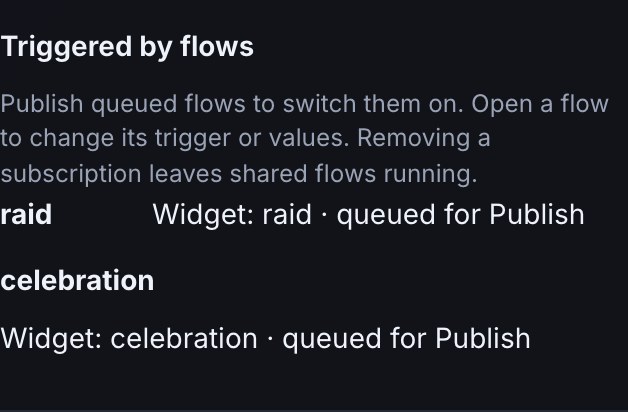
When you tick an event, Bloopbot queues a flow to send it, or reuses one you already have. A raid card gets a Raid → Send to overlay flow. Triggered by flows in the layer's settings shows whether each one is queued, on or off. When you Publish, you choose Create and switch on for each one.
For anything that isn't a Twitch event, add a named message. Its Run → Send to overlay flow can be rewired to a chat command, a channel point reward or a timer, and the values it sends reach your code as event.data. A !gg command could set off a celebration this way.
Publish to the source you already have
Changes save to your Studio draft and stay out of OBS until you press Publish. Then your existing overlay Browser Source shows the new graphic. There's no new URL to paste.
Your code runs in its own sandbox. It can't read your dashboard, cookies or storage, and remote scripts, images and requests are blocked, apart from Google Fonts. Pictures, sounds and videos come from your media library instead, up to 8 MB a file and 32 MB a graphic.
If you'd rather not write it yourself
A connected AI assistant can write the graphic into your Studio draft, show you a rendered preview and make small changes on request. You still review and publish it.
You can also draw an overlay in a plain HTML file of your own and give it a private OBS address with your own HTML overlay. Its Copy AI brief button gives any chat assistant the events and data that overlay can read.
Write your first card tonight.
Sign in with Twitch, open an overlay in Studio and add a Custom graphic layer. The starter raid card is already wired up for you to change.