
Before you start
This action draws on a Chat layer — the chat box you put in OBS. If you do not have one yet, create a widget on Widgets that starts with Chat (or add a Chat layer to one you already have) and paste its URL into an OBS Browser Source (1920 × 1080, transparent background), following Add a widget to OBS.
- A chat box that is actually open. A pin or a badge is only published while a chat widget is connected somewhere; with none, the flow still runs and its run log says no chat widget is connected.
- The flow editor: add or open a flow under Flows. These are canvas nodes, so switch the flow to Canvas.
- For the command examples below, the bot needs moderator access to your channel — the Setup guide’s Give the bot mod step. The pin and the badge themselves need no Twitch permission.
None of this is Twitch moderation. A hide changes your chat box only; what does reach Twitch is covered in the hide walkthrough and in moderation helpers.
Where the action lives
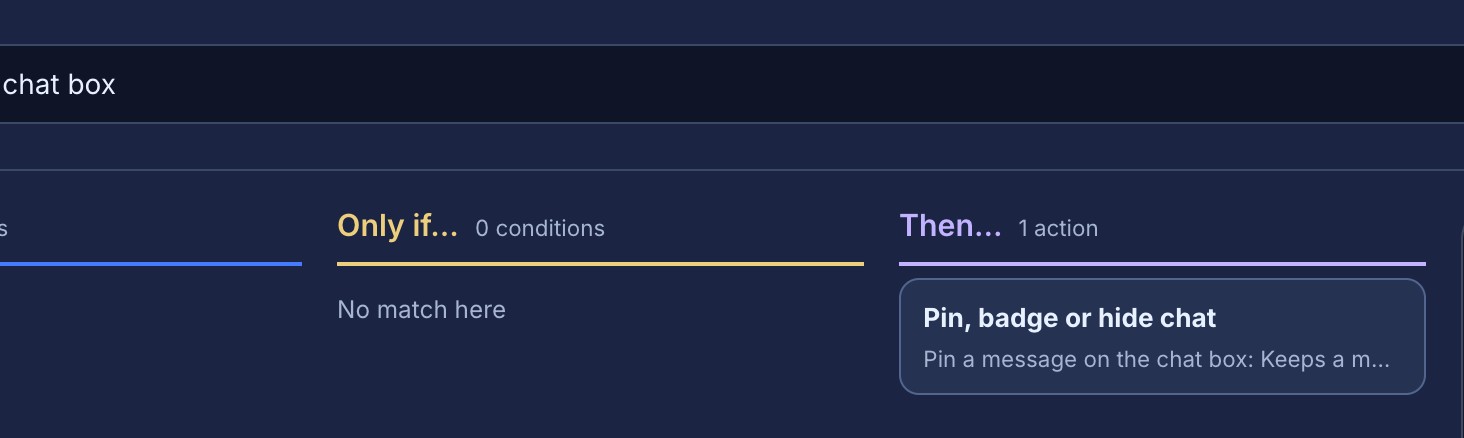
In a flow, open Canvas, then Browse the library and search — or type “pin”, “badge” or “hide” into Add a node. One node does all three: Pin, badge or hide chat, in the Overlay group, beside Show alert, Play media and Alert queue, because it draws on an overlay rather than post to chat. Add it once, then pick the choice you want in its Do setting.
| Choice in Do | What it does |
|---|---|
| Pin a message on the chat box | Keeps one message on the screen and highlighted until you unpin it |
| Badge a message | Draws a short text badge beside one message |
| Hide a message from the chat box | Takes one message off the chat box |
Whichever choice you pick, the node takes the flow’s next path and does exactly one thing. It has no message-id field: a Twitch message id is not something you can type, and no $(…) token resolves to one, so the action targets the message the run itself is about — the next section. Changing the choice later keeps whatever you already filled in.
Which message the action acts on
Every choice reads the same rule, in this order:
- The message the trigger replied to, when it replied to one. A moderator replies to a viewer’s message and runs
!pin: the pin lands on the viewer’s message, not on the command. - Otherwise the message the trigger event itself carries — a keyword, any chat message, or the moderation-action trigger.
- Otherwise the message that woke the run.
Pin a message a moderator asked for
A worked example: a !pin command a moderator runs as a reply.
- Open Flows → Explore packs and install the Simple command template, or open any flow that already has a Chat command trigger. A reply drives it either way.
- Set Command to
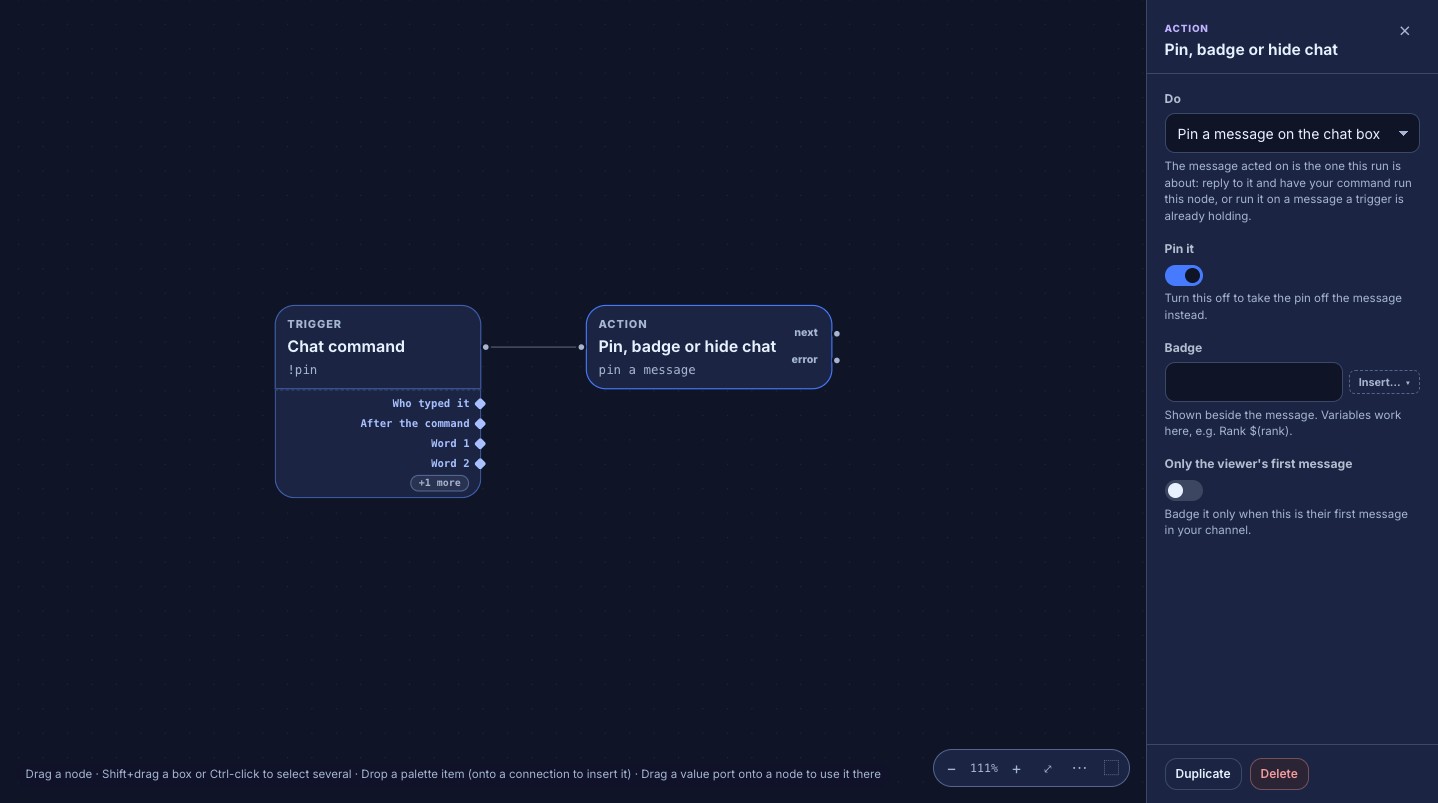
pinand Prefix to!, then switch the flow to Canvas. Delete the template’s Chat message action if you do not want the bot to answer. - Search the node library for Pin, badge or hide chat and add it, then set its Do field to Pin a message on the chat box. Leave Pin it on so the node pins; turn it off and the same node unpins instead.
- Add Who can trigger between the trigger and the pin, set its At least field to moderators, and connect the passing path to the pin.
- Press Save.
- Have a moderator reply to a viewer’s message in Twitch chat with
!pin.
Expected result: that viewer’s message stays on the chat box while new messages arrive — a pin survives both the Messages on screen limit and a message lifetime — and the widget draws it highlighted in your theme’s accent colour, so it stands out from the messages around it. One chat box keeps at most three pinned messages, so a fourth pin releases the oldest. Run the flow again with Pin it off to take the pin away.
Badge a message
A badge is a short piece of text drawn just before the message. Two common uses: a loyalty rank on every message, and a marker for a viewer’s first message.
- Add Pin, badge or hide chat from the Overlay group, then set its Do field to Badge a message. Run it on a flow that gets chat — a chat-command trigger, When chat mentions, or the Any chat message trigger.
- In Badge, write what should be shown, for example
Rank $(rank). Variables work here exactly as they do in a chat message; the editor’s Insert… menu offers loyalty values such as$(rank). - Leave Only the viewer’s first message off for a badge on every message.
- Save, then type anything in your own chat to see it.
To mark first-time chatters instead, turn Only the viewer’s first message on: the badge is drawn only when the message is that viewer’s first in your channel, and nobody else gets one.
Expected result: the badge appears beside the message within about a second. It is text — at most 24 characters, never a link and never an image — and badging the same message twice replaces the badge instead of adding a second one.
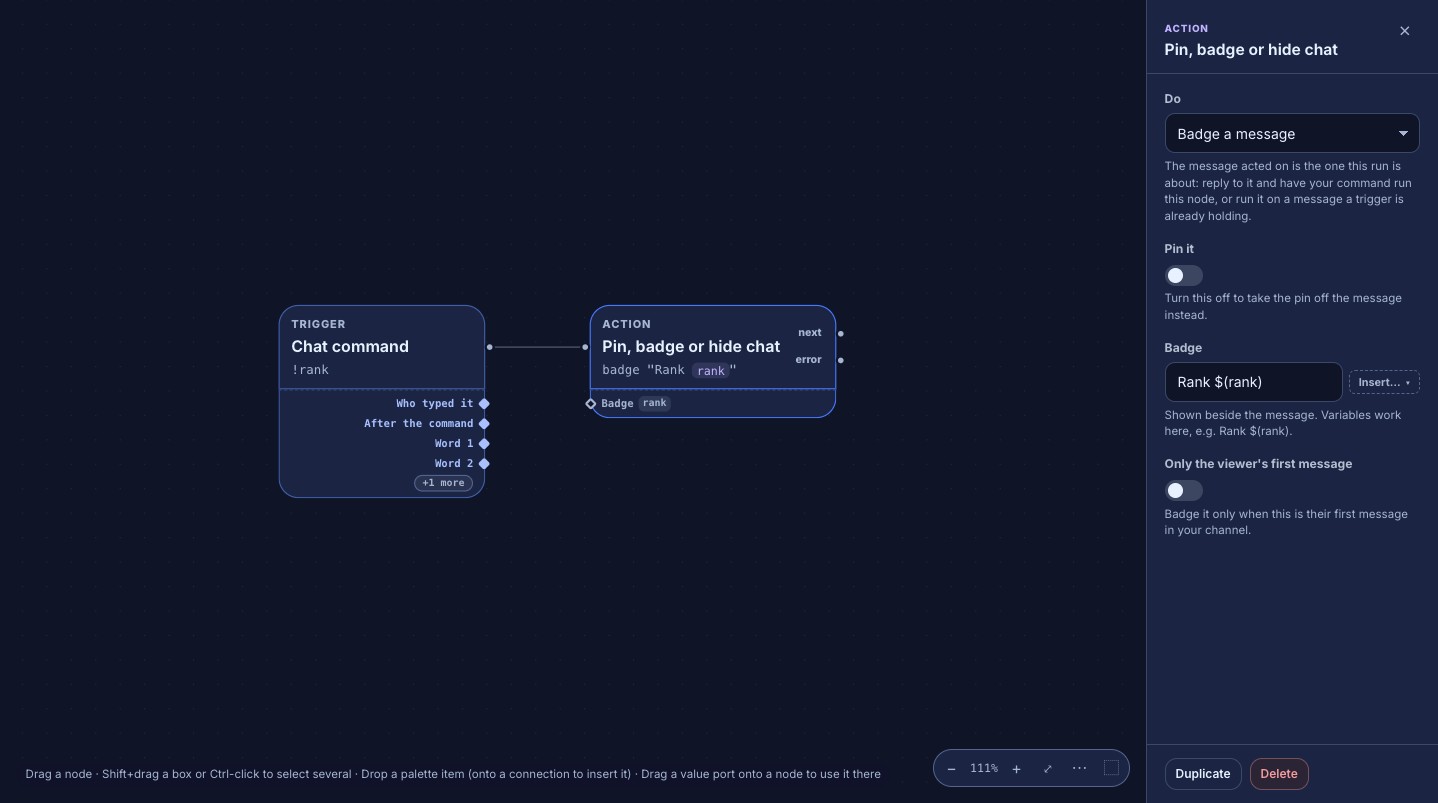
Rank $(rank) in the Badge field, with the first-message switch below it. Click to enlarge.Hide a message your flow decided against
Set the chat-box action’s Do to Hide a message from the chat box when your own flow has decided a message should not be on your overlay — an AI moderation step flagged it, a keyword matched, or a rule of yours fired. It takes the message off the chat box at once, and a chat widget that connects later is never handed it.
- Build the flow that makes the decision. The AI chat moderation — delete and warn template is one ready-made choice; a chat command or a keyword trigger is a simpler one.
- On the branch that means “keep this off the box”, add Pin, badge or hide chat from the Overlay group and set its Do to Hide a message from the chat box.
- There is nothing else to set for a hide — leave the other fields alone — so connect it and press Save.
- Let a real message take that path.
Expected result: the message disappears from the chat box immediately. The run log reads hidden, or hidden (no chat widget is connected) when no widget is open — the removal is recorded either way, so a widget that connects afterwards does not draw the message.
Check it works
On screen, the change lands within about a second. If it does not, start with the flow’s Run log; its detail line says exactly what happened:
| Run-log detail | What it means |
|---|---|
pinned / unpinned | The instruction reached the chat box |
badged with "Rank 3" | The instruction reached the chat box |
hidden | The removal was recorded and sent to the chat box |
no chat widget is connected | No chat box is open anywhere; a pin or a badge was not sent |
hidden (no chat widget is connected) | Nothing is open, but the removal was still recorded |
no message to pin / to badge / to hide | The trigger carries no message — a timer, a remote trigger, a reward redemption |
the label was empty | The badge’s text expanded to nothing, such as $(rank) with no loyalty configured |
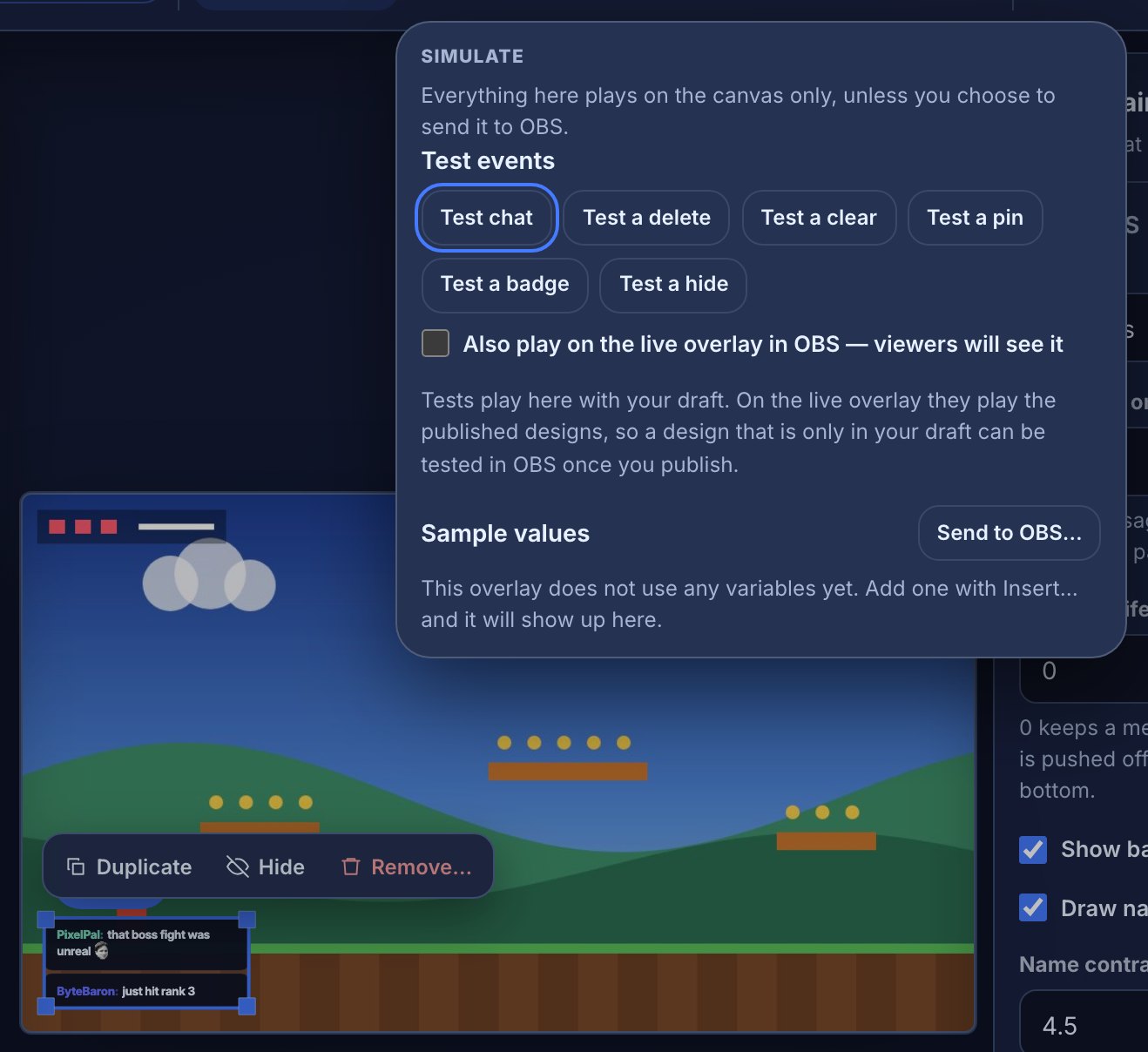
Test fire is simulated: it records would pin…, would badge… or would hide… and never reaches OBS or Twitch. The chat box’s own editor has scripted tests that do reach the canvas: open Simulate, the arrow beside Live preview in the editor’s top bar, and use Test a pin, Test a badge and Test a hide. Each draws a sample message and then the instruction that acts on it, with the option to send the same sequence to OBS so you can confirm the connected Browser Source picks it up.
- Nothing changes and the log says no chat widget is connected: no chat box is open anywhere. Open the OBS scene with your chat widget, or stop hiding it, and try again — no flow is broken.
- A pin or badge draws nothing: the message was already off the screen, pushed out by newer messages or never drawn. The bot cannot see inside your chat box, so there is nothing to act on — raise Messages on screen in the chat widget’s settings, or act sooner.
- A hide did nothing in Twitch: correct. Hide is your chat box only; use Delete the message for Twitch.
- Two different results from one chat line: check for another flow listening to the same command or event.
What these actions do not do
- A pin and a badge are screen state. A chat widget that reconnects starts unpinned and unbadged, and the flow sets them again the next time it runs — nothing about them is stored in Bloopbot.
- A chat box keeps at most three pins. A fourth releases the oldest, and a pinned message is exempt from Messages on screen and from a message lifetime while it is pinned.
- The target is always the message a run is about. A trigger with no message in hand — a timer, a remote button you set up, a reward redemption — does nothing and says so in the run log rather than failing.
- A hide removes the one message the run holds, not every message from that viewer: there is no per-viewer “hide this person” switch and no undo.
- Nothing in this guide reaches Twitch. Pinning, badging and hiding never delete, time out or ban anyone.
- These three choices work on a chat box you created in Bloopbot. A chat box you built yourself as an HTML file cannot receive them.
Was this guide helpful?
Thanks. Your answer helps us decide which guides to improve.