
What you can do
A viewer queue is a line of viewers waiting to play with you — the next lobby, the next match, the next co-op run. Viewers type !join to get in line, !leave to drop out and !waitlist to see who is waiting. When you are ready for the next players, a moderator types !next 4, or you press Next on the Queue page, and chat hears who is up.
Your channel has one queue. It can be open or closed, hold as many viewers as you allow, put subscribers first, and ask every viewer for a note when they join, such as their gamertag. It lasts across streams until you clear it, and a Viewer queue layer shows it on your overlay.
Before you start
- Chat commands come from flows. The Viewer queue pack has all five; step 2 adds it.
- To show the queue on stream you need an overlay in OBS. Add an overlay to OBS shows how to add one as a Browser Source.
1. Set up the queue
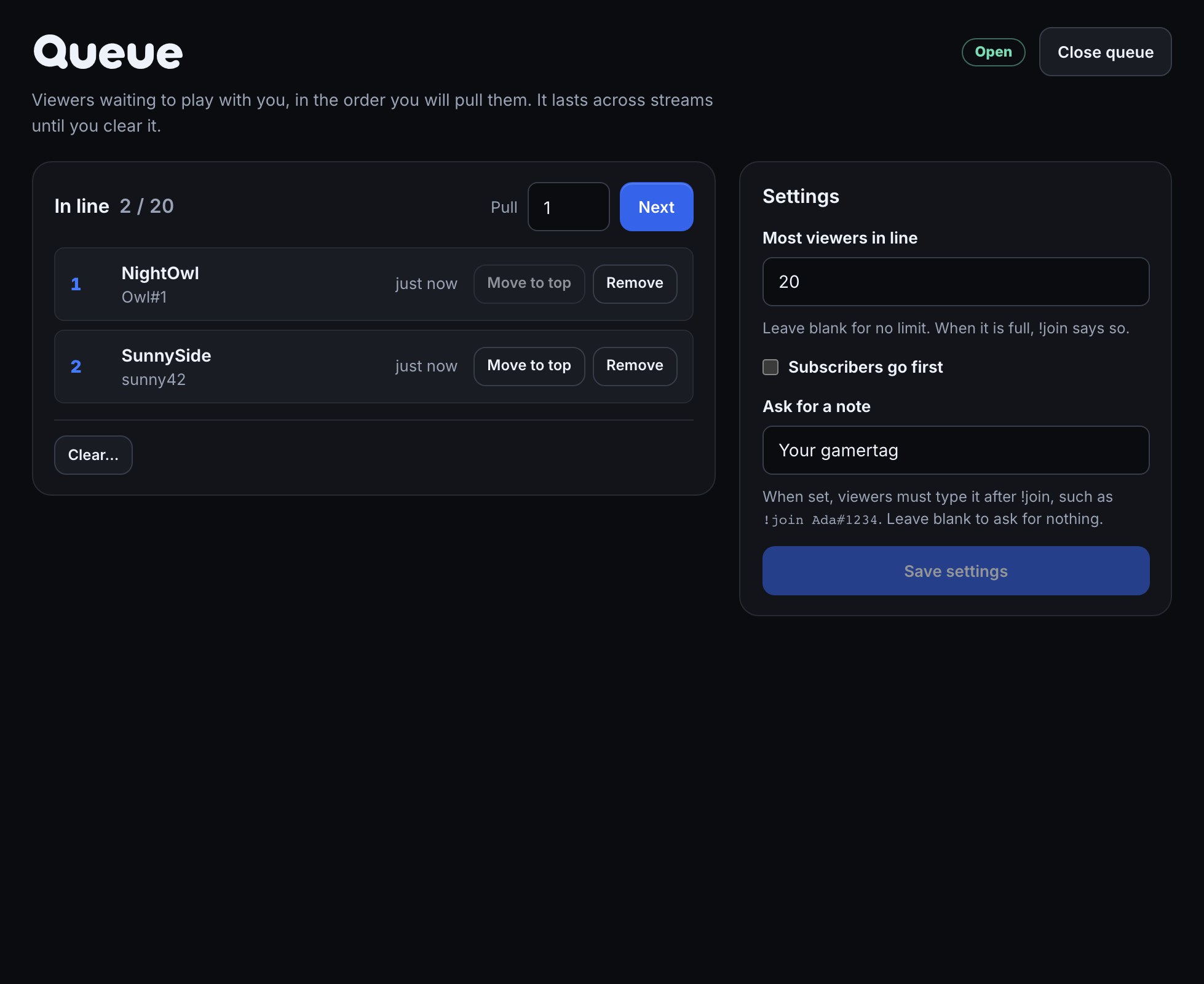
- In the dashboard sidebar, open Run → Queue.
- Under Settings, set Most viewers in line: the most who can wait at once. Leave it blank for no limit.
- Tick Subscribers go first to serve subscribers before viewers who are not, even ones who joined earlier.
- Under Ask for a note, type a prompt such as
Your gamertagif you want one. Every viewer must then type it after!join, and it is shown beside their name. Leave it blank to ask for nothing. - Press Save settings.
- Press Open queue. The badge beside it turns to Open. Press Close queue when you want no more joins; viewers already in line stay in it.
2. Add the chat commands
The Queue page offers the commands when nothing lets viewers join yet: a Queue commands row under the page title says Viewers can’t join your queue from chat yet. Press Add on it to open the Viewer queue pack’s review on the right, then press its button to add the five flows, paused. The row then offers Switch on, or Open flow to look first, and it goes away once they are on. You can also open Flows, press Add, and add Viewer queue.
| Command | Who | What it does |
|---|---|---|
!join or !join Ada#1234 | Everyone | Puts the viewer in line and replies with their place, You are #3 in the queue. Anything after !join is their note. |
!leave | Everyone | Takes them out of line. |
!waitlist | Everyone | Says how many are waiting and who, in order: In the queue (3): PixelPal, LoyalLlama, BitsBandit. |
!next or !next 4 | Moderators and you | Pulls the next viewer, or the next four, out of the line. Anyone else is ignored without a word. |
| — | — | Say who is up next: whenever viewers are pulled, chat hears Up next from the queue: PixelPal, LoyalLlama! |
When a !join is refused, the viewer is told why in a reply: The queue is closed right now., The queue is full., You are already in the queue at #2., or Add your gamertag after the command. when your queue asks for a note and they gave none.
3. Run the line
The Queue page lists everyone waiting, in the order you will pull them, and refreshes on its own every few seconds while viewers join from chat.
- Next pulls the number of viewers in Pull (1 to 25) off the top. It is announced in chat the same way
!nextis, by Say who is up next. - Move to top puts one viewer first, ahead of everyone else, including viewers who skipped the line.
- Remove takes one viewer out without announcing anything.
- Clear… takes everyone out. The queue stays open or closed as it was.
The order is: viewers who skipped the line first, then — with Subscribers go first on — subscribers, then everyone else in the order they joined.
4. Show the queue on your overlay
- Open Overlays and open the overlay the queue should appear on.
- Press Add on the left and choose Viewer queue under Goals & games.
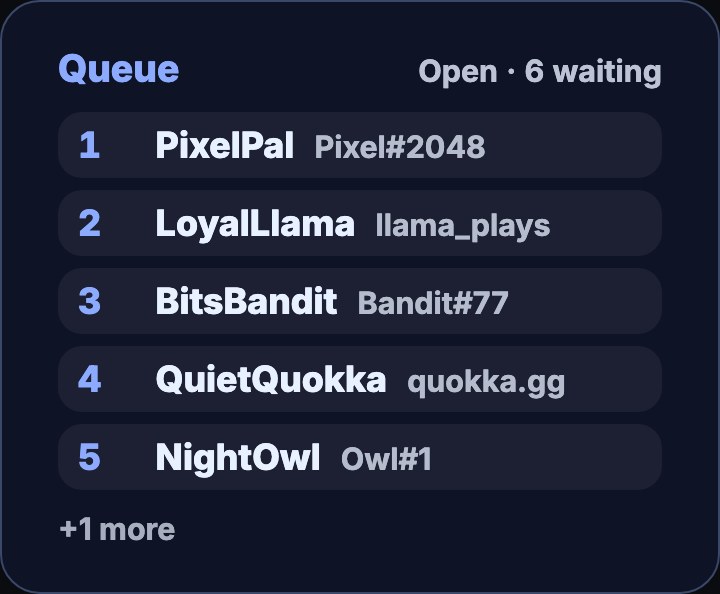
- Select the layer and set Viewers to show, from 1 to 20. The layer lists that many from the top of the line and says how many more are waiting.
- Size and place it like any other layer — Arrange your overlay covers placement — and press Publish.
The layer shows Queue, whether it is open and how many are waiting, then each viewer's place, name and note. It takes your overlay theme, and its panel, rows, names and notes can each be styled from the theme's parts. To see it with made-up viewers before anyone joins, open Simulate in the top bar and press Test queue; after a few seconds it returns to your real line.
5. Build your own queue flows
Six steps in the node library, under Queue, do everything the queue does:
- Join the queue — puts the viewer in line. Their note is what they typed (
$(query)is everything after the command) and Skip the line puts them ahead of everyone who joined normally. It follows ok with their place in$(from.<step>.position), or rejected with why in$(from.<step>.message). - Leave the queue — follows ok, or none when they were not in line.
- Pull from the queue — How many takes 1 to 25, and
$(1)reads the number after the command. It hands forward$(from.<step>.users), the names as one line, and follows empty when nobody is waiting. - Open the queue, Close the queue and Clear the queue.
And one trigger:
- Viewers pulled from queue — runs after every pull, from a flow or from Next on the Queue page. Its tokens are
$(users)(the names, in order),$(count)and$(notes)(each note with its viewer's name).
Any flow can also read the queue without a step: $(data.queue.length) is how many are waiting, $(data.queue.viewers) their names in order, and $(data.queue.open) is on or off.
Only followers, or a price in points
Who may join is decided in the !join flow, before Join the queue runs.
- Followers only: turn on Twitch's Followers-only chat while the queue is open, and only followers can type
!joinat all. A flow can do it for you: in a moderator command, add Chat settings with Followers-only set to on after Open the queue, and set it back to off after Close the queue. - A price in points: in the Join the queue (!join) flow, put Read points & watch time before Join the queue, then a Check a value step:
$(from.<read step>.balance)at least100. After Join the queue's ok, add Set a variable to subtract100fromloyalty_balancefor the viewer, so a refused join costs nothing. Loyalty and regulars explains the points. - Skip the line for channel points: make a flow that starts from On a reward redeemed and adds Join the queue with Skip the line on. Reward redemptions shows how to pick the reward.
A note is text a viewer typed, and it is shown on your overlay. To screen it first, put AI: text OK to show? on $(query) before Join the queue, where your channel has it.
A worked example: squad night
- On the Queue page, set Most viewers in line to
20, Ask for a note toYour gamertag, save, and press Open queue. - Add the Viewer queue pack and switch its five flows on.
- Add a Viewer queue layer to your main overlay, set Viewers to show to
5, and publish. - PixelPal types
!join Pixel#2048and is told You are #1 in the queue. Five more join the same way; one types just!joinand is told Add your gamertag after the command. - Your layer shows Open · 6 waiting, the first five with their gamertags, and +1 more.
- For the first match, your moderator types
!next 4. Chat reads Up next from the queue: PixelPal, LoyalLlama, BitsBandit, QuietQuokka! and the layer drops to two waiting. - Between matches you press Next on the Queue page, and chat reads Up next from the queue: NightOwl!
What you should see
- The Queue page listing everyone waiting, updating on its own as viewers join and leave.
- A reply in chat for every
!join: their place, or why not. - One Up next line in chat for every pull, whether it came from
!nextor from Next on the Queue page. - The Viewer queue layer following along within a moment, and showing the line as it stands when you refresh or re-open the Browser Source.
Troubleshooting
!joindoes nothing: the Viewer queue flows are paused, or were never added. Switch them on in Flows, or add them from the Queue page’s Queue commands row.- Every
!joinsays the queue is closed: press Open queue on the Queue page. !nextdoes nothing: it is for moderators and you. Permissions and cooldowns shows how to change who can use a command.- Nobody is announced after Next: Say who is up next is paused, or was deleted. Add it again from the Viewer queue pack.
- The layer says Nobody in line yet while the Queue page lists viewers: the overlay has not been published since the layer was added. Press Publish in the overlay editor.
- Two replies to one command, or the wrong one: another flow of yours uses the same word, such as a
!joinof your own. When you add the pack, the review warns about a command already in use; keep one of the two flows paused or change its command. The Song requests pack's!queuelists songs; the viewer queue's list is!waitlist. - Yesterday's viewers are still in line: the queue lasts until you clear it. Press Clear… on the Queue page when a new session starts.
Was this guide helpful?
Thanks. Your answer helps us decide which guides to improve.