
Describe your overlay, your AI assistant builds it
Connect Claude, ChatGPT or Claude Code to your channel and ask for an overlay in plain words. It writes the HTML, CSS and JavaScript into your Studio draft, renders a preview with a sample raid, and changes only what you ask for next. Nothing reaches OBS until you publish.
Connecting an AI assistant comes with the Pro plan.
Ask in plain words
Once your assistant is connected, a request like this is enough:
Create a custom graphic in Studio: a transparent raid card with an editable accent colour. Use the graphics layer and bundled GSAP. Subscribe only to raid. Render a preview at 500 ms with a sample raid from PixelPal, then leave the source in the draft for me to review.The assistant adds a Custom graphic layer to your overlay, writes its source, picks the events it needs and sets up the flow that sends each one. It then shows you a picture of the draft at the moment you asked for, with the sample raid playing. If the card isn't right, say what to change and it renders another.
It works with any assistant that can add a custom connector, sometimes called an MCP server, including Claude, ChatGPT and Claude Code.
Small changes stay small
Asking for "the accent in gold instead of blue" doesn't make the assistant rewrite your graphic. It changes only the snippet or setting involved and leaves the rest of your source as it was, so a one-word change saves in moments.
If you edit Studio while it works, its out-of-date change is refused rather than saved over yours. It reads your latest draft and tries again. A refused change saves nothing.
You decide what goes live
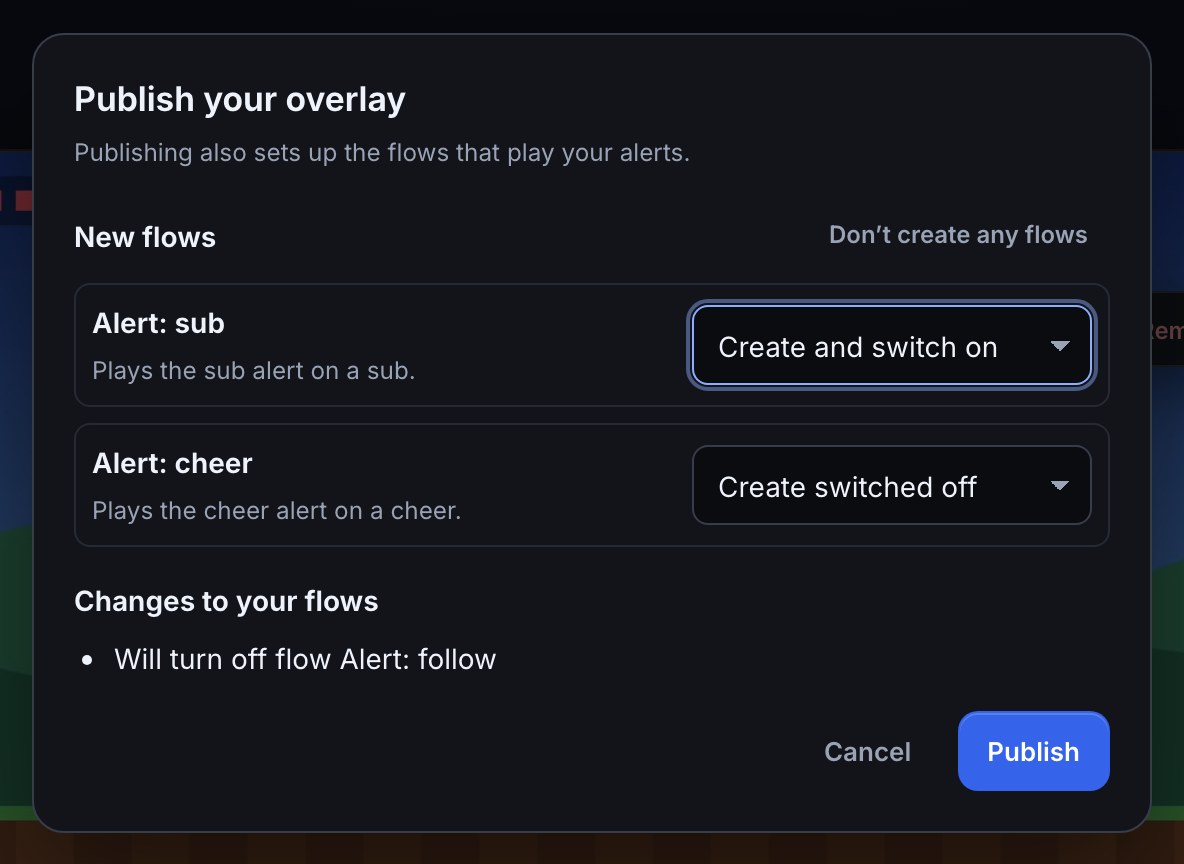
The assistant works in your Studio draft. Your OBS Browser Source keeps showing the published version until you press Publish in Studio and choose Create and switch on for the flows it set up.
If you also tick Publish your Studio draft when you connect, the assistant can publish for you. Before it does, it lists every change that will go live, including any you made yourself, and waits for your go-ahead.
What you allow
You choose what the assistant can do on Bloopbot's consent screen, and overlay access starts unticked:
| Permission | What it allows |
|---|---|
| See your overlays, themes and Studio drafts | Read your overlays, draft changes and media file names, and render draft previews |
| Create overlays and themes, edit Studio drafts and organise your media | Add layers, write graphic source, upload files you give it, tidy the media library |
| Publish your Studio draft | Press Publish for you, after you agree |
It never sees your private Browser Source address. Every change it makes appears in your Audit Log under the assistant's name.
More than one card
The same connection can build a matching set of scenes from Studio's ready-made layouts, such as gameplay, Starting soon, Be right back and Ending, or put a clock, an event list or a viewer count on an existing overlay. With flow permissions ticked, it can also create the flows that make your graphic play, such as a !gg command that sets off a celebration. Connect an AI assistant lists everything it can do.
Prefer to write the code?
Everything the assistant writes is ordinary HTML, CSS and JavaScript in a Custom graphic layer. Open it in Studio to read it, change it beside the live preview, or share it in a pack. Custom graphics come with every plan, Free included.
You can also paste a custom HTML overlay's AI brief into a chat assistant. The brief describes the events and data that overlay may read, and you save the HTML it writes on your streaming computer.
Ask for one card first.
Connect your assistant with overlay permissions, ask for a raid card in your colours and look at the preview before you publish.