
The three parts of a flow
| Part | Question it answers | Example |
|---|---|---|
| Trigger | When should this start? | Someone types !hello |
| Condition | Should it continue? | The viewer is a moderator |
| Action | What should happen? | Send a chat message |
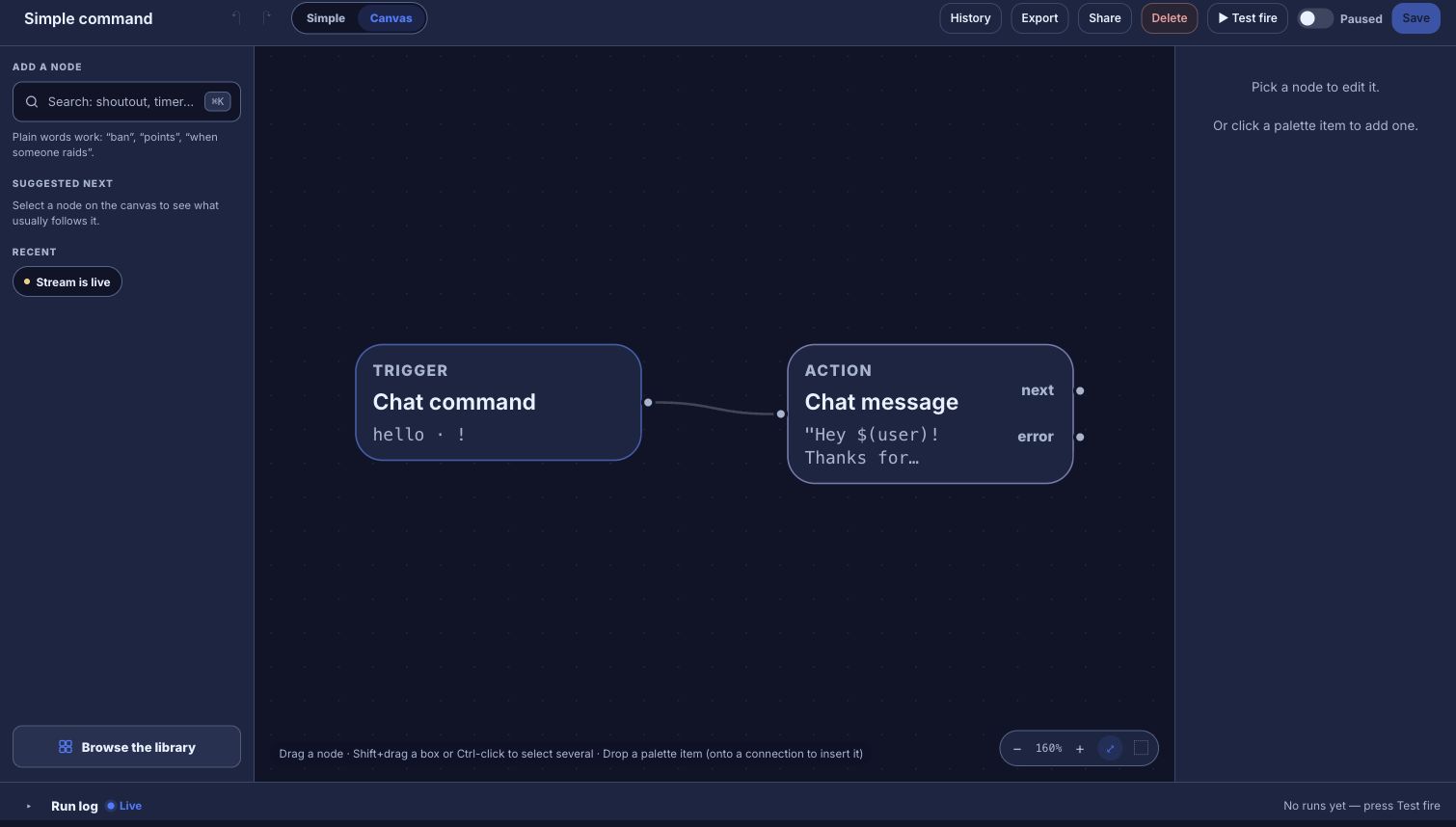
A straight line of nodes can use the Simple form. Switch to Canvas when you need branches, extra checks or loops. Both views edit the same flow.
Flows run on Bloopbot’s servers, not on your computer. There is nothing to install: you build them in a browser, and your commands and moderation filters keep answering chat when your PC is off. Overlays still need OBS open, because they are Browser Sources.
Open and read the canvas
On Flows, select a flow’s name to open it. The name is a link, so you can open it in another tab; its checkbox, live switch and More menu act independently. With Flows or Groups focused, use the left or right arrow to switch tabs, or Home and End to go to the first or last tab.
To start an empty flow, open Flows, choose + New flow, then Start blank. It opens as New flow, paused. You can create several before renaming them: Bloopbot gives each an available identifier, such as new-flow, new-flow-2 and new-flow-3. Give each flow a useful name in the editor so you can tell them apart.
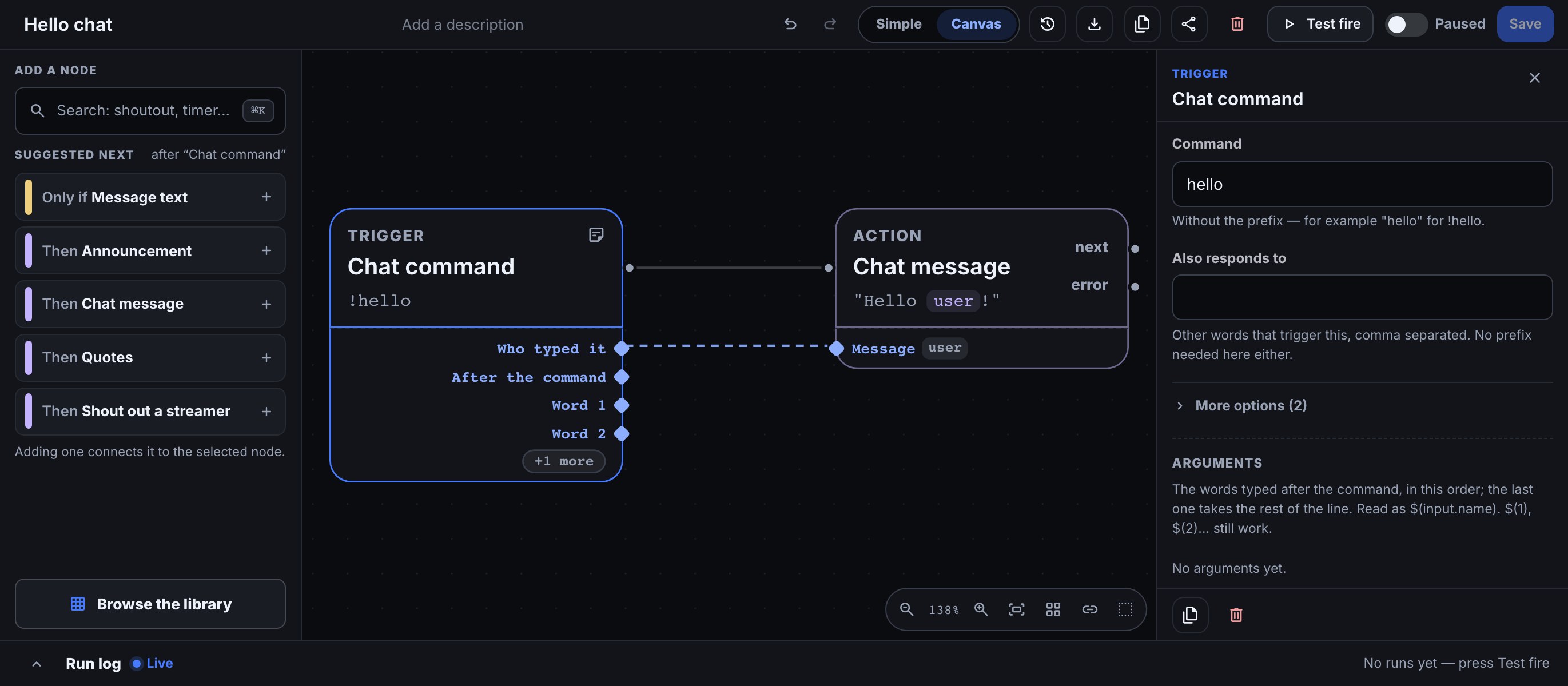
Open a flow and choose Canvas in the top bar. Lines show how execution moves between nodes. Click a node to edit its fields in the side panel. Use the Fit to view icon in the toolbar at the bottom right of the canvas to bring the whole graph back into view.
On a short desktop window, the top bar becomes more compact. Add a node search and Browse the library stay visible while the suggestions scroll between them. Scroll inside the side panel to reach a node’s remaining fields. Opening Run log leaves room for the canvas; close it when you want more drawing space. Resizing the window keeps the same part of the graph centred at your chosen zoom, and Fit to view places the nodes above the canvas toolbar.
Describe what a flow is for
A flow can have a short description under its name, such as “Thanks a raider and shouts them out”. It helps you and your editors tell similar flows apart. It is optional. Flows you add from a pack already have one, which you can change or clear like any other.
- Open the flow.
- In the top bar, click Add a description under the flow's name.
- Type one sentence, up to 240 characters.
- Click Save.
The description then shows under the flow's name on Flows. When the flow answers a chat command, your public Commands page shows it under that command too, so write it for your viewers. To remove it, clear the text and save. Changing the description is like renaming: an installed flow is not marked Edited. An exported flow keeps its description when someone imports it.
The settings panel
Click a node and its settings open in the panel on the right, with the node's name at the top and the duplicate icon (Duplicate) and the bin icon (Delete) at the bottom. Point at an icon and its name appears. Only the settings between them scroll, so those two stay in reach however long the list is. On a phone the same settings open as an Edit node drawer.
- Make it wider or narrower. Drag the panel's left edge to resize it between 300 and 560 pixels. Double-click the edge to go back to the default width. With the edge focused, the left and right arrow keys move it too. Bloopbot remembers the width in this browser.
- Settings that appear once you choose. A setting that only matters for one choice shows up only after you make that choice. For example, on Pin, badge or hide chat, Pin it appears once Do is set to pin a message, and Badge appears once it is set to badge one. What you typed is kept if you switch away and back. If a hidden setting has an error, it is shown anyway so you can fix it.
- More options. Settings most flows never change sit together under More options near the end of the panel, just above the Note box, with a count of how many there are. It opens by itself when one of them differs from its default or needs attention. Otherwise it stays as you left it while the page is open.
- More on long help. A long explanation under a setting shows its first sentence and a More link that opens the rest.
- Insert…. The Insert… button sits on the same line as a setting's name. Use it to put a viewer value, such as the viewer's name, into a message; it lists the same values that used to appear as small buttons under the box.
Leave a note on a node
When a step does something clever, leave a note so future you (or a mod) knows why.
- Click the node to open its settings panel.
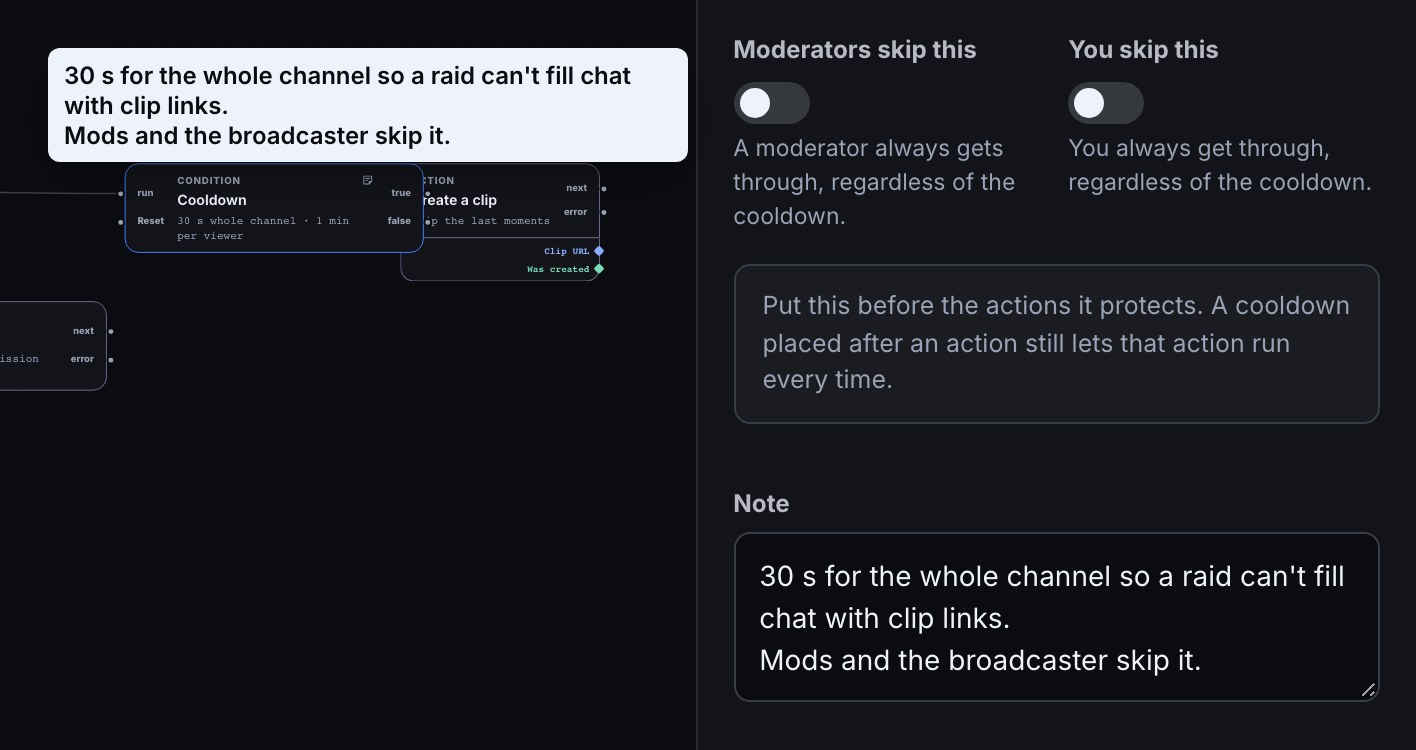
- Type in the Note box at the bottom, after the step's other settings and More options. Notes are plain text, up to 500 characters, and keep your line breaks. For example, on a Cooldown step: "30 s for the whole channel so a raid can't fill chat with clip links." and, on a second line, "Mods and the broadcaster skip it."
- Save the flow.
The node now shows a small note icon in its card header. Point at it and the note appears in a popover, as in the picture. A note never changes what the flow does. Notes travel with a flow you share or export, so write them for whoever opens it next.
Tidy up the layout
A flow that has grown a few branches can end up with lines crossing and nodes on top of each other. Tidy up lays the nodes out again from left to right: the trigger on the left, each step to the right of the one before it, and the branches of a check in the order they appear on the node (true above false, a switch's cases from top to bottom).
- Open the flow and choose Canvas.
- To tidy only part of the flow, select two or more nodes: hold Shift and drag a box around them, or Ctrl-click each one.
- Select Tidy up (the grid icon beside Fit to view), or press Shift+L while the canvas is focused.
The nodes move and the view fits to show them. Wiring and settings stay exactly as they were, and so does what the flow does: steps wired to the same output run from top to bottom (left to right when two sit level), and Tidy up keeps them in that order, so it never changes which one runs first. When you tidy a selection and its nodes would land on other cards, they move down together until they are clear. If a selected step has no room to keep its place in that order among the cards you didn't select, it stays where it was, and the selected steps around it may not stay in one row. Undo puts every node back in one step. When nothing needed to move you see "Already tidy". Tidy up is not available while you preview an older version. A flow an AI assistant builds for you opens laid out the same way.
Find and connect a step
- Use the search button in Add a node, or open Browse the library. Search in plain words, such as “timer”, “points” or “shoutout”.
- Choose a node and fill in its fields. A node sitting on the canvas without a connection will not run.
- Connect the output of the previous step to the new node. You can also drop a palette item onto a connection to insert it.
- Read the output labels. A condition can take different paths; actions may have separate next and error outputs.
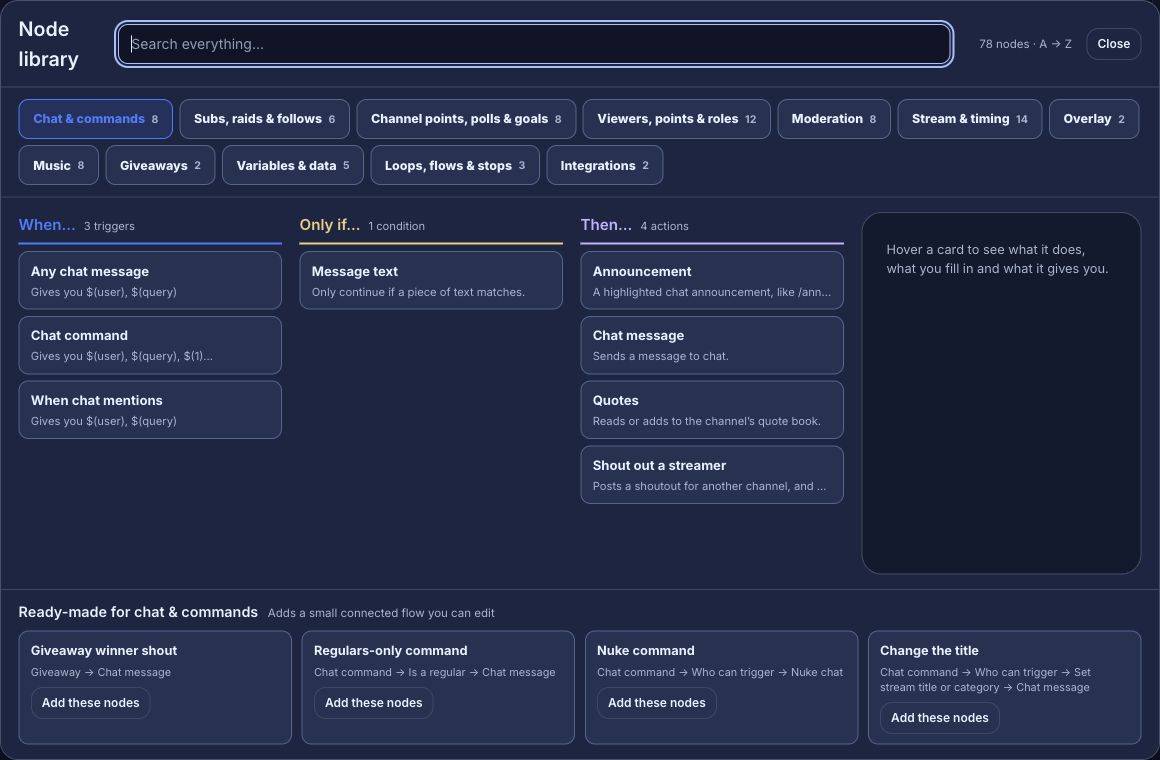
Under the columns, Ready-made shows small connected flows that use the topic’s nodes. Press Details on one, or Add beside Ready-made to see them all: the Add to this flow panel opens on the right with the snippet’s review, which says what it adds and lists its When, Only if and Then steps. Press Add: its nodes land below what is already on the canvas, selected, as one step that Undo takes back. Nothing is saved until you save the flow. In Add a node search, a ready-made result opens the same review.
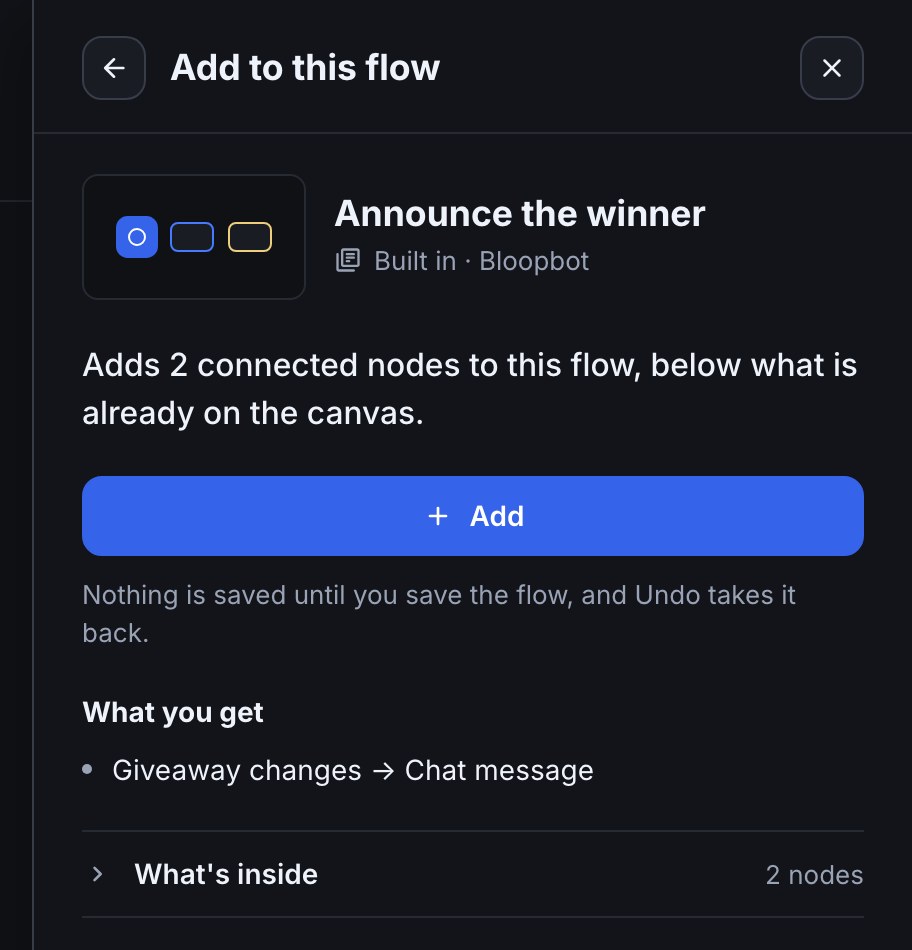
Steps also pass values to each other. The small dots in the tray under a card are the values it hands on and the fields that read one: connect values with data wires shows how to drag one step’s value into another. A few steps you want in several flows can become one card — reuse a set of nodes as a group.
Start one flow in more than one way
Use multiple triggers when different events should run the same steps. For example, a Chat command for !welcome and a New follower can both lead to one Chat message saying “Welcome in!” You need a flow with at least one trigger and a step you want to share.
- Open the flow in Canvas view and add another trigger from Add a node or Browse the library.
- Set up the new trigger, then connect its next output to the first step the triggers should share. Leave the existing trigger connected there too.
- Save the flow. The Simple view is available for straight lines with one trigger; flows with several triggers stay on the canvas.
- Choose a trigger beside Test fire, then run the test. Repeat for the other triggers and check the Run log for the path each one took.
- Turn the flow on when both test paths do what you expect. Test fire simulates events and actions; a real chat or Twitch event is still needed to confirm live permissions and delivery.
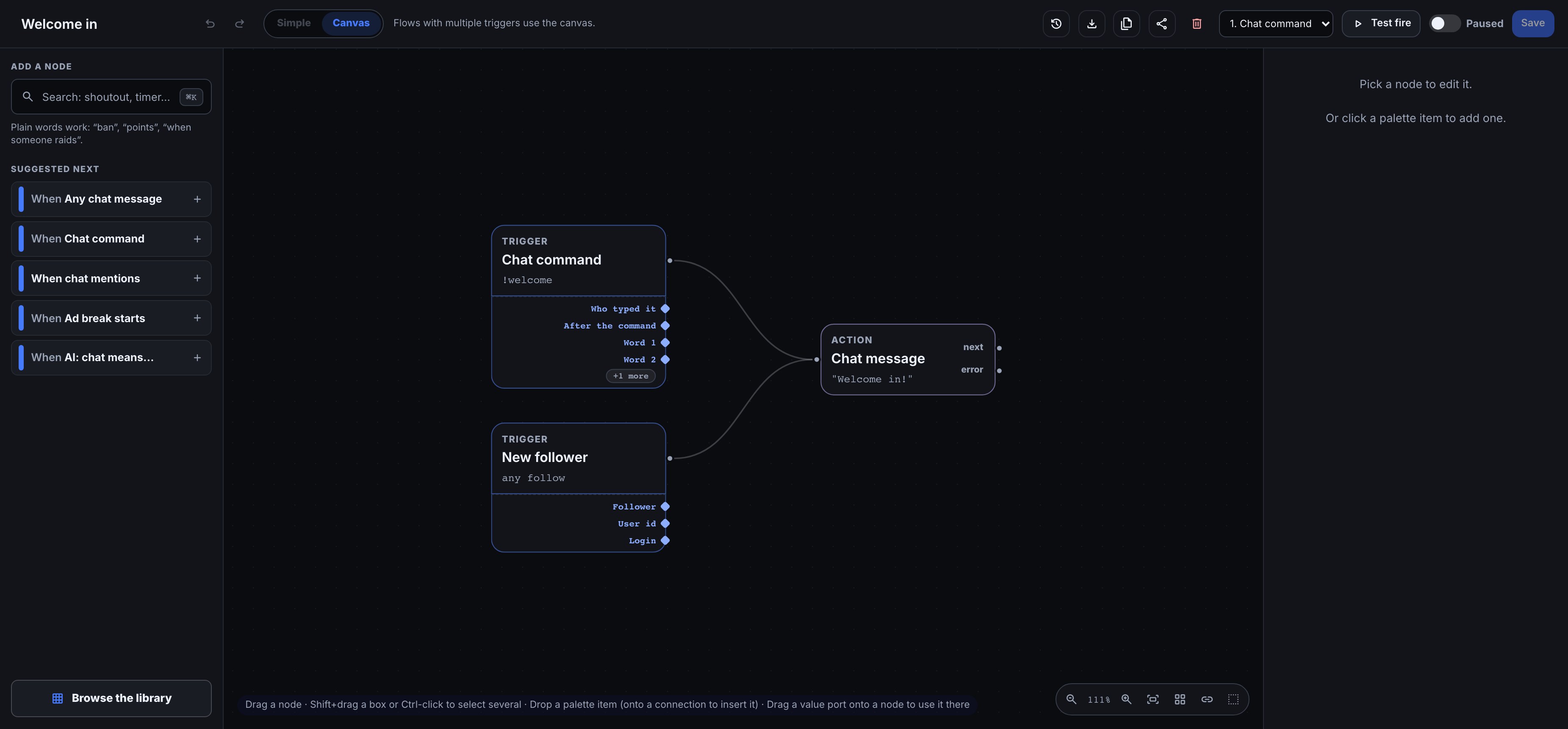
A flow can have one trigger of each kind. A Chat command and a New follower can share steps, but two Chat command triggers can't: saving the flow is refused with “This flow already has a Chat command trigger”. To answer more than one command word, list the others under Also responds to on the one Chat command. For a command that should do something different, make a flow of its own.
Each matching trigger starts its own run. If two triggers match the same event, the shared action can run twice. Values such as $(user) come from the trigger that started that run; a value available only on one trigger may be empty on the other path. If a path does not run, check that its trigger is connected to the shared step and that its own filters match the event.
Check a value from the event
Most conditions check who is talking or how often something has run. Check a value instead looks at a detail carried by whatever just triggered the flow — a poll’s choices, a goal’s current amount — using the same $(...) tokens the Insert… menu offers.
A Twitch prediction ends the same way whether it resolved or was cancelled, and a poll can end because it ran its course, was stopped early, or was archived — a prediction or poll trigger’s own Outcome field tells those apart without a condition at all, and a Twitch goal’s When it field offers Ends without reaching it alongside Is reached. The Stream events pack’s Prediction, Poll and Twitch goal flows are all set this way already.
Reach for Check a value when you want a cutoff none of those fields offer — for example, only reacting once a goal’s $(current) passes a number of your own, or a poll’s $(choices) containing a particular word.
Wait before the next step
A Wait node pauses its path for a while, then carries on with the next step. Use it for anything that should happen later in the same flow: thank a raider now and post a reminder in two minutes, or turn a mode on and back off again ten minutes later.
- In Add a node, search for “wait” and add Wait.
- Set Wait for: type an amount and pick seconds, minutes or hours beside it, from 1 second up to an hour. For ten minutes, type 10 and pick minutes.
- Connect the step before it to the Wait, and the Wait’s next output to what should happen afterwards.
- Save the flow and turn it on.
For example, a Chat command for !stretch connected to a Chat message saying “Stretch break!” and to a Wait of 5 minutes, with the Wait connected to a second Chat message saying “Break’s over, welcome back!”, posts the first message at once and the second five minutes later.
What to expect:
- Timing. The next step starts up to 5 seconds after the time you set, never before. Waits keep going even if Bloopbot restarts in the meantime.
- Other paths keep going. Only the steps after the Wait are held back. If the step before it also connects to other nodes, those run straight away.
- Editing cancels. If you save a change to the flow’s canvas while a wait is pending (adding, removing, moving or changing a node, or changing a connection), that wait is dropped and the rest of its path doesn’t run. Renaming the flow doesn’t cancel it. Switching the flow off cancels a wait too, but only if the flow is still off when the wait ends: switch it back on before then and the wait carries on as normal.
- Up to 20 at once. A channel can have at most 20 waits pending across all its flows. While 20 are pending, a Wait fails, with “Too many waits are pending on this channel (20).” in the run log. Connect its error output to say what happens then; with nothing connected, the run ends there. Steps that already ran in that run are not undone.
- Not inside loops or groups. A Wait can’t sit on a For each node’s item branch or inside a group, and the flow won’t save with one there. Put it before the For each, or after its completion branch.
In the run log, a waiting flow shows up twice. The first run lists the Wait step as waiting, with the time it resumes (in UTC). When the wait ends, a second run starts with the same Wait step, marked resumed (for example, “waited 5 min (from the run at 14:22 UTC)”) and followed by the steps after it. If the wait was cancelled, the second run shows abandoned and says why.
Test fire doesn’t wait. The test run lists the Wait step as “would wait 5 min” and goes straight on to the next step, so you can check the whole path at once.
Duplicate a flow
Duplicate copies a flow you want several of, such as eight Stream Deck keys that differ only in their picture and what they say, so you change what's different instead of building each one from scratch.
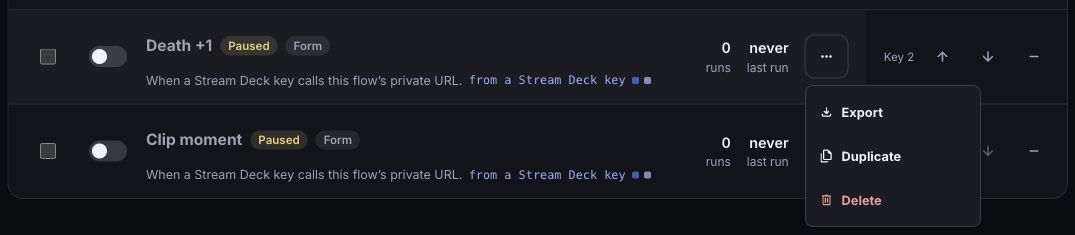
- Open Flows, select the three-dot icon (More) on the flow's row and choose Duplicate. In the editor, select the duplicate icon (Duplicate) in the top bar; save your changes first, because the copy is made from the saved flow.
- The copy opens in the editor, named after the original with “(copy)” on the end, for example “Death +1 (copy)”. A second copy is “(copy 2)”.
- Rename it, change what makes it different, save it, and turn it on when it's ready.
What to expect:
- It starts paused, so a copied command never answers twice. The original keeps running as it was.
- It is your own flow. It counts toward your plan's flows, even when the original came from a pack. Pack updates never change it, and it has no Reset to built-in. When your plan's flows are full, Duplicate says so and makes nothing.
- It uses the same things as the original: the same variables, alert designs, rewards, groups and files. Nothing is copied twice, so changing an alert design changes it for both flows.
- Keys and webhooks stay with the original. To press the copy from your deck, point a key at it: in the Stream Deck plugin, pick the copy under My flows (put a Bloop Flow key on your deck). A copied webhook gets its own private URL, so the original's URL keeps running the original.
Test before enabling
Save your changes, then use Test fire. Expand the Run log to see which nodes ran, which checks stopped the path and which actions were simulated. A dry run helps check wiring; a real Twitch event is still needed to confirm the live connection and permissions.
The dry run marker identifies a Test fire result. A run from a real event or Run has no dry-run marker and can change your channel. Live beside Run log shows whether updates are connected.
A flow that starts on a Twitch event — a goal, a poll, a raid, a sub and the rest — test-fires with a realistic made-up example of that event, so conditions that check its details (such as whether a goal was reached, or which choice a poll picked) take a real path instead of failing on empty values. The result shows which example was used. When a trigger can fire at more than one moment — a poll starting, getting votes or ending; a goal in progress or reached — a small picker next to Test fire lets you choose which one to simulate.
Run a flow on demand
Some flows shouldn’t wait for a chat command, a timer or a Twitch event — you just want to set them off yourself, whenever you like, with whatever details apply that time. Start one of these with the Run button trigger instead of any of the usual ones.
- In Add a node, search for “run” and add Run button as the flow’s trigger.
- Give it any inputs the rest of the flow needs — a song name, a number, an on/off switch. Each one gets a name, a type and an optional default, and the flow reads it as
$(input.<name>)anywhere after the trigger. - Connect the Run button to the rest of the flow and save it.
- Turn the flow on, then select Run (the play icon and the word) in the top bar.
- Fill in the prompt — it starts from each input’s default — and select Run again.
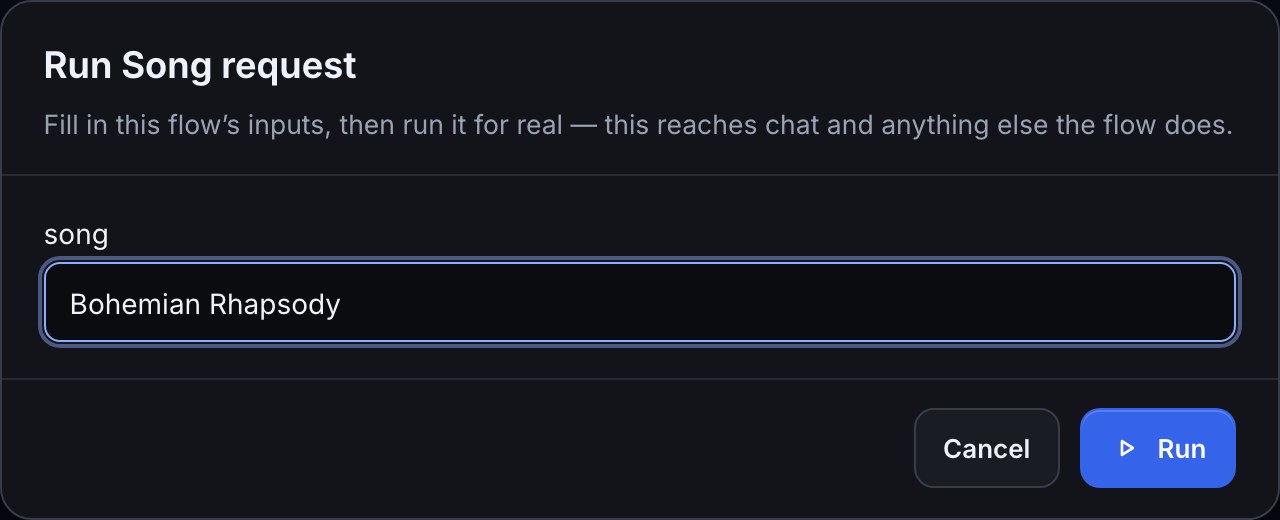
This is not a simulation. Unlike Test fire, a Run really sends chat messages, awards points and does anything else the flow does — the same as a real trigger firing. The prompt shows the run’s result once it finishes, or its run id while it is still going.
Running the same flow again while it is still going is limited the same way a Stream Deck key press is: the new run queues and starts as soon as the first one finishes, but a third one arriving before either is done is turned away, so a flow’s own side effects — like a chat message or a point award — never run twice at once for the same button mashed too fast.
Check which Twitch features your channel can use
Your channel can have subscriptions, Bits and Channel Points before it becomes Affiliate. Twitch makes these features, along with polls, predictions and hype trains, available to eligible streamers who complete monetization onboarding. Affiliate or Partner status is still needed for cash payouts. Twitch’s monetization announcement explains the change.
Before setting up a flow that uses one of these features:
- Open Twitch’s Creator Dashboard and check your monetization onboarding. Complete any remaining steps, then check that the feature you want is available there.
- Open Bloopbot’s Connections. If Twitch shows Update available, choose Re-authorize to grant missing permissions. Reconnecting does not unlock a feature Twitch has not made available to your channel.
- Build and Test fire your flow, then check it with a real Twitch event or action. Test fire checks the wiring with made-up events; it does not prove Twitch will deliver a real event or accept an action.
For example, a channel with subscriptions available can set up a New subscriber flow without being Affiliate. Bloopbot asks Twitch for the events it has permission to receive. Some features available in Twitch’s own dashboard may still be unavailable to other apps; if Twitch refuses an action, the Run log carries its answer. Check the feature’s availability separately from permissions.
Needs Twitch Affiliate applies to Twitch ads: Run a commercial, Snooze the next ad and the Ad break starts trigger. You can still add these steps before becoming Affiliate. On Kick, Run a commercial follows Kick’s own ad rules instead (ads on Kick). Bloopbot checks your channel’s Affiliate or Partner status again about once an hour while your dashboard is open, and Needs attention lists switched-on flows waiting for that status.
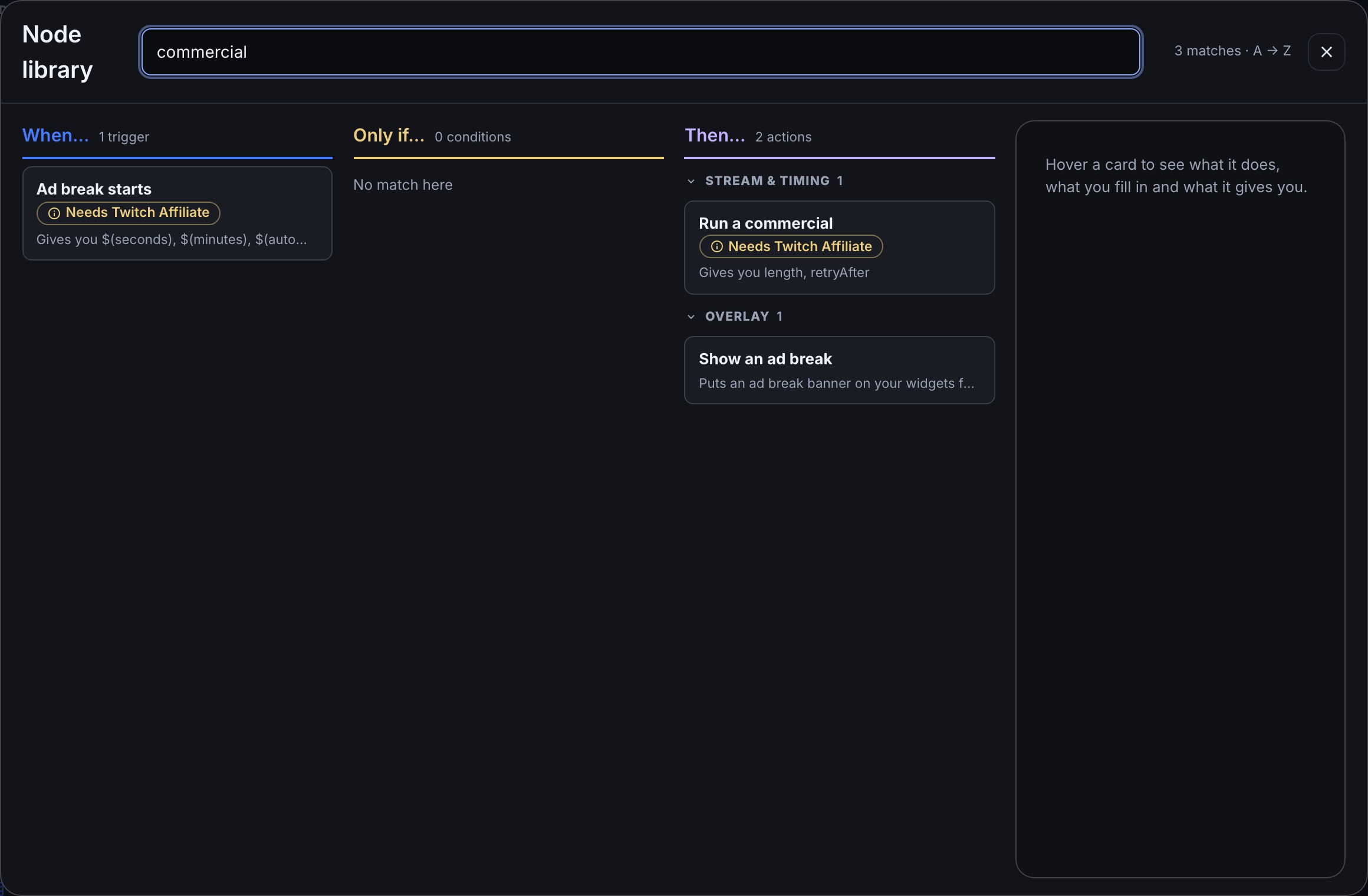
Follows, raids and chat do not need monetization onboarding. Follower goals are available to every channel; other goal types depend on what Twitch offers your channel. Cards that a flow draws on your overlay — polls, predictions, hype trains and ad breaks — need no Twitch status, because the flow can supply their content itself.
Flows paused until your bot is a moderator
Some steps only work when your bot is a moderator in your Twitch chat: Time out, Delete the message, Announcement, Warn a viewer, Chat settings, Shout out a streamer with Twitch's shoutout on, Pick at random when it picks someone in chat, and Set a variable for everyone in chat.
When Twitch says your bot is not a moderator, every flow that uses one of these steps is paused. It stays switched on, and nothing about it changes. The Flows page shows a bar like this, and the flow's row under Needs attention names the step:

If you are the channel owner, the command is on that bar, on the Not a mod bar across the top of every dashboard page, on the Loyalty page's notice and on a paused flow's own page:
- Copy the command from the bar. It is
/modfollowed by your bot's account name. - Send it in your own Twitch chat, signed in as the channel owner.
- Refresh your dashboard so Bloopbot checks the bot's moderator status again.
If you go live before making your bot a moderator, Bloopbot posts a reminder in your Twitch chat with the exact command to send. It also reminds you if a moderation action fails and Twitch confirms the bot is not a moderator. These reminders share a limit of one every 24 hours for your channel, including stream restarts. If chat blocks the reminder, use the command in your dashboard instead.
Editors see the paused line without the command, because the channel owner needs to make the bot a moderator.
The paused flows start running again by themselves as soon as Twitch lists the bot as a moderator. While the bot is not a moderator, loyalty payouts for watching are paused too, and the Loyalty page says so.
Chat replies during a busy stream
Twitch limits how quickly your bot can post. When several commands or timers reply at once, Bloopbot waits for room before sending the next message, so replies can arrive later during a burst. If channels share the same bot account, their replies share its Twitch allowance too.
Use a Cooldown on a frequently used command and keep timer messages spaced out. Making the bot a moderator lets Twitch allow more replies; authorizing it to join your chat alone does not. Test fire simulates chat messages, so it does not show a live Twitch delay. If a message still fails, expand that run in the Run log to read the reason Twitch gave.
Switch other flows
Add Turn flows on or off to pause or resume several selected flows in one step, or Turn a pack on or off for a pack whose membership can change. Test fire simulates both without changing anything. Switch packs and selected flows explains the pickers, the limits and how to keep a mode’s resume button available.
Was this guide helpful?
Thanks. Your answer helps us decide which guides to improve.