
What an assistant can do
Connect an AI assistant to your channel and you can build flows by describing them in a chat. Ask it for "a !hug command that hugs whoever you name" and it looks at what your channel already has, drafts the flow, checks it, tries it out without anything happening on stream, and saves it for you — switched off, ready for you to look over.
It works with any assistant that can add a custom connector, sometimes called an MCP server: Claude, ChatGPT and Claude Code among them.
Before you start
- A Pro plan. Connecting an AI assistant comes with Pro. What your plan includes shows what your channel holds; if the assistant says it can't reach your channel, this is the first thing to check.
- An assistant that supports custom connectors. Some plans of some assistants only offer this on certain tiers; the assistant's own settings will show whether you can add one.
- Owner or editor on the channel. You connect as yourself, and choose which of your channels the assistant reaches.
Connect it
Every assistant connects the same way: you give it Bloopbot's connector address, and it sends you to a Bloopbot sign-in and consent screen.
The address is:
https://bloopbot.com/api/mcp- In your assistant, add a custom connector (or MCP server) and paste the address above. Name it Bloopbot.
- Choose Connect. Your browser opens Bloopbot's consent screen — sign in to Bloopbot first if it asks.
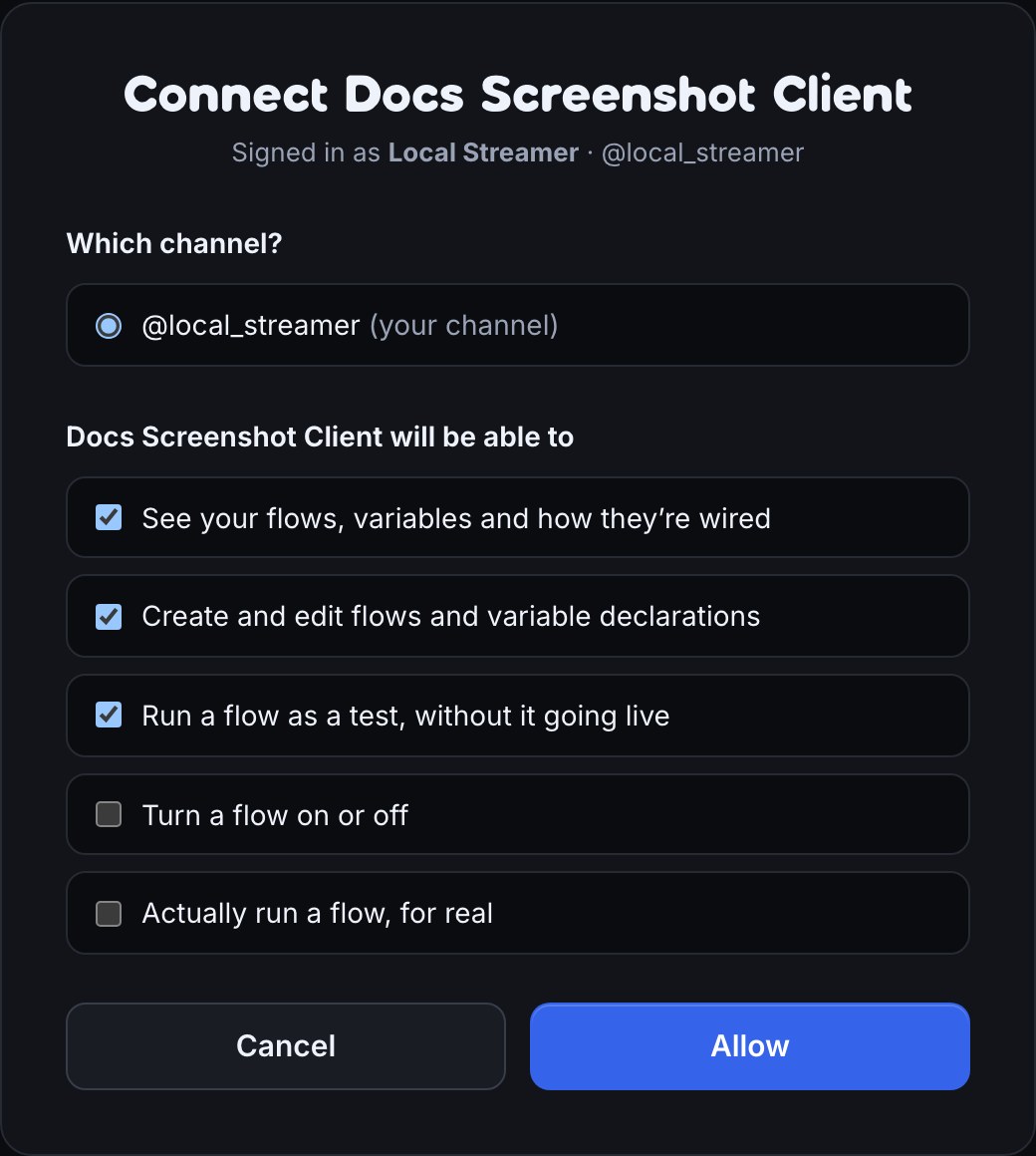
- Pick the channel the assistant should reach, and check what it's allowed to do (see what it can and can't do).
- Choose Allow. You're sent back to the assistant, and it can start working with your flows.
Where to add the connector, in the assistants most people use:
- Claude — Settings → Connectors → add a custom connector.
- ChatGPT — add it as a connector in ChatGPT's settings, where your plan allows custom connectors.
- Claude Code — run
claude mcp add --transport http bloopbot https://bloopbot.com/api/mcp, then/mcpto sign in.
What it can and can't do
What the assistant may do is exactly what you ticked on the consent screen:
- See your flows, variables and how they're wired — it can read every flow on the channel, including each step's full settings. That includes anything you pasted into a step, such as a link in a Web request step, so only connect an assistant you trust with that.
- Create and edit flows and variable declarations — every new flow it makes starts switched off. Editing a flow that's already on changes what it does straight away, the same as if you'd saved the change yourself, and it can move a flow to the trash. There's no permanent delete: anything it trashes comes back from the Trash.
- Run a flow as a test, without it going live — it can try a flow out and see what would have happened, without sending chat or showing anything on stream.
- Turn a flow on or off — starts unticked. Only tick it if you want the assistant to switch flows on for you.
- Actually run a flow, for real — starts unticked. With it, the assistant can run a flow that starts with a Run button trigger, exactly as if you pressed Run in the editor: chat is sent, alerts show, points change.
Whatever it does is recorded under the assistant's name: the flow's version history and your Audit Log say which changes came from it.
A worked example
With See, Create and edit and Run as a test allowed, ask: "Make a !hug command: when someone types !hug and a name, say that they give that person a big hug."
The assistant looks at your existing commands so it doesn't clash with one, drafts a flow with a Chat command trigger and a Send chat step, checks it, and runs it as a test. It then tells you the flow is saved and switched off. Open Flows, find it, look it over, and switch it on when you're happy.
Remove it
Open Connected apps under Setup in your channel's sidebar and choose Revoke next to the assistant. It's signed out straight away and can't reach your channel again until you connect it again. See and remove connected apps covers the page.
Troubleshooting
- "AI assistant connection is not included in this channel's plan" — connecting an AI assistant comes with Pro. Check What your plan includes.
- "Missing scope" when it tries to do something — that permission wasn't ticked when you connected. Revoke it on Connected apps, connect it again, and tick the permission on the consent screen.
- It says a flow is paused when it tries to run it — the flow is switched off, or it has no Run button trigger. Only a switched-on flow that starts with Run button can be run.
- "Busy" or "too many runs" — the flow is already running, or it has been run a lot in a short time. Wait a moment and try again.
- A save is refused because the flow changed — someone saved the same flow in the meantime. The assistant is given the latest version so it can redo its change on top.
Was this guide helpful?
Thanks. Your answer helps us decide which guides to improve.