
Make a panel
Before you start, have at least one flow, or a channel variable you have declared, ready to put on the panel.
A control panel is a screen of your own with big buttons that start your flows and boxes that change your variables. Put a scoreboard, a death counter or a "start the raffle" button on it, then keep it open on a second monitor, a phone or an OBS dock while you stream.
- In the sidebar, open Run, then Control panels.
- Type a name in New panel name, for example
Match night. - Select Create panel. The editor opens with an empty grid.
You can keep up to 20 panels, and a panel holds up to 64 tiles. Anything you put on a panel keeps working everywhere else too: the flows and variables are the same ones you already have.
Add buttons and variables
The left column of the editor is your library: your Flows, your channel Variables, and a Heading for labelling groups of tiles. Select the + beside an item to add it to the end of the grid, or drag it to where you want it. Drag a tile by its grip to move it, or use Move earlier and Move later in the tile's settings. Nothing is saved until you select Save.
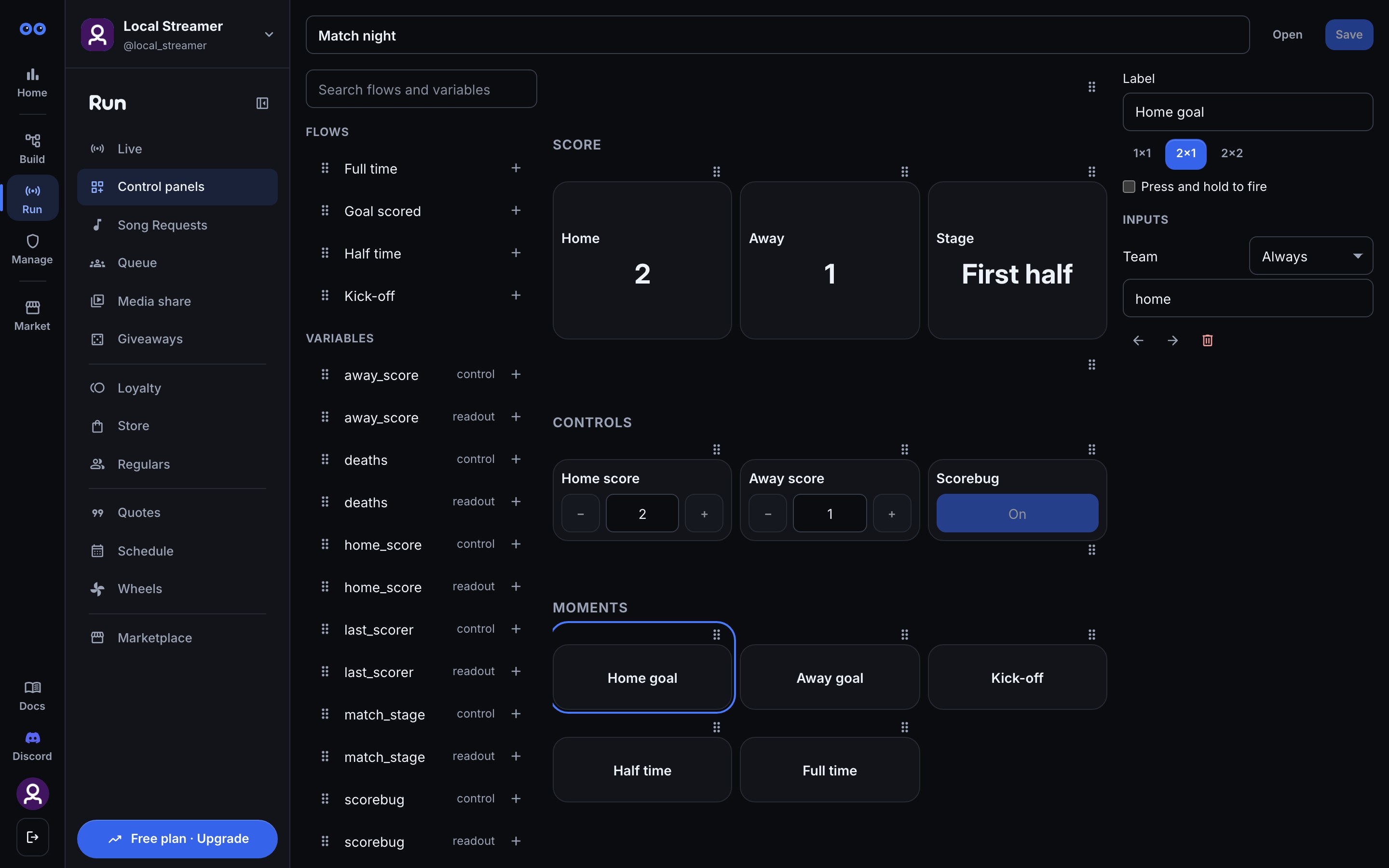
Each kind of tile does one job:
| Tile | What it does on the panel |
|---|---|
| Flow button | Starts that flow when pressed. It shows Running…, then Done or Failed. |
| Variable control | A number gets minus and plus buttons and a box you can type into. Text gets a box. An on/off variable gets a switch. |
| Variable readout | Shows the current value, read-only, and updates as it changes. Each variable is in the library twice: once as a control and once as a readout. |
| Heading | A label across the full row that groups the tiles after it. |
Select a tile to open Tile settings. Give it a Label, and pick a size of 1×1, 2×1 or 2×2. A number control also has a Step, the amount each press of minus or plus changes it by. A flow button can be set to Press and hold to fire, so a stray tap on a phone doesn't start it.
Only channel variables you have declared appear in the library. A variable that belongs to each viewer, or one Bloopbot keeps for itself, is left out. Declare new ones on Variables.
Buttons need a Run button trigger
A panel starts a flow through its Run button trigger, the same one behind the Run button in the flow editor (Run a flow on demand). A flow that doesn't have one is marked Adds a Run trigger in the library. When you add it, the editor asks first:
- Add a Run trigger? explains that the flow's other triggers keep working. A chat command still answers in chat, and the panel button is one more way to start the same steps.
- If the flow reads things that only its normal trigger provides, such as the viewer who typed a command, the dialog lists them: Started from the panel, these will be empty. Check that the flow still does something sensible without them.
- If the flow is a built-in or installed one, the dialog says that adding a trigger makes it your own copy. It then counts towards your flow limit and stops getting updates.
Select Add Run trigger to confirm, or Cancel to leave the flow alone.
A button is greyed out when its flow is switched off, has lost its Run button trigger, or was deleted. Hover it and the tip says it is one of those three; check the flow itself to find which.
Fix or ask for a button's inputs
A Run button trigger can take inputs, such as a team name or an amount. When you select a button tile, each of the flow's inputs is listed under Inputs with a choice:
- Always fixes the input to a value you type. The button never asks, which suits one-tap buttons.
- Ask on press opens a small prompt every time the button is pressed, so you fill the input in then.
This is how one flow serves several buttons. A Goal scored flow with a Team input can sit on the panel twice: a Home goal button with Team fixed to home, and an Away goal button with Team fixed to away. A button with every input fixed starts the flow straight away.
Use it on your phone or in OBS
Open the panel from the list with Open, or from the editor with Open. It opens full screen, without the dashboard's sidebar, with the panel's name and Panel and Deck buttons along the top.
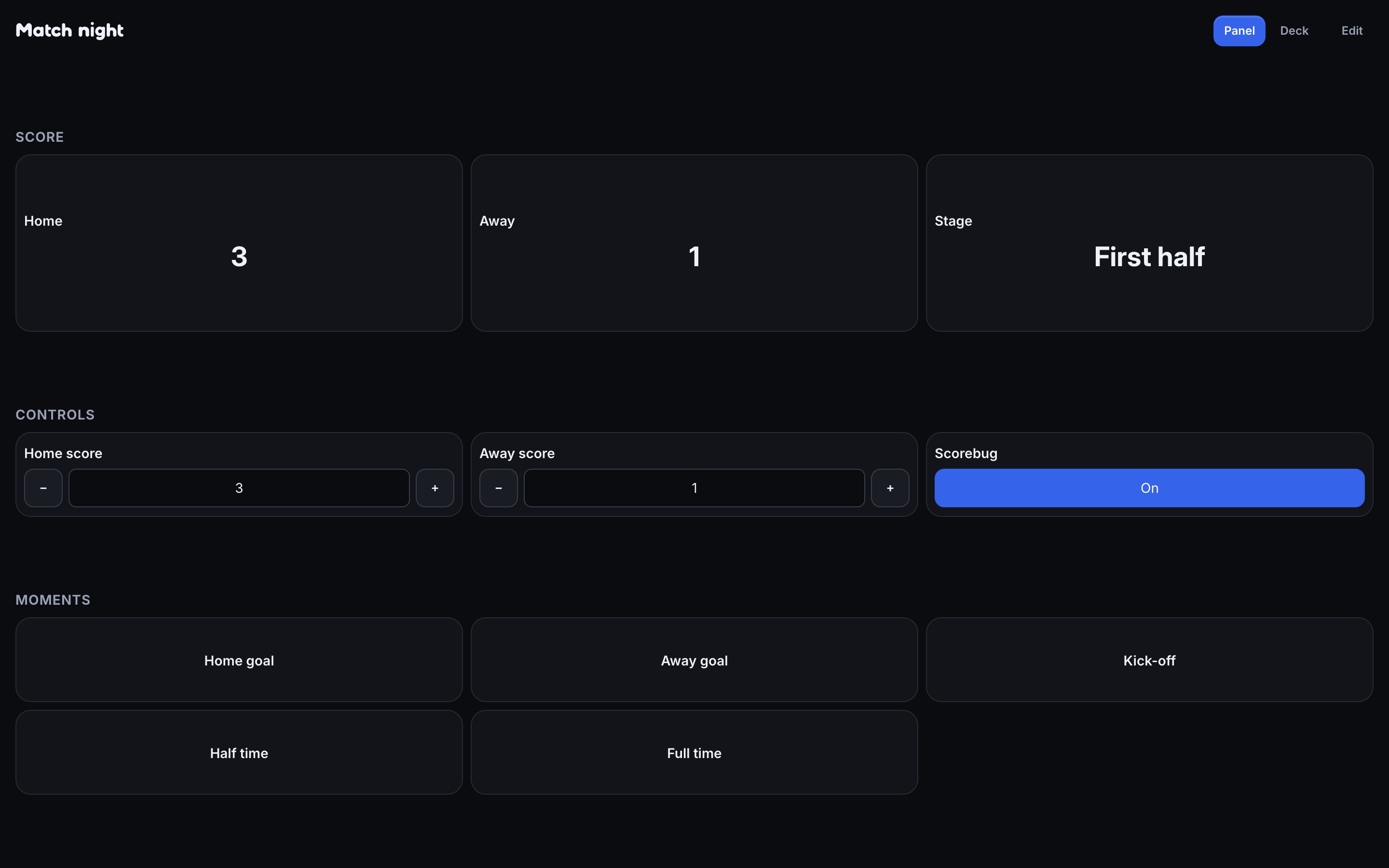
- On your phone: sign in to the dashboard on your phone, then open the panel's address there. Add it to your home screen if you want it one tap away.
- In OBS: choose Docks, then Custom Browser Docks, give the dock a name and paste the panel's address. A dock has its own browser, so sign in to Bloopbot inside the dock the first time.
- On a second screen: keep the panel open in a browser window next to the stream.
The address is the panel's page in your dashboard. It is not a secret link: whoever opens it has to be signed in to your channel, and a panel never works for someone who isn't.
Press a flow button and it starts the flow for real: chat messages are sent, alerts play and points change, exactly as when the flow's own trigger fires. This is not a simulation. Every open copy of a panel stays in step: change a number on your phone and the readout on your monitor changes with it, and a panel you edit or delete updates everywhere that has it open.
Panel and Deck views
Panel shows the whole layout, with every tile at the size you gave it, and reflows to fit the width of the screen. It is the view for a monitor or an OBS dock.
Deck is for a phone held in one hand. It shows only your flow buttons, as big square keys in a grid, and leaves out headings, readouts and controls.
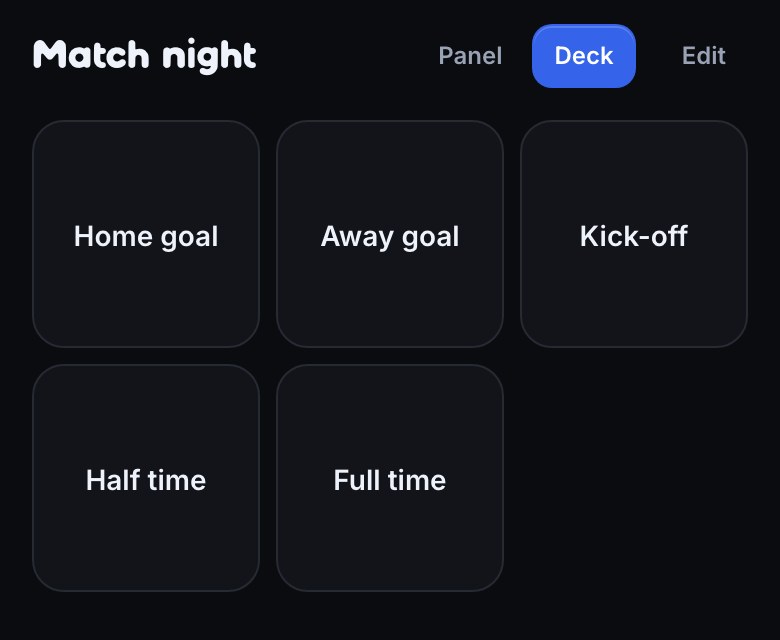
Each device remembers the view it was last in. To open a panel straight into Deck, add ?view=deck to its address. If a flow has a Stream Deck key graphic, the Deck view uses it on that key, the same picture your Stream Deck shows.
What happens when you change a variable
A change from a panel is a real write, the same as a flow's Set a variable step:
- Overlays update. A graphic or alert that shows the variable redraws with the new value.
- Variable changes flows run. A flow that starts on Variable changes for that variable runs when a panel changes it, so a threshold such as "when the score reaches 10" fires from a tap. Its run history names the Control panel as the source.
- Every open panel updates. Other copies of the panel, on other devices, show the new value straight away.
Typing a value works like this: select the box, type the number or text, then press Enter or move to another box to save it. Press Escape to cancel. A number box ignores anything that isn't a number.
If a button doesn't start its flow
- The button is greyed out. Its flow is switched off, has no Run button trigger, or was deleted. Switch the flow on, or add the panel to it again from the editor.
- It says Failed. Either the flow ran but stopped with an error, or the press was refused, for example because you pressed too fast or the flow is busy. A refused press shows a message saying why. If there is no message, open the flow in the flow editor and check its recent runs to see which step stopped it.
- A value in the flow's message is empty. The flow was started from a panel, so anything that only a chat command or an alert provides is blank. Edit the flow to use an input from its Run button trigger instead, and fix or ask for that input on the button.
- The panel won't open on your phone or in OBS. You need to be signed in to Bloopbot in that browser. Sign in there first, then reopen the panel.
- Your edits are gone after a reload. Nothing is saved until you select Save. If the panel was changed somewhere else, the editor tells you and offers Reload.
Was this guide helpful?
Thanks. Your answer helps us decide which guides to improve.