
1. Connect your channel
Open the dashboard and sign in with the Twitch account that owns your channel. Review Twitch’s permissions and complete sign-in. Your channel opens on Home. If you see What would you like your stream to do?, choose your own starting point. A channel using the earlier setup starts Set up your bot with Pebble, Bloopbot’s robot.
Stream on Kick? Choose Sign in with Kick instead, or add Kick to your Twitch channel later. Use Bloopbot on Kick covers both and what works where.
If an AI assistant is helping you join, ask it to read Bloopbot’s signup guide for agents. It guides you to the same sign-in; you review permissions and sign in yourself. Your sign-in stays in your browser, and joining does not give the assistant an API key.
If you help with someone else’s stream, sign in with your own account after they add you as an editor or tick you as a moderator, using the helper link they send you. Choose their channel from Channels.
To use a different Twitch account, sign out and switch accounts.
In a short desktop window, scroll the middle of the sidebar to reach lower pages; the channel at the top and Marketplace, Settings, Help, Account and Sign out at the bottom stay where they are. Docs and guides is in the Help menu. To find a page, a setting or a guide without hunting, select Find anything under the channel, or press ⌘K on a Mac or Ctrl K elsewhere, and type what you want, such as alerts or twitch account: Find anything shows what it can do.
Choose your own starting point
Guided setup starts with the tools you choose. If Home already asks What would you like your stream to do?, choose a starting point below. If Home shows Use guided setup, the channel owner can choose it to switch experiences. During the earlier required course, choose Choose my own setup on Pebble’s card instead. Your existing commands, widgets, settings, progress and earned stickers stay yours. Channels keeping the earlier setup continue with Set up your bot below.
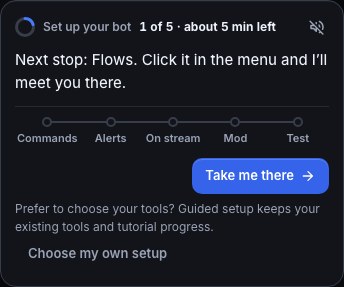
- Choose a tool directly, such as Make a chat command or Set up song requests. Bloopbot saves that goal and opens its normal page. It does not create or enable the tool for you.
- Or describe what you want under Tell Jev what you have in mind. For example: “Song requests first, a follower alert, and keep points on my other bot.” Press Find my starting point. This assistance does not use your plan’s AI credits.
- Review Make this setup yours. Remove anything you do not want, choose Add another tool, and check Leave out of this setup. Choose Do this first beside one task, then press Save setup goals. Jev’s suggestions stay suggestions until you save.
- Choose Continue on Home. Setup opens the normal feature page, where optional task help explains the trigger, action, prerequisites and how to make a small change. Use the feature’s own controls to save, preview, enable or pause it.
If you are unsure, choose Not sure? Show examples, then Try sample. Samples explain what a viewer does and what the bot does next; they do not send messages or change your channel. Set up opens the real tool when you are ready.
Browse every tool includes all available feature families, optional packs and supporting pages. Search for a familiar word such as Spotify. You can also use Find anything and search guided setup to return to Home, or go straight to a feature page and choose Open setup help. There is no required chat with Jev. If assistance is unavailable, direct choices and the guides still work.
Your setup can have up to 12 goals with one next task. Your other goals lets you switch tasks; Edit setup goals changes the list. These choices do not remove your feature records. Done for now quiets setup without pausing tools; Resume guided setup brings it back. Under How would you like help?, choose short explanations, guided help or help only when you ask.
For a new channel using guided setup, Bloopbot does not add Starter flows or My alerts for you. Loyalty starts off when you first open it; enable earning only if you want it. Existing channels keep their current settings. After unlinking and returning, Bloopbot remembers this setup experience, while your member goals and preferences start fresh.
A saved goal, an enabled tool, a preview and an observed real run mean different things. Home reports what the tool can currently confirm. A test is not proof of delivery to viewers, and completing an explanation is not proof of live use.
2. Set up your bot
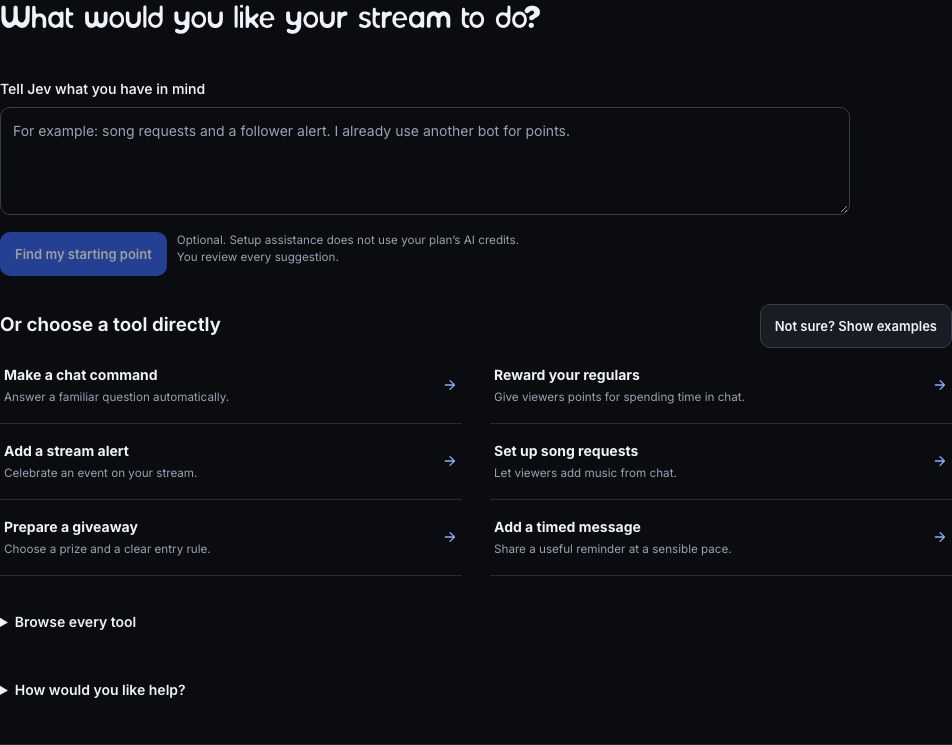
Set up your bot is the earlier setup experience for channels using the required course. It takes about five minutes and ends with your alert playing on your own stream. Pebble runs it over your real dashboard: Pebble rings the control you need and says what to do. Everything is already made for you. You switch it on and connect it.
- Your commands. Turn on the Starter commands, and bring over what you had on Nightbot or StreamElements.
- Your alerts. Meet My alerts, an overlay that is already made and published.
- Put it on stream. Add it to OBS Studio, Streamlabs or Meld as a Browser source.
- Make your bot a mod. Type one line in your Twitch chat.
- Test it. Press one button and watch your alert play.
Set up your bot is required, so it has no pause and no Never show again. Pebble keeps your place, so you can close the tab, reload or carry on from another device and land on the same step. Only the channel’s owner sees it: editors, helpers and moderators go straight to the dashboard. Pebble counts your steps (“3 of 5”) and says about how long is left.
Two steps need your streaming computer and your Twitch chat, which might not be the device in front of you. Steps 3 and 4 have an I’ll do this on my streaming PC button. Choose it and Pebble moves on; those steps wait for you under Next steps. On a phone Pebble shows that button first, because OBS and your Twitch chat are on another device.
On Kick the bot isn’t made a moderator, so there is no step 4 (“1 of 4”), and there are no commands to bring over.
Setup step 1: Your commands
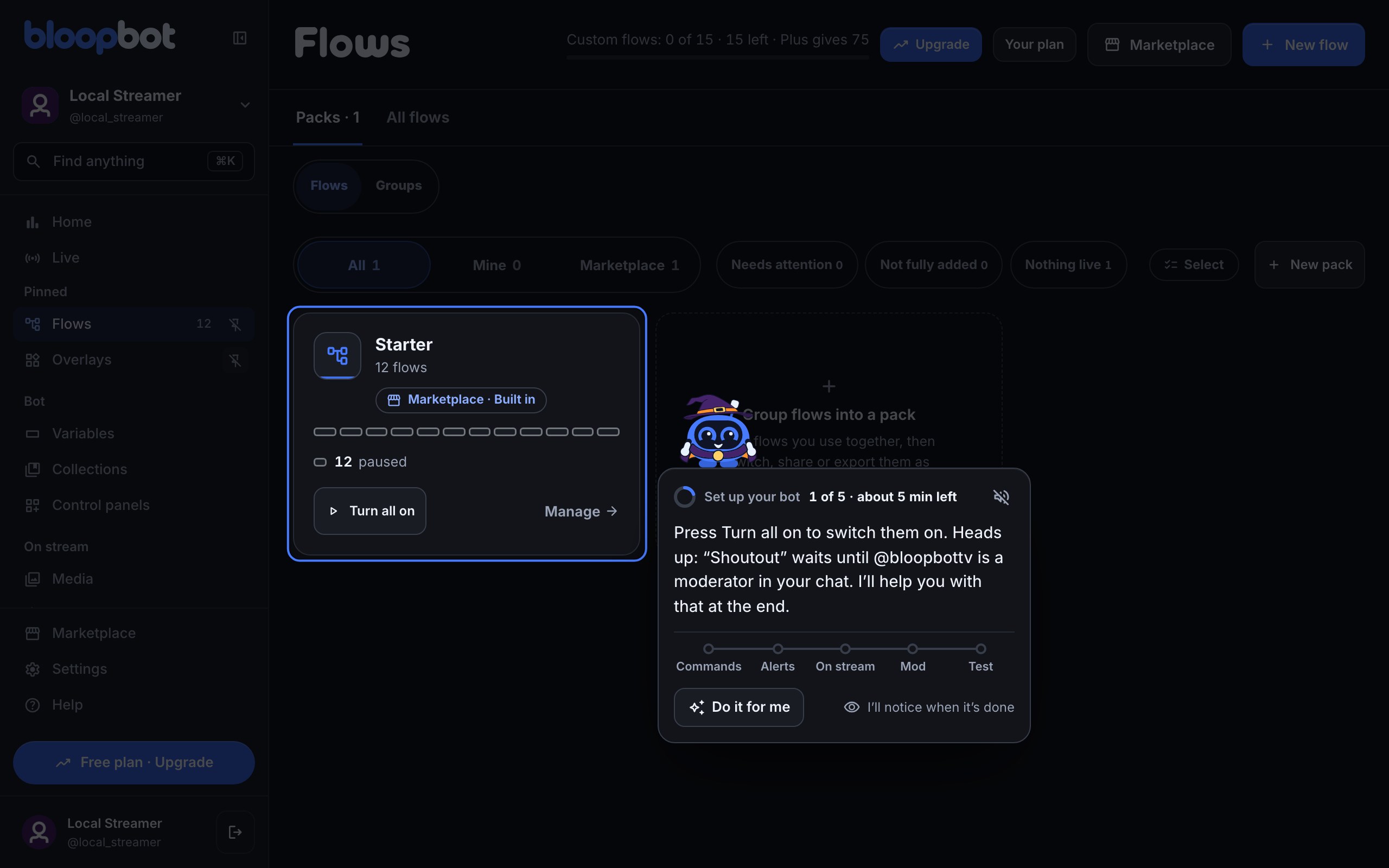
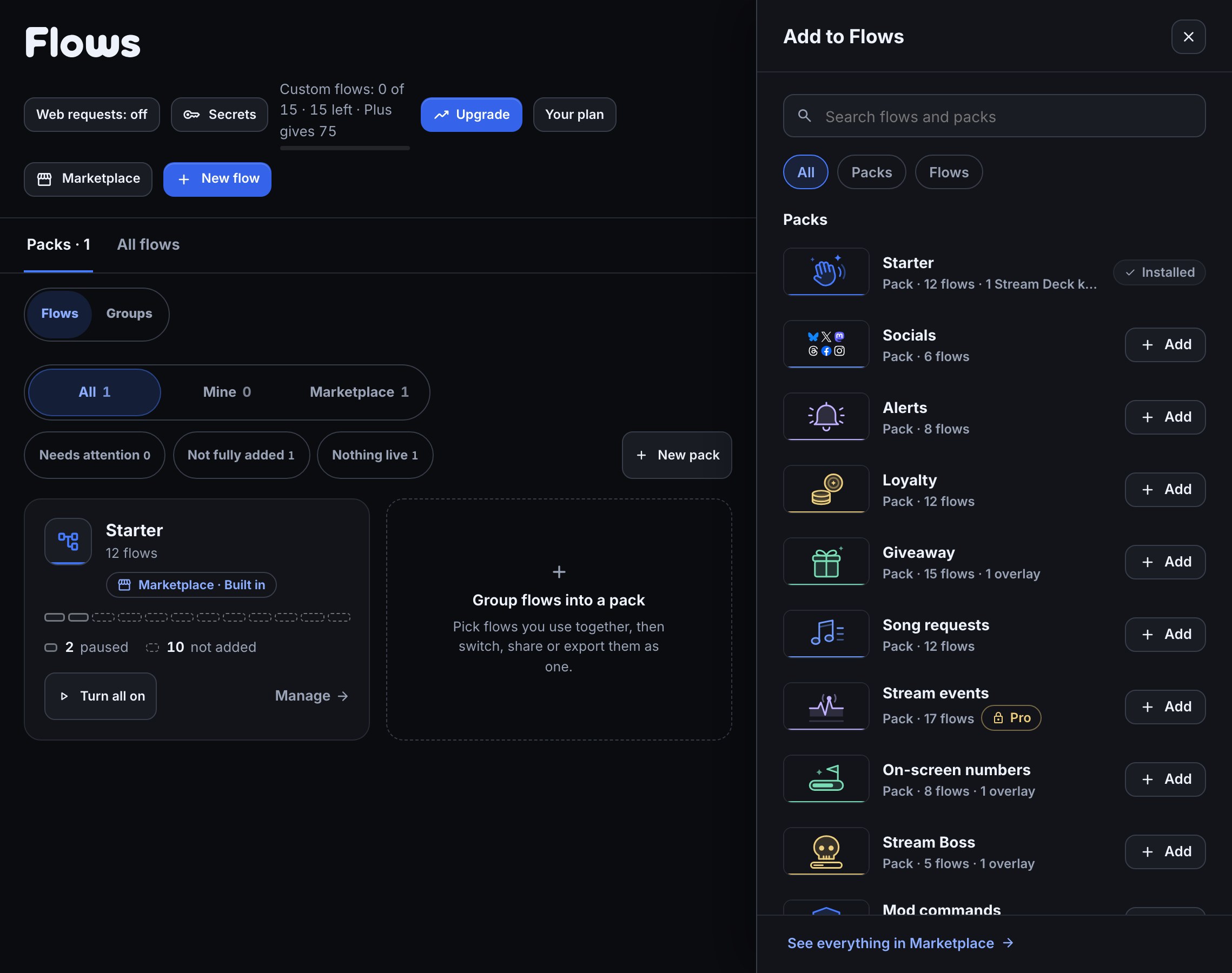
Your channel arrives with the Starter pack installed but paused: greetings for new followers and first-time chatters, !so, !clip, quotes, a death counter and more. Pebble takes you to Flows and lights up Starter’s card. Press Turn all on (or Do it for me) and they start answering in your chat. The step finishes when they are on.
If you used Nightbot or StreamElements before, Pebble looks your channel up there. When it finds commands that aren’t here yet it asks, “You had 12 commands on Nightbot. Want them here too?” Press Do it for me to bring them over, so what your chat already types keeps working, or Not now to leave them. You can bring them over later from Tutorials. See Coming from Nightbot or Coming from StreamElements.
Change any words you like afterwards: the flows are yours, and Pebble’s Edit a starter flow tutorial shows how.
Setup step 2 and 3: Your alerts, on stream
Pebble opens My alerts in Studio. It is an overlay with alerts ready for new followers and subs, already published, and the follow alert plays on the canvas. Look at it, then press Next. (If it couldn’t be made when you signed in, Pebble offers Do it for me.)
Then put it on stream:
- Tell Pebble what you stream with: OBS Studio, Streamlabs or Meld.
- Press Copy on the Browser source URL in Pebble’s card.
- In your streaming app, add a Browser source, paste the address and set it to 1920 × 1080. Add an overlay to OBS has the click-by-click for each app.
Pebble notices the moment your app opens the overlay and moves on. If it doesn’t, it says what it can see: nothing open yet, or something open that isn’t this overlay. The address is private to your channel, so keep it off stream, and do not post it.
If your streaming app is on another computer, choose I’ll do this on my streaming PC.
Setup step 4: Make your bot a moderator
Copy the /mod command Pebble shows and send it in your own Twitch chat. Use the account name shown, especially if you linked your own bot account. Pebble notices when Twitch lists the bot as a moderator.
/mod your_bot_usernameUntil the bot is a moderator, flows that need one are paused and loyalty payouts wait (what pauses), so every page of your dashboard shows a Not a mod bar with the same command and a copy button. Refresh your dashboard after sending it. Everything resumes by itself once Twitch lists the bot. You can choose I’ll do this on my streaming PC and send it later. If you go live without doing it, or a moderation action fails because the bot is not a moderator, Bloopbot reminds you in Twitch chat with your bot’s exact command. Both reminders share one 24-hour cooldown for your channel.
Setup step 5: Test it
Pebble takes you back to Studio and asks you to press Test published output…. Confirm the test, then watch and listen in your streaming app. If you put step 3 off, the step uses Test in editor instead, which plays the draft on the canvas only.
Pebble says “You’re live-ready.” and your Overview shows Next steps.
3. Go on with Next steps
Next steps is a card at the top of Overview, for owners and editors, that leads from the easy things to the advanced ones. Each item starts one of Pebble’s tutorials, and you can skip any step of it. A tick means you have finished that tutorial. The first group with something left is open, and the rest are folded up with a short summary. An item that waits for another tutorial, or for something your channel doesn’t have yet, shows what it needs in place of its Start button.
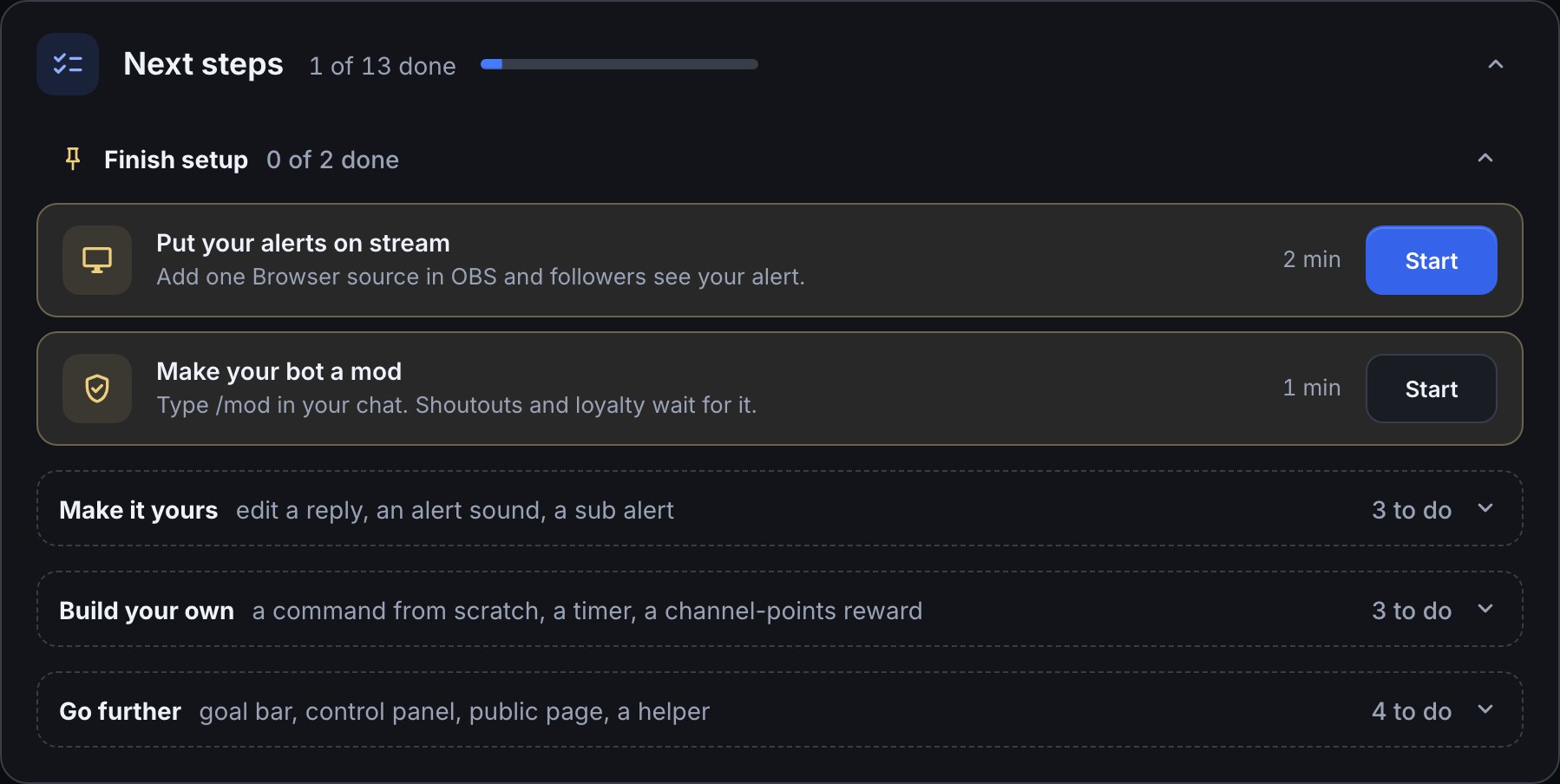
- Finish setup appears only if you put a setup step off, and an item leaves it by itself once the step is done another way (the bot made a mod from the Not a mod bar, your alerts opened in your streaming app). It holds Put your alerts on stream and Make your bot a mod, with the first as the one filled button.
- Make it yours has Switch on your starter flows (ticked for you once you finish Set up your bot, whose first step does the same), Edit a starter flow, Give an alert its own sound and Add a sub alert. The sub alert is listed for Twitch Affiliate and Partner channels, because subscriptions come with those.
- Build your own has Your first flow, Your first timer and Channel points alert.
- Go further has Add a goal bar, Your first control panel, Share your public page and Invite a helper.
The header counts what you have done (such as “3 of 11 done”) and folds the card away. When everything is done it shrinks to one line, “All done.” Pebble may offer an item you haven’t done, at most once a day and only when it fits where your channel is, and doesn’t repeat an offer you dismissed. While there is something left, the marketplace, Discord and plan cards sit below it. Every tutorial is also on Tutorials in the sidebar’s Help menu: Learn Bloopbot with Pebble’s tutorials.
4. Build your first flow
Everything Bloopbot does is a flow: a trigger that starts it, optional checks, and actions. Your first flow, under Build your own, builds a chat command from nothing, on the real pages:
- Press Start next to Your first flow. Pebble takes you to Flows and shows the three parts of a flow.
- Press New flow, then Start blank.
- On the canvas, click Chat command under Suggested next and type
lurkin the Command box. Pebble suggestsbrborhuginstead if your channel already has!lurk. Press Save. - With the trigger selected, click Chat message, write a reply such as
Thanks for hanging out, $(user)!, and press Save. - Press Test fire for a dry run and look at the Run log, then press the Live switch.
- Type your command in your own Twitch chat and watch the bot answer. You can skip this step and try it later.
5. Make it yours
To start a command from a template instead:
- Open Flows and choose Marketplace to install Simple command.
- Set the command to
hellowith prefix!. Change its message to something that sounds like you. - Press Save. Use Test fire to inspect a dry run in the Run log.
- Make sure the flow is live, then type
!helloin Twitch chat to check the real reply.
Follow the full command guide for aliases and personalised replies. For more, use Flows → Marketplace to add packs or single flows. To choose how viewers earn points, open Loyalty; earning starts off for new guided-setup channels; channels using the earlier setup start with points on.
6. Go live
Before your first stream, Pebble offers Ready to go live: it checks your overlay has an alert open in your streaming app, tests an alert, checks the bot is a moderator and no flow is stuck, then shows you Live, your page for during a stream. Start your stream in OBS, switch on the flows you want and watch Live. The Overview shows the same state at a glance: whether the stream is online, how many flows are on and anything that needs attention.
Before you go live
- Open Home. It shows whether the stream is online, how many flows are on and anything that needs attention, and links to the page that fixes it.
- Check that the right channel is selected.
- Keep only the flows you want enabled. Two flows listening for the same command can both reply.
- If you use OBS, open the scene with your widgets and check delivery before streaming.
- If something does not run, start with Flows → Needs attention.
- Add a backup sign-in email under Account, in case you ever can’t sign in with Twitch. Keep a backup way to sign in shows how.
- Stuck, or want to see what others have built? Join the Bloopbot Discord and ask in #help. Ask in the Bloopbot Discord covers what to include.
Was this guide helpful?
Thanks. Your answer helps us decide which guides to improve.