
What a connected app is
Some tools sign in to your Bloopbot account instead of using a private URL: the Stream Deck plugin is one, and an AI assistant or coding tool that works with your flows is another. Signing in gives that app its own access — never your password — scoped to exactly what you allowed when you connected it.
Every app you've signed in to shows up on Connected apps, under Setup in your channel's sidebar, whether you connected it yourself or an editor did. From there you can see what each one can do and remove one at any time.
Connecting an AI assistant to your flows comes with Pro — Connect an AI assistant walks through it. It goes through the same sign-in and appears on this page exactly like Stream Deck does.
Connect an app
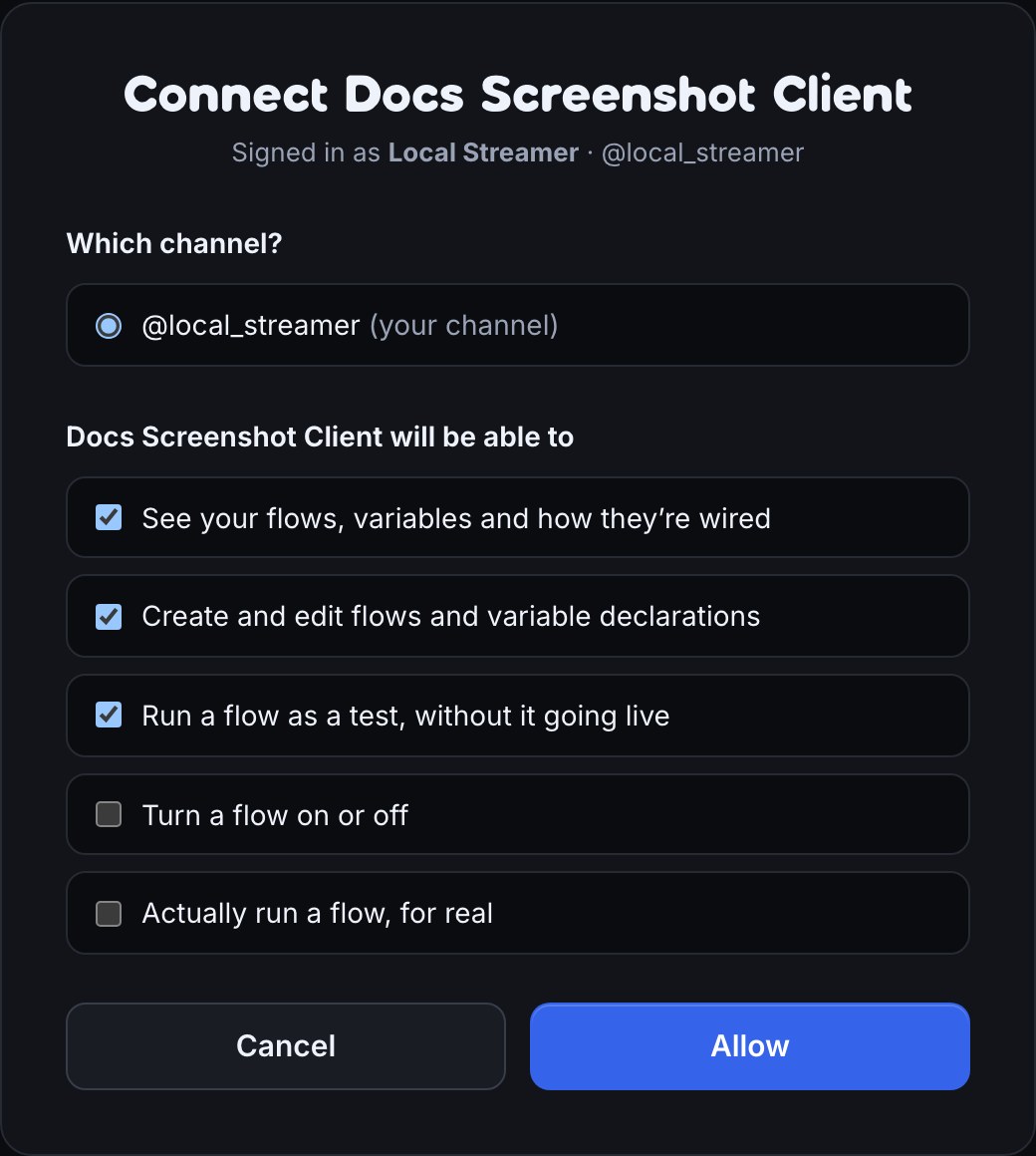
Connecting starts from the app or tool you want to use, not from Bloopbot — its own Connect to Bloopbot or Sign in step (the Stream Deck plugin's is Sign in to Bloopbot in a key's settings panel). That sends your browser to a Bloopbot sign-in and consent screen, where you pick which channel it should reach and what it's allowed to do:
- Who's asking — the app's name, and its domain when it has one you can check. No domain shown means Bloopbot can't verify who published it; be as careful with it as you would with any app asking for account access.
- Which channel — if you own or edit more than one channel, choose the one this app should reach, right there on this screen. An app is connected to one channel at a time; connect it again from a different channel's page to add a second one.
- What it can do — a checkbox per permission, in plain language, such as seeing your flows or running one for real. See your flows, variables and how they're wired, Create and edit flows and variable declarations, and Run a flow as a test, without it going live are ticked to start. Note that creating or editing already reaches your real flows: if you edit a flow that's already turned on, the change takes effect as soon as it's saved, the same as if you'd made it yourself, and editing can include moving a flow to the trash. Turn a flow on or off and Actually run a flow, for real start unticked, since those are the two permissions that switch a flow on and make it actually run for real — tick them only if this app needs to do that.
Choose Allow to finish connecting it, or Cancel to back out. Nothing is shared until you choose Allow.
Review what's connected
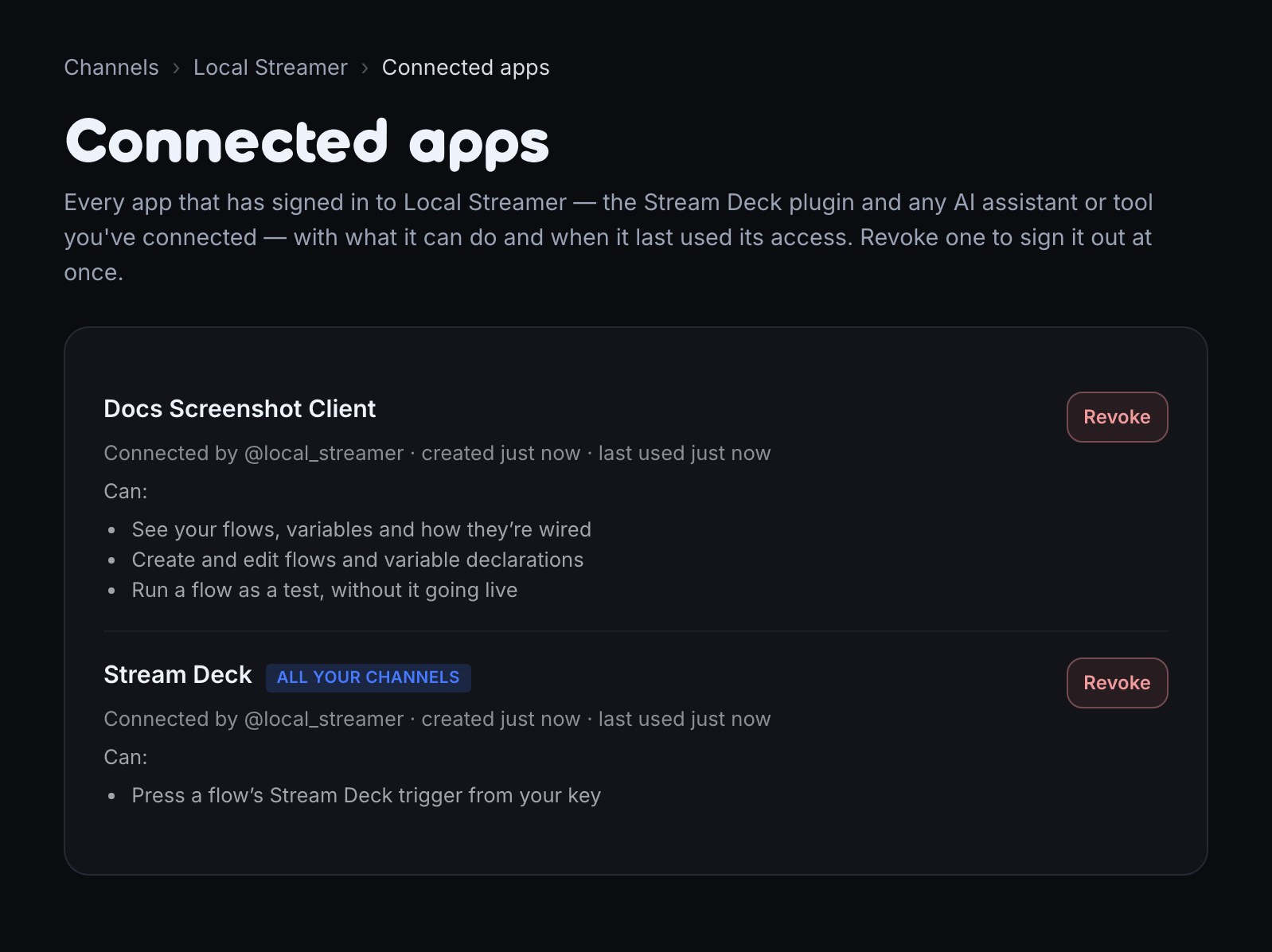
Open Connected apps to see every app that can reach the channel you're viewing:
- Name and domain — which app it is, and where it says it's from.
- Connected by — who signed it in, in case it wasn't you.
- What it can do — the permissions it was allowed when it connected.
- Created and last used — when the connection was made, and the last time the app actually used it.
The Stream Deck plugin is a little different: signing in to it once covers every channel you own or edit, not just one. It still shows up here on each of those channels, marked All your channels, so you always know it has access — even though there's only one sign-in behind it. As an editor, if that sign-in belongs to someone else who also helps manage the channel, you see it listed (so you know it has access) but not its last-used time or a Revoke button — that stays between that person and the channel owner.
Revoke access
Choose Revoke next to any app to sign it out at once. Whatever it was doing stops immediately — there's no delay and nothing left to clean up afterwards.
Revoking the Stream Deck plugin from any one of your channels signs it out of all of them, since it's one sign-in underneath; the confirmation says so before you continue. Revoking anything else only affects the channel you're viewing — connect it again from another channel and it needs its own new sign-in there.
If an editor connected an app themselves, you (as the channel owner) can still revoke it from this page. An editor can revoke any app connected to a channel they help manage, except the Stream Deck plugin of someone else who also helps manage it — only that person, or the channel owner, sees a Revoke button for it.
To reconnect an app with different permissions, revoke it and connect it again — choosing what to allow starts over from the consent screen.
Troubleshooting
- An app I don't recognize is listed: revoke it. The Connected by line says whose account signed it in; for an app connected to this specific channel (not the Stream Deck plugin, which is one sign-in for every channel you reach), that same connection is also in Audit Log. Remove that person as an editor if it wasn't you or someone you trust.
- A flow's history or Audit Log shows "via" a name I don't expect: that names the app that made the change — Stream Deck, or a connected assistant — alongside whoever's account it was made under. A change made from your dashboard shows no "via" at all. It's the same information Connected apps shows, next to the change itself.
- I revoked an app but it's still working: it stops immediately on Bloopbot's side. A tool that cached a result before you revoked it may still show that old result until it asks Bloopbot again.
- The app I want isn't listed: it hasn't been connected yet, or it may not be available on your channel. Check What your plan includes for what your channel currently has.
- I don't see a permission I expected: permissions are chosen when the app connects. Revoke it and connect it again to change which ones it has.
Was this guide helpful?
Thanks. Your answer helps us decide which guides to improve.