
Choose a template or a pack
A template gives you one editable flow. A pack groups related flows, such as Starter, Alerts, Loyalty, Song requests, Stream events or On-screen numbers. Open Flows and press Marketplace to browse both: Add to Flows lists the packs first, then every flow on its own.
Starter is added automatically once for channels using the earlier setup, with new flows paused. A new guided-setup channel starts without it; choose the individual flows or pack you want in Marketplace. Open Flows → Packs → Starter and turn on the flows you want. You can remove any of them; they stay removed until you choose to add them again.
The Starter pack includes Clip it. Create a clip with your own title shows how to name the clip from the flow or from the !clip command.
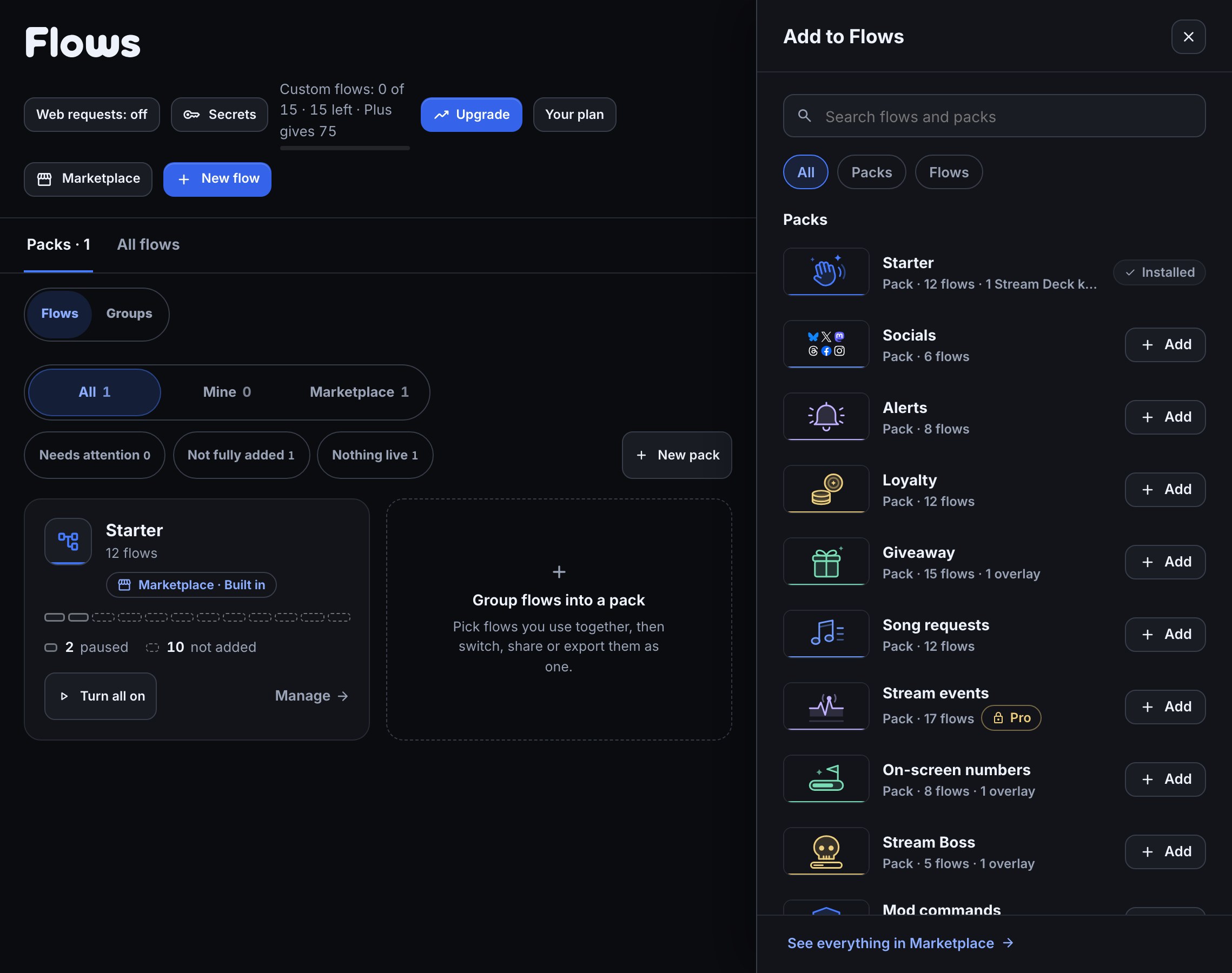
Add packs and flows, and manage what you added walks through the search, the review and the installed list.
React to what happens on Twitch
The Stream events pack turns a Twitch event straight into a chat line, gated by a cooldown where the event fires too often to say every one. React to polls, predictions and hype trains walks through those flows. It covers:
- Twitch goals — a follower or sub goal run from your Twitch dashboard: it starts, makes progress, is reached, or ends without reaching the target. These flows use the Creator goal trigger.
- Predictions — one opens, then resolves with the winning outcome and totals, or is cancelled with everyone’s points refunded.
- Polls — the result lands in chat when a poll finishes, whether it ran its full course or you ended it early, with a nudge partway through while it is still running. A poll you archive from Twitch stays quiet.
- Hype trains — a cheer as one starts, and a line as it levels up.
- An ad break — how long it lasts, the moment it starts.
- Shield mode turning on, a new VIP, a new moderator, bans and timeouts, and stream title or category changes — each as a plain, neutral line, not a callout. For the other half — shield mode turning off, or someone losing VIP or moderator — open that flow and change its trigger’s When it or When someone is field, and reword the line to match.
The shield mode, VIP, moderator, ban and stream info flows each start on a trigger you can also use in a flow of your own, under the same name in the node library: Ad break starts, Shield mode on or off, VIP added or removed, Mod added or removed, Ban, timeout or unban and Stream info changes (a new title, category or language).
The Follow-bot protection pack holds one flow, Follow-bot lockdown: when a burst of follows comes mostly from brand-new accounts, it turns Shield mode on, posts an announcement and turns Shield mode off again 10 minutes later. Stop a follow-bot raid walks through it and how to tune it.
Install and review
- Open Flows, press Marketplace, and choose the pack or flow that matches your goal.
- Read its review: what it adds, anything it needs, and the flows a pack holds. Answer any question it asks, then press Add … — paused.
- Open the flows you added, read their commands and messages, and customise them.
- Check each flow’s live or paused state before using it. Use Test fire to inspect a dry run.
Your copy belongs to your channel
An installed flow is a copy that you can change. Editing it does not edit the original template or someone else’s channel. When a pack has a newer version, Marketplace → Installed offers it: a member you have not changed updates in place with the same name and on/off state, and a member you changed asks “Keep your version?”. Keep mine leaves it as it is; Use the new one replaces it in one step and keeps your version in its History (Update what you added).
Some members use a group, such as Screen reward text. When an update brings a newer version of that group, the updated flow moves to the new copy, and the old copy is deleted from Groups once nothing uses it — the new copy then takes the plain name back. An old copy you edited, or one another flow still uses (including a flow in the Trash), is kept, and the new copy appears next to it with a number, such as Screen reward text (2).
Manage a pack together
Packs is the first Flows tab. It shows the packs you made (group flows you already have into a pack) and the packs you added from the Marketplace as cards in one grid; the All, Mine and Marketplace toggle picks which. A bar on each card shows which of its flows are live, paused, need attention or are not in your channel yet (Read a pack at a glance). Click a card, or press Manage, to open the pack, inspect its flows and add any you left out. Flows that belong to no pack are together under Not in a pack. Each flow has its own live switch. All flows is the second tab and shows every flow once, with search, selection and Trash. Read the confirmation before removing a pack; Trash can restore its flows.
Was this guide helpful?
Thanks. Your answer helps us decide which guides to improve.