
Before you start
A giveaway can hand its prize to a winner two ways: in chat, the way it always has, or on a claim page — a private page for the winner, where they sign in with Twitch, claim, and reveal what they won. A claim page is the right choice for a real prize: a game key, a gift link, something posted to their door, or a perk you owe them — anything you would rather not paste into chat.
- A giveaway, set up as in Run a giveaway in chat — title, keyword, winners, who may enter.
- The prize vault. Stocking prizes and choosing a claim page needs a plan that includes it: your plan shows whether your channel holds it, under Prize vault.
- The claim page itself needs no setup — every channel has one, at
bloopbot.com/c/<your channel>/claim. Chat entry, drawing and confirming still work the way Run a giveaway describes; this guide only covers what changes once the prize is claimed on a page instead of said in chat.
1. Stock the prize
Open the giveaway on Giveaways. On its Prize step, under How does the winner get it?, choose the Claim page card. A Prizes section appears in the same step, below the choice.
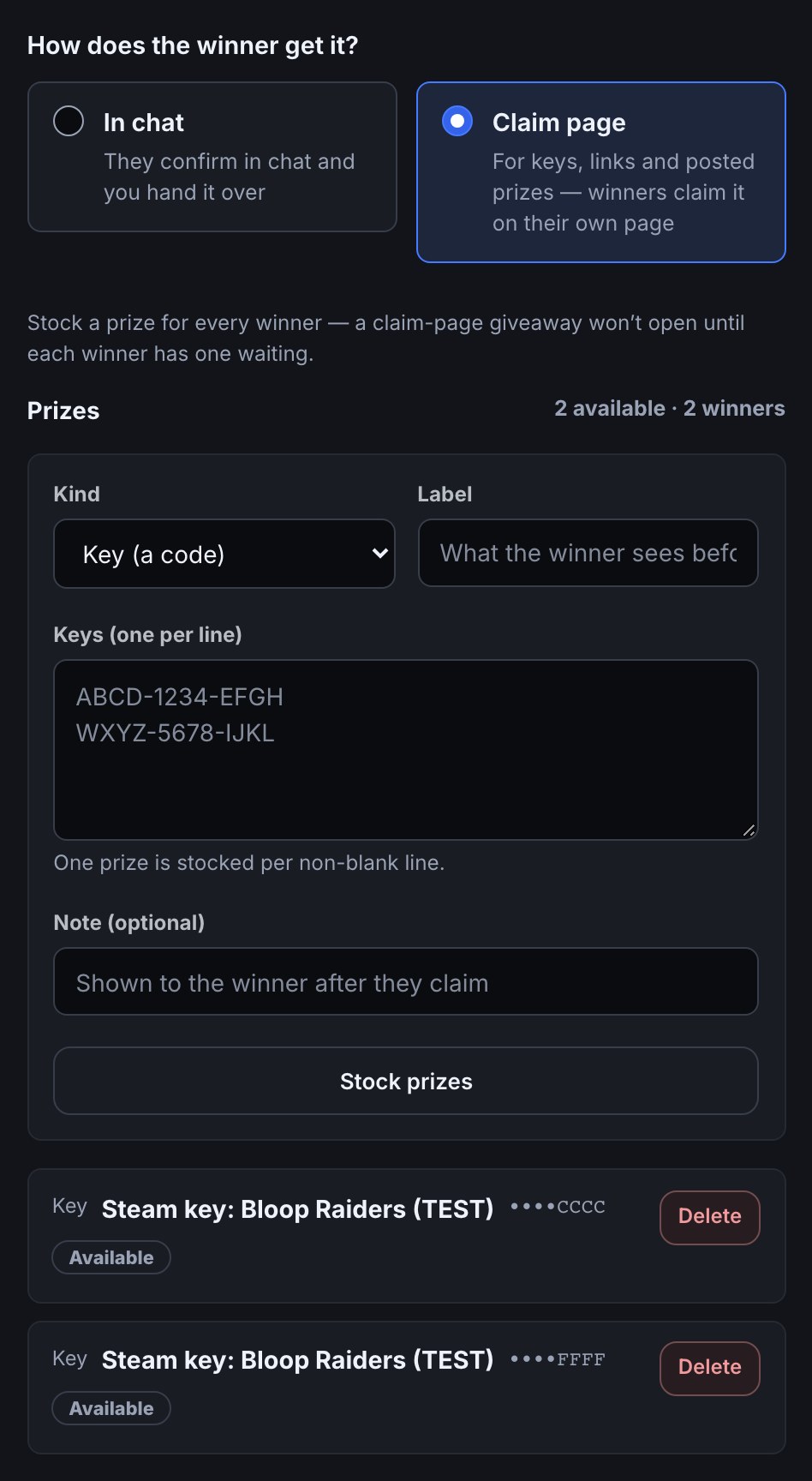
- Pick a Kind. Key (a code) or Link (a gift URL) are pasted one per line into the box — each non-blank line stocks one prize, so ten lines stock ten keys. Physical has no payload; the claim page collects a shipping address instead. Perk (a shout-out, a game together…) has no payload and no address — the winner just sees the label and your note.
- Give it a Label — what the winner sees before they claim, such as "Steam key: Bloop Raiders" — and an optional Note, shown only after they claim.
- For a physical prize or a perk, set Quantity instead of pasting a box of codes; that many identical prizes are stocked at once.
- Press Stock prizes (or Stock prize for a single one).
A key or link prize never shows its payload again in the dashboard once stocked — the list shows a masked tail, only its last few characters (X7Q2), so you can tell two prizes apart, nothing more. The giveaway won't open until there is at least one Available prize for every winner slot; the page counts them for you (N available · N winners) and warns when you are short, and the Review step lists it under Before it can open until you have enough.
An available prize can be Deleted, or Moved to… another draft or open giveaway of yours — handy when you stocked prizes on the wrong giveaway, or want to split one batch across two — unless the giveaway is running and still needs it for a winner. A claimed prize cannot be moved or deleted.
2. Choose how a winner confirms
On the Winner step, under How does a winner confirm?, a claim-page giveaway offers a third choice beside the usual two:
- Say a word in chat — unchanged: the winner types the confirm word, then claims on their own time within the claim deadline (below).
- No confirmation — also unchanged: the winner is final the moment they're drawn, straight to the claim deadline.
- Claim it on the page — one step instead of two: claiming is confirming, so there is no separate confirm word or window. Set Hours to claim (1 to 168 — up to seven days), which starts the moment they are drawn.
Claim it on the page is the mode to use when your winners might not be watching chat — a keyword entry doesn't mean someone's still around to type a word back.
With Say a word in chat or No confirmation, a confirmed winner then has a separate Claim by (hours after confirming) window before the prize itself expires — 0 means no deadline. If they don’t confirm in time, draw someone else (or If they don’t claim in time…) applies to whichever window is currently ticking, confirm or claim: an unclaimed slot is redrawn and the prize it would have taken stays available for the replacement.
3. What the winner sees
The winner's own page is bloopbot.com/c/<your channel>/claim — share that link, or point them to it in the winner announcement (see Flows below). Nothing about your giveaways is on it until they sign in.
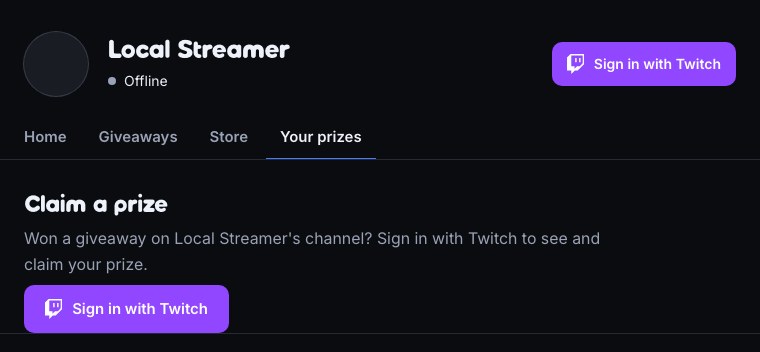
- Sign in with Twitch. This is an identity check only — Bloopbot never asks for anything beyond who they are on Twitch.
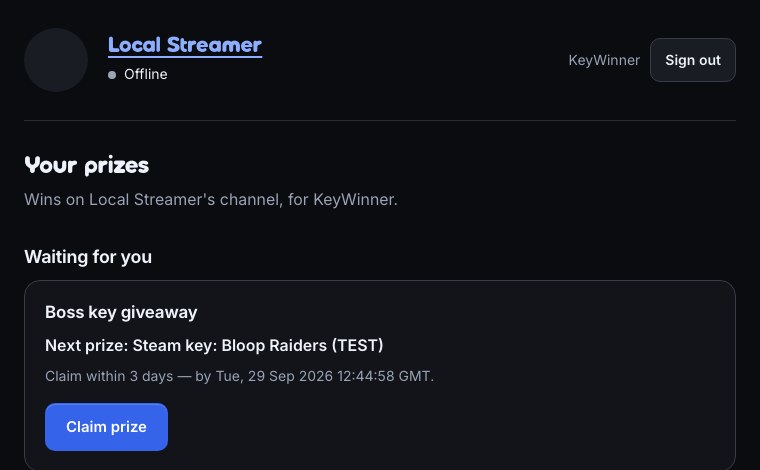
- Signed in, they see every win of theirs on your channel: prizes waiting for them (with the prize's label, the time left to claim, and a Claim prize button) and prizes already claimed.
- Claim prize. For a key or link this is the whole step. For a physical prize, claiming asks for a shipping address in the same form — name, address lines, city, region, postcode and country.
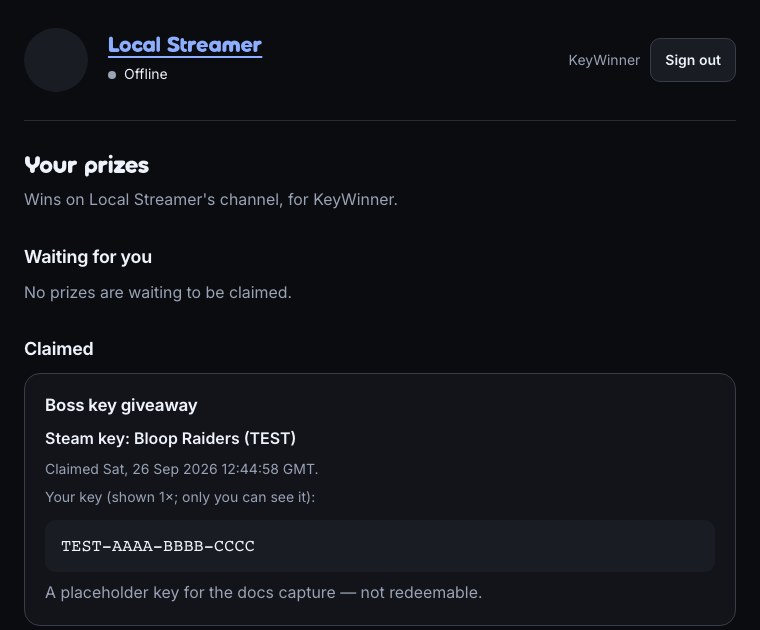
- Once claimed, a key or link prize shows a Show my key (or Show my link) button rather than the payload straight away — nothing sensitive sits on the page until they ask for it.
A win still waiting on a chat confirm word is listed too, with Confirm your win in chat first in place of a Claim button — the page always shows every win, it just tells the winner what to do next.
4. Handle physical prizes
A physical prize's claim collects a shipping address, encrypted, that only you can read.
- On the giveaway's Prizes list, a claimed physical prize with an address on file offers View address — each view is logged on your side.
- Once you've sent it, press Mark shipped. It only appears once an address is on file, so there's nothing to press before then.
- The address is deleted automatically 30 days after you mark the prize shipped — plan to note down anything you still need from it (a tracking number, say) before then. A prize you never mark shipped keeps its address indefinitely.
5. Tell chat where to claim
The Giveaway pack's winner-announcement flow only fires for chat-delivery giveaways — telling everyone to type a confirm word makes no sense for a prize claimed on a page. Install its claim-page companion instead:
- Open Flows → Explore packs → Giveaway, or find the flow if the pack is already installed.
- Switch on Winner: claim on the page. It fires on the same Giveaway changes trigger as the chat announcement, filtered to Prize delivery: Prize claimed on the claim page, and says in chat: "🎁 @$(winner) won $(prize)! Claim your prize at $(claimurl)".
$(claimurl)is your channel's claim page link — insert it into any flow's chat message from the Insert… menu, the same way as$(winner)or$(prize).
A flow of your own can also react to A winner claims their prize on the Giveaway changes trigger — to thank them in chat once they've actually claimed, for instance, rather than when they're drawn.
What you should see
- The Prizes section lists what you've stocked, with N available · N winners and a warning when you're short.
- The giveaway opens once every winner slot has an available prize; it refuses to open otherwise.
- The winner's claim page shows their win, a countdown to the claim deadline, and — once claimed — a way to see what they won.
- Your Prizes list shows who claimed which prize, how many times a key or link has been revealed, and a physical prize's shipping status.
Troubleshooting
- The giveaway won't open. Either there aren't enough available prizes for every winner slot yet — the Prizes section says how many you're short — or your channel's plan doesn't include the prize vault. Your plan shows which.
- A winner says they can't claim, and the giveaway is follow-locked. Claiming re-checks the rules a giveaway was entered under. If they've since unfollowed, the claim is refused until they follow again — the page tells them so.
- A win has disappeared from the winner's page. The claim deadline ran out. If draw someone else was ticked on the Winner step, that slot was redrawn and a new winner drawn from everyone who hadn't already won; check the giveaway's Run panel for who has it now.
- A winner's prize changed after a reroll. A manual Reroll on the giveaway only replaces a winner who hasn't claimed yet — once claimed, a slot is done and cannot be rerolled.
- The winner announcement never mentions the claim page. You likely still have the chat-only Announce the winner flow switched on instead of, or as well as, Winner: claim on the page — check both under Flows, and that the claim-page one is switched on.
Was this guide helpful?
Thanks. Your answer helps us decide which guides to improve.