
Before you start
Social images are saved designs for the pictures your social posting flows send. Make one image, publish it, and use it in several flows. Your stream title, category, channel name and channel link can fill themselves in when a flow runs.
- The channel owner and authorised editors can create and edit designs. A moderator cannot author them.
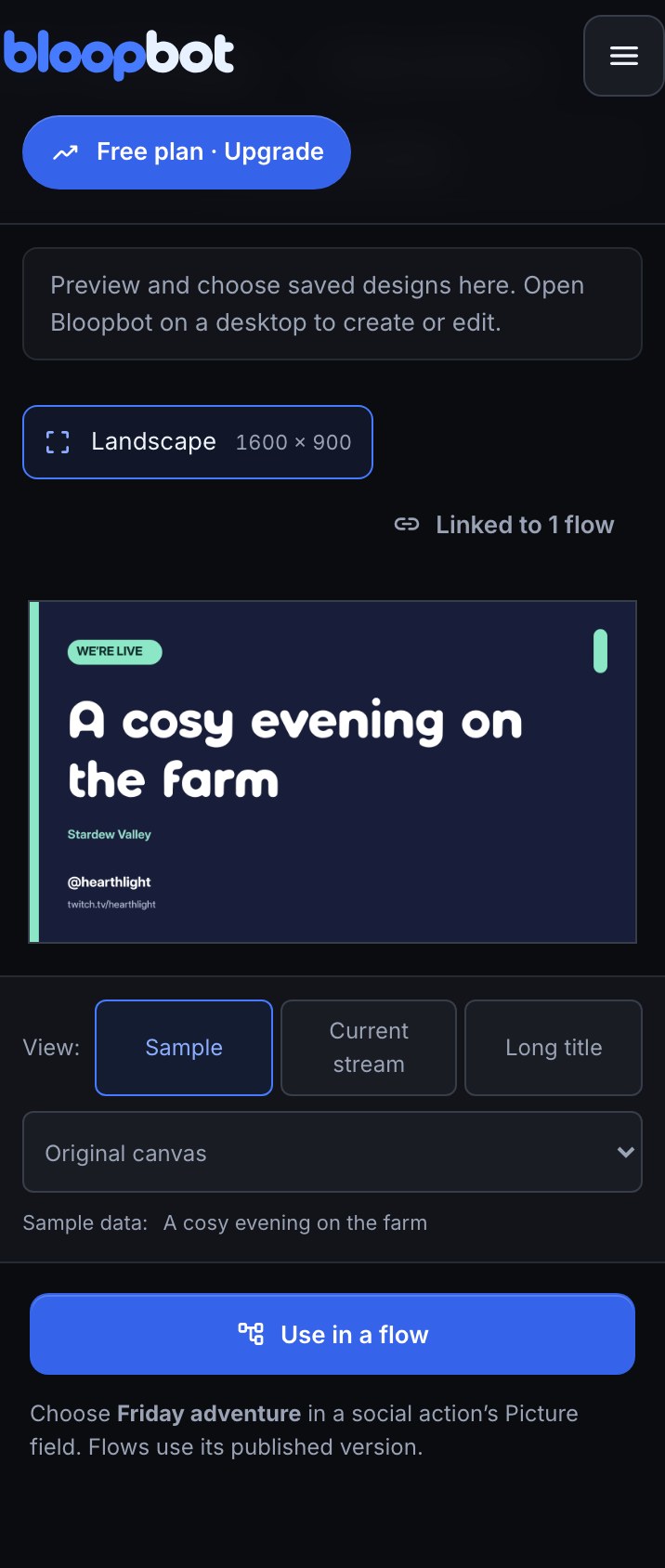
- Use a computer for editing. On a phone you can preview designs and choose a published design in a flow.
- Connect the social account before its flow posts. Creating, previewing, publishing a design and downloading its PNG do not send a public post.
- Add a social posting flow first if you want Pebble to walk you through it. Find Your first social image on Tutorials; it is offered after first run when you visit the library and your channel has a social posting flow.
Create your first design
Open Social images in the sidebar, or choose Social image under Picture in a social flow and press Create design. The flow link opens the library in another tab so your unsaved flow stays open.
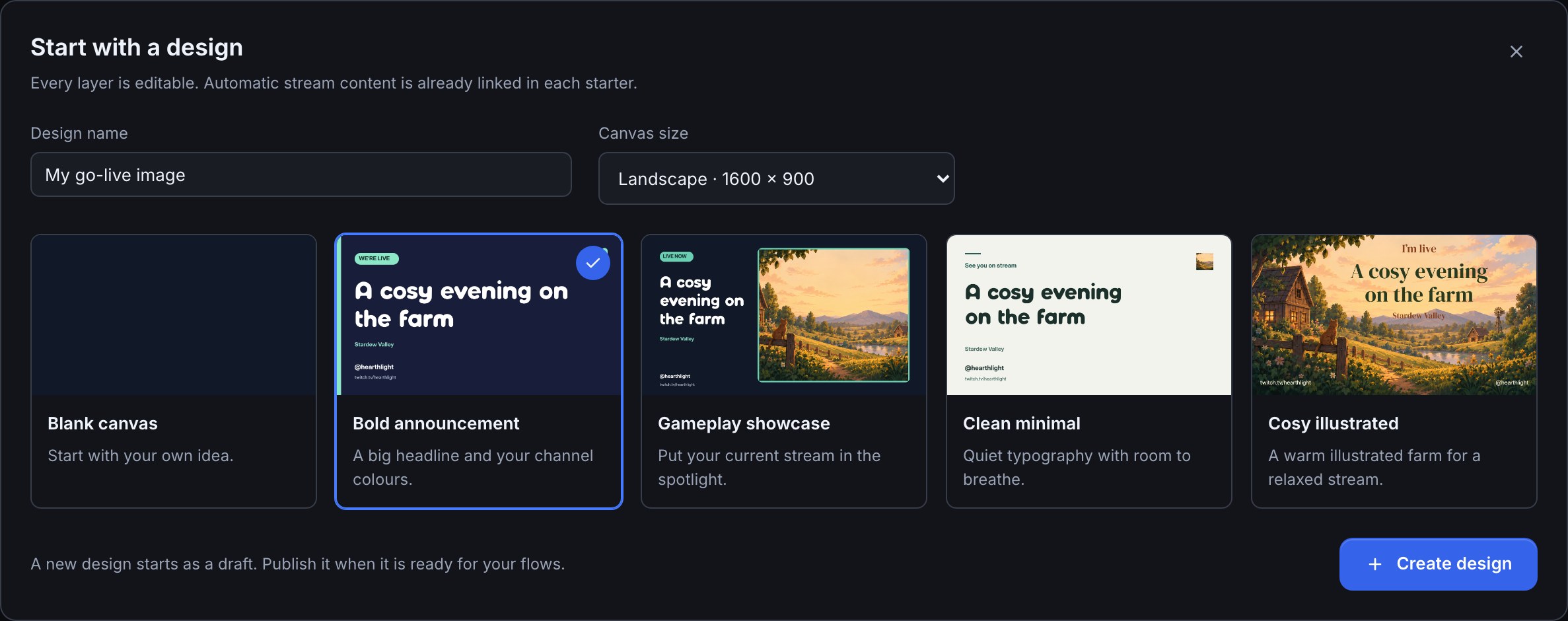
- Press New social image.
- Choose a starter: Bold announcement, Gameplay showcase, Clean minimal or Cosy illustrated. Each has editable text, pictures and shapes. Choose Blank canvas to begin with only a background.
- Enter a Design name you will recognise in the flow picker, such as Friday adventure.
- Choose Landscape for a 1600 × 900 image or Square for 1080 × 1080 under Canvas size.
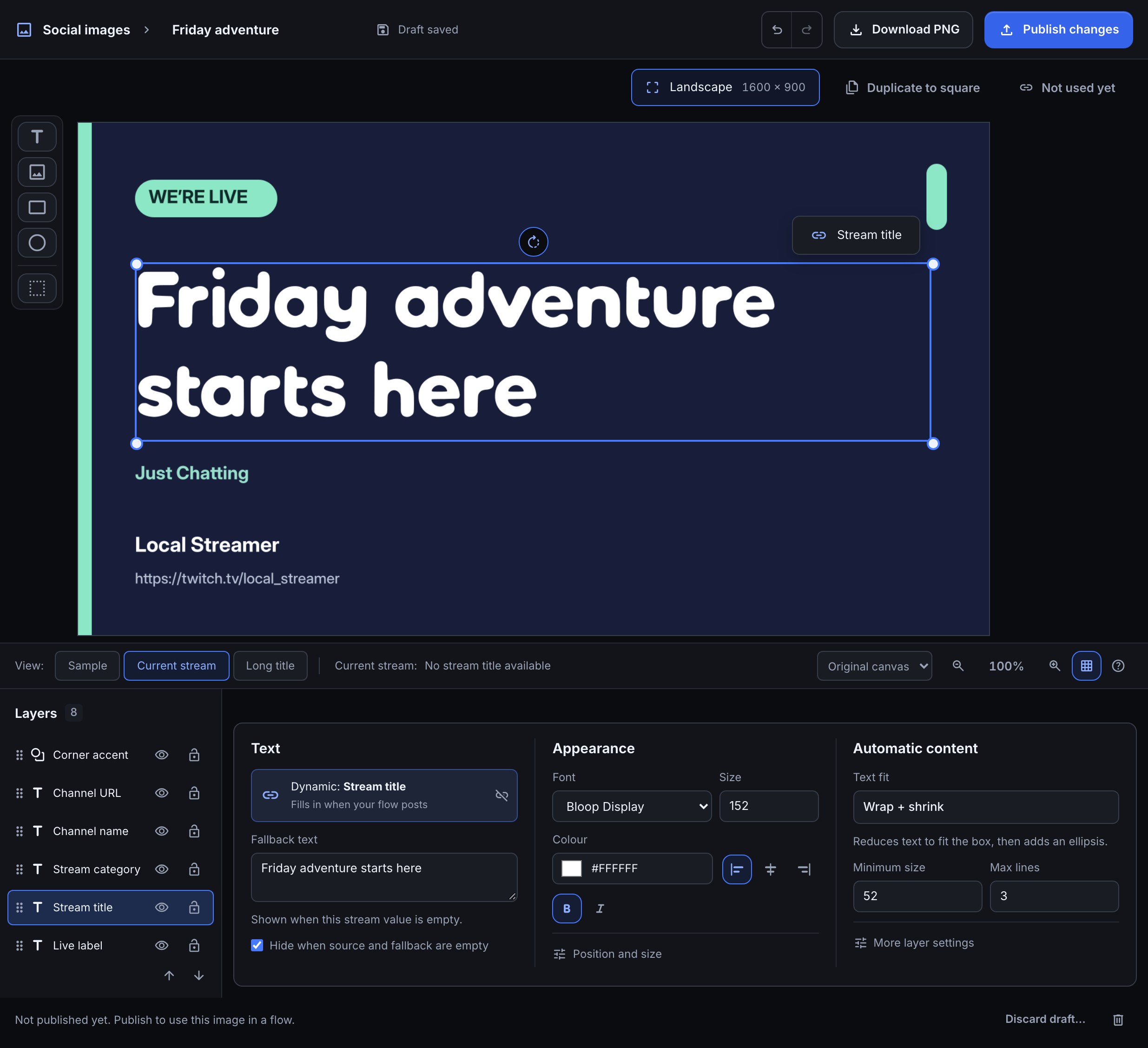
- Press Create design. Select a layer on the canvas or in Layers, then change its words or appearance in the dock below the canvas.
What you should see: the rendered picture above the layer list and properties, with the draft status beside the design name. The draft saves automatically. It is available for posting only after Publish changes.
Fill in stream details automatically
A linked badge on a selected layer and its source chip in the dock open the same source chooser. The chooser offers sources suited to that layer.
| Layer | Sources |
|---|---|
| Text | Static text, stream title, category, channel name or channel URL |
| Picture | A fixed picture from Media, channel avatar, category artwork or Twitch live preview |
- Select the text or picture you want to change.
- Press its linked badge or source chip and choose the source.
- For automatic text, set fallback words for an empty value. Without fallback words the empty text can hide.
- For automatic pictures, choose a fixed fallback from Media if you want one. When neither the source nor its fallback is available, that layer leaves the design background showing.
For example, use Stream title for the large heading and A new adventure starts here as its fallback. Add Category below it and a fixed logo from Media beside it. The same design then works for another game without retyping the title.
Arrange and style your image
Drag a selected layer to move it, drag its handles to resize it, and use its rotation handle or rotation value to turn it. The properties show position and size for precise adjustments. Snapping helps line layers up.
- Use Layers to select, reorder, hide, lock or duplicate a layer. A locked layer keeps its position while you work on the others.
- Add text, a picture, a rectangle or an ellipse from the canvas toolbar. Select several layers for alignment and shared moves.
- Text has a curated font choice, size, weight, italic style, colour and alignment. A fixed text box wraps and shrinks toward its minimum size; text that still does not fit ends with an ellipsis.
- For a picture, choose cover or contain and use Crop picture to keep the part of its source you want.
- Undo and Redo let you correct recent edits. Keyboard arrows move selected layers; Delete removes them, and the toolbar offers the same actions.
The editor creates still images. Animation, video and uploaded fonts are not part of Social images.
Change Design name in the editor, or use Rename on its library card, to update the name shown in the library and flow picker. Renaming saves immediately and does not need Publish changes; publishing controls the picture’s text, images and layout.
Preview and publish
- Use Sample while arranging the design.
- Press Current stream to preview your channel’s current details. Missing values use the fallbacks you set.
- Try Long title to see how the text boxes cope with a crowded title.
- Wait for Draft saved, then press Publish changes when the picture is ready.
What you should see: a published revision is reported, and the design appears in your social flow’s picker. Later changes to its text, pictures or layout are an autosaved draft until you publish again. A post that is already preparing keeps the revision and stream details it started with, even if you publish changes meanwhile.
If another tab changes the same draft, the editor shows a conflict rather than overwriting it. Load saved draft reads that version; Keep my edits lets you review and save your own changes. Use Retry save for a failed save and Retry preview for a failed render.
Use the design in a flow
Open a flow with a Post to step, such as one from the Socials pack. Announce your stream on social media covers accounts and go-live behaviour.
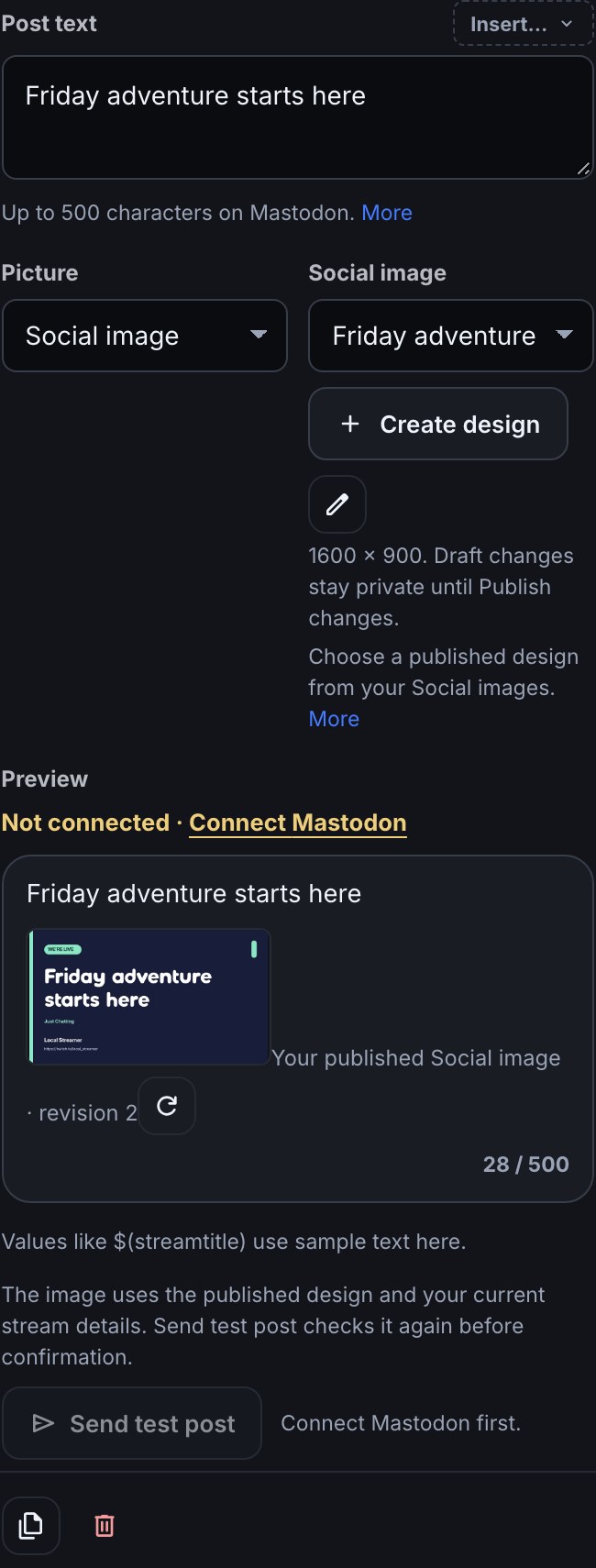
- Select the Post to step.
- Set Picture to Social image.
- Choose the published design. The picker shows only designs from this channel; an unpublished draft is not a choice.
- Check the actual image in Preview. It uses the published design and current stream details, converted for that destination.
- Press Save in the flow.
Edit beside the picker opens the selected design in another tab. Return to the flow after publishing; its choices and image preview refresh when the tab regains focus. You can also refresh the image with its refresh control.
Send test post shows the actual converted image before asking to post publicly. If its published revision or rendered inputs changed, it shows the new preview and asks again. Cancel sends nothing. A whole-design render failure stops the social action, even if that network permits text-only posts, and appears in the connection warning and flow’s Run log.
Download or make another size
Download PNG exports the rendered image at its native Landscape or Square size. Choose the preview content you want before downloading. A destination may resize or re-encode the picture when posting; the flow preview shows that version.
Use Duplicate to square or Duplicate to landscape to create another design. Rearrange its layers for the new canvas yourself, then publish that version separately. Duplicating keeps the original design in place.
Check usages and remove unused designs
The library and editor show which flows and groups use a design. A design referenced by a saved flow or group cannot be deleted, including retained selections in paused flows or the Trash. Switching Picture away from Social image remembers its selection.
- Open each flow or group listed in the design’s usages and select its social post step.
- Set Picture to Social image, then clear its picker by choosing Choose a published design.
- Switch Picture to the source you want instead, then press Save.
- For a flow marked in Trash, open Flows → Trash and Restore it first. Restored flows stay paused; clear and save the reference as above. If you no longer want that flow, Delete forever in the Trash releases its references instead, after confirmation.
- Return to Social images and delete the unused design.
Restoring an older flow version also checks that its Social images are still published and available in this channel. If a design was removed, choose another picture in the current flow instead.
Media pictures used by a draft or a retained published design revision cannot be deleted either. Check their usages in Media. Discarding a draft does not remove the pictures needed by earlier published revisions.
Social images stay in their own channel. Flow export and sharing refuse a selected design; choose another picture source before sharing, then choose a published design on the receiving channel. An AI assistant can select a published design through the existing flow tools, but design creation, editing and publishing remain in this editor.
Was this guide helpful?
Thanks. Your answer helps us decide which guides to improve.