
Before you start
This guide maps what you set up in Fossabot onto the closest thing in Bloopbot. Both run in the cloud, so neither needs anything installed on your PC. The difference is how you build: a Fossabot command is a line of text with $(variables) in it, and a Bloopbot command is a flow — a trigger, optional checks and one or more actions you connect on a canvas, where each step can hand values to the next.
There is no importer for Fossabot. You rebuild the commands you use most as flows, using the tables below. Bloopbot works with Twitch; if you also use Fossabot on YouTube or Kick, keep it there.
Commands, timers and keywords
| In Fossabot | In Bloopbot | Notes |
|---|---|---|
| A custom command | A flow with a Chat command trigger and a Chat message action | Command is the word without the prefix, and Also responds to holds aliases — see create your first chat command. |
| A command’s permission | A Who can trigger check, with At least set to broadcaster, moderator, VIP, subscriber or everyone | For a list of people of your own, use a Has a role check and add them on People → Regulars — see add permissions and cooldowns. |
| A command’s cooldown | A Cooldown check, on Whole channel, Per viewer or both | Moderators or you can skip it. |
| A timer | A flow with an On a timer trigger | Set an interval, or days and a time, and optionally Only if chat has moved — see post a recurring chat message. |
| A keyword | A flow with a When chat mentions trigger | It fires on an exact phrase. To fire on what a message means instead, see wake a flow when chat means something, which may not be available on your channel yet. |
| A counter | A declared variable plus a Set a variable step, read as $(var.name) | The Counter templates in the Starter pack build a !deaths counter this way — see keep a counter with variables. |
| Media requests (YouTube and SoundCloud) | The Song requests flow pack, playing through your own Spotify account | A different service: Bloopbot plays Spotify tracks and needs Spotify Premium — see let chat request songs. Song requests may not be available on your channel yet. |
Variables
Fossabot puts its variables straight into the reply text. Bloopbot’s $(…) values come from the step that hands them on, mostly the trigger, and every field that takes them has an Insert… menu listing exactly what it can read.
| What the variable gives you | In Bloopbot | Notes |
|---|---|---|
| The viewer who typed the command | $(user) | Handed on by the Chat command trigger. |
| The first word, or the viewer when there isn’t one | $(touser) | |
| Everything after the command | $(query) | |
| One word after the command | $(1) to $(9) | $(1) and $(2) are in the Insert… menu; type the rest by hand. |
| A number that goes up | $(var.name) from a declared variable | See the counter row above. |
| How long you’ve been live | how long ago under Stream in the Insert… menu | It keeps counting after the stream ends, so pair it with a Stream status check. |
$(customapi), the answer from your own address | A Web request step, whose answer later steps read | It’s a step on the canvas, not a token, and the channel switches Web requests: allowed on first. Web requests may not be available on your channel yet — see call a service from a flow. |
A variable with no match here — anything Bloopbot doesn’t hand on — needs a different approach. Check the Insert… menu of the field first; it lists everything that step can read.
Moderation
Fossabot is known for its moderation, so compare this part carefully before you switch it off.
| In Fossabot | In Bloopbot | Notes |
|---|---|---|
| Blocked terms | The blacklist filter on Moderation | Add entries on the page or with !blacklist add from chat; -regex makes an entry a pattern — see what moderators can do from chat. |
| Lookalike detection | Built into the link filter and the blacklist | Both see through spaced-out, spelled-out and look-alike letters and invisible characters — see set up moderation helpers. |
| Links, caps, symbols, emotes and repeated messages | The links, caps, symbols, emotes and repetition filters on Moderation | Each has its own thresholds, exemptions and response. |
| Message-height filter | No equivalent | Bloopbot has no filter for tall messages. |
| Nukes | !nuke from the Mod commands pack, with the Nukes page | See set up moderation helpers. |
| Mod team access and audit logs | Editors on Connections, and Audit Log | Editors sign in with their own Twitch accounts and can change your channel’s pages; every change is recorded under their name. There are no roles within editors — see share the work with mods and editors. |
Bloopbot also offers an AI moderation step you put in a flow, which reads what a message means rather than which words it contains. It may not be available on your channel yet — see set up AI moderation.
Rebuild your top commands
- Sign in, then open Flows → Explore packs and install the Starter pack. It brings everyday commands and stream reactions, paused, so you can review them before you turn them on.
- For each Fossabot command you still need, press + New flow → Start blank, add a Chat command trigger, and connect a Chat message action with your reply.
- Add a Who can trigger or Cooldown check in front of the action for anything that had a permission or a cooldown in Fossabot.
- On Moderation, set up the filters you had in Fossabot, one at a time, and watch chat before turning on several at once.
A worked example — a !discord command anyone can use, and a moderator-only !setdiscord that changes the link:
- On Variables, declare a text variable named
discord_urlwith your invite link as its starting value. - Build a flow: Chat command (
discord) → Chat message readingJoin us: $(var.discord_url). - Build a second flow: Chat command (
setdiscord) → Who can trigger (At least: moderator) → Set a variable (discord_url, set to$(query)) → Chat message readingDiscord link updated.
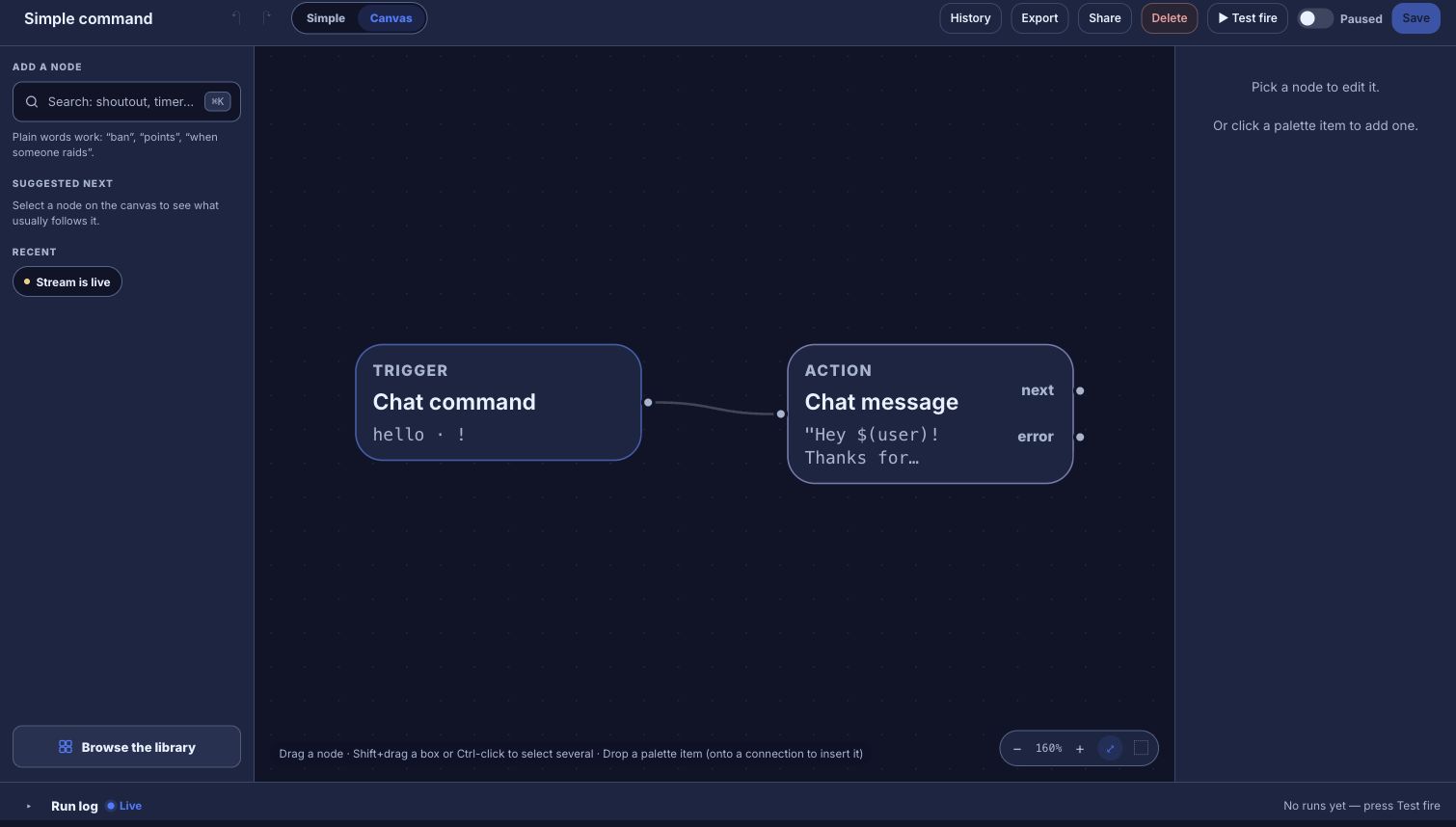
Expected result: a moderator types !setdiscord discord.gg/example, the bot says Discord link updated., and the next !discord posts the new link.
Turn off the old bot
Once a Bloopbot flow or filter does the same job, turn off the matching Fossabot command, timer or filter in Fossabot’s dashboard. If both bots answer the same command, chat sees two replies, and two bots filtering the same message make it hard to tell which one acted. When nothing is left in Fossabot you still need, remove it from your channel from its dashboard, and take its moderator role away in Twitch chat.
Check it before you rely on it
- Test fire, in the flow editor’s top bar, runs the flow as a dry run and records what would have happened. It does not post to real chat or touch a real viewer’s cooldown.
- A real check means typing the command in your own Twitch chat and watching for the reply exactly once.
- For a filter, send a test message from a second account the filter doesn’t exempt.
Troubleshooting
- You get two replies. Fossabot and Bloopbot are both answering the same command or timer. Turn off the one you’re retiring.
- The command does nothing. Check the flow is live rather than paused, and that a Who can trigger or Cooldown check isn’t stopping it for the account you test with. Fix a flow or connection covers the rest.
- The reply shows
$(var.discord_url)or$(user)literally. The variable isn’t declared on Variables, or the token is misspelled. Pick it from the Insert… menu instead of typing it. - A filter doesn’t act. The bot account isn’t a moderator in your chat yet, or the viewer is exempt. See set up moderation helpers.
- A node shows a lock. Your channel doesn’t include that step yet. Nothing else about the flow changes — see what your plan includes.
Was this guide helpful?
Thanks. Your answer helps us decide which guides to improve.