
Before you start
This guide maps what you already built in Nightbot onto the closest thing in Bloopbot, so you are not starting from a blank page. Everything in Bloopbot is a flow — a trigger, optional checks and one or more actions you draw on a canvas — so “add a command” and “add a filter” both mean building or installing a small flow rather than typing one line into a settings box.
Commands and permissions
Nightbot’s !commands add, its -ul= userlevel and its -cd= cooldown become a trigger and, where you need one, a check node in front of your reply:
| In Nightbot | In Bloopbot | Notes |
|---|---|---|
A custom command (!commands add !name reply) | A flow with a Chat command trigger (create your first chat command) | The trigger’s Command field holds the word without the prefix, Prefix holds the character before it (! by default), and Also responds to is a comma-separated alias list — the same job as Nightbot’s -a=. |
-ul=owner / -ul=moderator / -ul=twitch_vip / -ul=everyone | A Who can trigger check between the trigger and the action, with At least set to broadcaster, moderator, VIP or everyone | That is Bloopbot’s full ladder for this check — broadcaster, moderator, VIP, subscriber, everyone. There is no separate follower level. |
-ul=regular (Nightbot’s Regulars list) | A Has a role check, Roles left at its default Regulars | A different check node from Who can trigger: Has a role reads People → Regulars (or any other role you name), and the broadcaster and moderators pass it by default too. The Regulars-only command template wires this up for you — see recognise regular viewers. |
-cd=<seconds> | A Cooldown check, with a duration set on Whole channel, Per viewer, or both | Nightbot’s one number is closest to a channel-wide cooldown. A per-viewer cooldown, and letting moderators or yourself skip it, are Bloopbot additions — see add permissions and cooldowns. |
| Spam filters (links, caps, symbols, blacklist) | The channel-wide filters on Moderation, each with its own thresholds, exemptions and response | These are settings that apply to every message, not something you draw — see set up moderation helpers. |
Timers (!commands posted on an interval, with an interval and a chat-lines setting) | A flow with an On a timer trigger | Set the interval in minutes, or specific days and a time of day, and optionally require that chat has moved since the last fire — see post a recurring chat message. |
Song requests (!songrequest, !sr, played from Nightbot’s own YouTube/SoundCloud dashboard player) | The Song requests flow pack, playing through your own linked Spotify account | Different service and a different source library: Nightbot plays YouTube and SoundCloud links from its dashboard player; Bloopbot plays Spotify tracks through your own Spotify Premium account — see let chat request songs. Song requests may not be available on your channel yet — check what your plan includes. |
Variables
Nightbot’s $(…) tokens and Bloopbot’s $(…) tokens look alike on purpose, but they don’t all come from the same place — Bloopbot’s come from the specific step that hands them on, mostly the trigger:
| Nightbot | Bloopbot | Notes |
|---|---|---|
$(user) | $(user) — a Chat command trigger’s “Who typed it” | Same syntax, same meaning: whoever ran the command. |
$(touser) | $(touser) — “First word, or the viewer” | Also literally named touser in Bloopbot. Falls back to the person who typed the command when there is no first word. |
$(query) | $(query) — “Everything after the command” | Same job: the whole rest of the message after the command word. |
$(1) … $(9) (positional arguments) | $(1) … $(9) work the same way in any flow text field | All nine work, the same as Nightbot — the Starter pack’s own !deaths +5 counter reads the amount as $(3). Only $(1) (“First word after the command”) and $(2) (“Second word”) appear in the trigger’s own tray and Insert… menu; $(3) onward you type by hand. |
$(count) (auto-incrementing per-command counter) | A declared variable plus a Set a variable action, read back as $(var.name) | Not automatic: you declare the variable once on Variables, then a Set a variable step adds to it. The Starter pack’s own !deaths counter is built exactly this way — see keep a counter with variables. |
$(urlfetch url) | A Web request action, whose answer becomes a value later steps can use | Not an inline token — it’s a step on the canvas, and the channel has to switch Web requests on before it can run. Web requests may not be available on your channel yet — check what your plan includes. |
$(time timezone "format") | No direct equivalent | Bloopbot has no live clock or timezone-formatting token. An On a timer trigger firing at a set time of day covers most of what a scheduled $(time) announcement was doing. |
$(twitch $(channel) "{{uptimeLength}}") / "{{game}}" | Partial for uptime; no live token for the game | The Insert… menu’s Stream group offers how long ago ($(data.stream.started_at_ago), a human string like “3 hours”) and minutes ago ($(data.stream.started_at_ago_minutes)) for when the stream went live — it keeps counting after the stream ends, so pair it with a Stream status check if you only want it while live. For the category, the Stream info changes trigger hands on Category and Title at the moment you change them, but there is no token that reads the current category on demand. |
A field that says it accepts variables shows an Insert… menu listing exactly what that step can read, so you don’t have to remember the exact token by hand.
Recreate your top commands
Do this once your channel is signed in.
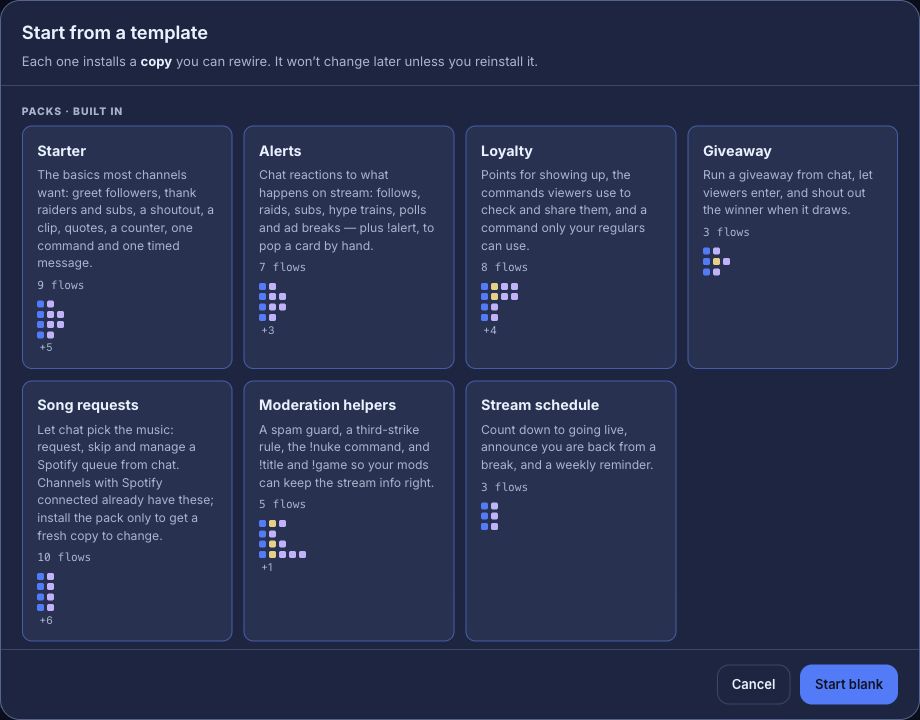
- Open Flows → Explore packs and install the Starter pack. It brings ready-made command and event flows you can review, rename or leave paused — nothing goes live until you turn it on. Its own counter (
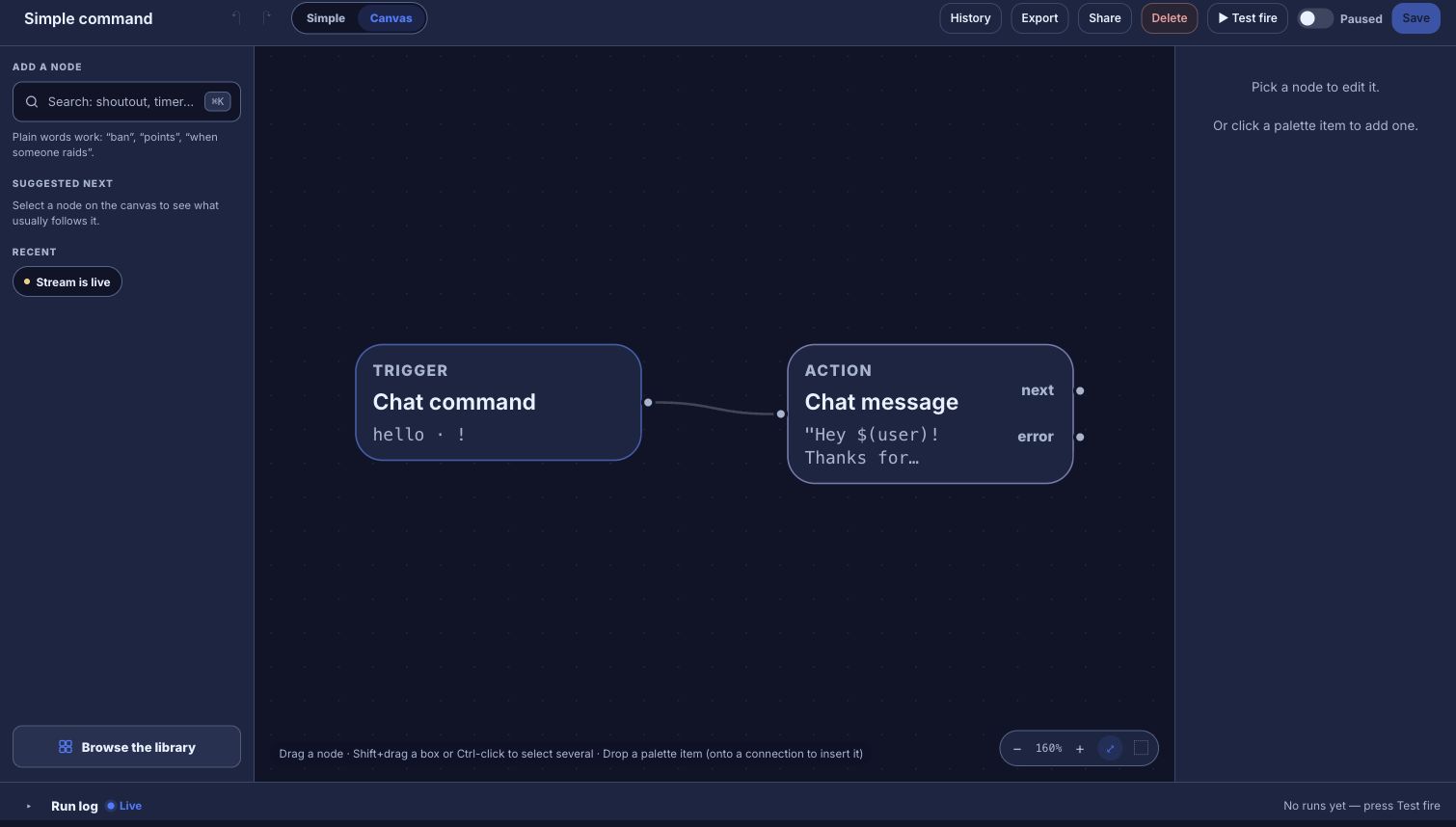
!deaths, with mods adding to it via!deaths +) is a working example of a Nightbot-style tally, built from a declared variable and a Set a variable action. - For a command Starter doesn’t cover, press + New flow → Start blank, add a Chat command trigger, and connect a Chat message action with your reply text.
- Add a Who can trigger, Has a role or Cooldown check in front of the action for anything that was moderator-only, regulars-only or rate-limited in Nightbot.
A worked example — a public !discord command with a moderator-only !setdiscord to update the link, the way many channels run it in Nightbot:
- On Variables, declare a text variable named
discord_urlwith your current invite link as its starting value. - Build a flow: Chat command (
discord) → Chat message readingJoin us: $(var.discord_url). - Build a second flow: Chat command (
setdiscord) → Who can trigger (At least: moderator) → Set a variable (discord_url, set to$(query)) → Chat message readingDiscord link updated. - Save both, then test as below before you rely on them live.
Recreate timers and filters
For a Nightbot timer, add an On a timer trigger to a new flow and connect it to a Chat message; set the interval, or specific days and a time. Nightbot’s timers fire on an interval, optionally gated by a minimum number of chat lines since the last fire — Bloopbot’s closest match is Only if chat has moved, a simpler yes/no version of the same idea, not a lines-per-interval count. See post a recurring chat message.
For Nightbot’s spam filters, open Moderation and configure the equivalent filter directly — links, caps, symbols, emotes and the blacklist are channel-wide settings in Bloopbot too, not something you build as a flow. Give each one the thresholds and exemptions you had in Nightbot, save, and watch chat before turning on several at once. See set up moderation helpers.
Turn off the old bot
Once a Bloopbot flow or filter is live and doing the same job, turn off the matching Nightbot command, timer or filter — in the Nightbot dashboard, not here. Two bots answering the same command, posting the same timer, or filtering the same message both duplicate the reply and can make moderation logs confusing about which bot acted.
When you’re ready to retire Nightbot entirely, use its dashboard’s Part Channel button (or the !part/!leave chat command) to remove it from your Twitch chat, and consider /unmod-ing its account in Twitch chat once it has left. If Nightbot ever posted an overlay-style alert (song request now-playing, follow shout-outs) through a browser source in OBS, also remove that source once Bloopbot’s own overlay is doing the job, so the two don’t draw over each other.
Check it before you rely on it
Bloopbot draws a clear line between a simulated check and something that actually reaches Twitch:
- Test fire, in the flow editor’s top bar, runs the flow as a dry run and records what would have happened — it does not post to real chat and does not touch a real viewer’s cooldown or points.
- A real check means typing the command in your own Twitch chat (or triggering the real event) and watching for the actual reply, exactly once.
Do both: Test fire to check the wiring, then one real message in chat to confirm nothing else is still answering the same command.
Troubleshooting
- You get two replies. Nightbot and Bloopbot are both still answering the same command or timer. Turn off the one you’re retiring — see “Turn off the old bot” above.
- The command does nothing. Check the flow is live rather than paused, and that a Who can trigger, Has a role or Cooldown check isn’t quietly stopping it for the account you’re testing with. Fix a flow or connection walks through the rest.
- The reply shows
$(var.discord_url)or$(user)literally, instead of the value. The variable was never declared on Variables, or the token is misspelled — check it against the Insert… menu on that field rather than retyping it from memory. - The reply shows
[count: use $(var.…) — see docs/flows.md §3b]. That’s Bloopbot’s deliberate placeholder for a literal$(count)left over from Nightbot — there is nothing to count without a declared variable. Replace it with a variable and a Set a variable step, as in “Recreate your top commands” above. - A moderator-only or regulars-only command answers for everyone, or nobody. Confirm the Who can trigger or Has a role check sits on the wired path between the trigger and the action, and that its passing output — not its failing one — leads to your reply.
Was this guide helpful?
Thanks. Your answer helps us decide which guides to improve.