
Connect your account
- Open Connections in your dashboard and select TikTok.
- Choose Connect TikTok. Sign in to TikTok if it asks.
- Approve access to your profile and profile statistics.
- Back on Connections, check the account name and Connected badge.
Only the channel owner can connect or remove TikTok. Editors can see its statistics. You can add TikTok to a Twitch or Kick channel; keep signing in to Bloopbot with your existing account.
If TikTok isn't listed on Connections, the connection isn't available on your channel yet.
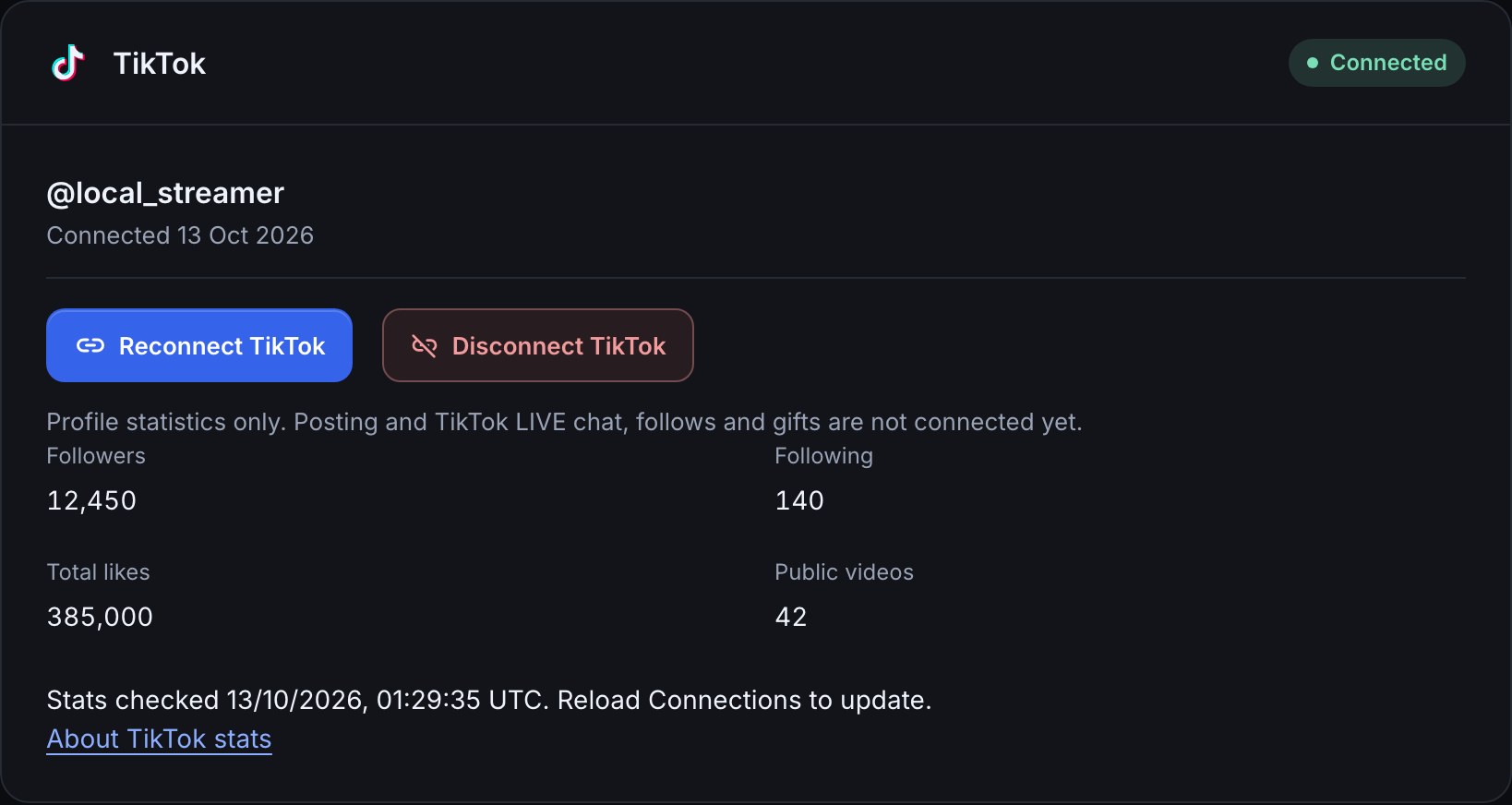
Read your counts
The TikTok card shows Followers, Following, Total likes and Public videos. Total likes means likes received across your videos; public videos means the number of publicly posted videos.
The Stats checked time tells you when TikTok supplied the reading. Reload Connections to update it. A reading may be reused for up to 30 seconds. TikTok's counts aren't a live feed of new followers or likes.
Unavailable means TikTok didn't supply that count. It doesn't mean zero. If a reading fails, the card explains how to retry. A real zero appears as 0.
You can also use these values in flows and widgets from Variables → Channel data → TikTok account. For example, $(data.social_tiktok.followers) is the follower count. Social accounts in Channel data explains availability checks and update timing.
This connection reads profile statistics. It doesn't publish posts or receive TikTok LIVE chat, follows or gifts yet.
Reconnect or remove TikTok
If the card asks you to reconnect, choose Reconnect TikTok and approve profile and statistics access again. Cancelling keeps your existing connection.
To remove it, choose Disconnect TikTok and confirm. Bloopbot forgets the connection and stops reading its statistics. Your Bloopbot channel and flows stay in place. Choose Connect TikTok again whenever you want to add it back.
Was this guide helpful?
Thanks. Your answer helps us decide which guides to improve.