
Connect your channel
- Sign into Bloopbot with the account you already use.
- Open Settings › Connections, then select YouTube.
- Choose Connect YouTube. In Google, choose the account and YouTube channel you own, then approve the requested permissions.
- Back on Connections, check the channel name, channel ID and Connected badge. The channel ID links to its YouTube page so you can check that you picked the intended channel.
YouTube is an additional connection on this setup. Your existing flows, overlays, settings and other accounts stay here. Keep signing into Bloopbot as you do now; connecting YouTube does not create a separate Bloopbot account. Only the channel owner can connect or disconnect it. Editors can see the connection.
If YouTube is not listed, the connection is not available on your Bloopbot installation yet. If Google refuses access, return to Connections and try again with the intended account. Cancelling Google leaves your setup unchanged.
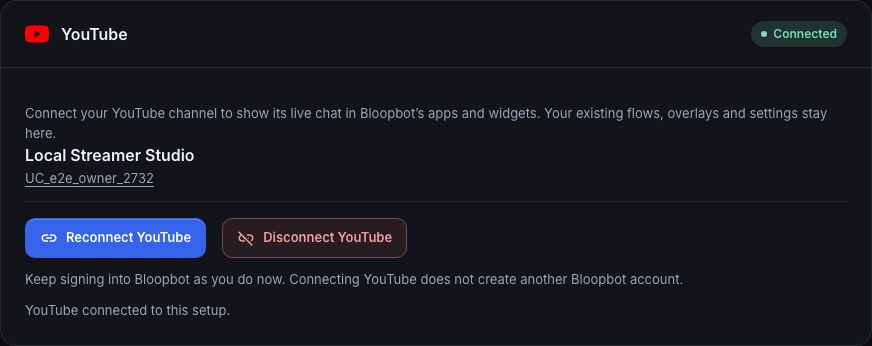
Reconnect or disconnect
For Needs reconnecting, choose Reconnect YouTube and approve access to the intended channel again. Reconnecting can clear your selected broadcast; check Cloud stream before the next stream.
To remove the connection, choose Disconnect YouTube, read the confirmation, and confirm. End an active YouTube Cloud Stream first. Your Bloopbot setup, Twitch and Kick connections stay. Removing Google permission can also affect other YouTube permissions you granted to the same app; reconnect those through their original connection controls if needed.
If the connection changed or its status cannot be loaded, reload Connections before trying again.
Was this guide helpful?
Thanks. Your answer helps us decide which guides to improve.
Show live comments
Open a supported chat view in Bloopbot’s apps, or use your existing Chat box or Chat highlight widget. YouTube comments from an active live chat can appear alongside Twitch and Kick. The widget’s platform filter decides which comments it shows.
This connection currently receives comments. YouTube replies, moderation and commands from Bloopbot are not available in this release. Connecting YouTube alone does not start a broadcast.
If your channel has Cloud Stream access, Manage YouTube broadcasts in Cloud stream opens its broadcast controls. Those controls use this same connection; you do not need to connect a second time.