
Make a pack
A pack is a group of flows you choose from your channel. You can use it privately before sharing anything. Have the flows you want ready on Flows; they can be paused while you set up the pack.
- Open Flows and tick the flows you want together. The page opens on All flows, including both live and paused flows.
- Choose Add to pack, enter a name under New pack name, then choose New pack from these. You can also open My packs → New pack to start empty.
- Open My packs to find the new pack. A flow can belong to several packs, so adding it here does not remove it from another.
For example, group Set goal, Death +1 and Clip moment into a Solo Adventure pack. All three flows still appear in All flows.
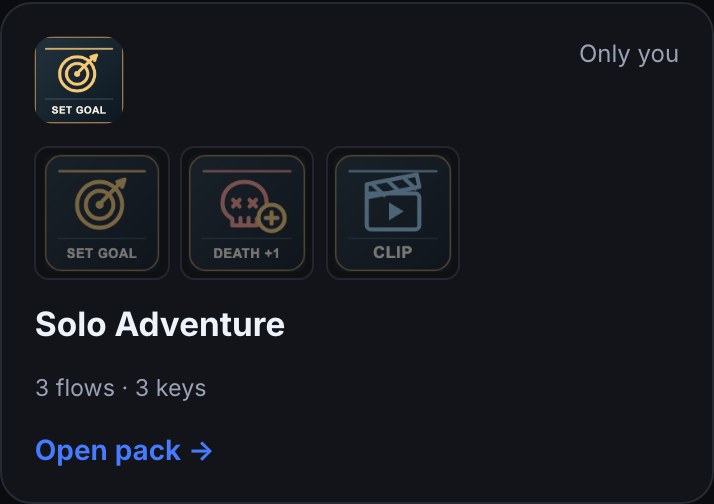
Arrange and manage it
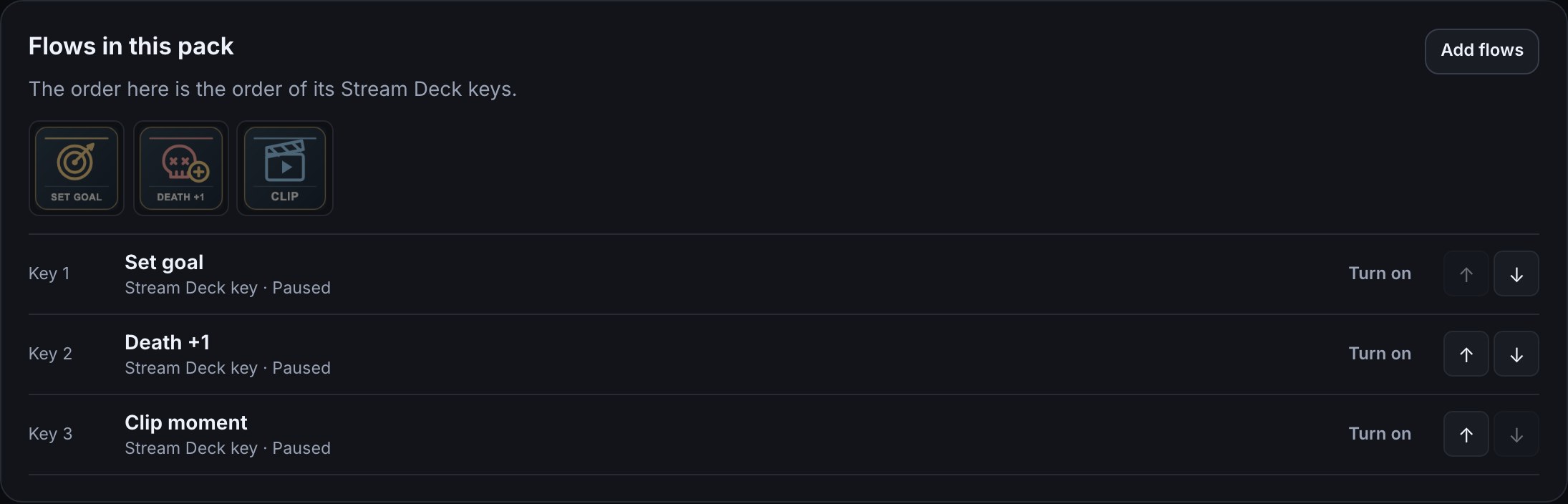
Open the pack to change its name and description, choose Add flows to change its members, or use the arrows to move a flow. The flow order sets the order of Stream Deck keys. The preview uses each trigger's own key graphic from your media library; a key without one shows the Bloopbot mark. A flow without a Stream Deck button trigger can still belong to the pack; it has no key in the preview.
Use Pause or Turn on beside a flow to change that flow's live state. A paused flow stays in the pack. If you move a flow to the Trash, the pack remembers its place until you restore it. Deleting the pack leaves its flows in All flows.
Share or publish
From the pack, choose Marketplace, Share a link, or Bundle file (.bloop.zip). Each starts with this pack's flows in their saved order; review what travels before you finish. Sharing gives someone else a copy, and your own pack remains yours.

For Marketplace, check the flow list, the things the flows need, and any files or key graphics in the review. A submission is reviewed before it can appear to everyone. A share link carries no media files; use the bundle file when the pack needs images, sounds, videos or a Stream Deck key graphic. Share, import and restore flows explains the choices.
If something is missing
- A flow is not in the pack: open the pack, choose Add flows, tick it and save. Flows in the Trash must be restored before they can run.
- A key is missing: open the flow and add a Stream Deck button trigger; ordinary chat and alert flows still work without a key.
- A link cannot carry the pack's files: choose Bundle file (.bloop.zip) and share the complete file.
- You want a ready-made pack: use Flows → Add or Marketplace → Discover, then look under Installed packs after adding it.
Was this guide helpful?
Thanks. Your answer helps us decide which guides to improve.