
What a pack is
A pack offers several ready-made flows for one part of your channel. Starter covers everyday reactions and commands; Alerts covers stream events. You may install only the members you want. Every installed member is a separate flow with its own live switch and graph.
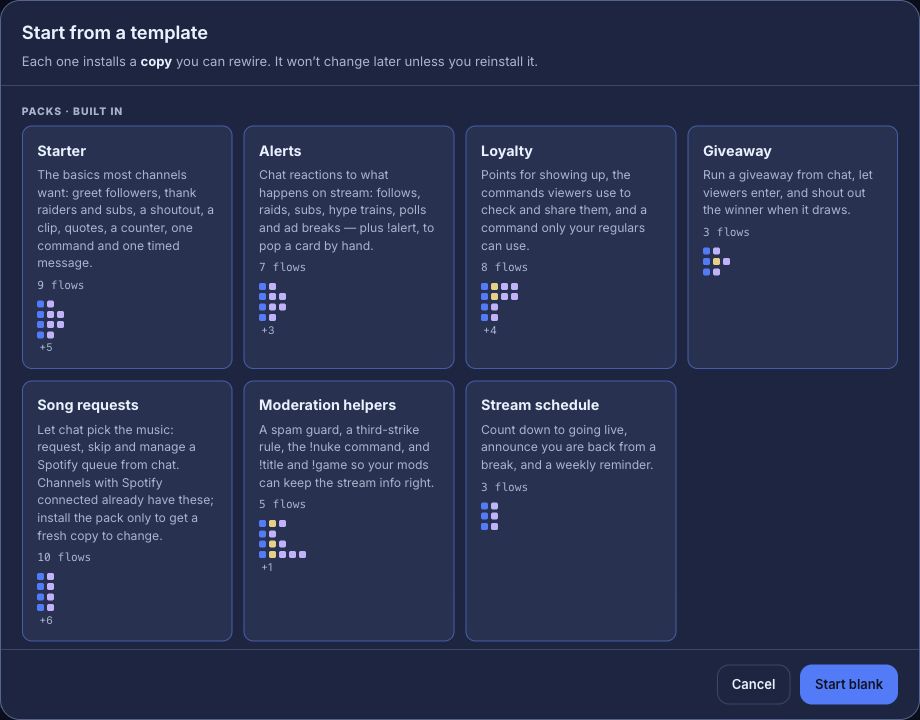
A single template sits under Single flows below the pack cards. It installs one paused flow.
Before you start
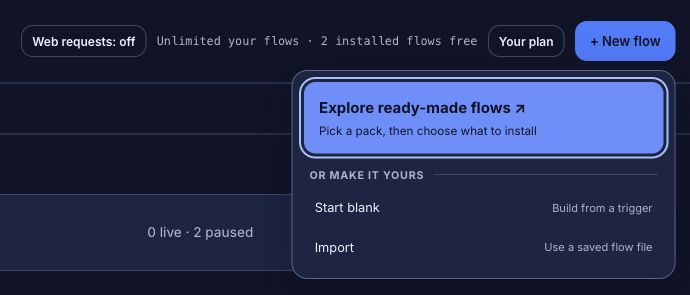
Choose your channel in the dashboard, then open Flows. Installed packs is the first view; Explore packs is directly beside it. You can also open + New flow and choose Explore ready-made flows. The menu also offers Start blank, Import, and Describe it when the Flow builder is available. Installing untouched built-in flows does not use your flow allowance. Check What your plan includes for your channel’s count.
Read a pack card
The card names the pack, gives a short account of what it does, and shows how many flows it offers. Built in means Bloopbot supplies it. Packs shared with you and packs you shared appear in their own sections below the built-in cards. Use pack opens a preview before the member checklist; it does not turn anything on.
Find what you need
Use Search packs and flows to look across built-in packs, shared packs and single flows. Results stay separated by source. Category pills narrow the built-in packs; choose All to search shared packs and single flows. If nothing matches, clear the search, start blank or use Describe it when available.
Install a pack
- Open Flows → Explore packs and choose Use pack on a pack.
- Read the pack preview: its source, category, explanation and each member’s job. Press Choose flows to install.
- Untick any flows you do not want yet. Members already in your channel are marked as installed and kept as they are.
- Review any required variables and warnings. Press Install N flows.
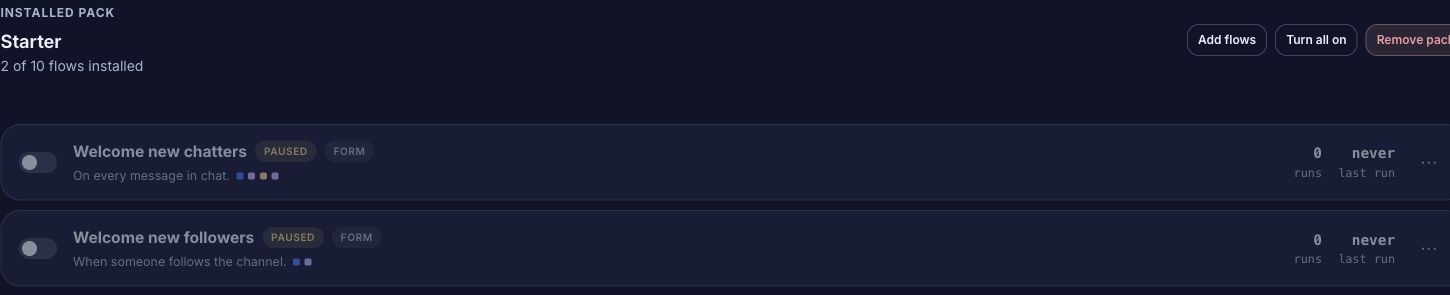
- The pack opens under Installed packs. New members are paused. Open each one to read its message and command before switching it on.
Installing the same member again does not create a second copy. If its source has a newer version, you can select an untouched member to update in place, keeping its name and live state. An edited member stays as it is and shows a Reset to built-in note. A group the old version used is tidied away once nothing uses it, unless you edited it. If two different flows claim the same command, the review warns you so you can keep one paused or change a command.
Manage what you installed
The compact pack row shows how many members you installed, how many are live or paused, and whether any need attention or have an update. Press Manage to see installed and missing members, add flows, review updates, or turn paused members on. Each flow stays editable on its own. If only some members can be turned on, the result names the ones that failed so you can open and fix them. An edited pack member also appears under Your flows on Installed packs; both places open the same flow. All flows shows each flow once, with search, selection and Trash.
Removing a pack moves its installed members to Trash, including any you edited. The confirmation marks edited members. Undo restores those same flows and their history. The pack group disappears if its last member is in Trash, and returns when a member is restored. If the original shared pack is no longer available, installed members remain usable, though adding or updating from it is unavailable.
Example: start with two greetings
Suppose you want a follow greeting and a welcome for first-time chatters, but no commands yet.
- Open Flows → Explore packs → Starter → Use pack, read the preview and press Choose flows to install.
- Leave Welcome new followers and Welcome new chatters ticked, untick the rest, and install the two flows.
- On the opened Starter pack, check that it reads 2 of 11 flows installed and both members are paused.
- Open each flow, make the message sound like your channel, save, and switch on only the one you are ready to use.
The edited member also appears in Your flows; Starter still points to it. The other member remains free under the allowance until you change its behaviour.
What you should see
- Installed packs first, with Starter showing a partial count and independent live or paused states.
- An edited member linked from both its pack and Your flows, with one row in All flows.
- New copies paused until you switch them on. A Test fire dry run does not post to Twitch.
If something looks wrong
- A flow you expected is missing: open Manage and use Add flows to install the remaining pack members.
- A command replies twice: two different live flows may claim it. Pause one or change its command.
- A shared pack source is gone: installed copies stay in your channel, but adding or updating from that source is unavailable.
- The allowance number is lower than the number of installed rows: untouched built-in copies are free. Changing what one does makes it one of your flows.
Was this guide helpful?
Thanks. Your answer helps us decide which guides to improve.