
Before you start
You need an overlay in OBS. Add a widget to OBS takes you from New overlay to a Browser Source; a Chat highlight is one more layer on it.
A Chat highlight layer shows one chat message at a time — the viewer’s badges and name, then their message with its emotes — for a few seconds, and nothing the rest of the time. Your mods choose which message from chat:
- Reply to a viewer’s message with
!hlto show that message. - Type
!hl @viewerto show that viewer’s latest message. - Type
!hl offto take it down early.
The commands come from the Mod commands pack, and only moderators (and you) can use them.
1. Add a Chat highlight layer
- Open Widgets and open the overlay you want it on, or press New overlay and choose Chat highlight under Start with.
- On an existing overlay, choose Add on the left and drag the Chat highlight card from Chat & info onto the canvas, or click it to drop it in the middle.
- In Content → Settings, give it a Title (the small line above the message, such as HIGHLIGHTED; leave it empty for none) and a Text size.
- Choose whether it shows the viewer’s badges (Show badges), draws their name in their own Twitch colour (Name in the viewer’s colour), and lets animated emotes move (Animate emotes).
- Press Publish to put the layer on stream.
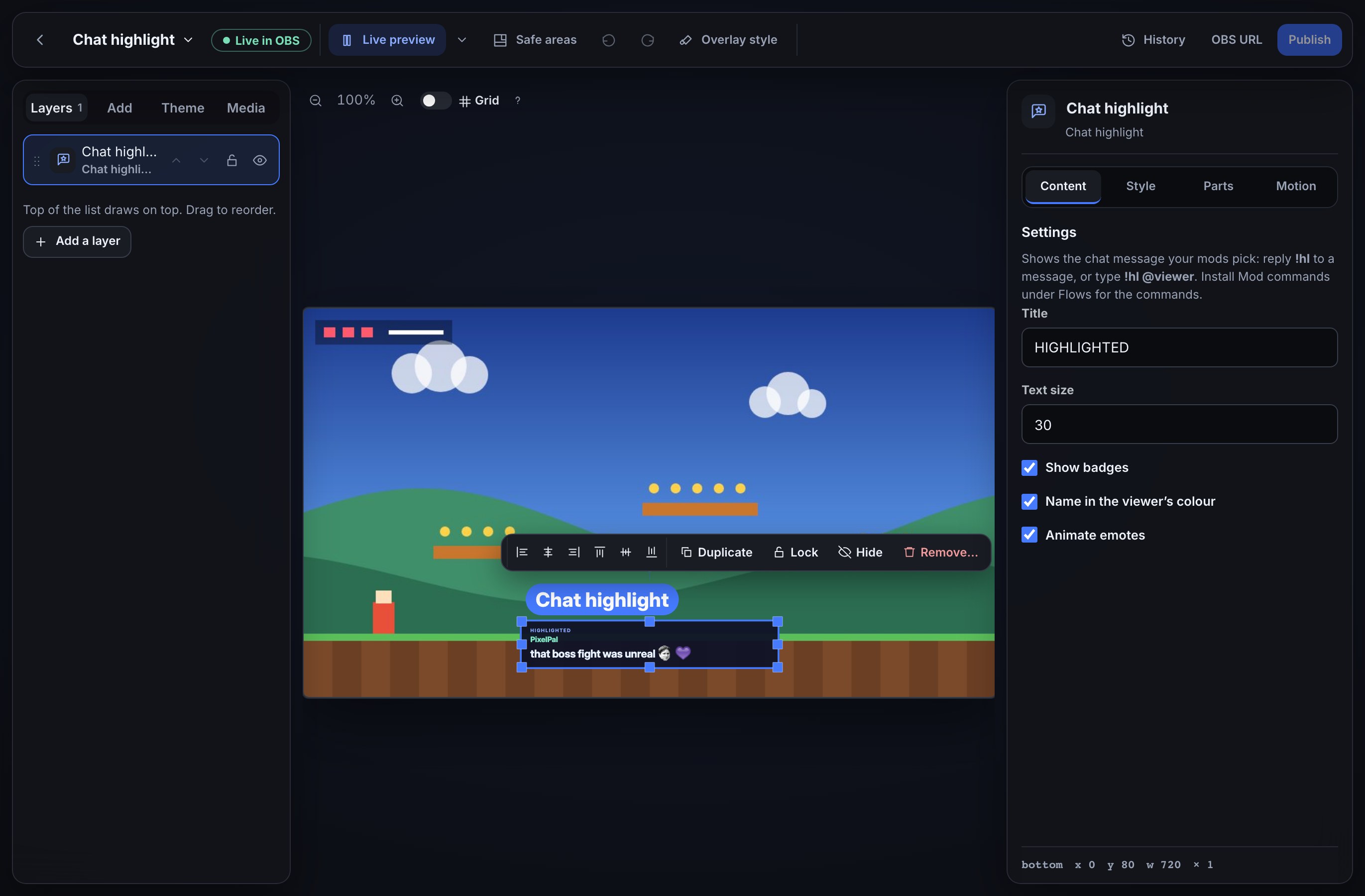
Nothing shows on stream until a mod highlights a message: the layer is empty the rest of the time.
2. Install the !hl commands
- Open Flows → Explore packs and open Mod commands.
- Install Chat highlight: !hl and Chat highlight: !hl off (or the whole pack), and switch both on.
If you already use Mod commands, choose Review updates in the pack and select the two Chat highlight flows. Your other commands stay as they are.
Each is one small flow you can open and change: a Chat command trigger, a Who can trigger check set to moderators, and the Highlight a chat message step. In !hl, the step’s Show for (seconds) is 20 — change it to keep messages up longer or shorter (3 to 600 seconds). If there is nothing to show, the bot answers the mod in chat with the reason, such as No recent message from bob.
3. Highlight a message
- In Twitch chat, hover a viewer’s message, choose Reply, and send
!hl. Or type!hl @viewer— for example!hl @pixel_alice— to show that viewer’s latest message. - The message appears on your Chat highlight layer within a second or two, and leaves on its own after the display time.
- Type
!hl offto take it down sooner. Highlighting another message replaces the one that is up.
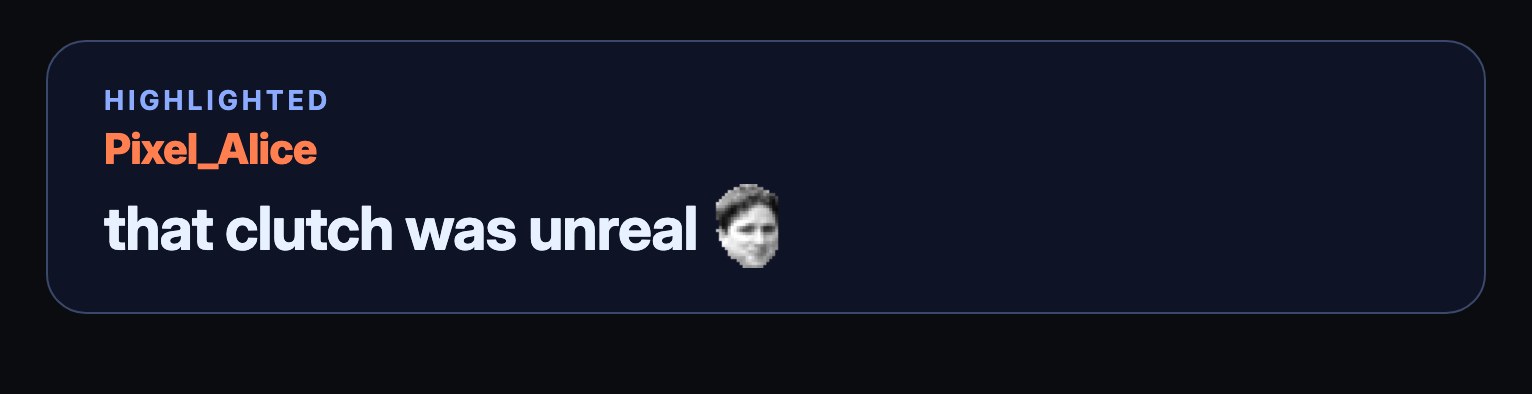
Every overlay with a Chat highlight layer shows the same message, and refreshing a Browser Source, or opening OBS again, keeps it on screen for the rest of its time.
Moderation takes it down
When a mod deletes the highlighted message in Twitch, times out or bans the viewer who wrote it, or clears chat, the highlight comes down at once. A message that was already deleted is never shown in the first place.
Try it before you go live
With the layer selected, open Simulate in the editor’s top bar and press Test highlight to see a sample message for eight seconds, or Test !hl off to see one taken down. The tests use a made-up viewer and play on the canvas only, unless you tick the box to play them on the live overlay in OBS too. Nothing reaches Twitch.
A flow’s Test fire is simulated as well: its run log says what it would highlight and changes nothing on your overlay.
Use it in your own flows
Highlight a chat message is an ordinary flow step, in the Overlay group of the node library. Its Do setting either shows a message or takes the highlight down. Which message it shows, in this order:
- The message the trigger replied to, when a mod replied.
- Otherwise, the latest message of the viewer named in Viewer —
$(1)is the name typed after the command. - Otherwise, on a trigger that carries a message — Any chat message, When chat mentions — that message. A command’s own message (
!hlitself) is never shown.
For example, a When chat mentions flow on the word clip it with Highlight a chat message after it puts every “clip it” message up on stream. The step takes its error path when there is nothing to show, with the reason in $(from.<step>.message).
Style it with custom CSS
Use Parts to restyle the layer without CSS — Panel, Title, Name and Message (Style one part at a time). Your overlay’s custom CSS can use these names:
| Selector | What it is |
|---|---|
.w-chathighlight | The panel. It has data-state="shown" while a message is up. |
.w-chathighlight-title | The title line. |
.w-chathighlight-badge | A badge image. |
.w-chathighlight-name | The viewer’s name. |
.w-chathighlight-message | The message. |
.w-chathighlight-emote | An emote image in the message. |
The message slides in when it appears; if your computer is set to reduce motion, it fades in instead.
If nothing shows
- The bot answers “No recent message from …”. Bloopbot remembers the last 50 chat messages, for ten minutes, while an overlay with a Chat highlight layer (or a chat box) is open in OBS. Open the overlay first; messages sent while nothing was open cannot be found by name. A reply still works, because the reply itself carries the message.
- The bot answers “Reply to a message with the command, or name a viewer.” A bare
!hlhas nothing to show: reply to a message, or add a name. - Nothing happens at all. Check that both flows are switched on under Flows, and that the person typing is a moderator or you.
- Emotes show as words. An emote whose picture cannot be loaded is shown by its name instead.
Was this guide helpful?
Thanks. Your answer helps us decide which guides to improve.