
The short answer
Bloopbot is a no-code Twitch chat bot: every command, alert and timer is a visual flow you draw in your browser, made of a trigger, optional checks and actions, instead of a script or a line of $(variables) to get exactly right. It runs on Bloopbot's servers, so it keeps answering chat when your PC is off, and it can bring over the commands you already have in Nightbot or StreamElements. The Free plan holds 15 flows you build or change yourself, and ready-made packs add more without counting.
You need your Twitch channel connected to Bloopbot (Get started).
How a flow works
Every flow answers three questions, in order:
| Part | Question it answers | Example |
|---|---|---|
| Trigger | When should this start? | Someone types !hug |
| Check | Should it carry on? | The command wasn't used in the last 30 seconds |
| Action | What should happen? | Send a chat message |
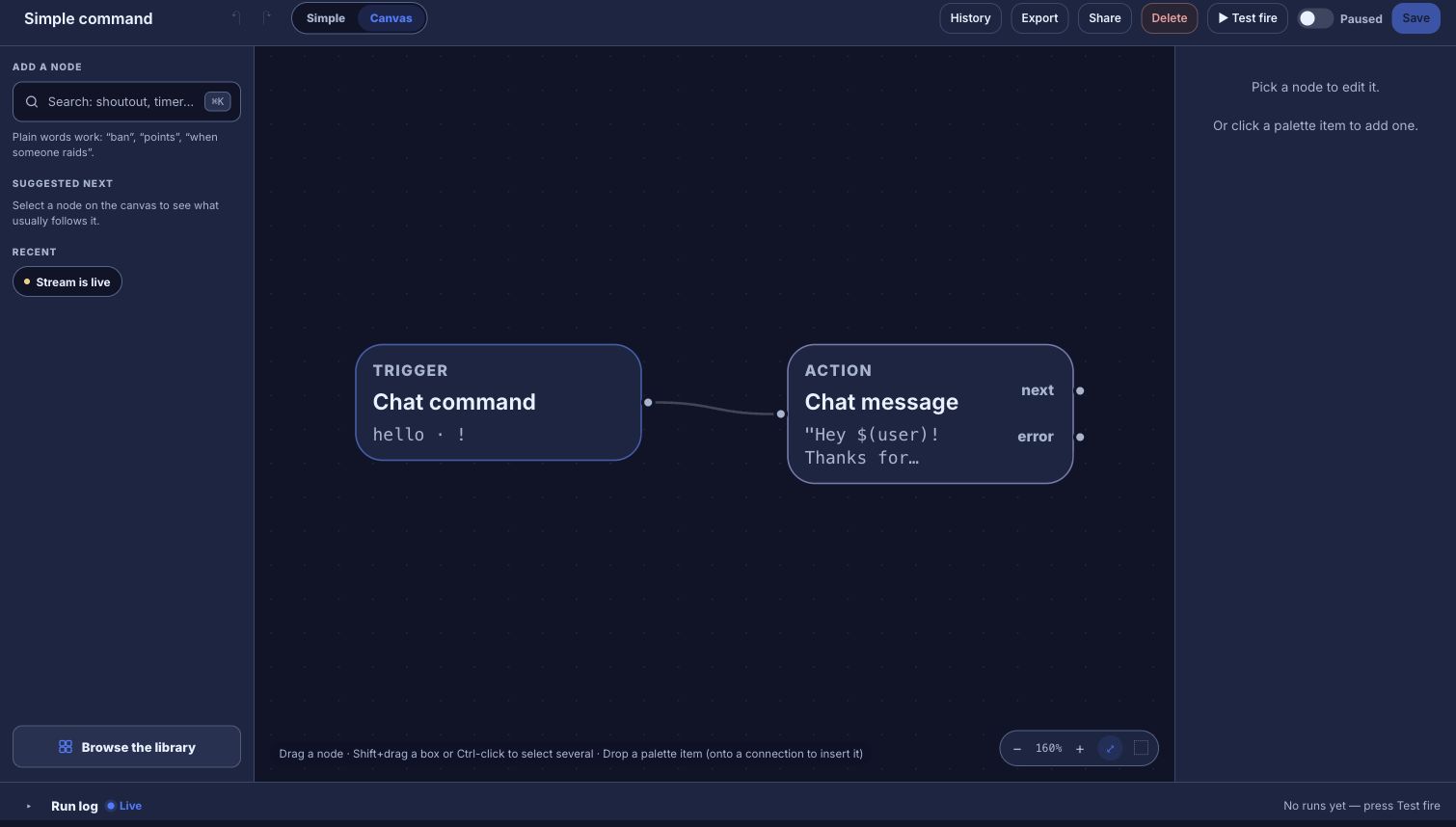
A flow in a straight line edits as a short form, the Simple view. Switch to Canvas to see the same flow as connected cards, when you want branches, more checks or several actions.
1. Make a command from a form
- Open Flows, then Packs → Starter, and open Simple command.
- Set Command to
hug. Leave the prefix as!. - Under Do this → Message, enter
$(user) gives $(1) a big hug!.$(user)is whoever typed the command and$(1)the first word after it. - Press Save.
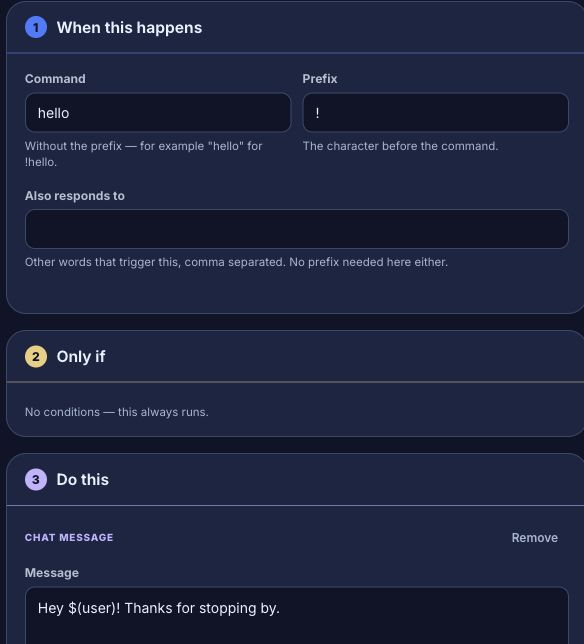
Create your first chat command covers aliases, replies and the words after a command.
2. Add a check on the canvas
- In the same flow, choose Canvas in the top bar. The trigger and the reply are two connected cards.
- Use Add a node and search for cooldown. Choose Cooldown and drop it on the line between the two cards.
- Set it to 30 seconds and press Save.
Now !hug answers at most once every 30 seconds. Other checks work the same way: Who can trigger makes a command moderators-only (Make a command moderators-only), and a condition can send chat one way or another depending on what happened.
3. Start from ready-made flows
You don't have to draw everything. Starter arrives on every new channel, paused so you can look first: greetings for new followers and first-time chatters, !so, !clip, quotes, a death counter and more. Marketplace on the Flows page has packs for loyalty points, giveaways, song requests, moderation helpers and more, from Bloopbot and from other streamers. A built-in pack's flows don't count toward your plan until you change one. Use templates and flow packs explains how to add and update them.
4. Bring your commands from another bot
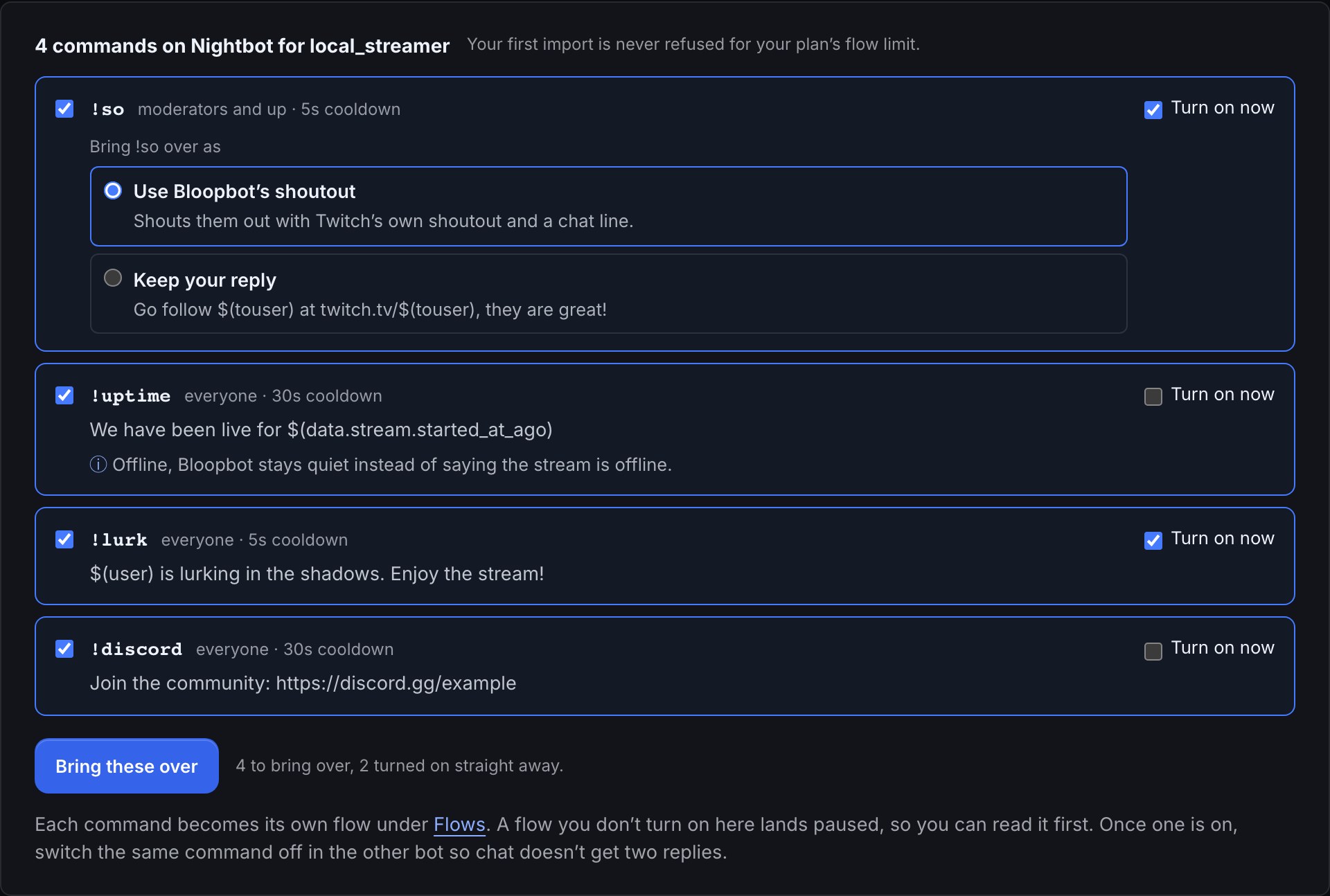
Coming from Nightbot or StreamElements? Bloopbot reads your public command list and turns each command into a flow, with its permissions and cooldown, without you signing in to the other bot.
- Open Flows → Marketplace → From another bot and choose your old bot.
- Untick anything you don't want to keep, and tick Turn on now for the commands that should answer straight away.
- Each command arrives as its own flow; the rest stay paused until you switch them on.
Coming from Nightbot and Coming from StreamElements map everything else.
5. Test it, then switch it on
- In the flow, press Test fire and expand the Run log. It shows each step that ran and each check that stopped it, without sending anything to Twitch.
- Switch the flow on.
- Type
!hug PixelPalin your chat. The bot answers YourName gives PixelPal a big hug!
Troubleshooting
- The bot doesn't answer. Check the flow is switched on and the bot is a moderator in your chat: until it is, the dashboard shows a Not a mod bar and some flows stay paused (Flows paused until your bot is a moderator).
- A card on the canvas never runs. A card with no line into it doesn't run. Connect it to the step before it.
- You hit the flow limit. The count on the Flows bar shows how many of your plan's flows you've used. Remove one you don't need, or see What your plan includes.
- Something else. Troubleshooting covers commands that stay silent and other common problems.
Was this guide helpful?
Thanks. Your answer helps us decide which guides to improve.