
Two ways to use Kick
Bloopbot works with Kick in two ways. Pick the one that matches how you stream.
| You stream on | What to do |
|---|---|
| Kick only | Sign up with Kick. Your Bloopbot channel is your Kick channel. |
| Twitch, and Kick at the same time | Keep signing in with Twitch and add Kick to your channel. Both chats run the same flows. |
Either way, Kick chat messages, commands, follows, new subs, resubs, gifted subs and KICKs start your flows. Your chat box shows Kick chat beside Twitch's.
Sign up with Kick
- On the sign-in page, choose Sign in with Kick.
- Kick asks you to let Bloopbot read your channel, post in your chat and receive your channel's events. Choose Allow.
- You land on your new channel's dashboard. Your Starter flows are already there, paused, like on any new channel. Flows that need Twitch, such as Clip it and Shoutout, are left out.
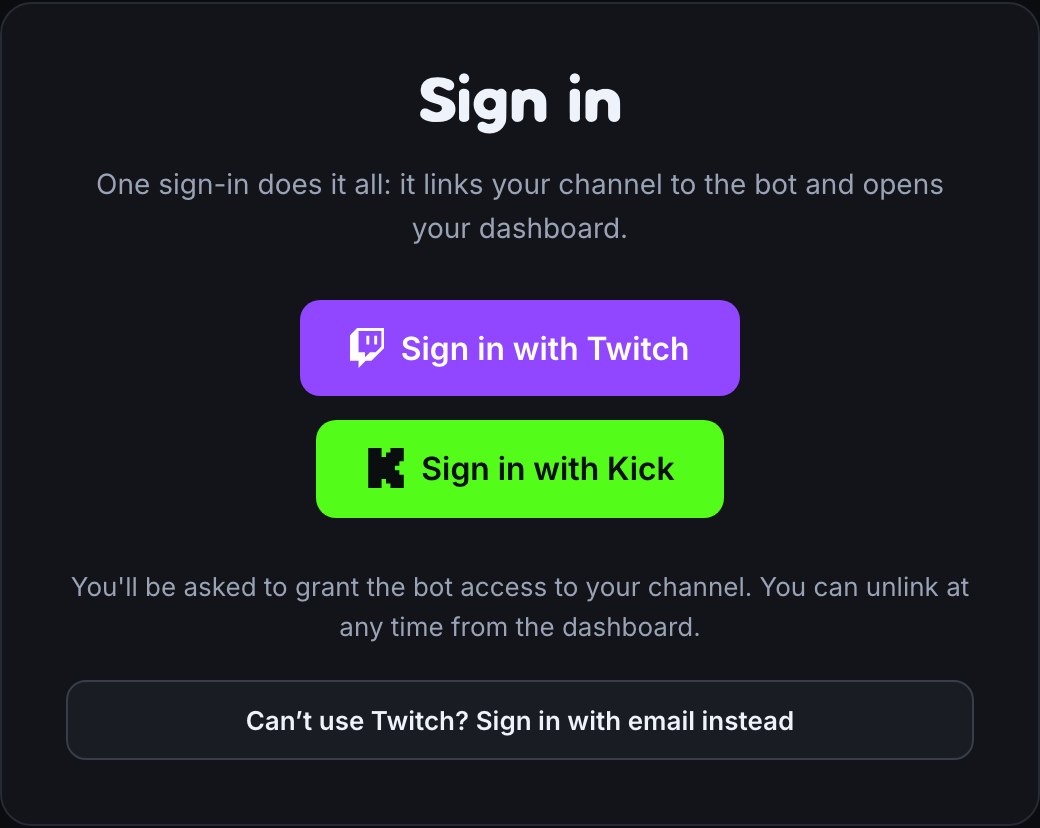
From then on, Sign in with Kick opens the same channel. Add a backup sign-in email so you can still get in if Kick sign-in isn't working.
Add Kick to your Twitch channel
- In your dashboard, open Connections.
- Select Kick in the list, then choose Connect Kick.
- Sign in to Kick if it asks, then choose Allow.
- You're back on Connections, and the Kick card shows your Kick channel's name with Connected.
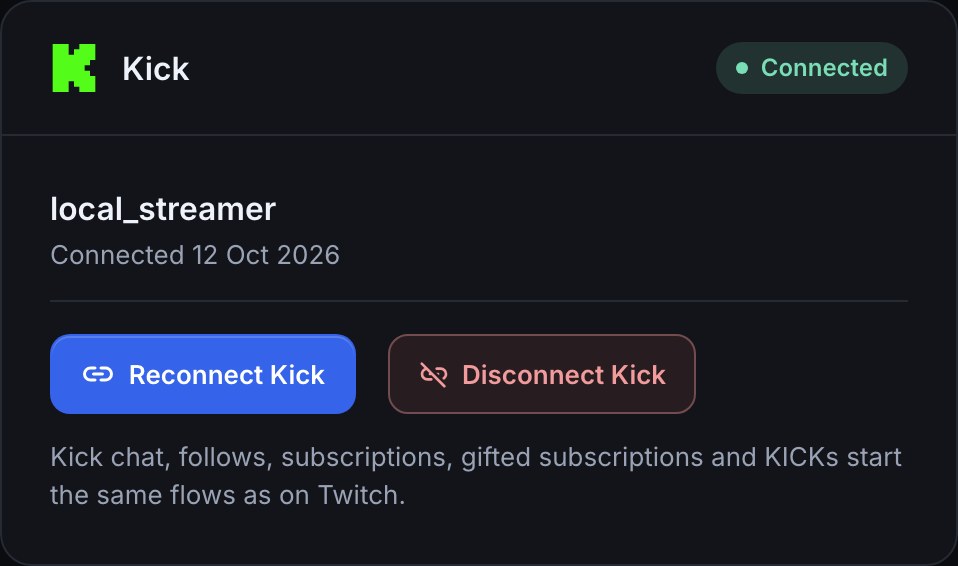
Each Kick channel can be added to one Bloopbot channel. To stop, choose Disconnect Kick on the Kick card. Your flows stop hearing from Kick straight away.
Choose where a flow starts
Chat, command, keyword, follow, sub, resub, gift sub and cheer triggers can start on Twitch, on Kick, or on both. They start on both unless you choose otherwise.
- Open the flow and select its trigger.
- Open More options.
- Set Platform to Twitch and Kick, Twitch only or Kick only.
The Platform option appears once you add Kick to your channel. Until then the trigger shows no choice, because Twitch is the only place it can start. A trigger that already says Kick only or Twitch only keeps the option, and a trigger set to Kick only on a channel with no Kick added shows a warning that it never runs.
Once Kick is added, steps that only work on Twitch carry a Twitch only badge in the node list and on the flow. They stay fully usable. Kick can't run them, so in a run that a Kick message started, a step like Shoutout fails when it acts on the Kick viewer. Keep those steps in flows that start from Twitch, or put a trigger's Platform on Twitch only.
For example, a !hello command that replies "hi $(user)" answers on Kick when someone types it in Kick chat, and on Twitch when someone types it there.
Where replies go
A chat reply goes back to the chat its trigger came from: a Kick command answers in Kick chat. A flow that no chat started, such as a timer, a control panel button or a webhook, posts in every chat your channel has.
Use $(platform) in any text to get twitch or kick, the place the trigger came from. It's empty for a timer or a button press.
KICKs start the Cheer trigger. The number of KICKs is the amount, so $(bits) reads it like bits.
Kick viewers
A Kick viewer and a Twitch viewer are different viewers, even when they're the same person. Each has their own points, roles and viewer variables.
What Kick can't do yet
- Moderation filters, moderation commands and the ban, timeout and delete steps work on Twitch chat only.
- Channel point rewards, and changing your stream title or category, aren't available from Kick yet.
- On a Kick channel, going live on Kick starts your going-live flows and live-only timers. When you add Kick to a Twitch channel, going live still follows Twitch.
- Kick doesn't publish badge pictures, so Kick badges don't show in the chat box.
Troubleshooting
- Kick commands don't answer. Check the flow is turned on and its Platform isn't Twitch only. On Connections, the Kick card should say Connected.
- Kick says Needs reconnecting. Choose Reconnect Kick and allow Bloopbot again. Kick asks for this when access has expired or was removed in your Kick settings.
- "That Kick account is already connected to another Bloopbot channel". Each Kick channel can belong to one Bloopbot channel. Disconnect it from the other channel first.
- "This Kick account is already connected to a Twitch channel on Bloopbot". That Kick channel was added to a Twitch channel, so it can't also be its own channel. Sign in with Twitch to use it, or disconnect it there and then sign in with Kick.
Was this guide helpful?
Thanks. Your answer helps us decide which guides to improve.