
Before you start
You need an overlay in OBS. The Support Jar and Supporter ticker are separate layers, so you can put either one on an overlay or use both together. They show cheers, subscriptions and gifted subscriptions from the current stream. Bloopbot does not count tips in these layers.
The jar fills from real supporter events, and your flows can drop more into it: an avatar, an emote, a bit gem or a sub badge. It keeps its pile if you refresh the Browser Source, and starts empty when a new stream begins. The ticker shows the newest supporters and amounts, plus any lines your flows add; after you go offline it keeps the last stream’s supporters until the next one starts.
1. Add the Support Jar
- Open Widgets and the overlay you use while streaming. Choose Add and drag Support Jar from Goals & games onto the canvas, or choose it under Start with when making a new overlay.
- Resize and place the jar. In its Content tab, under Settings, edit its Heading, choose Items in the jar from 10 to 60, and choose whether to Show item count.
- Press Publish. New cheers drop bit gems into the jar. Subscriptions show your channel's starter subscriber badge when Twitch supplies one, or a star when it does not. Gifts show gift icons. Older items leave as the pile reaches your cap.
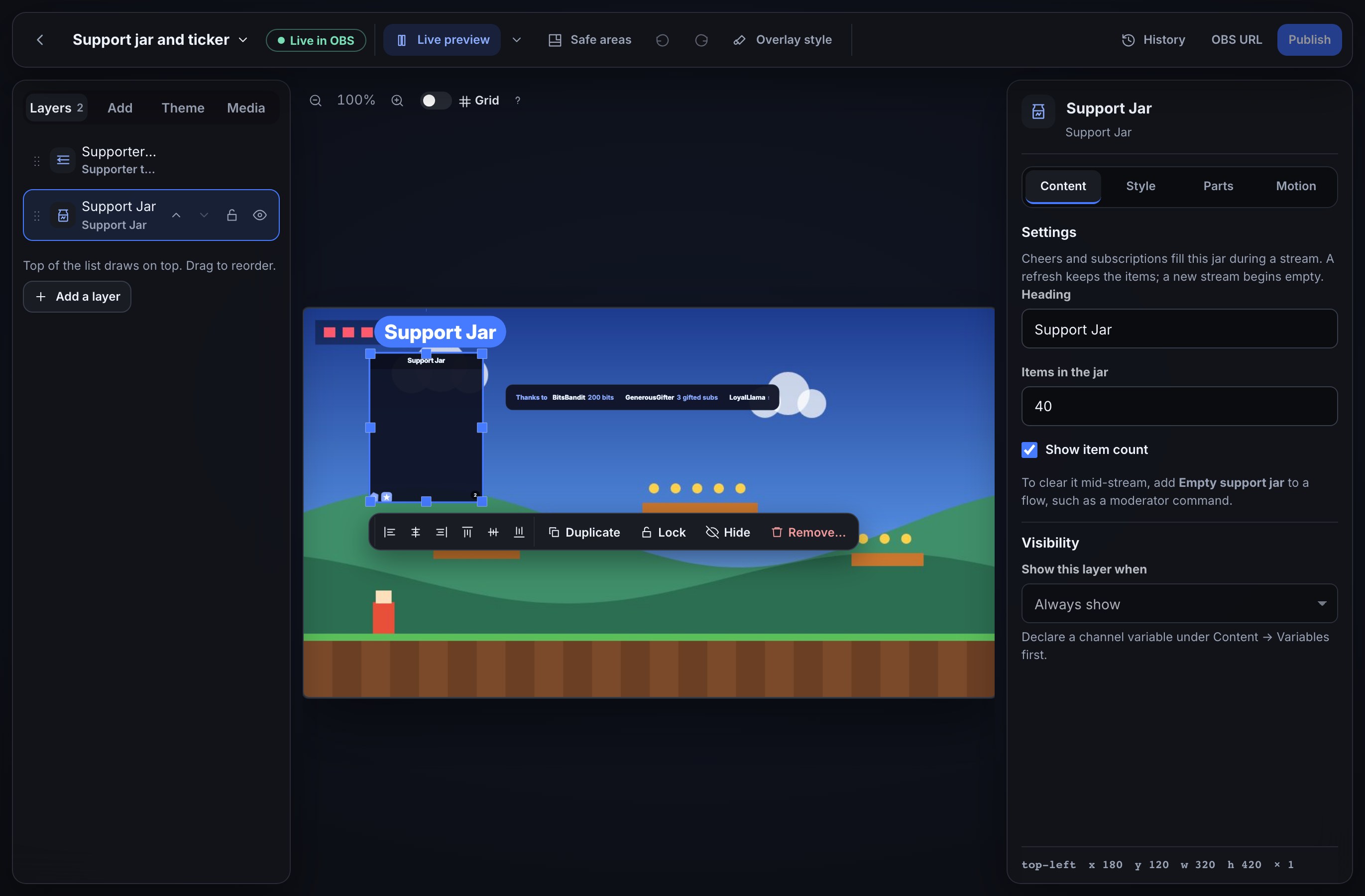
The items bounce into place as they arrive. If a viewer prefers reduced motion, the items settle without the drop animation.
2. Add the supporter ticker
- On the same overlay or another one, choose Add and drag Supporter ticker from Chat & info onto the canvas.
- In its Content tab, set its Heading and Scroll speed. Turn Cheerers and bits, Subscribers and Gifted subs on or off to choose what crosses the screen.
- Press Publish. A cheer shows the supporter and number of bits; a gift shows how many subs were gifted. The newest events lead the list.
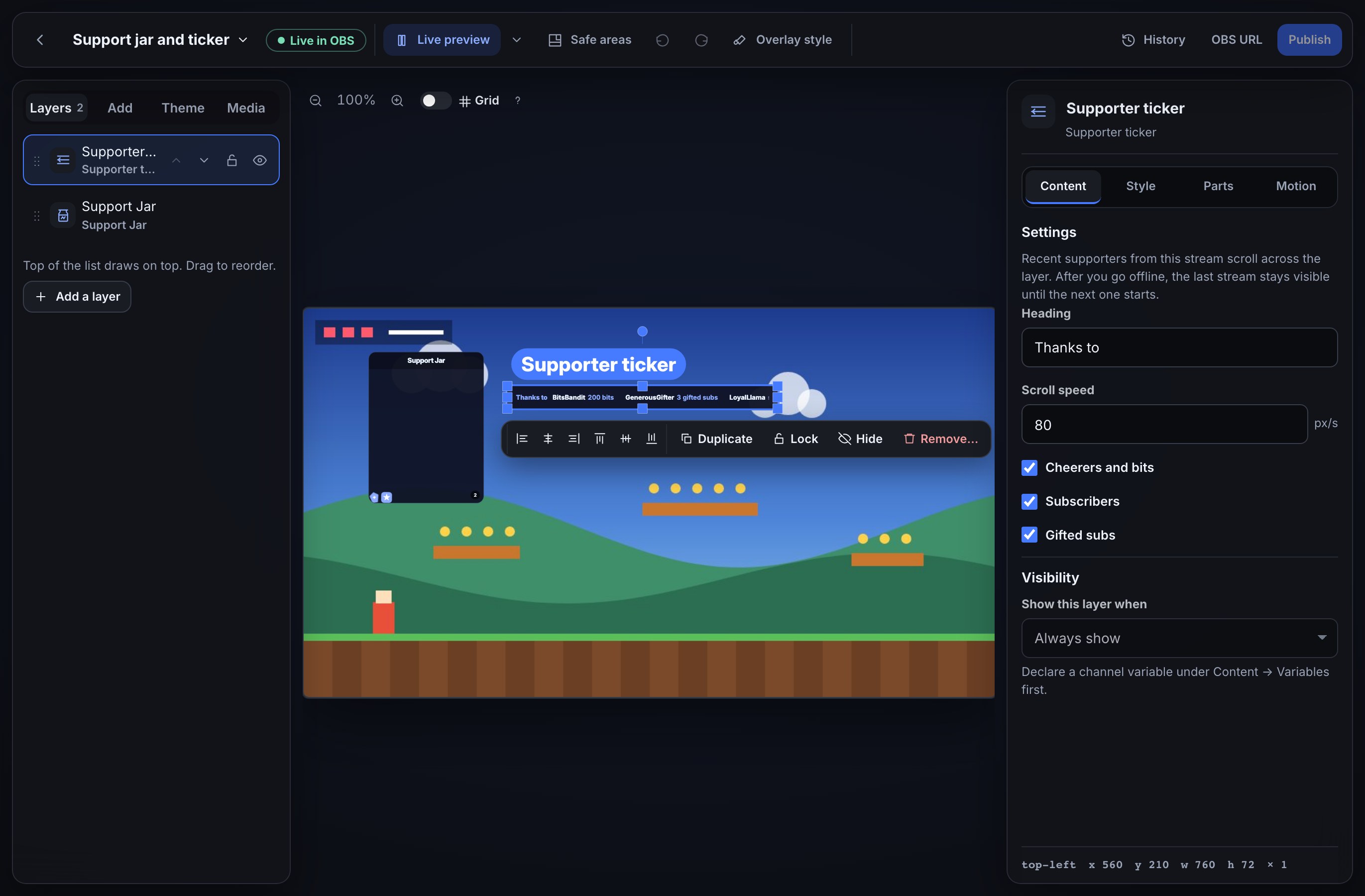
The ticker stops scrolling for viewers who prefer reduced motion, keeping the names visible in place.
3. Empty the jar mid-stream
The Mod commands pack includes Empty the support jar (!emptyjar). Install that member from Flows → Explore packs and switch it on. A moderator can then type !emptyjar in chat. The jar clears on every overlay and stays empty across a refresh until new cheers or subscriptions arrive. The ticker and End credits keep the supporter history.
You can use Empty support jar in another flow instead, such as a channel point redemption. The node clears only the jar; it never deletes a contribution or sends a message to Twitch.
4. Drop things into the jar with a flow
Cheers and subscriptions fill the jar on their own. Use the Drop into the jar action when you want something else to add to it, such as channel point redemptions, follows or raids.
The quickest start is Channel points fill the jar in the On-screen numbers pack: every channel point redemption drops the viewer’s avatar into the jar.
Drop can add one of these:
- The viewer’s avatar: the profile picture of the viewer who started the flow.
- An emote from their message: the first emote in the chat message, cheer message or reward text that started the flow.
- An emote by name: type it in Emote name, for example
Kappaor$(1)for the word after a command. It finds the same Twitch global emotes Rain emotes knows by name (such asKappa,LUL,SeemsGood,BibleThumpand<3), your channel’s 7TV, BTTV and FFZ emotes, and any Twitch emote in the message that started the flow. - A bit gem or A sub badge: the same items cheers and subscriptions drop.
- Open Flows → Explore packs, choose On-screen numbers, and install Channel points fill the jar. It arrives paused.
- Open it. To fill the jar from one reward only, select the On a reward redeemed trigger and pick that reward.
- Select Drop into the jar and choose what Drop adds.
- Set How many, from 1 to 50, and switch the flow on.
For example, a !hype command with An emote by name set to SeemsGood and How many set to 5 drops five SeemsGood emotes each time a moderator types it.
Expected result: during a stream, the items drop into the jar on every overlay that shows it. They stay through a refresh and leave when the jar is emptied or a new stream starts. Once the jar reaches 60 items, the oldest leave first. Dropped items are not supporters, so they never appear in the ticker, a leaderboard or End credits.
The jar belongs to the stream, so Drop into the jar only drops while you are live. The flow’s Test button shows what it would drop without touching the real jar.
5. Add your own lines to the ticker
The Add to the ticker action puts a line of your own text in the Supporter ticker, ahead of the supporters: a welcome, a sponsor message or an announcement.
Stays decides how long a line lasts:
- Once through: the line crosses the ticker one time on the overlays that are open. A refresh does not bring it back.
- For a number of minutes: the line stays in the loop for the Minutes you choose, from 1 to 120, including after a refresh.
- In any flow, add Add to the ticker after the trigger.
- Type the Text, up to 200 characters. Variables work, for example
Welcome to the stream, $(user)!after New follower. - Choose how long it Stays, and the Minutes if it stays for a number of minutes.
- To show it on one ticker only, type that layer’s name in Only this ticker. Leave it blank for every Supporter ticker.
Expected result: the line scrolls on every matching ticker straight away, in front of the supporters, and leaves by itself when its time is up. Lines are not supporters: they never appear in a leaderboard or End credits, and the ticker keeps its newest 10 lines at a time.
6. Run a flow when the jar empties or fills
Two triggers follow the jar itself. Each runs once for each moment, however many overlays show the jar.
- Jar is emptied runs when the jar empties: a flow such as Empty the support jar (!emptyjar) emptied it, or a new stream started. When narrows it to one of those. Its tokens are
$(reason)(floworstream) and$(items)(how many items it held, 0 for a new stream). - Jar is full runs when the jar reaches Full at (items), from 1 to 60. Match the jar layer’s Items in the jar to run when the jar looks full. It runs once, and again only after the jar is emptied or a new stream starts. Its token is
$(items), the number of items in the jar.
For example, a flow with Jar is full at 40, then Chat message saying The jar is full! Emptying it for round two, then Empty support jar, turns the jar into a repeating goal.
Test either trigger with the flow’s Test button. It runs the flow with a made-up moment and does not change the real jar.
Try the look
Select either layer in Studio and open Simulate. Test jar drops a few made-up items; Test ticker shows made-up supporters. These tests draw only on the canvas unless you choose Also play on the live overlay in OBS. They do not add supporters, trigger a Twitch event or clear the real jar, and the live view returns automatically after the test.
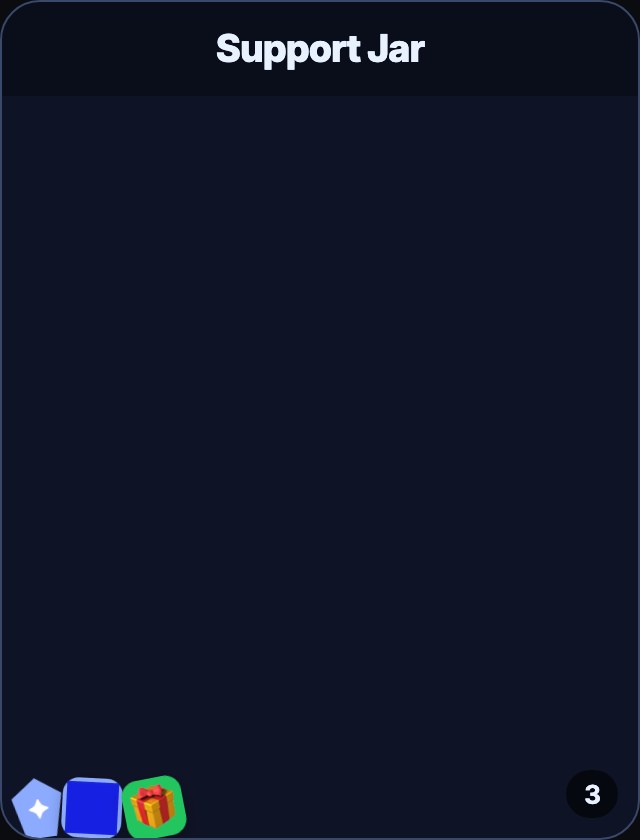

Style the layers
Use Parts to style the jar, its heading, each item, and its count; or the ticker panel, heading, names and amounts. Style one part at a time explains the controls. Custom CSS can target .w-jar, .w-jar-title, .w-jar-item, .w-jar-badge, .w-jar-count, .w-ticker, .w-ticker-title, .w-ticker-name and .w-ticker-amount.
If something looks wrong
- The jar or ticker stays empty: they count cheers and subscriptions from the current stream. Make sure the overlay was published and is the Browser Source you opened in OBS; the first event after going live fills it.
- The jar refills with old items after
!emptyjar: check that the Empty the support jar (!emptyjar) flow is on and the command came from a moderator. A fresh cheer or subscription after the command correctly adds a new item. - A name appears in the ticker but not the jar: the ticker keeps recent history, while the jar can be cleared and caps its pile at the Items in the jar number.
- A subscription shows a star: Twitch may not supply a channel subscriber badge, or its image may be temporarily unavailable. The star still represents that subscription.
- Nothing scrolls: the device may be set to reduce motion; the names remain readable without movement.
- Drop into the jar takes its error path: the run log says why. The jar only fills while you are live; The viewer’s avatar needs a trigger with a viewer, such as a redemption or a command; and a Twitch emote by name, other than the common globals such as
KappaandSeemsGood, only works when that emote is in the message that started the flow. 7TV, BTTV and FFZ emotes on your channel work by name anywhere. - A dropped item is missing from the ticker or credits: that is expected. Only real cheers and subscriptions are supporters.
- A ticker line never appears: check Only this ticker matches the layer’s name exactly as it is shown in Studio, or leave it blank.
- A Once through line did not come back after a refresh: that is expected. Choose For a number of minutes for a line that should survive a refresh.
- Jar is full did not run: it runs only when the jar crosses its number, so a jar already past that number waits until it is emptied. Check that Full at (items) is no higher than 60 and the flow is on.
Was this guide helpful?
Thanks. Your answer helps us decide which guides to improve.