
Start on the Overview
Signing in lands you on Overview, and Home in the sidebar brings you back to it. Catch up on what changed, check what needs attention and find something new for your stream.
- News from Bloopbot appears at the top when the team has something to share. A card can include a picture and links; Read more opens a longer message. Its close icon (Dismiss) hides it for the channel, including everyone who manages it.
- Next steps sits at the top for owners and editors until you have done everything on it: first any Set up your bot step you put off, then tutorials from making your commands yours to going further. Go on with Next steps describes it.
- The compact status row shows whether your stream is online, your Twitch connection and how many flows are on. Open Live opens the full live feed.
- Since your last visit shows up to two recent changes to your channel, with who made each change. View all opens the Audit log. Without a recorded previous sign-in, the heading is Recent changes instead.
- Needs attention points to connection problems and flows that need checking. Follow its link to fix the item.
- New in the marketplace shows up to five items first listed since your previous sign-in. Select a card to review it before adding anything; Browse marketplace opens the full catalogue. On a first visit, Latest in the marketplace shows recent listings instead.
- Until your linked Discord account is in the Bloopbot server, a Discord card invites you: Unlock Free+ with Discord on a Free channel, Join the Bloopbot Discord on any other plan. Join the Discord starts the join; if you are already there, Already a member? Link your Discord connects your membership. See What your plan includes.
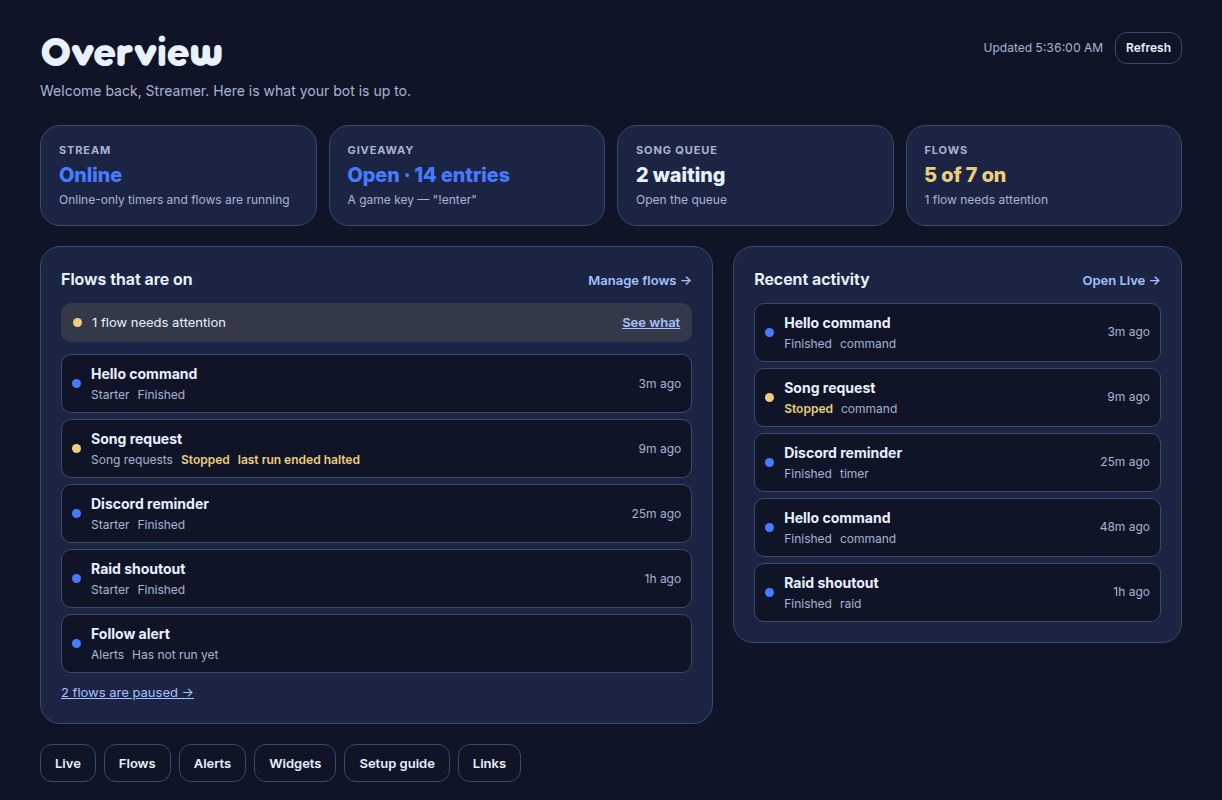
Expand Bot activity below the briefing for the giveaway, song queue, enabled flows, their last runs and recent activity. A paused tutorial still offers Continue above the briefing.
The page refreshes every half minute and whenever you return to its tab; select the refresh icon (Refresh) to update it now. Refreshing keeps the same previous-sign-in cutoff for this visit. An empty section says when there are no new changes or listings; a failed read asks you to refresh rather than showing an empty result.
With no channel linked yet, choose Link Channel. If you edit more than one channel, use the Channel picker beside the refresh icon. It switches both the briefing and the sidebar to that channel. News and its dismissal belong to the chosen channel.
The sidebar
Once a channel is chosen (on Channels, or in the Overview's Channel picker), the sidebar is one list down the left edge. Every page you can open is on it under a plain-word heading, so there is no group to guess. From the top:
- The channel at the top shows its picture and name. Select it to switch channels: the menu lists every channel you own, edit or moderate, and choosing one opens the same page on that channel, or its first page when your role there does not include this one. All channels at the bottom of the menu opens Channels.
- Find anything sits under the channel. Type what you want and it finds the page, the setting, the guide or the flow; Find anything shows how.
- Home opens the Overview, and Live opens the live feed. Neither has a heading.
- Pinned is your own shortlist of pages, flows and overlays. It starts with Flows and Overlays, and Pin the pages you use most shows how to change it.
- Bot, On stream, Viewers, Channel and Safety hold the rest, as the table below lists them.
- Marketplace, Settings and Help stay at the bottom, always in view. Below them, a button names your plan when there is a step up (What your plan includes), then your Twitch picture (or your initial) and name open Account, and the icon beside them signs you out.
| Section | Pages | What they are for |
|---|---|---|
| Bot | Flows, Variables, Collections, Control panels | Make the bot do things, keep what it remembers and what viewers collect, and put big buttons on a screen of your own. The number beside Flows is how many flows the channel has. |
| On stream | Overlays, Media, Wheels | Design what OBS shows, keep the pictures and sounds it uses, and manage your spin wheels. |
| Viewers | Song requests, Queue, Questions, Media share, Giveaways, Loyalty and store, Regulars | What viewers ask for, enter and earn, mostly while you are live. |
| Channel | Public page, Quotes, Schedule, Highlights, Social images | What your channel puts in front of viewers outside your overlays. |
| Safety | Moderation, Nukes | Chat filters and bulk clean-up. |
A page you pin moves up to Pinned and is not listed twice. A section with nothing you can open is left out, heading and all.

Two rows stand for more than one page, each with a row of tabs across the top of its pages:
- Settings opens on Connections and stays highlighted on all six of its pages: Connections, Connected apps, Downloads, Team, Plan & billing and Audit log. Team and Plan & billing are the owner's, so an editor sees four tabs. On a wide screen the tabs wrap onto a second line when they must; on a narrow one the row scrolls sideways.
- Loyalty and store opens on Loyalty and stays highlighted on Loyalty and Store. A moderator can open Loyalty but not Store, so for them the row reads Loyalty and has no tabs.
Help opens a small menu:
- Tutorials opens Pebble's tutorials and sticker book, with a dot while Pebble has something waiting. While a tutorial is running or paused, a Continue: row with the tutorial's name sits above it, and selecting that picks the tutorial up where you left off (Learn Bloopbot with Pebble's tutorials).
- Docs and guides opens these guides in a new tab.
- Bloopbot Discord opens the community server in a new tab.
- News from Bloopbot opens the Overview's news from the Bloopbot team, with a dot while there is news you have not seen. The Help button shows a dot whenever Tutorials or News from Bloopbot has one.
Marketplace opens everything you can add to the channel. A number beside it counts the updates ready (The Marketplace). You do not have to go there to add something: Flows has a Marketplace button and Overlays a Browse templates button; each lists the same items for that page and opens the same review beside your list.
Only the middle of the sidebar scrolls, so the channel at the top and the bottom rows stay where they are, and the page you are on is scrolled into view. To tidy a long list, select a section's heading to fold it; its pages hide and the arrow beside the name turns. Bloopbot remembers which sections you folded in this browser, but the section holding the page you are on always opens, so you never lose your place.
To give a page more room, select the collapse button beside the logo (Collapse the sidebar) or press [. The sidebar shrinks to a narrow strip of icons: the channel's picture, the magnifier for Find anything, Home and Live, your pins, then each section's pages with a thin line between sections, then the bottom rows. Rest the pointer on an icon, or tab to it, to see its name. Select the button again, or press [ again, to bring the names back. Bloopbot remembers your choice. The flow editor and the overlay editor always open with the sidebar collapsed, so the canvas gets the width.
On a phone the sidebar is hidden: the menu button at the top opens the same list as a drawer, Find anything as its first row and the Help menu included, with your name and the sign-out button underneath. That list has no channel switcher at the top; a Channels row below Home opens your list of channels instead.
Some pages are left out for some people. A moderator sees only the pages that run the stream, with no Marketplace or Settings, and an editor has no Team or Plan & billing tab. On a Kick channel Schedule, Highlights and Nukes are not listed, because they need Twitch. If you edit someone else's channel, Tutorials shows the ones about building. A moderator has none yet, so the row is not in their Help menu until there is one, and their menu has no News from Bloopbot. See who sees which tutorials.
Pin the pages you use most
Pinned sits just under Live. It is a shortlist that is yours alone, kept for each channel, and it starts with Flows and Overlays. Pins are saved to your account, so they follow you to another browser or device, and an editor's pins never change the owner's sidebar.
To pin a page:
- Rest the pointer on its row in the sidebar, or tab to it. A pin icon appears on the row.
- Select the pin icon (Pin Song requests, for example). The page moves up into Pinned, out of its section.
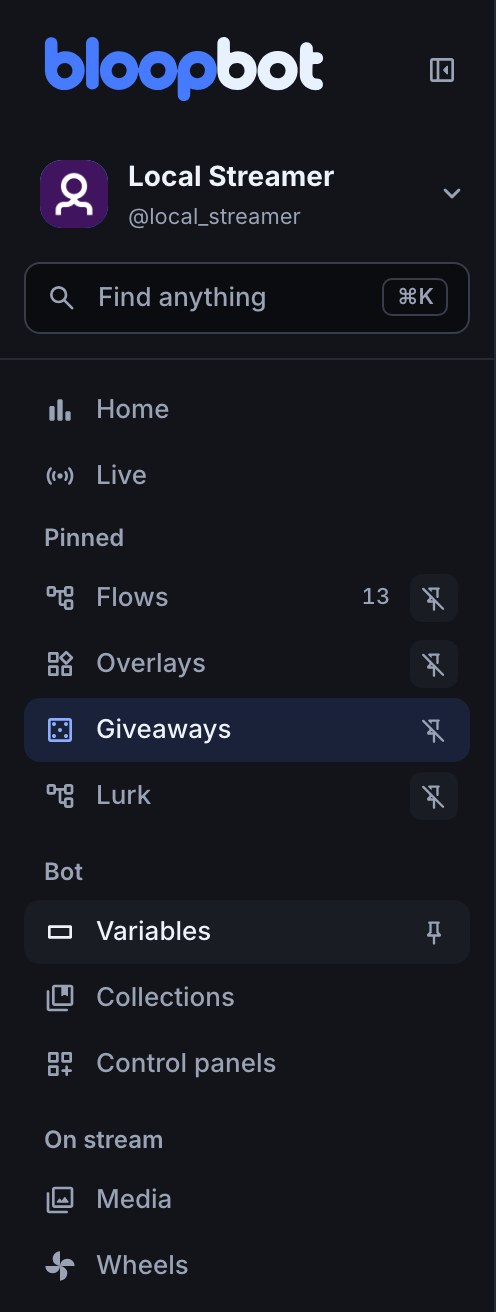
To pin a flow or an overlay itself, open it and select the pin icon in the flow editor's header (Pin this flow) or in Studio's (Pin this overlay). Pinned then lists it by name, and opens it straight away. Rename it and the pin shows the new name; delete it and its pin goes.
To unpin, select the pin icon on the pinned row (Unpin Song requests, for example), or the same icon in the editor, which now reads Unpin this flow or Unpin this overlay. A pinned page returns to its section; a pinned flow or overlay just leaves the list. You can also pin and unpin from Find anything, which works for control panels and giveaways as well.
To put your pins in order, drag a pinned row up or down, or focus it and press Alt with the Up or Down arrow key. Each move is saved straight away. You can pin up to 10 things; at 10, unpin one to make room.
Find anything
Find anything is one search box for the whole dashboard. Type a word for what you want, such as alerts, twitch account or !lurk, and it lists the page, the setting, the guide or the flow of yours that answers it, so you do not have to remember where something lives. It forgives typos, plurals and extra words: giveawy and how do I add a quote both find what you meant.
Open it in any of these ways:
- Select Find anything under the channel at the top of the sidebar. With the sidebar collapsed it is the magnifier at the top of the strip, and on a phone it is the first row of the menu.
- Press ⌘K (Cmd K) on a Mac, or Ctrl K on Windows and Linux. The hint in the sidebar's field shows the one that fits your computer.
- Press / when you are not typing in a box.
Find opens over the page, as a full-screen sheet on a phone or a narrow window, with the cursor already in its box. The first time on a page it takes a moment to load, and whatever you type meanwhile is kept. Esc closes it and puts you back where you were; on a phone, use the close icon (Close Find). Two cases are different:
- In a flow's Canvas view, ⌘K and Ctrl K search for a node to add. Press / or select Find anything in the sidebar to open Find there, or switch to the Simple view, where the shortcut opens Find.
- Find does not open over another dialog. Close the dialog first; the shortcuts do nothing while one is open.
Results come in groups, with the closest match alone at the top. Each group shows five, and Show all with a number lists the rest in place.
| Group | What it finds | Try typing |
|---|---|---|
| Best match | The one result that fits best, of any kind, shown alone at the top | alerts puts Overlays first |
| Pages | Every page you can open, by its name and by everyday words for it | alerts finds Overlays, points finds Loyalty and store, spotify finds Song requests |
| Inside pages | A card or panel inside a page; the page opens at that spot | twitch account opens Settings › Connections at the Twitch card, custom domain opens Public page › Domain |
| Your things | The channel's own flows (by name or by chat command), overlays, variables, collections, wheels, giveaways, quotes, control panels and media folders | !lurk finds the flow that answers it, or type any flow's or giveaway's name |
| Actions | Things to do without opening a page first, such as making a new flow or clearing the queue (Run an action from Find) | new flow, skip the song |
| Guides | These guides, and the sections inside them | stream deck, custom domain |
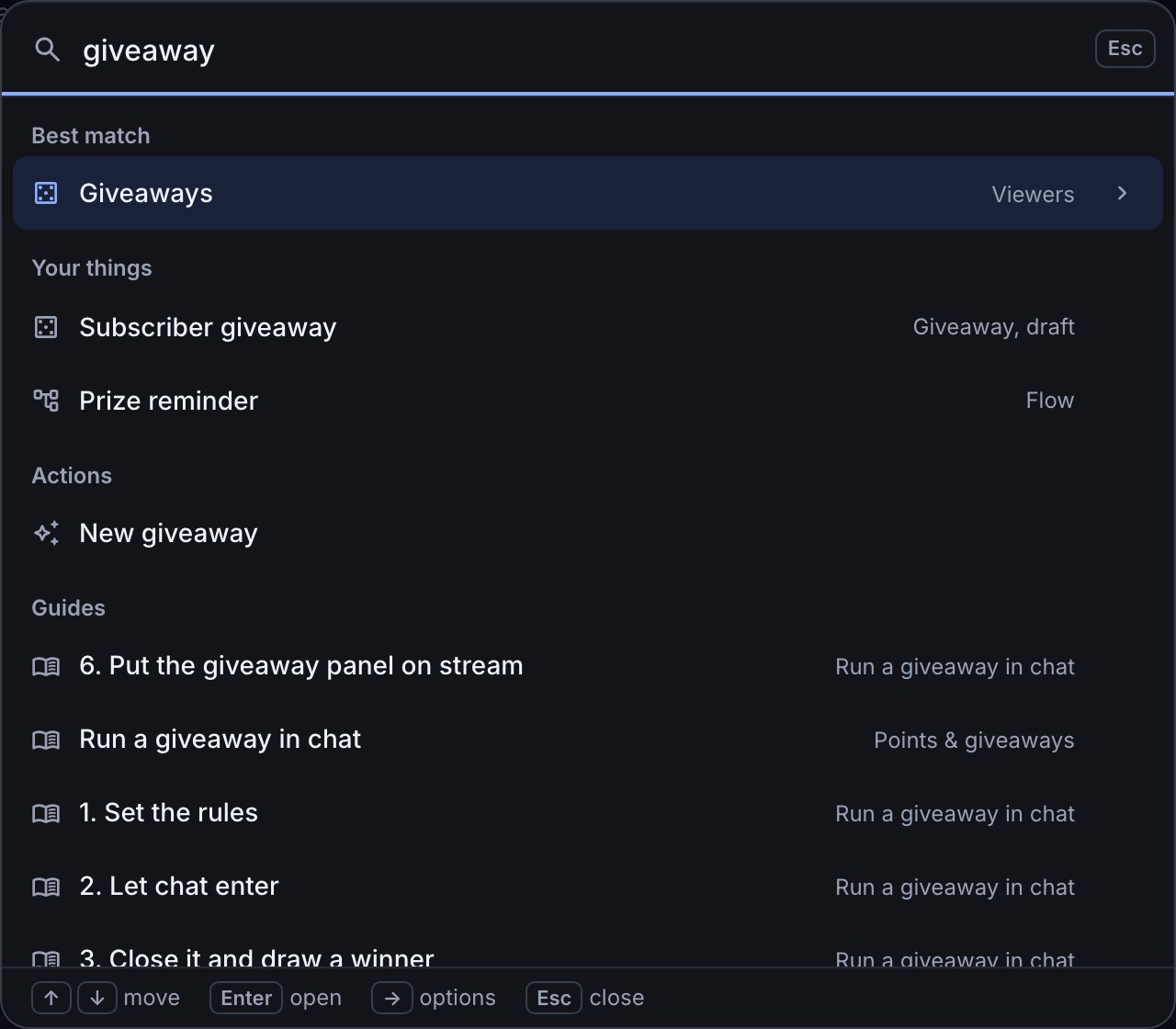
Find lists only what you can use. A moderator's Your things holds wheels, giveaways and quotes, plus control panels when the owner has turned them on, and an editor does not see Team or Plan & billing. On a Kick channel the pages that need Twitch (Schedule, Highlights and Nukes) are left out, as they are in the sidebar. The sidebar lists who sees what.
With nothing typed, Find lists Recent, the last six results you opened from it on this channel in this browser; Pinned, the pages and things you pinned; and Suggested, three actions to try, starting with the ones that suit the page you are on. Move with the arrow keys and press Enter to open one. Recent keeps what you open, and any action that only opens a page or copies a link; an action that makes or changes something (such as New flow or Open the queue) is never in it, so pressing Enter on an empty Find cannot repeat it.
Do more from a result
Enter opens the highlighted result. To do something else with it, press the Right arrow key (with the cursor at the end of what you typed) or Tab, or select the arrow at the end of its row; on a phone each row that has actions shows that arrow. The list changes to that result's actions. Enter runs the highlighted one, and the Left arrow key or Esc goes back to the results.
| Result | Its actions |
|---|---|
| A page | Open, Open in a new tab, and Pin or Unpin |
| A flow | Open, Turn on or Turn off, Test fire, and Pin or Unpin |
| An overlay | Open in Studio, Copy OBS link, and Pin or Unpin |
| A giveaway | Open; Open entries on a draft; Close entries (a draw) or End (a prize pool) while it takes entries; and Pin or Unpin |
| A control panel | Open, Edit, and Pin or Unpin |
| A variable, collection, wheel, quote or media folder | Open |
| A place inside a page, or a guide | Open, Open in a new tab |
An action either changes your real channel or only shows you something:
- Test fire is a dry run. It shows one line, such as how many steps ran and what the flow would have done, and sends nothing to chat.
- Turn on, Turn off, Open entries, Close entries and End change the real flow or giveaway at once.
- Copy OBS link puts the overlay's Browser Source link on your clipboard without showing it. The link includes the overlay's access key, so paste it into OBS and keep it private (Put an overlay in OBS).
Anything that turns something off or ends it asks first. The row becomes a question, such as Press Enter again to turn off Lurk, and a second Enter on that row does it. Esc, or moving to another row, takes the question back. Turning off a flow, closing a giveaway's entries and ending a giveaway ask this way, and so do the actions that end a giveaway, close or clear the queue, skip a song or turn song requests off. When an action finishes, Find stays open and shows one line, such as Turned off Lurk. or OBS link copied. If Bloopbot refuses, the line says why; a flow with a problem, for example, will not turn on.
To turn a flow off without leaving your page, say a flow called Lurk that answers !lurk:
- Press ⌘K or Ctrl K.
- Type
lurk. The Lurk flow is the best match. - Press the Right arrow key. The list changes to the flow's actions.
- Press Down to reach Turn off, then Enter. The row asks Press Enter again to turn off Lurk.
- Press Enter again.
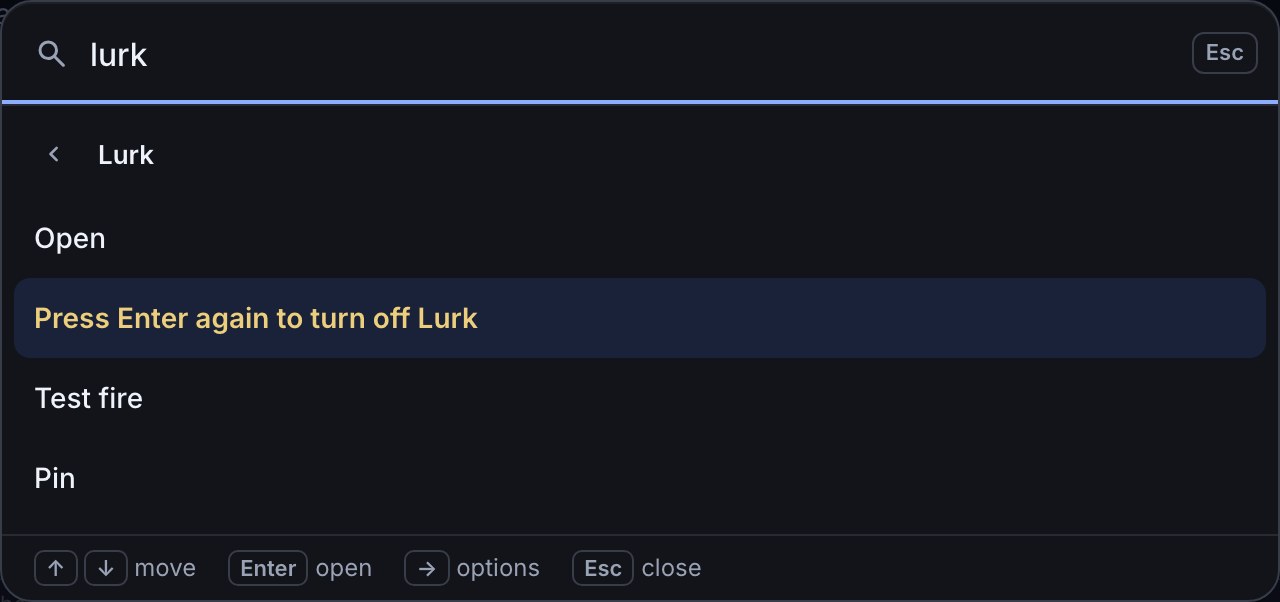
Expected result: Find shows Turned off Lurk. under the list, and the flow is off on Flows. Press Esc to go back to your page. Turning it on again takes the same steps without the question.
To pin from Find, choose Pin in a result's actions, and Unpin to take it off. You can pin pages (all but Home, Channels and Account), flows, overlays, control panels and giveaways. A variable, collection, wheel, quote or media folder has no page of its own, so pin its page instead. Find and the sidebar share one list, so the rules in Pin the pages you use most apply: up to 10 pins, and at 10 you unpin one first.
Run an action from Find
The Actions group does a job without a trip through the pages. Type what you want to do, such as new flow, and press Enter. Each one uses the same feature as the matching button on its page. Find offers only the actions your role may use.
| Kind | Actions |
|---|---|
| Create | New flow, New overlay, New giveaway and New control panel make a new one and open it. Add a quote saves what you type after it (add quote that was close, up to 500 characters), or opens Quotes when you type nothing more. Declare a variable, New collection and Upload media open their page. |
| Run | End the running giveaway (it appears while one is taking entries), Open the queue, Close the queue, Clear the queue, Skip the song, and Turn on song requests or Turn off song requests. The queue actions work the viewer queue, and the song requests switch appears when your channel has one (Set limits). |
| Go to | Invite an editor (Settings › Team), Connect Spotify, Copy the public page link (your custom domain, if you have one) and Upgrade your plan (owners, when there is a plan above theirs). |
A moderator is offered Add a quote, End the running giveaway, the queue actions and Skip the song. Creating things, the song requests switch and Copy the public page link are for owners and editors, and Invite an editor, Connect Spotify and Upgrade your plan are the owner's. End the running giveaway, Close the queue, Clear the queue, Skip the song and Turn off song requests ask you to press Enter again, as described in Do more from a result. Skip the song needs Spotify linked; without it, the line says why.
On the Suggested list of an empty Find, three of these are offered, the ones that suit the page you are on first: New giveaway on Giveaways, for example.
Find shortcuts and fixes
Everything in Find works from the keyboard.
| Keys | What they do |
|---|---|
| ⌘K or Ctrl K | Open Find, or close it again. In a flow's Canvas view this searches for a node instead |
| / | Open Find when you are not typing in a box |
| Up and Down | Move through the results, or the actions, and round again |
| Enter | Open the highlighted result or run the highlighted action; press it again to answer a question |
| Right arrow or Tab | Show the highlighted result's actions |
| Left arrow | Go back from the actions to the results |
| Esc | Take back a question, then go back to the results, then close Find |
If Find is not doing what you expect:
- The sidebar says Find didn't load. Reload the page to try again. Reload the page, then open Find again. If that keeps happening, check your connection.
- Find says Your things didn't load or Some of your things didn't load. Pages, places and guides still work. Close Find and open it again in a minute.
- The Guides group is missing. Guides arrive when you start typing, and Find leaves the group out if they cannot be fetched. Try again in a moment.
- ⌘K or Ctrl K searches for nodes instead of opening Find. You are on a flow's Canvas view. Press /, or switch to the Simple view.
- Nothing happens when you press the shortcut. Another dialog is open. Close it first.
- A page or flow you expected is missing. Find lists only what your role can open on this platform. Something you made in the last minute can take a moment to appear; close Find and open it again.
Flows, Overlays and custom overlays
| Page | Use it to |
|---|---|
| Flows | Choose what starts an automation, what must be true and what happens next. Commands, timers, reward responses and alerts live here. |
| Overlays | Design a hosted overlay, place its alert layers and copy its Browser Source URL into OBS. |
| Overlays → Custom overlays | Create a named HTML overlay, choose what it may read, download a starter file, see connected sources and copy an AI brief. |
The rest of your channel
- Live shows stream status, the alert queue and recent activity. A flow that runs on Any chat message gets one tally row instead of a line for every message; Watch your stream on Live shows how to use the page. Song requests shows the queue — what is playing, what is waiting, and who asked for it; Giveaways manages giveaways during a stream.
- Loyalty and store manages points and watch time on its Loyalty tab and what viewers spend them on, on Store. Regulars manages your channel’s regular-viewer list.
- Media holds every picture, sound and video the channel uses; see Choose and upload media. Quotes, Variables and Schedule hold content your flows can use — see Keep a quote book and Work with your stream schedule.
- Moderation configures filters. Nukes shows bulk moderation jobs.
- Settings holds six pages as tabs. Connections manages Twitch, Spotify, Discord and your bot account. Connected apps lists the apps signed in to your channel (See and remove connected apps) and Downloads has the Stream Deck plugin. Team holds your editors, the Twitch moderators you let into the dashboard and the link to send them: see Share the work with mods and editors. Plan & billing shows your plan, how much of each limit you use, and where to upgrade or manage what you pay: see What your plan includes. Audit log records administrative changes.
Working with more than one channel
Choose a channel from Channels, or from the channel menu at the top of the sidebar, before changing flows or settings. Editors work in the same channel tools as the owner, but account connections, the Team page and Plan & billing remain owner controls. A moderator sees a shorter sidebar of the pages that run the stream, with no Marketplace or Settings, and a bar across the top naming the channel they are moderating. Check the channel name whenever you move between streams.
Find your setup goals
Search Find anything for guided setup to open Home. If your channel uses guided setup, Home keeps your selected goals and one next task. You can also open a feature directly and choose Open setup help to start its relevant task. Choose your own starting point shows direct choices, optional Jev suggestions and how to return later.
Was this guide helpful?
Thanks. Your answer helps us decide which guides to improve.