
What it does
Your stream schedule lives on Twitch — it is the schedule on your channel page. The Schedule page in your dashboard shows it, lets you add and cancel streams and set a vacation without opening Twitch, and hands you links for widgets and calendar apps. Flows can then act on it: half an hour before each scheduled stream, tell chat what is coming up.
Before you start
- Your channel connected on Links. To add, cancel or delete streams from the dashboard, Bloopbot also needs permission to manage your schedule; if it does not have it yet, the Schedule page says Schedule management requires reauthorization — choose Reauthorize now there and accept on Twitch.
- For reminders in chat: the Going-live countdown flow from the Starter pack, or any flow you build with the From your schedule trigger.
1. Look after your schedule
Open Schedule in the sidebar, under Content.
- Upcoming Segments lists your scheduled streams from Twitch: date, time, title, category and length. A weekly stream is marked Recurring; a cancelled one is marked Canceled. Choose Refresh after changing something on Twitch.
- Each row’s buttons, named when you point at them: Cancel this occurrence skips that one date, Restore this occurrence brings it back, and Delete segment deletes the whole segment — for a weekly stream, every week — and cannot be undone.
- Vacation Mode pauses your schedule between two dates. Choose Set Vacation, pick Start Date, End Date and Timezone, then Set Vacation. End Vacation lifts it early.
- Twitch Dashboard opens your schedule on Twitch, for anything this page does not cover, such as a stream’s category or editing an existing stream.
2. Add a stream
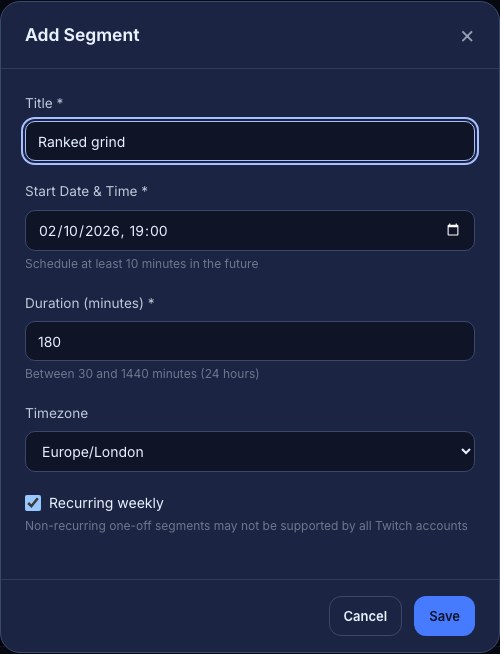
- Choose + Add Segment.
- Fill in Title — what viewers see on Twitch, such as Ranked grind.
- Set Start Date & Time, at least 10 minutes from now, and Duration (minutes) between 30 and 1440. It starts at 180.
- Pick your Timezone, and leave Recurring weekly ticked for a stream that repeats every week. Twitch may not accept a one-off stream on every account.
- Choose Save. The stream appears under Upcoming Segments and on your Twitch channel page.
3. Post a reminder before each stream
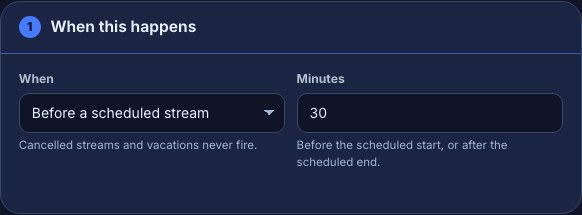
- Open Flows and find Going-live countdown. It is set to post Going live in $(minutes) minutes with $(segment)! half an hour before each scheduled stream.
- On its trigger, When chooses the moment: Before a scheduled stream, When a scheduled stream is due to start or After a scheduled stream is due to end. Minutes is how long before the start or after the end, up to 1440; it is not used for the start itself.
- Reword the message if you like, then press Save and switch the flow on.
The message can use what the trigger knows about the stream:
| Token | What it says |
|---|---|
$(segment) or $(title) | The scheduled stream’s title |
$(category) | Its category, when it has one |
$(minutes) | The Minutes you set |
For a note after the stream, such as Thanks for watching — see you Thursday!, add a second flow with After a scheduled stream is due to end. The same trigger can start anything a flow can do, not only a chat line.
How the timing works
- The trigger follows your schedule, not the moment you actually go live. Start late or early and the reminder still posts at the scheduled time; an unscheduled stream gets no reminder. For something that happens when you really go live, use the Stream starts or ends trigger instead.
- Cancelled occurrences and vacation days never fire.
- Bloopbot reads your schedule about every ten minutes and looks a week ahead, so a stream added or moved at the last minute may be missed. Set the schedule up at least a little ahead.
- Each moment fires once. If the reminder cannot be posted within five minutes of its moment, it is skipped rather than posted late.
Check it works
- In Going-live countdown, press Test fire. The dry run uses a made-up scheduled stream, Ranked grind, half an hour away, so the Run log shows the bot would post Going live in 30 minutes with Ranked grind!. Nothing is posted.
- Add a real stream on the Schedule page, or check an existing one, and leave the flow on. The reminder posts in your real chat at the set time.
Use your schedule elsewhere
Under Embed URLs:
- JSON Embed URL is your schedule as data, for a custom widget or overlay of your own.
- Twitch iCal URL adds your schedule to Google Calendar, Apple Calendar or another calendar app — share it with viewers, too.
Troubleshooting
- The page shows the schedule but no + Add Segment, and Edit on Twitch instead of Twitch Dashboard: Bloopbot cannot manage your schedule yet. Choose Reauthorize now in the notice at the top.
- No scheduled streams yet.: there is nothing on your Twitch schedule. Add a stream here or on Twitch.
- Saving a stream fails: the start is less than 10 minutes away, the duration is outside 30–1440 minutes, or Twitch refused a one-off stream — tick Recurring weekly. The message under the form says which.
- The reminder did not post: the flow is paused, that occurrence was cancelled or on vacation, the stream was added too close to its start, or the flow’s chat step failed — check Flows → Needs attention and the flow’s Run log.
- It posted at the wrong time: check the stream’s time on Twitch and the trigger’s When and Minutes. Your real go-live time does not move it.
Was this guide helpful?
Thanks. Your answer helps us decide which guides to improve.