
What you can do
The Store is where your viewers spend the loyalty points they earn watching you. You decide what is for sale — a hydrate break, a shout-out, a song pick, a silly hat for a round — and what each item costs. Viewers buy from chat with !buy, or from your web store page signed in with Twitch.
Buying takes the points off and the item off the shelf in one step, so two viewers can never both buy the last one, and nobody is ever charged for something they did not get. Every purchase is listed on the Store page, where you mark it done or refund it.
What an item actually does is a flow you draw on Store item bought: a chat line, an alert, a wheel spin, anything a flow can do. Nothing happens on stream by itself.
Before you start
- Loyalty points must be switched on: the store only takes points while they are. Reward viewers and recognise regulars shows how.
- Viewers need points to spend. Give them time to earn some, or give a few by hand from the Loyalty page.
- The store is not a plan feature: every channel has it, with as many items as you like.
1. Create an item
- Open Store under People in the sidebar.
- Press New item.
- Give it a Name — this is what viewers type after
!buy, so something short likeHydrateworks best — and a Cost in points. - Optionally add a Description and a Picture from your media library. The picture shows on your web store. Upload images on the Overlays page first; they then appear in the list.
- Set Stock if there are only so many (blank is unlimited), a Limit per viewer, and a Cooldown — see Limits, cooldowns and stock.
- Leave For sale ticked and press Create item.
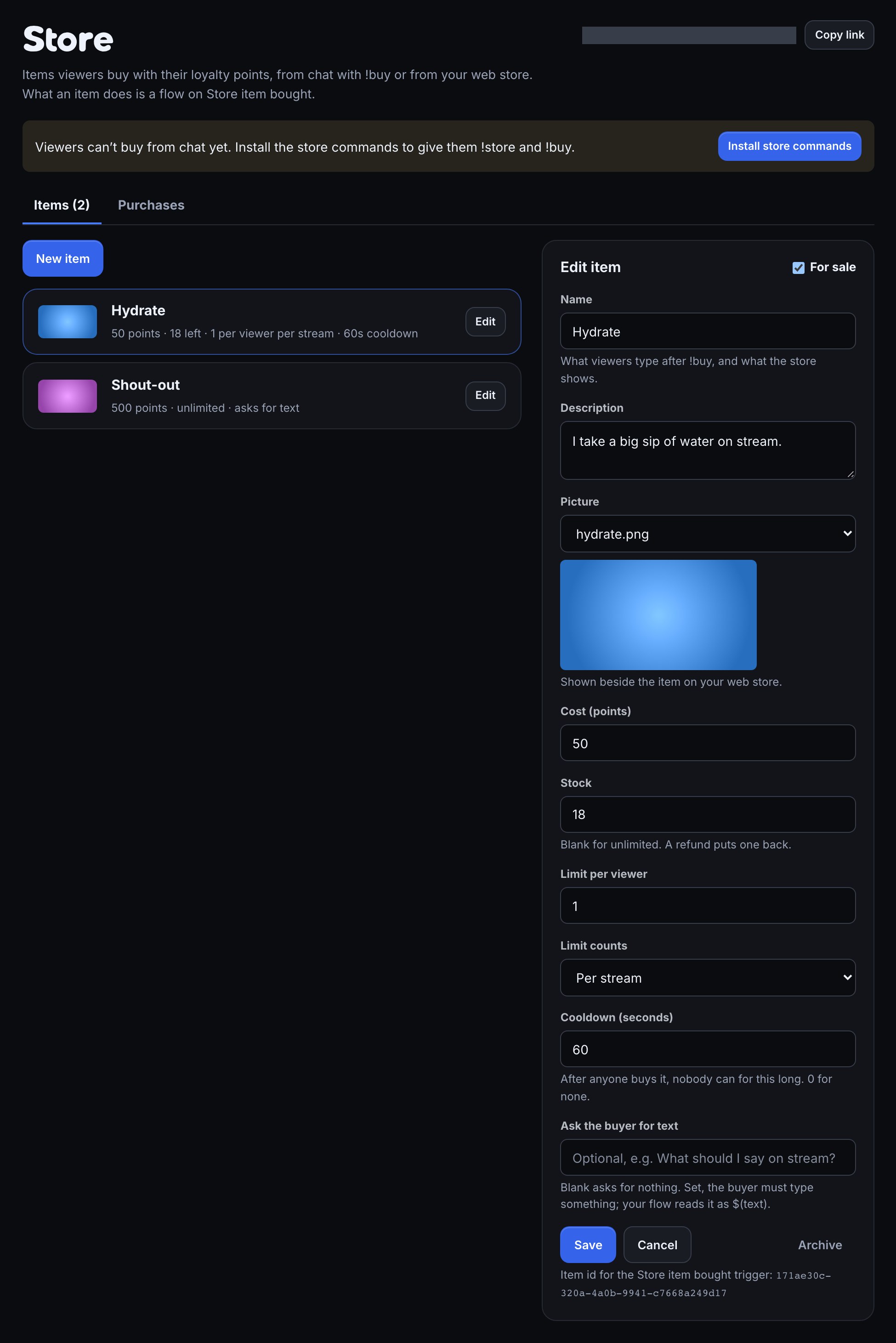
An item you untick For sale stays on the page but leaves the store until you tick it again. Archive files it away for good; its purchases stay in the list.
2. Let viewers buy from chat
The Points store pack gives chat two commands:
!storelists what is for sale and what each item costs: 🛒 For sale: Hydrate (50), Shout-out (500).!buyand an item's name buys it:!buy hydrate. A viewer can type just the start of the name when only one item starts that way.
The Store page offers the commands when nothing lets viewers buy from chat yet: a Store commands row under the page title says Viewers can’t buy from chat yet. Press Add on it to open the Points store pack’s review on the right, then press its button to add the three flows, paused, and switch them on. You can also add Points store from Marketplace.
When a purchase is refused — not enough points, sold out, a limit reached, the cooldown still running, or no such item — !buy replies to the viewer saying why. On success it stays quiet, because the pack's third flow, Thank a store purchase, tells chat who bought what.
3. Share your web store
Every channel has a web store at /c/<your login>/store. The Store page shows the link at the top with Copy link; put it in your panels, your !store reply or a chat timer.
Your channel's home page, /c/<your login>, shows the first few items and each viewer's points too, beside your open giveaways, a Watch on Twitch button, your full Twitch bio and your own links. If you only want one link in your panels, use that one: every channel page has tabs for Home, Giveaways, Store and Your prizes.
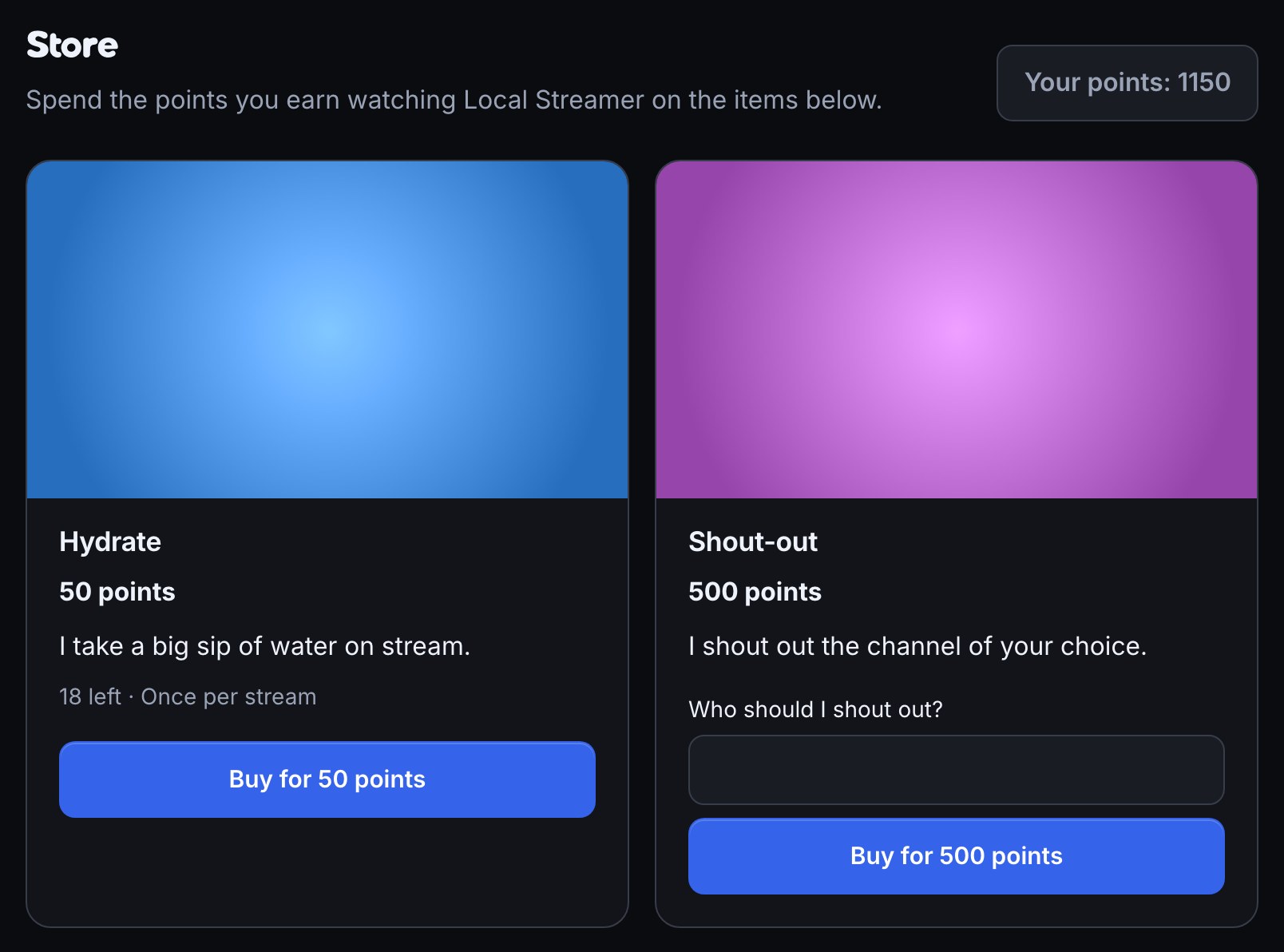
On the web store, a viewer signs in with Twitch, sees how many points they have, and presses Buy on an item. An item that asks for text shows a box for it first. They land back on the store with a line saying it worked, or why it did not. Buying there is the same purchase as !buy: the same rules, the same list on your Store page, and the same Store item bought flows.
4. Make an item do something
A purchase runs every flow that starts with Store item bought. Make one flow per item:
- On Flows, press + New flow and start blank.
- Add the Store item bought trigger.
- On the Store page, open the item and copy its id from the bottom of the editor. Paste it into the trigger's Only this item. Blank runs the flow for every item.
- Add what the item does. The trigger hands on
$(user)(who bought it),$(itemname),$(cost),$(text)(what they typed with it),$(balance)(their points afterwards) and$(purchaseid). - Save it and switch it on.
Example: a Hydrate item that posts in chat.
- Trigger: Store item bought, Only this item set to Hydrate's id.
- Chat message:
💧 $(user) says drink some water! I’m taking a sip.
To mark the purchase done from the flow itself, end it with Fulfil or refund set to Mark it fulfilled; it takes $(purchaseid) from the trigger on its own. Otherwise mark it by hand on the Store page (below).
A flow can also sell things itself: the Buy a store item step buys an item for the viewer who triggered the flow, and follows ok or rejected with the reason, and List the store hands on the Hydrate (50), Shout-out (500) line. That is how the !store and !buy commands are built.
Items that ask for text
Fill in Ask the buyer for text — for example What should I say on stream? — and the buyer has to add something: after the name in chat (!buy shout-out say hi to my cat), or in the box on the web store. Without it the purchase is refused and nothing is charged. Your flow reads it as $(text).
What viewers type is not checked for you. To keep it off stream when it is not OK, put an AI: text OK to show? check between Store item bought and whatever shows it, set its Text to $(text), wire its safe branch to whatever shows the text, and on its flagged branch add Fulfil or refund set to Refund it, so the viewer gets their points back. Screen text before it goes on stream explains the check and its Unsure branch.
Limits, cooldowns and stock
- Stock is how many there are. Each purchase takes one; at 0 the item shows Sold out and
!buysays so. A refund puts one back. Blank means unlimited. - Limit per viewer is how many times one viewer can buy it. Limit counts decides over what: Forever, or Per stream. A per-stream limit counts purchases made while you are offline towards your most recent stream, and starts again when your next stream goes live. A refunded purchase no longer counts.
- Cooldown is for the whole item: after anyone buys it, nobody can for that many seconds. Use it for things you can only do so often on stream, like a sound or a spin.
Purchases, fulfilling and refunds
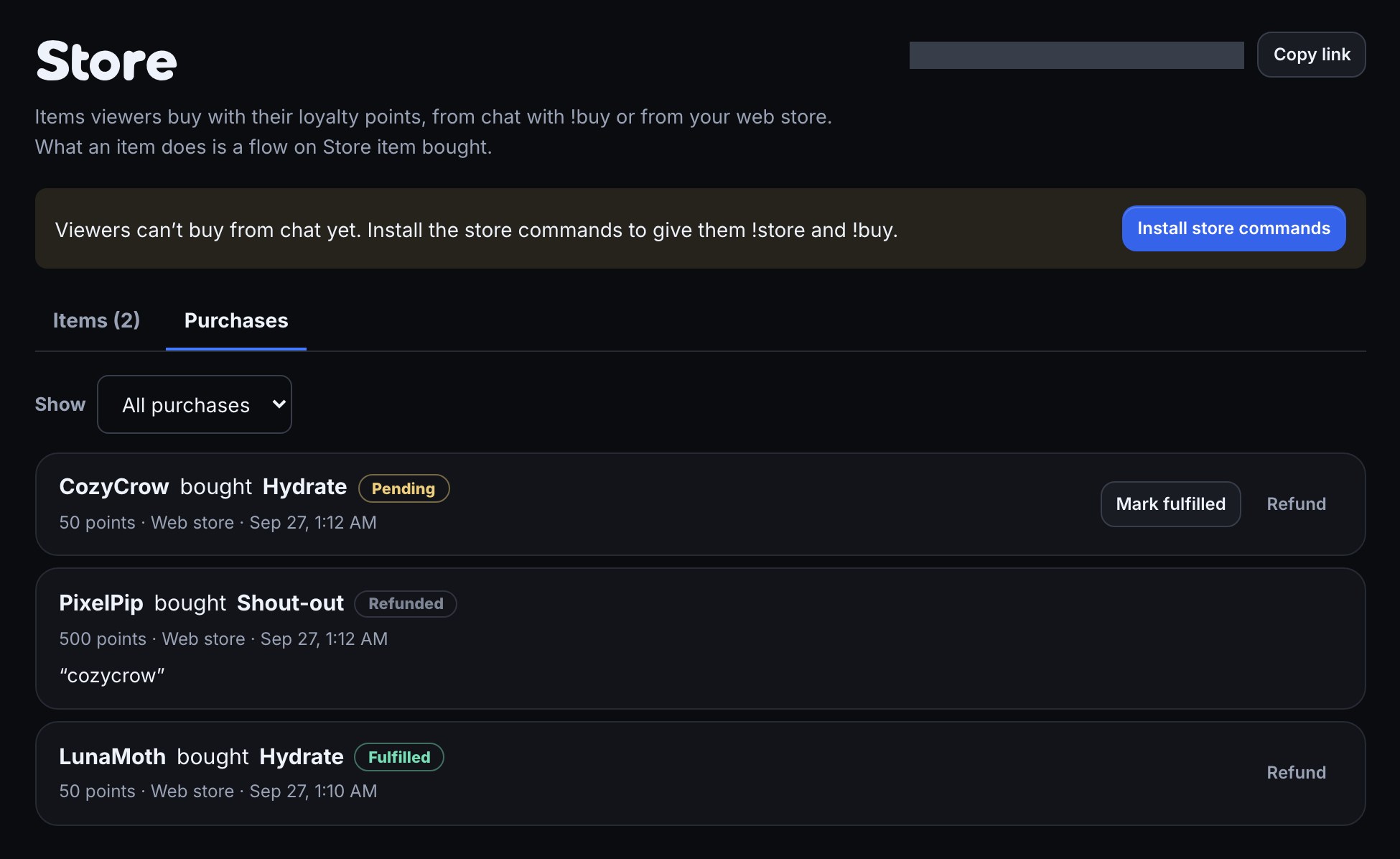
Open Store and choose Purchases to see every purchase, newest first: who bought what, for how much, from chat, the web store or a flow, anything they typed, and its state. Show filters by Pending, Fulfilled or Refunded.
- Mark fulfilled when you have done what the item promised. It is a note for you; it changes nothing for the viewer.
- Refund gives the viewer their points back and puts the item back in stock. Refunding a purchase you already marked fulfilled asks first. A purchase can only be refunded once.
A refund returns the points to the viewer's balance only: it is not counted as points they earned.
Ideas
- Hydrate or Stretch: a cheap item with a cooldown, and a chat line.
- Shout-out: an item that asks for a name, and a flow that runs Shout out a streamer on
$(text). - Spin the wheel: an item whose flow runs Spin a wheel — see Spin a wheel on stream.
- Skip the queue: an item that puts the buyer in your viewer queue ahead of everyone who joined normally — see Sell a place at the front of the queue.
Sell a place at the front of the queue
If you run a viewer queue, a store item can put the buyer in it ahead of everyone who joined with !join.
- On Store, create an item called
Skip the queuewith a cost, say 300 points. Fill in Ask the buyer for text with Your gamertag if your queue asks for a note, and set Limit per viewer to 1 Per stream so nobody buys it twice. - Copy the item's id from the bottom of the editor.
- On Flows, press + New flow, start blank and add Store item bought. Paste the id into Only this item.
- Add Join the queue. Set Their note to
$(text)and turn Skip the line on. - Off Join the queue's rejected branch — the queue is closed or full, or they are already in it — add Fulfil or refund set to Refund it, then a Chat message:
$(user), the queue can’t take you right now, so your points are back. - Save the flow and switch it on.
Now !buy skip the queue Lucky#1234 (or Buy on your web store) takes the points and puts the viewer at the front of the line, behind only others who skipped it. If the queue will not take them, they get their points back and the item goes back in stock. Run a viewer queue has more ways to decide who may join.
Troubleshooting
!buydoes nothing. Check the Store page's notice: the store commands may not be installed or switched on.!buyalso has a short per-viewer cooldown so one viewer cannot flood chat.- Everything says the store is closed. Loyalty points are switched off. Turn them on from Loyalty.
- A viewer says they have points but cannot buy. Their balance is below the cost, the item's limit or cooldown applies, or it is sold out.
!buyand the web store both say which. - The item bought, but nothing happened on stream. Purchases only do what a Store item bought flow does. Check that the flow is switched on and that Only this item holds that item's id, or is blank.
Was this guide helpful?
Thanks. Your answer helps us decide which guides to improve.