
What you can do
Text-to-speech lets a viewer type a message and hear it read out loud on your stream. A viewer redeems a Speak a message channel points reward, cheers 100 bits or more with a message, or shares a resub message, and Bloopbot turns the words into speech in the voice you chose. It plays on your overlay in OBS, in turn with your alerts, alone or inside one of your alert designs. Moderators and you can stop a message with !skiptts.
Everything runs as flows, so you can change any of it. The Text to speech pack gives you four ready-made flows, and the Speak text step lets you read out anything else: a command, a store purchase, a raid message.
Before you start
- Free+ or a paid plan. Text-to-speech comes with Free+ and every paid plan, with a daily limit on characters that grows with the plan. On Free the Speak text step shows locked and cannot be added; join the Bloopbot Discord to put your channel on Free+, which costs nothing. What your plan includes shows what your channel holds.
- An overlay in OBS. Speech plays on your overlay, so you need one open as a Browser Source: Add an overlay to OBS takes you from New overlay to the source. Speech on its own plays on a Media layer; speech inside an alert design plays on an Alerts layer. Play images, videos and sounds shows how to add a Media layer.
- For the reward and for cheers: Channel Points and Bits need to be available on your Twitch channel. Check which Twitch features your channel can use explains the checks.
- Hear it in OBS. Speech is part of the overlay Browser Source's sound. Hear the videos in OBS explains Control audio via OBS and Monitor and Output; the same two settings decide who hears the speech.
Add the Text to speech pack
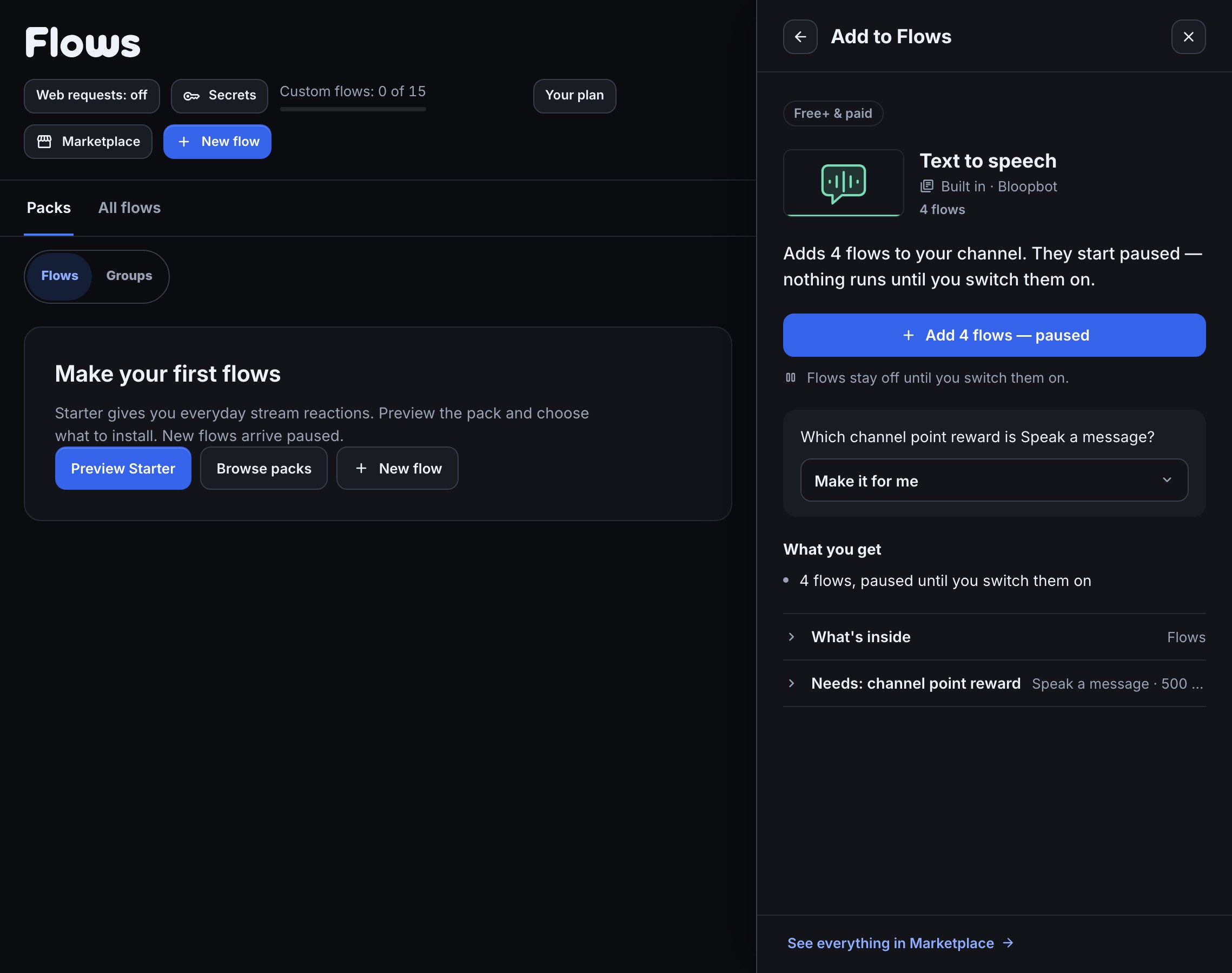
- Open Flows and press Marketplace.
- Press Add on the Text to speech pack. Its review opens in the panel.
- The review asks about the Speak a message reward. Leave Make it for me chosen, and Bloopbot creates it on Twitch: 500 points, with a box where the viewer types what the bot should say (Type what the bot should say), and the text required. Change its cost, cooldown and limits in Twitch's channel points settings. It arrives switched off; switch it on there when you are ready.
- Press the review’s button. The four flows arrive paused. Open each one to read its message, then switch on the ones you want.
The pack’s flows all speak in Bryce’s voice to start with. Choose another in the Speak text step.
| Flow | What it does |
|---|---|
| Speak a message with points | A viewer redeems Speak a message and types their words. A message the AI check finds unfit to read is not spoken, chat says why, and the points are refunded. |
| Cheer to speak | A cheer of 100 bits or more with a message has it read out. A message that is not read out keeps its bits, and chat says so. |
| Read resub messages | When someone shares a resub message in chat, it is read out. |
| !skiptts skips the speech | Moderators and you type !skiptts to end the message being read out. |
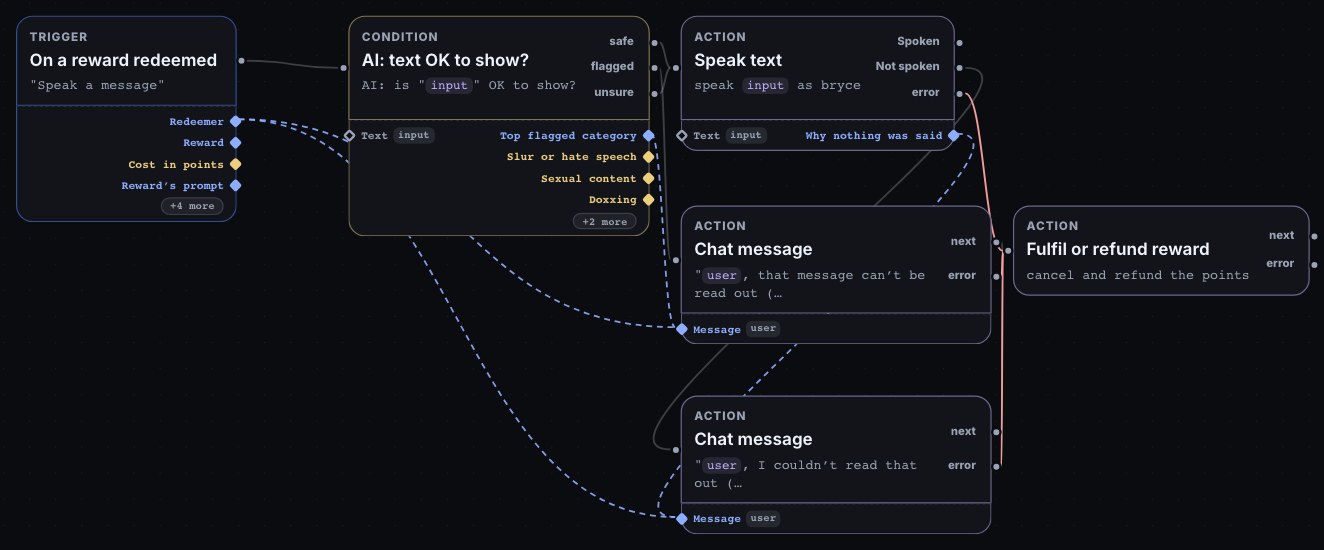
When a viewer redeems Speak a message, the reward and its words reach the AI: text OK to show? check, then Speak text; the flow carries on straight away, and the audio plays a few seconds later. If nothing can be read out (nothing is left of the message after cleaning, the daily limit is used up, or the voice is not in your plan), chat hears why, for example PixelPal, I couldn’t read that out (daily speech limit reached)., and the points are refunded.
Refunds only work for a reward Bloopbot created. Twitch only lets Bloopbot give points back for a reward Bloopbot made, so if you pick a reward of your own instead of Make it for me, a message that is not read out keeps the viewer’s points. Bits can’t be refunded. A cheer that is not read out keeps its bits, and the pack’s chat message says so; say it on your stream before viewers cheer to speak.
Try it without going live
- Open Speak a message with points in the editor and press Test fire.
- Open the run log. The Speak text step reads would speak "…" as Bryce, with the cleaned text, and the flow leaves by Spoken.
A test fire cleans the text and finds the voice, and stops there: nothing is spoken, no characters are used and nothing reaches OBS. To hear it, redeem Speak a message yourself on stream, or from your own account in a quiet moment, with your overlay open in OBS. That is a real redemption: it uses points and characters, and a refused message refunds the points.
The Speak text step
Speak text is in the node library under Overlay. It turns text into speech and plays it on your stream. Its fields:
| Field | What it does |
|---|---|
| Text | What to say. It starts as $(input), the words a viewer typed with a reward; use $(message) for a cheer or a resub message. You can mix in your own words and any variable. |
| Voice | Which voice speaks. Pick one from the list (Pick a voice), or type a voice name or a variable. Blank uses the default voice. |
| Speed | From 0.5 to 2. 1 is normal speed; lower is slower. |
| Alert design | Optional. The name of one of your alert designs to speak inside, such as redemption. Blank plays the voice alone. |
The step leaves by Spoken as soon as the speech is asked for. It never waits for the audio, so the rest of the flow runs straight away. It leaves by Not spoken when nothing could be asked for, and Why nothing was said carries the reason for a later step to use, as $(from.speak.reason) (the step’s id is in the name; use the Insert… menu). Wire Not spoken to a chat message and a Fulfil or refund reward step to give a viewer their points back, as the pack does; leave it unwired and the flow just stops there.
A step that reaches the audio but whose speech then fails (the service is busy, or cannot make that audio) shows a line under the step in the run log a moment later, speech failed: followed by the reason, and puts one item on Flows → Needs attention, at most once an hour. The characters of a message that failed after it was accepted are not given back.
Speak inside an alert design. Type the name of one of your alert designs in Alert design, for example redemption. The card shows the viewer’s name and what was said, stays up as long as the speech plays (the design’s own time, or the speech and half a second, whichever is longer), plays the speech instead of the design’s sound, and keeps a video in the design muted. Make sure the design shows its message. Show alerts on stream explains designs. With no design, the speech plays on its own on the overlay’s Media layer.
Speech waits its turn in the same queue as your alerts, so a message never plays over an alert. A single run can put at most five things on the stream (alerts, media and speech together).
Pick a voice
The step’s Voice field lists the voices: a picture (or the first letter of the name), a name, a region and a category each. The region says where the voice comes from, such as US or UK, and the category groups voices, such as Everyday. The voice marked default speaks when the field is blank, and the pack’s flows ask for Bryce.
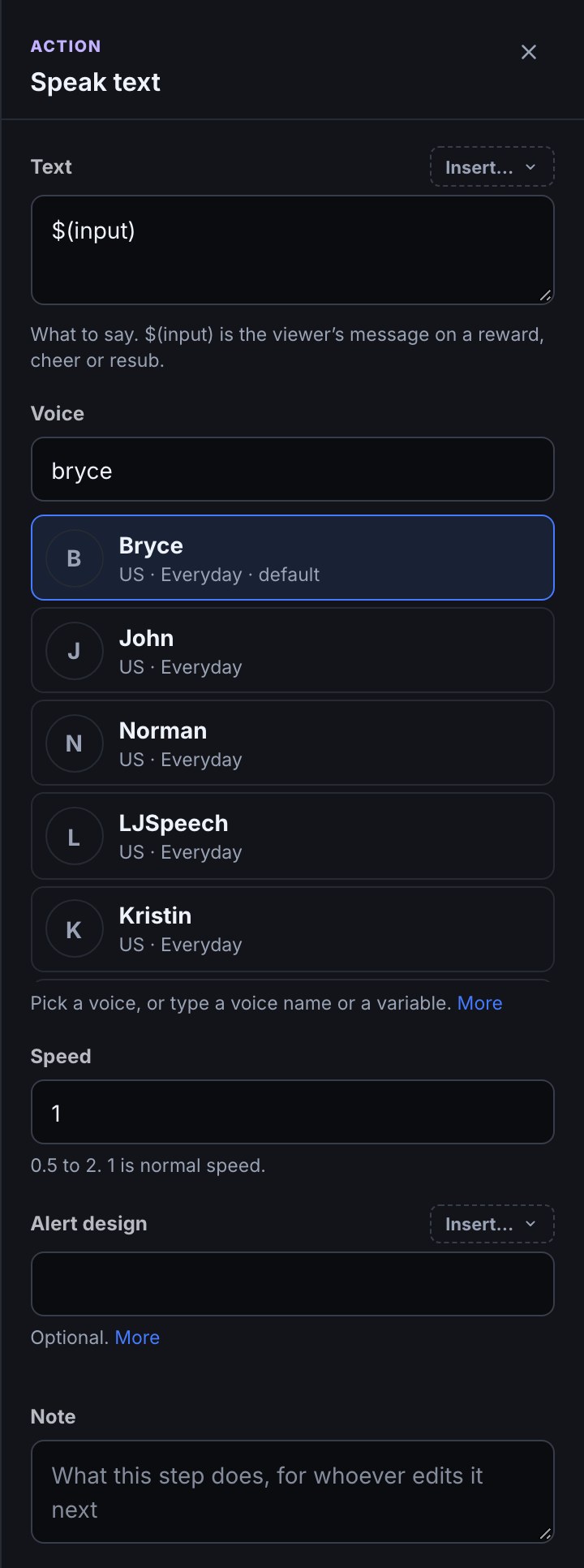
- Locked voices. A voice that needs a higher plan than yours is shown locked, with the plan that unlocks it (Needs Plus), and cannot be picked. A step that names one anyway does not speak: it leaves by Not spoken with that voice needs Plus. The voices that came first are in Everyday and open to every plan that has text-to-speech.
- A voice that went away. If the voice a step names is not available any more, or a variable holds a name that is not a voice, the step speaks with the default voice and the run log says so.
- One voice per step. Viewers cannot choose a voice. Use a variable to change the voice, for example one per reward, or a second step for a second voice.
An AI assistant can read the same list: Connect an AI assistant explains what it can see. It can write the step with a voice from your plan, but it cannot add or change voices.
What gets cleaned
Before a message is counted or spoken, Speak text cleans it, in this order:
- Links are removed.
- Cheermotes are removed, so a cheer of
Cheer100 nice shotreads nice shot, not cheer one hundred. - The words in your Moderation blacklist are removed, even when spelled with look-alike letters. A message that a blocked phrase spans (
buy * followers) is dropped whole. Set up chat moderation shows the blacklist. - Square brackets are removed and the words inside stay, so a viewer cannot hand the voice any special instructions.
- A character repeated more than three times is cut to three (digits are left alone, so
1000000stays a number), and so is a word or emote repeated more than three times in a row. - The rest is cut to 300 characters, at the end of a word.
If nothing speakable is left (no letter or digit), the step leaves by Not spoken with nothing left to say. What viewers see in an alert card and on the Live page is the cleaned text too.
Screen messages with AI on Pro
The pack puts the AI: text OK to show? check in front of every Speak text step. It asks whether the words are fit for your stream: a slur, sexual content, someone’s personal information, harassment or something that would embarrass you. It uses the Shown on stream bar, which is the strictest. Screen viewer text with AI explains the check.
The check comes with Pro. How its three answers behave in the pack:
- Safe. The message is read out.
- Unsure. The check could not answer, because your plan does not include it, the daily AI allowance is used up or the AI could not be reached. The message is read out after the step’s own cleaning. On Free+ and Plus, every message takes this path, so the cleaning, your blacklist and
!skipttsare what protect your stream. Watch the first messages, and keep a moderator ready with!skiptts. - Flagged. The message is not read out. For a reward, chat says why and the points are refunded. For a cheer, chat says the message will not be read out and bits can’t be refunded. A resub message is simply skipped.
Wire the check’s three outputs yourself if you want a different rule, for example to read out nothing when the check is unsure.
Daily limits
Each channel has a daily limit on how many characters can be turned into speech, counted after cleaning and across all your flows. It resets at midnight UTC.
| Plan | Characters a day |
|---|---|
| Free+ | 5,000 |
| Plus | 20,000 |
| Pro | 100,000 |
A message is at most 300 characters, so Free+ reads out at least 16 full-length messages a day, and usually far more. A message that would pass the limit is not read out at all: the step leaves by Not spoken with daily speech limit reached, and the pack refunds a points message. Messages that come in after the limit try again the next UTC day. Plan & billing lists Text-to-speech characters a day among your channel’s limits.
Skip a message
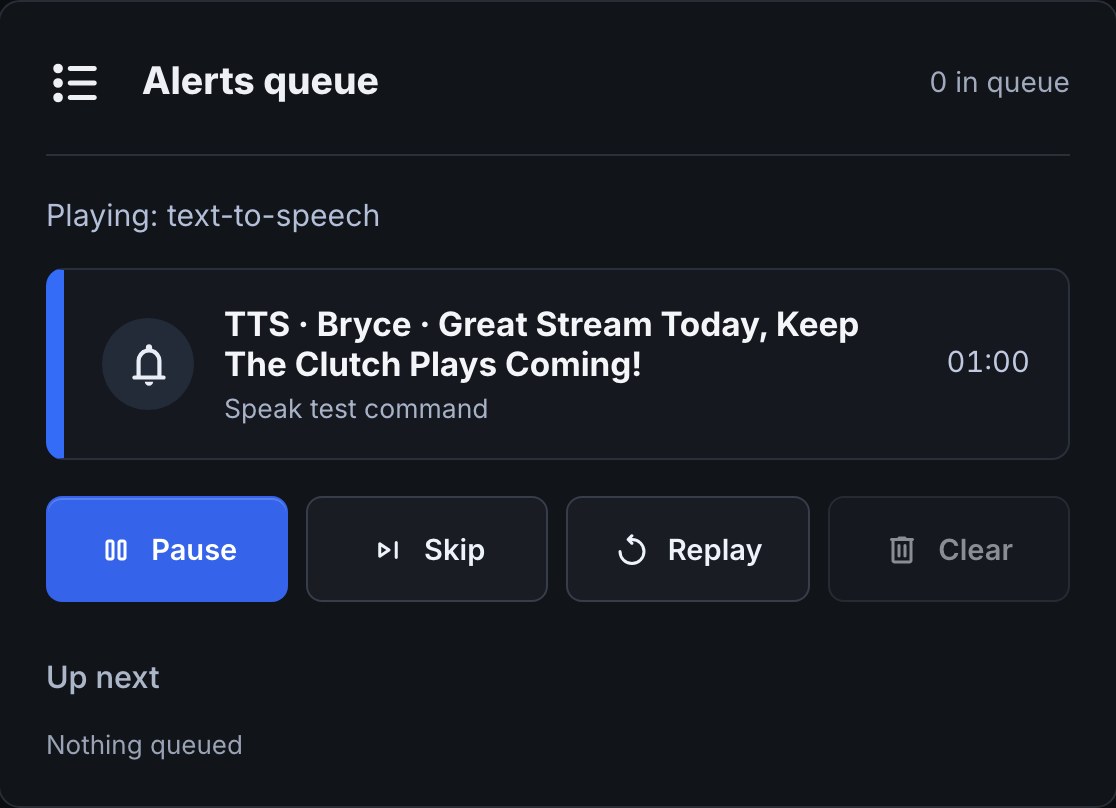
- On the Live page. The Alerts queue card lists speech as TTS · Bryce · the first words of the message, in the queue like an alert. Skip ends what is on screen, and Replay plays the last one again from its saved audio for a day.
- In chat. Moderators and you type
!skiptts. It ends whatever is on your overlay at that moment, a spoken message or anything else in the queue. It is its own command so it does not clash with!skip, which belongs to other packs. - Refunds. A message you skip after it started is not refunded: it was read out. Points for a message that was not read out are refunded by the pack when Bloopbot made the reward. Bits are never refunded.
Build your own
A Speak text step can follow any trigger. For example, start a flow from New follower and set Text to Welcome to the stream, $(user)! to greet each follower out loud. Anything a viewer typed reaches the voice, so put the AI: text OK to show? check in front of a step that reads their words, as the pack does: Screen viewer text with AI shows how.
Voice credits
Every voice is made from recordings its authors released for others to use. Two of the first voices need a credit, and Bloopbot gives it here:
- Alba is made from the University of Edinburgh CSTR Alba corpus, released under CC BY 4.0. Source: datashare.ed.ac.uk/handle/10283/3270.
- ARU 03, ARU 06 and ARU 10 are made from the University of Liverpool Acoustics Research Unit speech corpus, released under CC BY 4.0. Source: the Acoustics Research Unit speech corpus.
If you credit your tools on a stream panel or in a video description, add Voices: Alba (University of Edinburgh CSTR Alba corpus, CC BY 4.0) and ARU (University of Liverpool Acoustics Research Unit speech corpus, CC BY 4.0) when you use them.
Troubleshooting
- The Speak text step is locked. Your channel is on Free. Join the Bloopbot Discord to put it on Free+ (Unlock Free+), or upgrade on Plan & billing.
- Nothing is heard in OBS. Check that an overlay with a Media layer (or an Alerts layer for a design) is open as a Browser Source, that it is published, and that Control audio via OBS is ticked and the source is monitored (Hear the videos in OBS). The Live page’s alerts card says Waiting for an overlay with alerts in OBS when none is open.
- The reward does not appear on Twitch, or points requests never arrive. Check monetization onboarding and that Channel Points are available in Twitch’s Creator Dashboard. The reward arrives switched off: switch it on in Twitch’s channel points settings.
- Chat says nothing left to say. The message was only links, cheermotes, blocked words or symbols.
- Chat says daily speech limit reached. The day’s characters are used up. It starts again at midnight UTC, or upgrade for a bigger limit.
- Chat says that voice needs Plus. The voice in the step is above your plan. Pick one without a lock.
- Points did not come back. Twitch only lets Bloopbot refund a reward Bloopbot created. Choose Make it for me when you add the pack, or create the reward again that way.
- A line says speech failed under the step in the run log. The speech service did not answer in time or could not make the audio. Try again in a few minutes; the message is not queued again. It also shows on Flows → Needs attention.
- Nothing happens when a viewer types
!skiptts. Only moderators and you can use it.
Was this guide helpful?
Thanks. Your answer helps us decide which guides to improve.