
What you can do
Media share lets viewers ask for a YouTube video to watch together on stream. A viewer redeems your Share a video channel points reward with a link, or cheers 500 bits with a link in the message, and the video waits on your Media share page. Nothing plays until you, your editors or a moderator press Play; approved videos then play one at a time on the Media share player layer of your overlay.
Before you start
- The Media share pack has the four flows: one takes requests with channel points, one takes them with bits, one refunds skipped points requests, and one lets moderators skip with
!skipvideo. It also brings the overlay with the player on it. - To play videos on stream you need an overlay in OBS. Add an overlay to OBS shows how to add one as a Browser Source.
- Channel points rewards and bits need Twitch Affiliate or Partner.
Add the pack and its reward
- Open Flows, press Add, and choose the Media share pack.
- Its review asks about the Share a video reward. Leave Make it for me chosen, and Bloopbot creates it on Twitch: 1,000 points, with a box where the viewer pastes a link (Paste a YouTube link). It arrives switched off; switch it on in Twitch's channel points settings when you are ready. Change its cost there too.
- Add the flows. They arrive paused; switch on Share a video with points and Refund skipped video requests. The pack also brings a Media share overlay with the player on it (Put the player on your overlay).
When a viewer redeems Share a video with a link, the video is checked and waits on your Media share page, and chat hears Thanks PixelPal, your video is waiting for approval. When it is turned down — too long, not allowed outside YouTube, already waiting — chat hears why, such as PixelPal: That video is longer than 5 minutes., and Bloopbot refunds their points if it made the reward (see the note on refunds below). The refund is tried even if Twitch drops chat's reply.
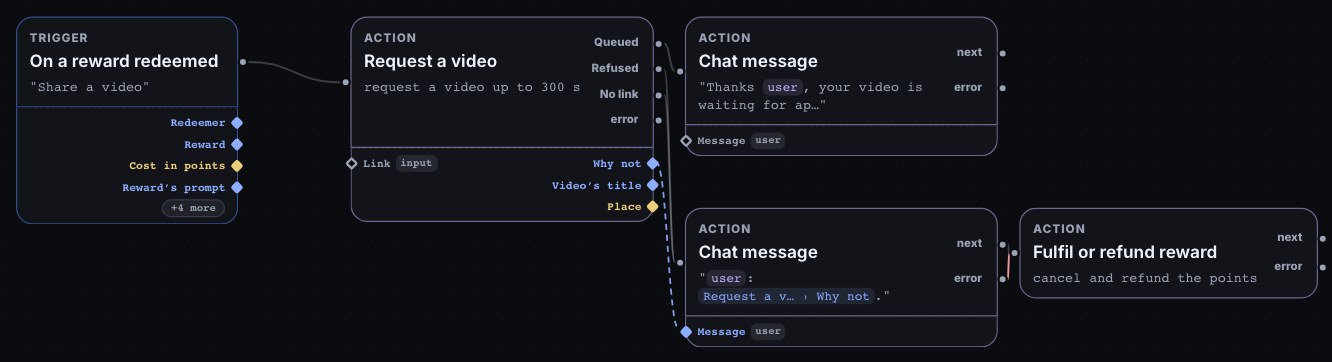
Viewers can paste a youtube.com/watch link, a youtu.be link, a Shorts link, an embed link (youtube.com/embed/… or youtube-nocookie.com/embed/…), or the video's 11-character id. If a viewer pastes more than a link, the first link counts, and a word, emoji or full stop stuck to the end of it is ignored. The checks live on the Request a video step in the flow: open it to change Max length (5 minutes to start), Min views (1,000), Allow music (off) or add Blocked words.
Refunds only work for a reward Bloopbot created. Twitch only lets Bloopbot give points back for a reward Bloopbot made, so if you pick a reward of your own instead of Make it for me, a turned-down or skipped request keeps the viewer's points. If you want refunds, choose Make it for me, or create the reward again that way.
Take bits requests too
Switch on Cheer bits to share a video. A cheer of 500 bits or more with a YouTube link in the message asks for that video, and it waits on the page like any other. A cheer with no link passes quietly. Change the amount on the flow's Bits cheered trigger.
Bits can't be refunded. A bits request that is turned down, skipped or removed keeps its bits, and chat says so when one is turned down. The pack's description says it too, so say it on your stream before viewers cheer for a video.
Approve videos on the Media share page
- In the dashboard sidebar, open Run → Media share. You, your editors and the moderators you have ticked in on Team can use the page, and each can do everything on it; only you and your editors see the button that adds the Media share pack.
- Waiting lists every request with its title, channel, length, who asked, how they paid and when. The open-in-new icon (Open on YouTube) opens the video in a new tab so you can check it first. The page never shows a thumbnail or plays a video itself.
- Press the play icon (Play) to approve a video. It joins Up next, and plays as soon as nothing else is playing. The bin icon (Remove) turns a request down.
- In Up next, the arrows move a video up or down the play order, and the bin icon takes it out.
- Now playing shows the video on stream, who asked for it, how they paid, and how far in it is. Skip ends the video the page shows and plays the next; if that video has already ended by the time you press it, nothing is skipped, so two people pressing Skip at once end one video, not two.
!skipvideoin chat skips whatever is playing at that moment. Pause lets the current video finish and holds the rest; Resume carries on. - History keeps the last 7 days: what played, what was skipped or removed, and what failed to play.
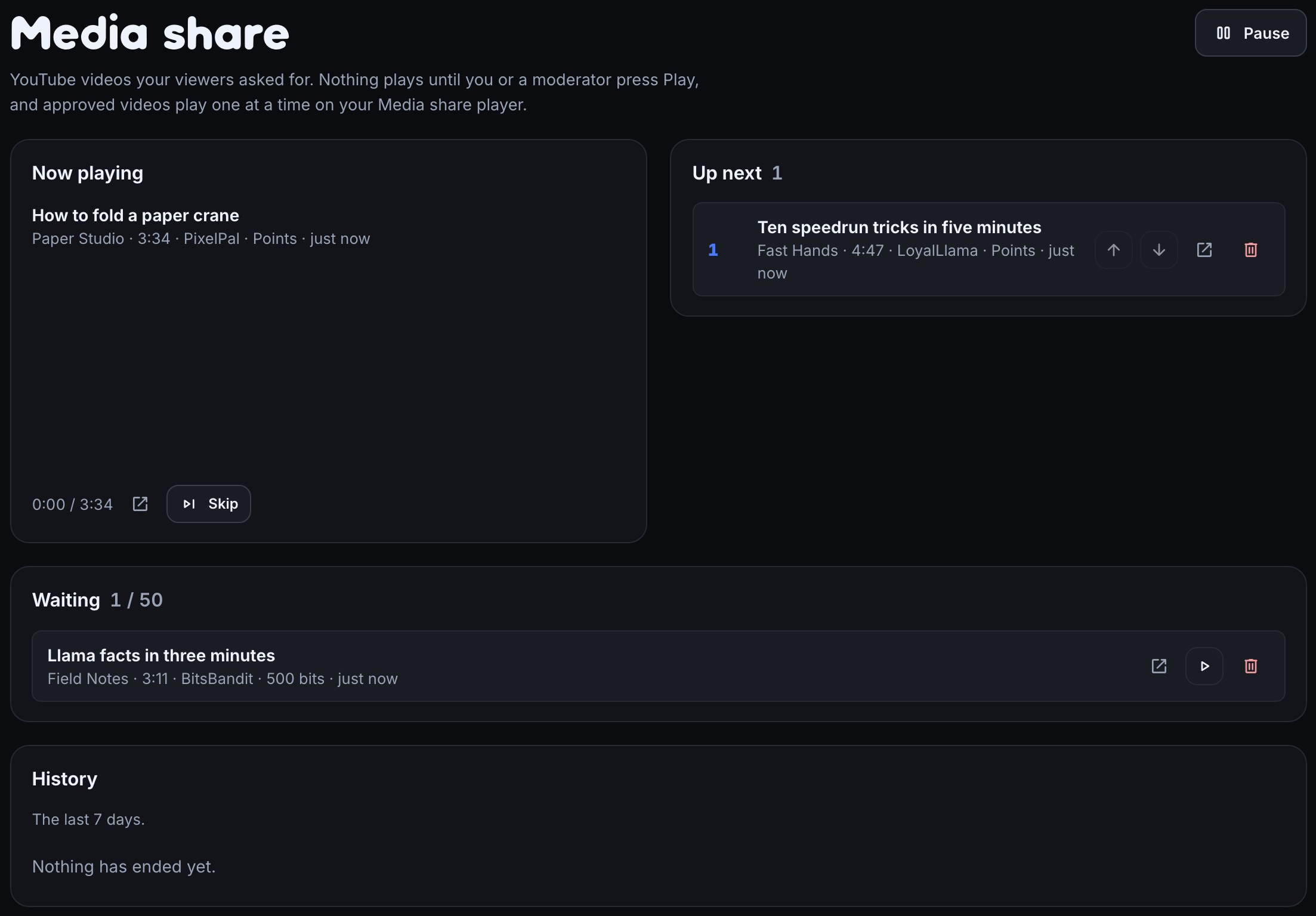
The page refreshes on its own every few seconds. At most 50 requests can wait at once; the 51st is turned down with The request queue is full.
Put the player on your overlay
The Media share pack brings a Media share overlay with one player on it, at the right edge. In the pack's Set it up, press Copy URL and paste it into a Browser source in OBS (Add an overlay to OBS); it shows nothing until a video plays, so it can sit on top of any scene. To put the player on an overlay you already use instead:
- Open Overlays, open the overlay you use in OBS, and choose Add at the top of the left panel.
- Under Media, open Media share player and choose Add. It lands in the middle of the canvas as a dashed card at the player's size. Studio never plays a real video; the card is where it will be.
- Drag it where you want it, and set Player width (480 to 1920 pixels; the height follows at 16:9). Show requester puts Requested by and the viewer's name above the player; Show title puts the video's title below it. Volume sets how loud videos play, from 0 to 100.
- Choose Publish.
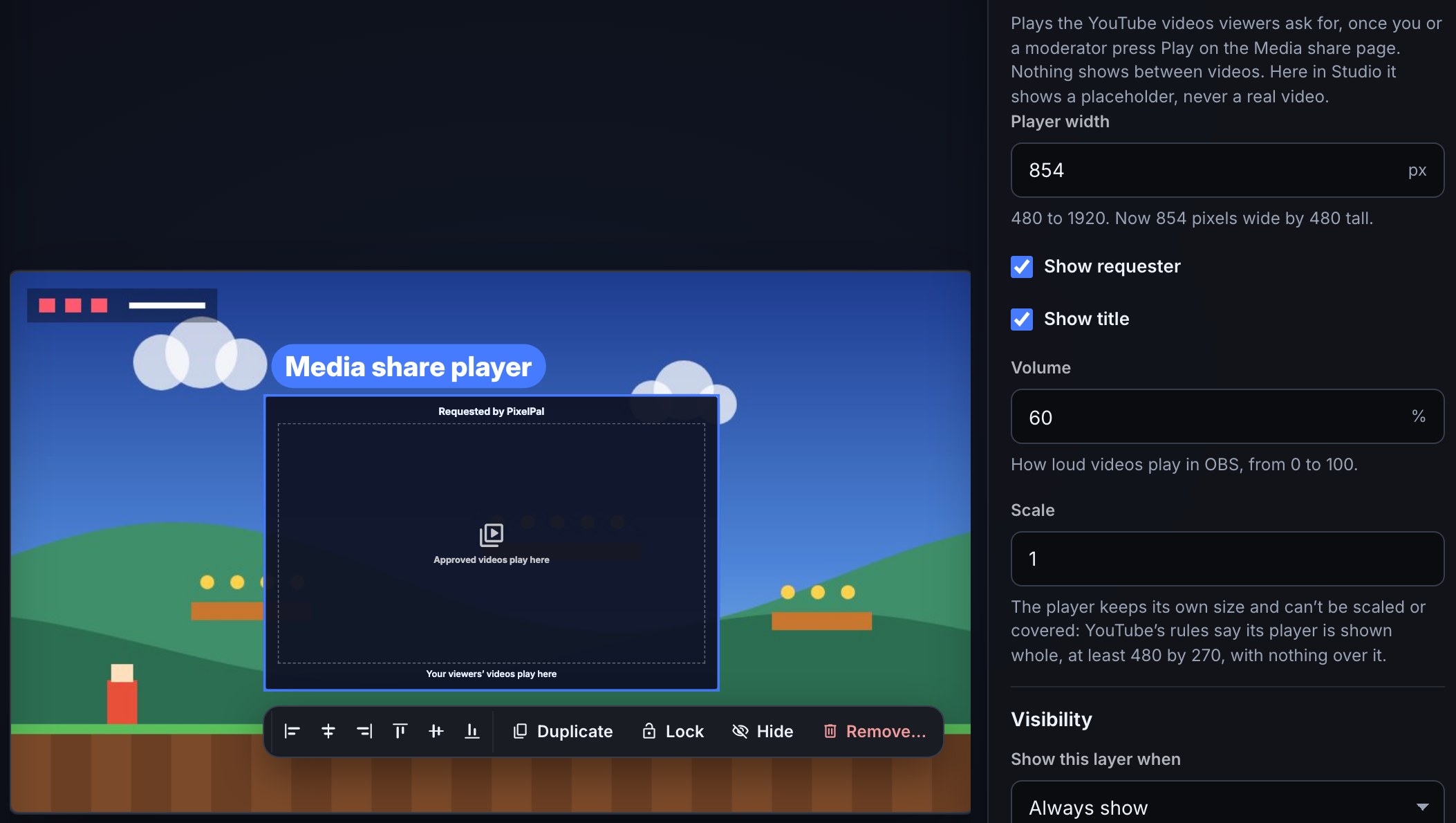
Scale shows 1 and can't be changed, and the layer has no resize or rotate handles: YouTube's rules say its player is shown whole — never scaled, covered, hidden while it plays or smaller than 480 by 270. Keep other layers off it, and leave crop and filters off the Browser Source in OBS. Nothing shows between videos.
Only one Media share player plays at a time, even if several of your overlays have one, so a video never plays twice over itself. The first one open in OBS plays; any other shows Playing in another source. If that one closes, another takes over and starts the current video again from the beginning. Refreshing the source that plays moves on to the next video. Hiding the player on a published overlay, with its eye in Studio or a visibility rule, stops the video; showing it again starts that video from the beginning.
Hear the videos in OBS. The video's sound is part of the overlay's Browser Source. For your viewers to hear it, tick Control audio via OBS in that Browser Source's properties. OBS then mixes the source's sound into your stream and recording. With that ticked, you won't hear the video yourself until OBS monitors it: in OBS, open Advanced Audio Properties from the Audio Mixer's gear or three-dot menu (or from Edit → Advanced Audio Properties), find the overlay's Browser Source, and set its Audio Monitoring to Monitor and Output. With Control audio via OBS off, which is OBS's default, the page's sound goes to your computer's own audio output instead, and your viewers only hear it if OBS also captures your Desktop Audio.
What you're responsible for
Every video that plays is on your stream, so you are responsible for it. Twitch's rules on music and copyright apply to it as they do to anything else you show.
- Music videos are the usual cause of copyright strikes on Twitch. That's why Allow music is off: YouTube's Music category and music.youtube.com links are turned down unless you switch it on.
- Every request waits for you, your editors or a moderator. Open a video with Open on YouTube before you press Play if you aren't sure what it is.
- Viewers can only share videos their owners allow to be played outside YouTube, and never age-restricted videos, livestreams or premieres.
Build your own video request flows
Two steps and one trigger in the node library, under Media share, do everything the pack does:
- Request a video — checks the YouTube video in Link and puts it on your Media share page to wait for approval.
$(input)is what a viewer typed with a reward,$(message)a cheer’s message, and the first YouTube link in it counts. Its rules are Max length (30 to 1800 seconds, 300 to start), Min views (0 to 10,000,000, 1,000 to start), Allow music (off to start) and Blocked words (a comma list matched against the title, whatever its capitals). It leaves by Queued, by Refused with the reason in$(from.<step>.reason)— such as That video is longer than 5 minutes — or by No link when the text has no YouTube link at all. - Skip the video — skips the video playing, and the next approved one plays. It leaves by Skipped, or Nothing playing.
And one trigger:
- Video request ended — runs when a request ends: it played, was skipped or removed, or failed to play. Outcome picks which (Skipped and Removed to start) and Paid with picks channel points, bits or anything else. Its tokens are
$(title),$(requester),$(outcome),$(source)and$(bits). A request paid with channel points carries its redemption, so Fulfil or refund reward after it can give the viewer their points back when Bloopbot made the reward.
Any flow can read media share without a step: $(data.mediashare.current_title) is the video playing, $(data.mediashare.current_requester) who asked for it, and $(data.mediashare.waiting) and $(data.mediashare.approved) how many wait.
The pack also has !skipvideo skips the video: moderators and you type !skipvideo in chat to skip what plays.
Try it without going live
- In the overlay editor, open Simulate and choose Queue a test video. A Creative Commons short film from Test viewer joins Waiting on your Media share page.
- With the overlay open in OBS, press Play on it on the Media share page. It plays in OBS, with its sound.
- Press Skip to end it.
The canvas in Studio shows the placeholder card the whole time; only OBS plays the video.
Troubleshooting
- Chat says Video requests aren't available on this channel yet, and the page says the same. Video requests can't be checked on your channel yet. Nothing you set changes that.
- Chat says Video requests aren't available right now. YouTube didn't answer the check, or the request couldn't be saved. Try again in a few minutes. The request ends as turned down, so a points request is refunded when Bloopbot made the reward.
- A request is turned down. Chat says why: too long for your Max length, too few views for your Min views, a music video while Allow music is off, a blocked word in its title, not allowed outside YouTube, age-restricted, a livestream or premiere, already waiting, or 50 requests already waiting.
- The page says No Media share player is open. Approved videos wait until an overlay with a Media share player is open in OBS; then the next one starts there.
- An overlay shows Playing in another source. Another Browser Source with a Media share player is playing. Remove the player from the overlays you don't want to play, or close them in OBS.
- A video is marked Failed to play in History. Its owner doesn't allow it to be played outside YouTube, or YouTube stopped it. With points, the viewer gets their points back when Bloopbot made the reward.
- Points don't come back. Twitch only lets Bloopbot refund a reward Bloopbot created: choose Make it for me when you add the pack, or create the reward again that way.
- You hear the video but viewers don't, or the other way round. See Hear the videos in OBS: Control audio via OBS and Monitor and Output decide who hears what.
- Nothing happens when a viewer types !skipvideo. Only moderators and you can use it.
Was this guide helpful?
Thanks. Your answer helps us decide which guides to improve.