
What the Marketplace is
The Marketplace is one place to browse everything you can bring into your channel: packs of flows, single flows, themes, overlays and alert designs, from Bloopbot and from other streamers. Every item has one card and one review, so you always see what an item brings before anything changes. Flows arrive paused: nothing runs until you switch it on.
Everything in it also has a public page anyone can read without signing in (Add from a public page).
Marketplace sits in the sidebar below the Build, Run and Manage pages, under its own divider, and has its own Market button on the strip. When something in your channel has a newer version, a number beside Marketplace says how many.
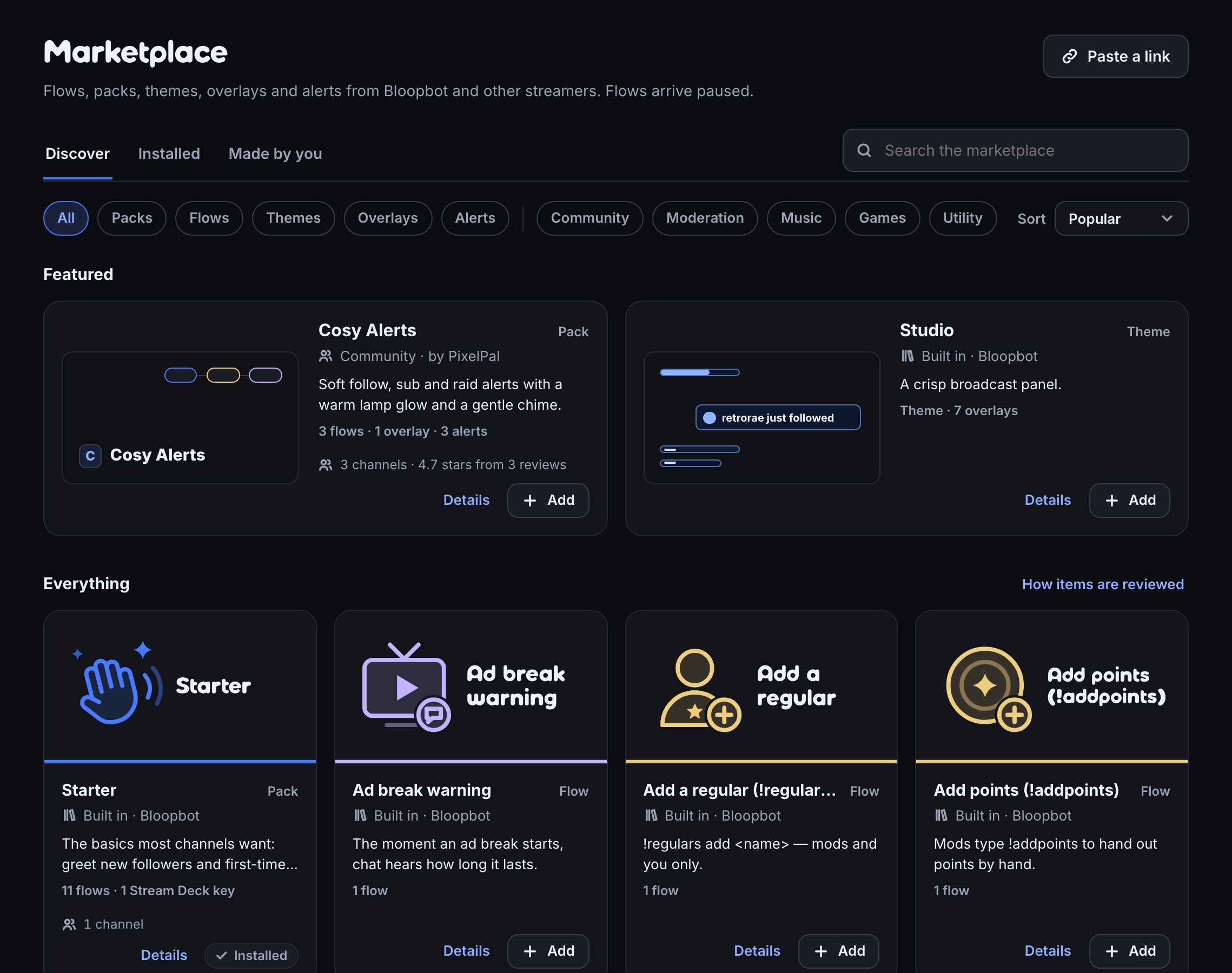
Find something
- Open Marketplace in the sidebar. It opens on Discover.
- Type in Search the marketplace to look through titles, summaries, creators and what each item holds. Type Bloopbot to find Bloopbot’s own items, or overlays to find what brings overlays.
- Pick a kind to narrow the list: Packs, Flows, Themes, Overlays or Alerts. All shows every kind again.
- Pick a category, such as Community, Moderation or Music. Pick it again to clear it.
- Choose an order under Sort: Popular, Newest or Name.
Popular, the default, puts the items the most channels added first, then the best rated, then goes by name. Newest puts the most recently updated items first, and Name runs A to Z. Bloopbot’s own packs are sorted and searched like everything else, so a community item that more channels added comes before them under Popular. With no search or filter, Featured shows the most-added pack and theme above Everything; Sort orders the list below it. The page’s address keeps your kind, category and sort, so the back button and a bookmark both return to the same list.
Read a card
Every card reads the same way, top to bottom:
- The cover: the creator’s own picture, or a preview. Bloopbot’s built-in packs and flows each have their own cover in the pack’s colour: a built-in flow’s picture shows what it does, such as a heart with a bell for Follow alert. Bloopbot’s ready-made overlays show the overlay itself, drawn in the Studio theme. A theme’s preview shows its colours, corners and font.
- The title and its kind: Pack, Flow, Theme, Overlay or Alert design.
- Where it comes from: Built in · Bloopbot, Community · by its creator, From a link, or Made by you.
- One line about it, then what it holds, for example 11 flows or Theme · 3 overlays.
- How many channels added it, and its star rating once 3 streamers have reviewed it.
- Where you stand: Add, Installed, Update ready, or Active for the theme your overlays use now.
A theme card can also carry a chip such as Free holds 1 theme: how many themes your plan keeps. What your plan includes lists the rest.
Look an item over
Add and Details both open the item’s page. On the left are its cover and pictures (screenshots of it running on a sample stream, and pictures its creator added, never the flows themselves), a longer description, What’s inside (grouped as Look, Flows, Stream Deck, Variables and Files), and what other streamers wrote about it. On the right is the review: one sentence about what happens, the button that adds it, a line on what stays off, and What you get. Open What’s inside, Needs, Plan room or Files and licence at the bottom of the review for the details.
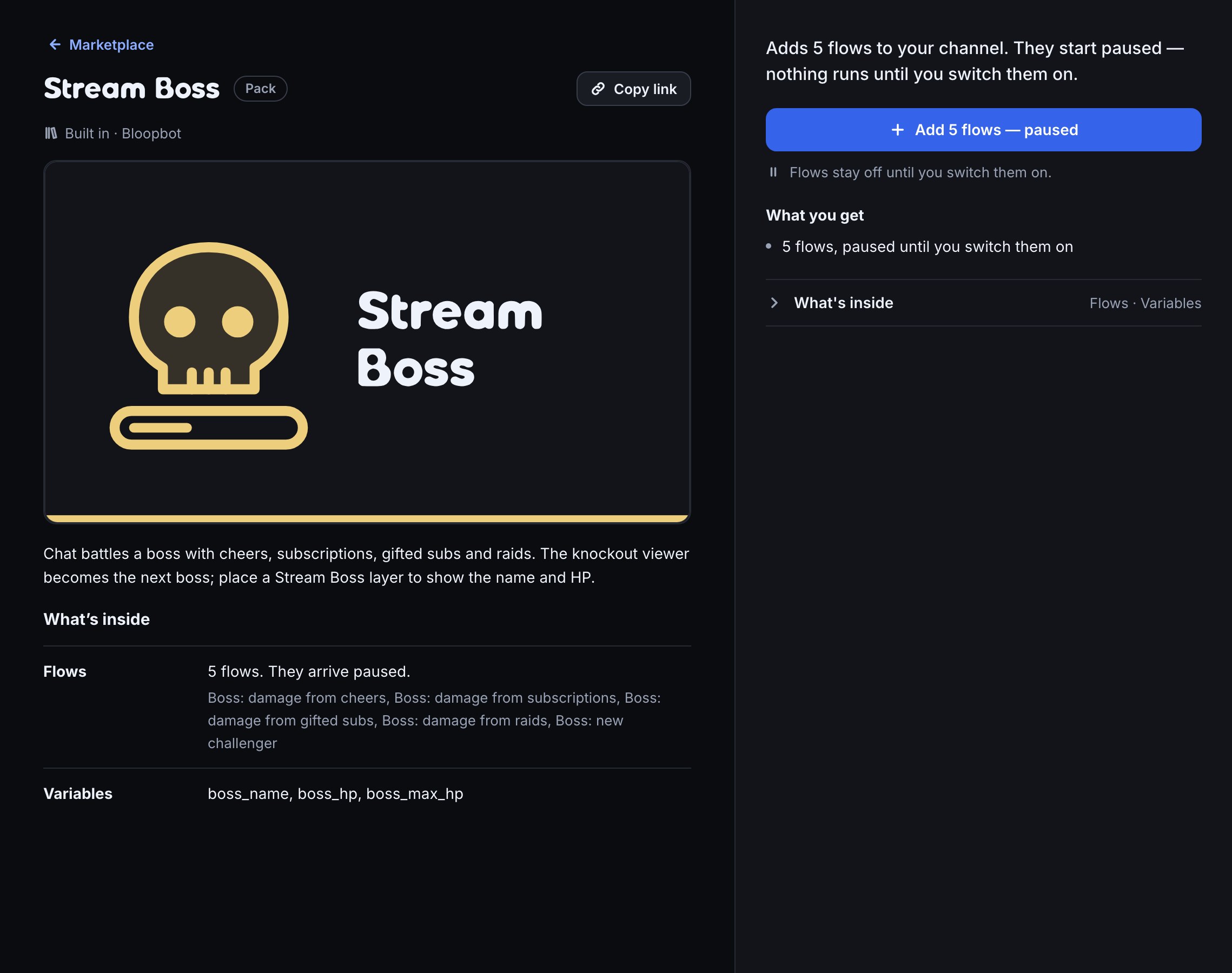
Copy link copies the item page’s address. Paste it under Paste a link on any channel to open the same item.
Add an item
- Open the item and read the review’s sentence.
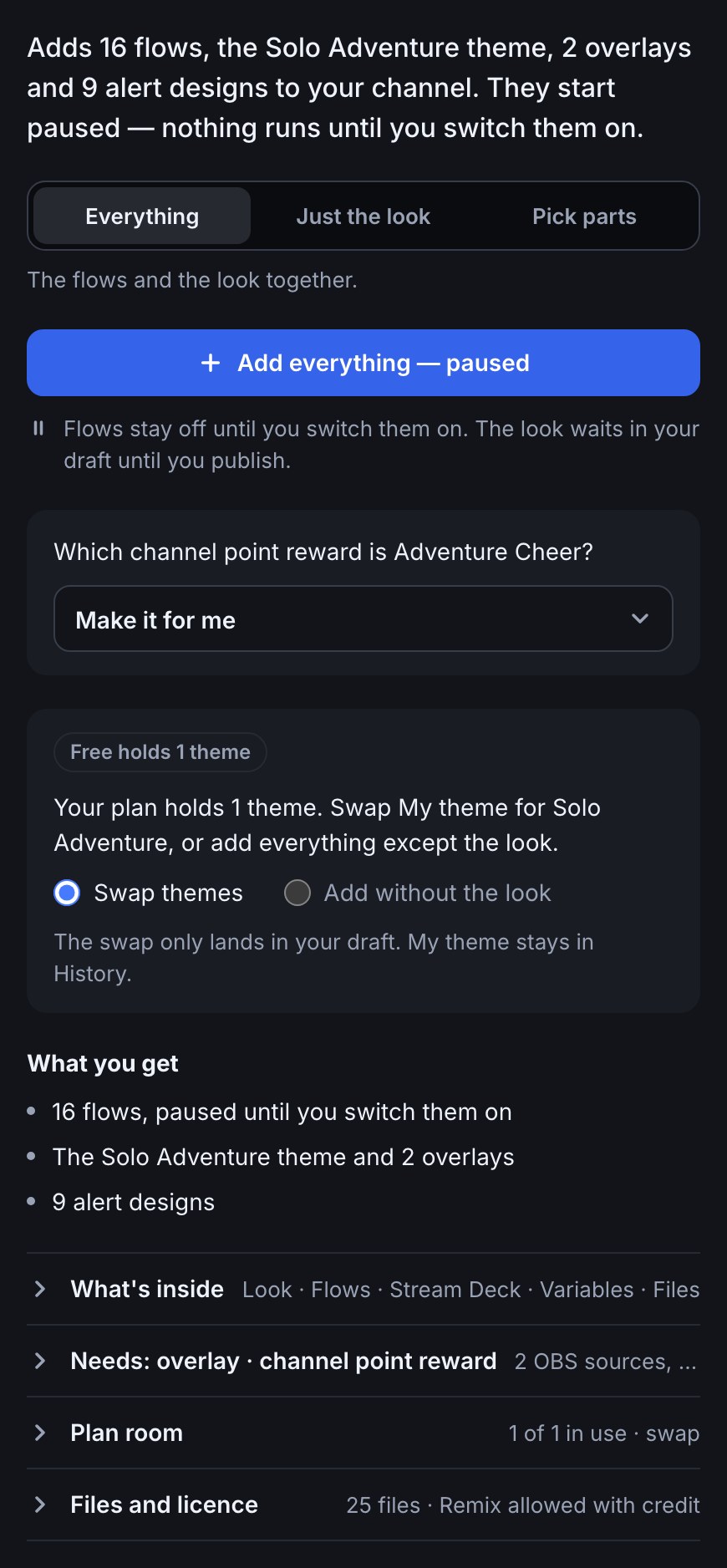
- If the item carries a look and flows together, choose Everything, Just the look or Pick parts. Full packs says what each adds.
- If the review asks a question, answer it. For a channel point reward, Make it for me is the default, or the reward of the same name if you already have one.
- Press the button. It says what arrives: Add 5 flows — paused, Add everything — paused, or Add.
- The review turns into Added — paused and a short Set it up checklist. Only the steps that apply appear: switch on the flows you want, add each overlay to OBS with Copy URL, match a reward, and set up Stream Deck keys.
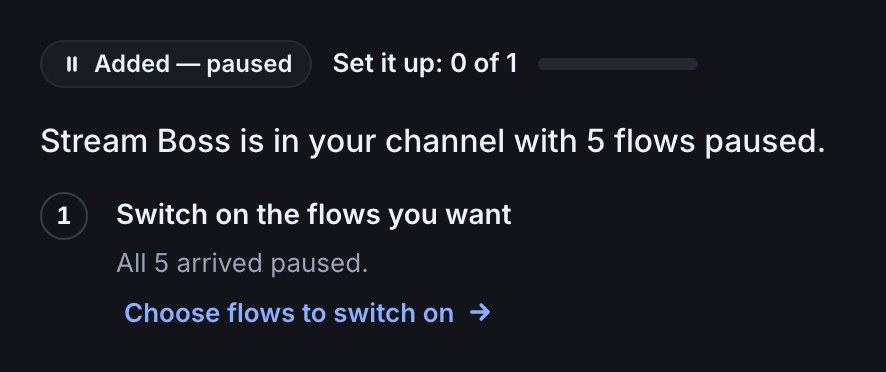
Adding changes nothing on stream or in chat. Flows arrive paused, and a new theme does not change what OBS shows until you make it Active and publish. If your plan already holds as many themes as it allows, the review offers Swap themes: the new theme takes your Active theme’s place in your draft only, and the old one stays in History. When flows come with the theme, Add without the look adds everything else and leaves your themes alone.
Full packs
A full pack is a whole stream setup in one item: flows, a theme, overlays, alert designs and Stream Deck keys, with the files, variables and channel point rewards they use. Its card says what it holds, for example 16 flows · theme · 2 overlays · 9 alerts · 8 Stream Deck keys.
- Open the pack and choose Everything, Just the look or Pick parts. Each is described below the steps.
- Answer the review's questions. For each channel point reward the pack needs, it asks, for example, “Which channel point reward is Adventure Cheer?”. Make it for me is the default: Bloopbot makes the reward on your channel, switched off. If you already have a reward of the same name, it is picked for you. You can also pick any of your own rewards.
- If your plan already holds as many themes as it allows, the review says, for example, “Your plan holds 1 theme. Swap Capsule for Solo Adventure, or add everything except the look.” Choose Swap themes or Add without the look, both described below.
- Press the button. With Everything it reads Add everything — paused; with fewer parts it says how many flows arrive.
The three choices:
- Everything adds all of it. The flows start paused.
- Just the look adds the theme, the overlays and the alert designs they show, and no flows.
- Pick parts lists the pack's parts under Look and Flows. Tick what you want. Alert designs, files, variables and rewards come with the parts that use them. Overlays come with the theme or a flow, so one of those always stays ticked.
At your plan's theme limit:
- Swap themes, the default, puts the new theme in your draft only, and Capsule stays in History.
- Add without the look adds the flows and leaves your themes and overlays as they are.
After adding, the review turns into Added — paused and a Set it up checklist with only the steps that apply:
- Add the OBS sources: press Copy URL beside each overlay and paste it into a Browser source in OBS.
- Switch on the flows you want: Choose flows to switch on opens Flows at this pack.
- Match the Adventure Cheer reward: already done when you picked a reward, or when Bloopbot made one during review.
- Set up the Stream Deck keys: each key, and the chat command it shares.
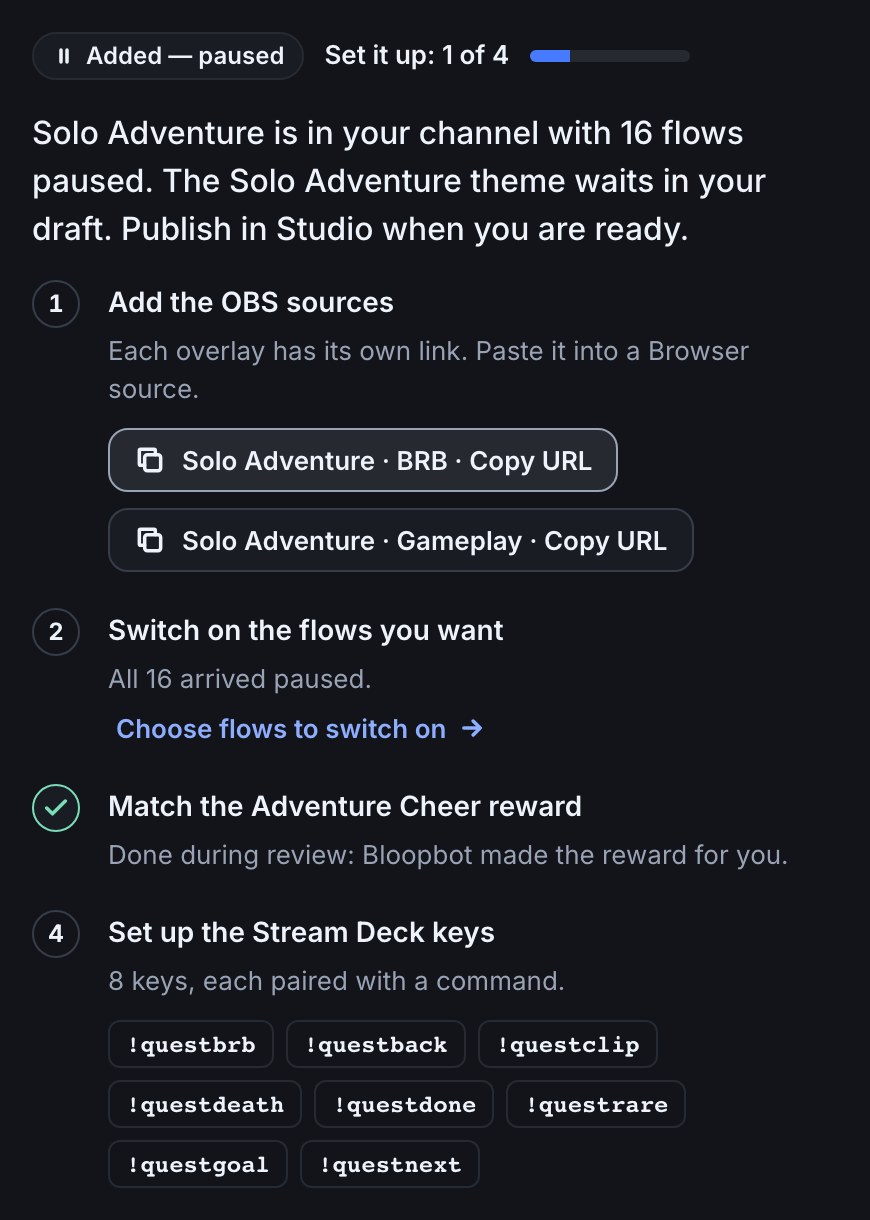
The same steps stay on the pack's Installed row, for example Set it up: 1 of 4, until each is done. When the pack's creator publishes a new version, its flows, overlays, alert designs and theme update by the same rules as everything else: see Update what you added.
Paste a link or drop a file
Someone shared a pack with you, or sent you a .bloop.zip:
- On the Marketplace, press Paste a link at the top.
- Paste a Bloopbot link, such as a shared pack link, a marketplace listing page or a Marketplace item link, and press Continue. The item’s page opens with its review.
- Or drop a
.bloop.zipor.jsonexport onto the box, or press Choose a file. Its review opens right there.
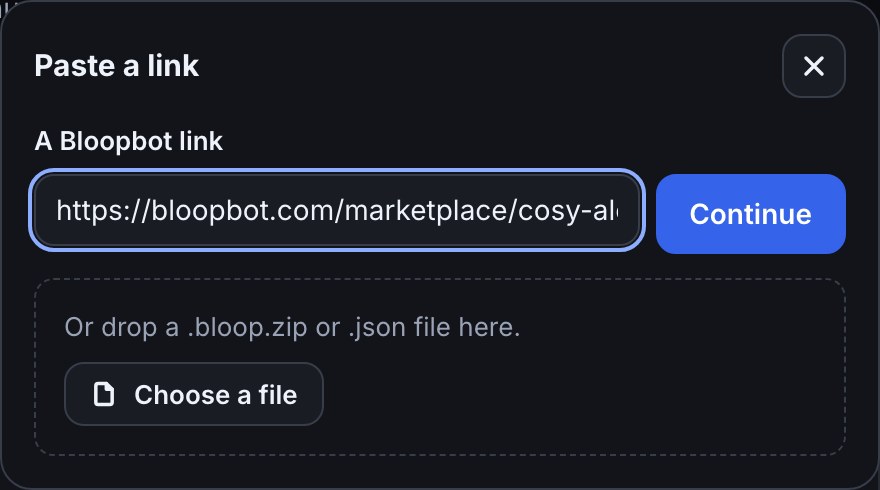
A dropped file is not kept. If you leave before adding it, drop it again. A link from another site is refused with “That link is not a Bloopbot link.”, and a Bloopbot page that is not an item with “That link does not point at something to add.”
Add from a public page
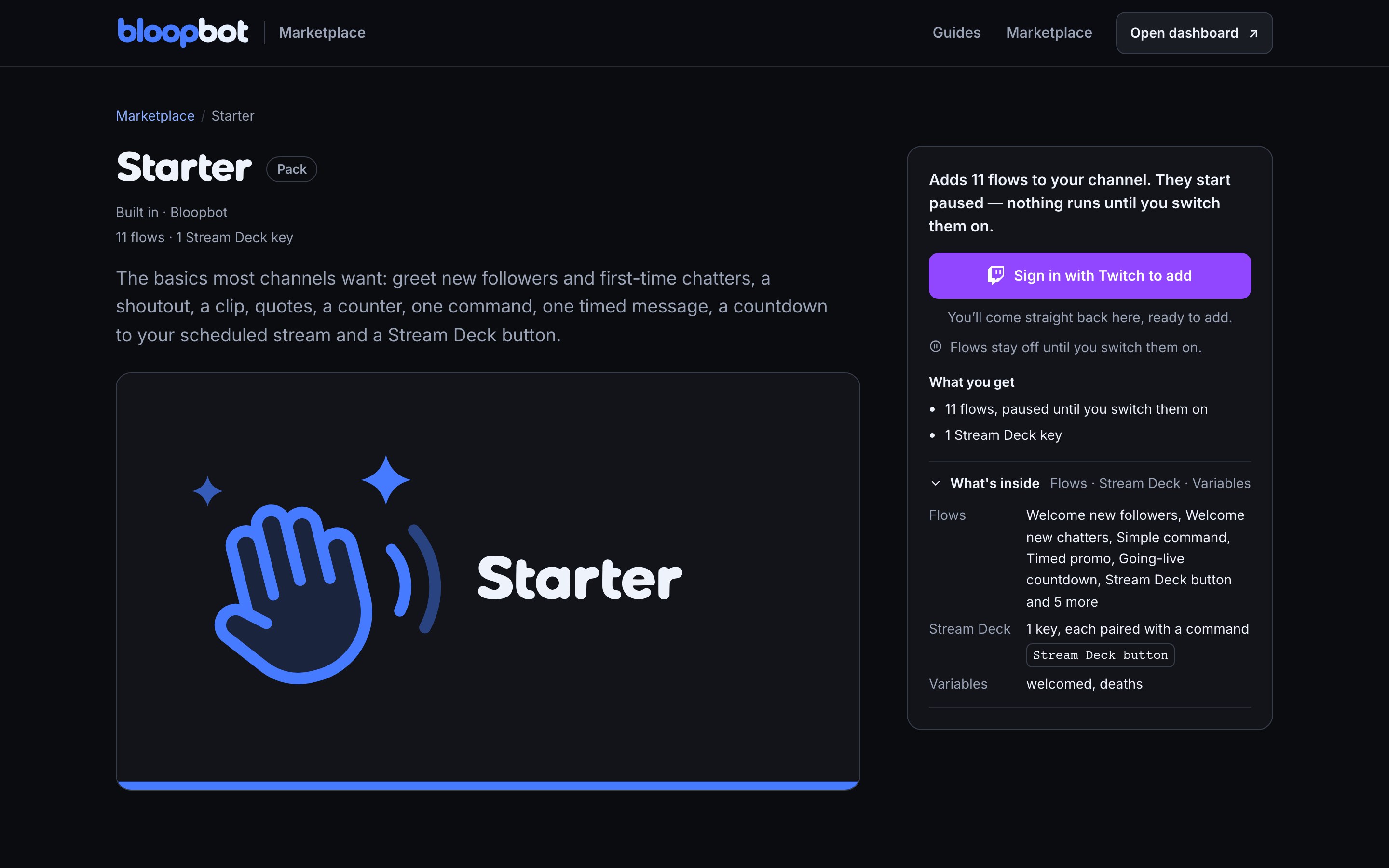
Everything in the Marketplace also has a public page, so you can read about it, or send it to a friend, without signing in. Bloopbot’s own packs are there too.
- Open the Marketplace from the site’s header, or a link someone sent you. Search, or pick Packs, Themes or another chip, just as in your dashboard.
- Open an item. Its page shows the same cover, the same facts and the same review as your dashboard: what adding it does, What you get, and What’s inside folded underneath.
- Press Sign in with Twitch to add. Sign in, and you come straight back to the same item in your dashboard, with its review open.
- Press Add there. Nothing is added until you do.
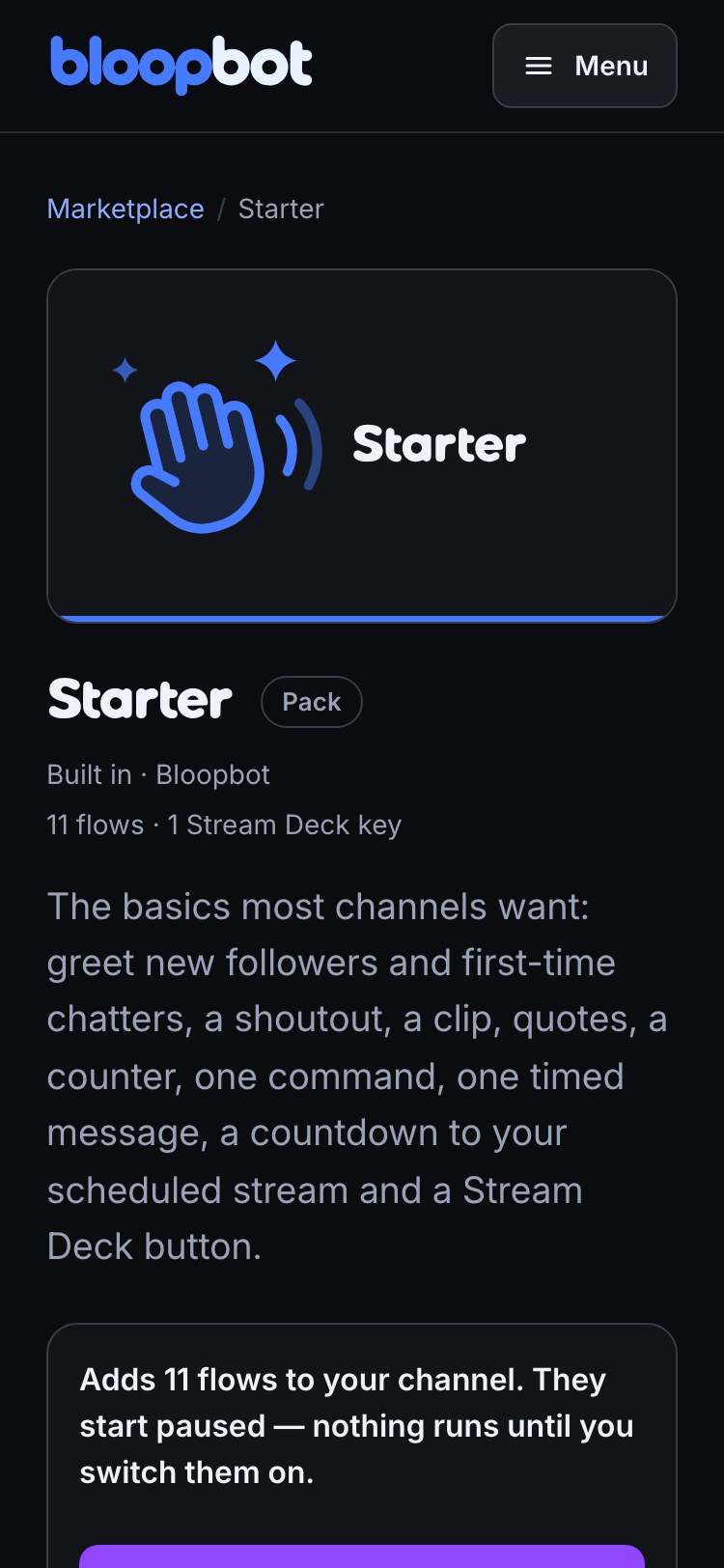
On a phone, the review sits under the picture, and Sign in with Twitch to add stays in reach while you read it.
A Marketplace item link someone copied from their dashboard works the same way: sign in, and it opens that item in yours.
Installed and Made by you
Installed lists what is in your channel, with anything marked Update ready first, then your packs, flows, themes, overlays and alerts. The number beside the tab, and beside Marketplace in the sidebar, is how many have an update. Pick a kind or search to narrow the list. Each row says how its flows stand, for example 11 flows, all on, and a row with setup left says Set it up: 1 of 4: press Continue setup to see the steps that are left.
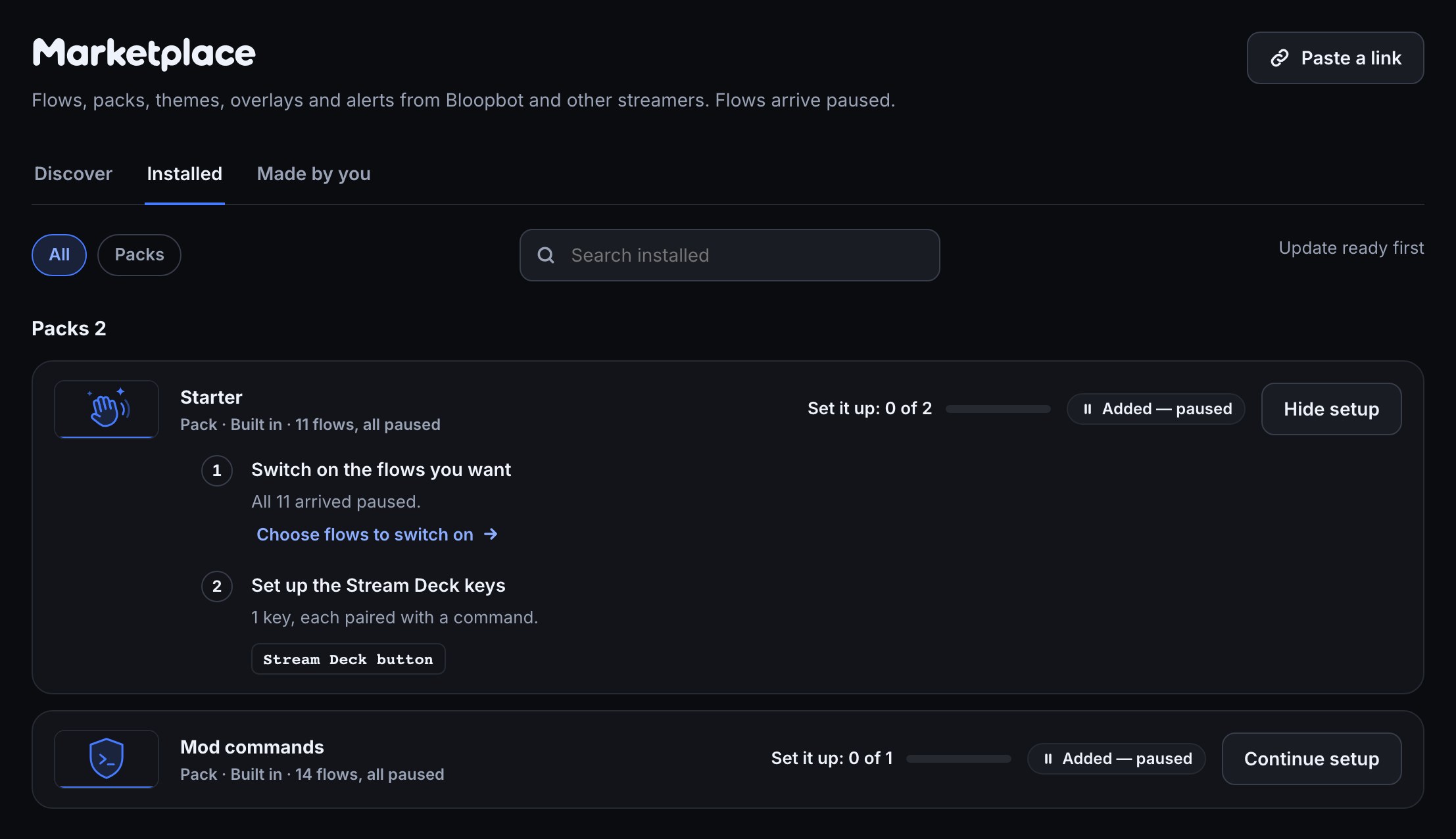
Made by you lists everything you listed in the marketplace, whatever its status — Draft, In review with its place in the queue, Changes requested, Listed, Unlisted or Taken down — and the packs and flows you share by link. Share… at the top lists something new, shares flows by a link, or exports them as a file; Share… on a row submits a new version. See List your flows and themes in the marketplace.
Update what you added
When Bloopbot or a creator publishes a newer version of something you added, its row moves to Update ready. Updating never surprises you:
- Flows you haven't changed update in place and stay on or off as they were. New flows in the new version arrive paused.
- Themes, overlays and alert designs update into your draft. Nothing on stream changes until you publish in Studio, and your published version stays in History.
- Something you changed is never overwritten without asking. The row asks “You changed Welcome. Keep your version?” with Keep mine chosen.
- Open Marketplace, then Installed.
- On a row with nothing to ask, press Update. It is done at once, and the row says what changed.
- On a row that asks, choose Keep mine to keep what you made, or Use the new one to take the new version. Use Now and the new version’s number beside it to compare the two.
- Press Update. Not now folds the question away until you are ready. What’s new opens the item’s page.
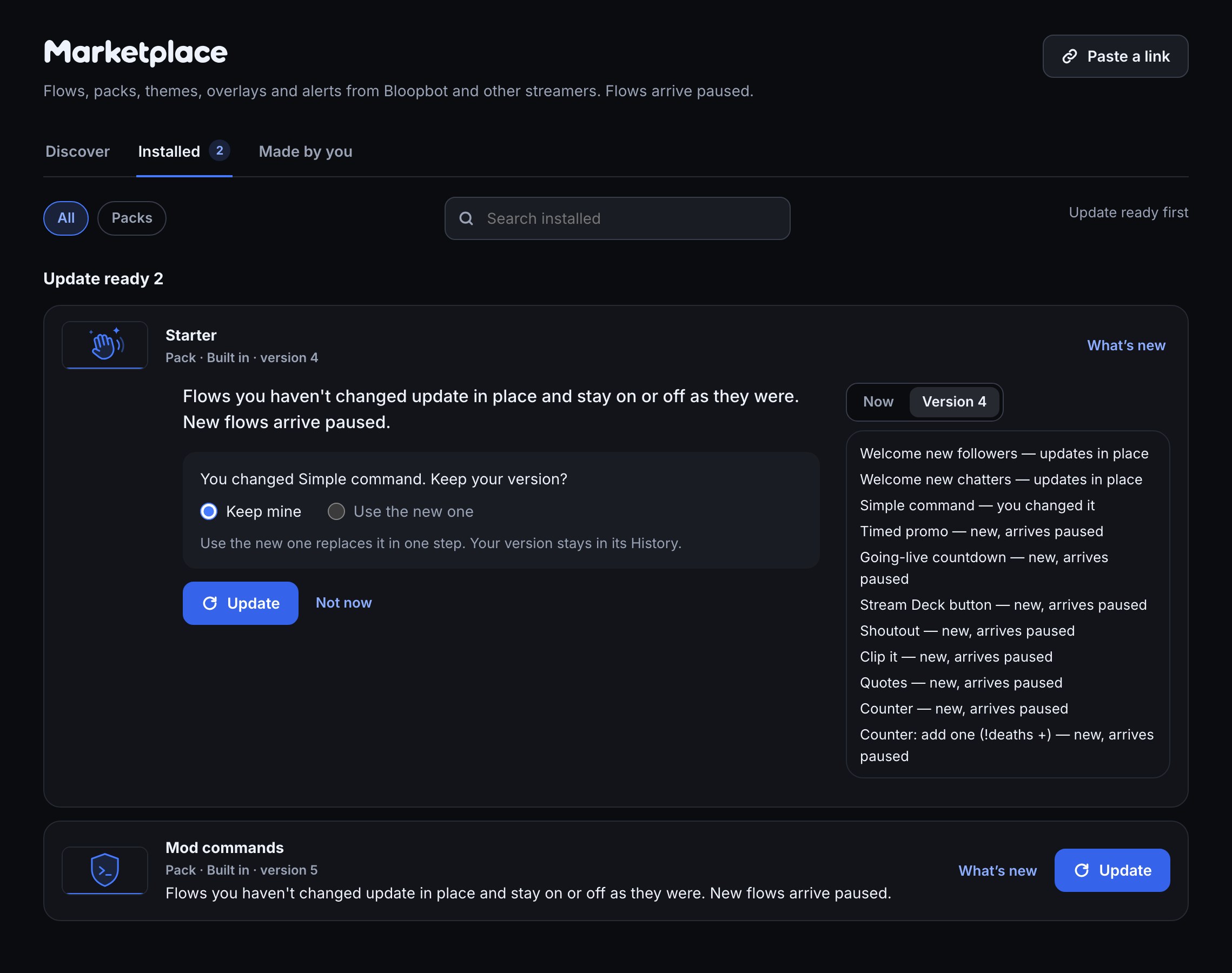
Use the new one replaces a changed flow in one step. Your version is kept in that flow’s History, so you can put it back from the flow editor. For a theme or overlay, the new version goes into your draft, and History in Studio keeps what was live.

Keep mine leaves your copy exactly as it is and stops the offer until the next version.
You can also update an item from its own page: open it, and its review offers Update. If you removed some flows from a pack, its page offers Add the 3 missing flows — paused (or however many are missing).
How items are reviewed
- Built in · Bloopbot items are made and kept up to date by Bloopbot.
- Community items are checked before they are listed, and each new version is checked again before it replaces the old one. Their page says Reviewed by Bloopbot.
- An item From a link or from a file comes straight from another channel and is not reviewed. Read its review before you add it.
If something looks wrong
- The number beside Marketplace looks out of date. It refreshes when you open a page, at most once a minute. Installed always shows the current list.
- An item page has no Add button. Everything in it is already in your channel, or you made it. The page says where it lives and links there.
- Update ready does not go away after Update. A theme or overlay update waits in your draft: publish in Studio to make it live. Until then the row says the new version waits in your draft.
- An item says it is no longer in the marketplace. Its creator unlisted it, or it was taken down. What you added keeps working, and it has no updates.
- Set it up stays on Add the OBS sources. The step ticks itself once OBS opens each overlay's link. Another streaming app does not tick it: you can ignore the step once your overlays show.
- “This changed since you opened it.” The item changed while you were reading. The review reloads; read it again and press the button again.
- Just the look and Pick parts are not offered. Only an item that carries a theme and flows together offers them. A pack of flows with overlays and no theme is added whole.
- A dropped file shows nothing. Only a
.bloop.zipor a.jsonexport from Bloopbot can be read. Ask for the file again, or for a link instead. - I signed in from a public page and landed on my dashboard’s home instead. The link waits 15 minutes for you to sign in. Open the item’s page again and press Sign in with Twitch to add.
Was this guide helpful?
Thanks. Your answer helps us decide which guides to improve.