
What you can do
Your public page normally lives at bloopbot.com/c/<your channel>. With a custom domain, the same page opens at an address you own, like live.yoursite.com or yoursite.com: your bio, live status, links, giveaways, store and prize claims.
Once your domain is live, your bloopbot.com/c/<your channel> address forwards to it, so links and QR codes you already shared keep working. Viewers sign in with Twitch on your domain, and the claim links in your giveaway messages use it too.
Before you start
- Custom domains come with the Pro plan. On other plans the Custom domain card shows Available on Pro. What your plan includes shows what your channel has.
- You need a domain you own, and access to its DNS settings wherever the domain is managed, such as Cloudflare, Namecheap or GoDaddy. The DNS record you add there is a real change to your domain.
- Each channel can use one domain. A subdomain like
live.yoursite.comworks with any DNS provider. A bare domain likeyoursite.comneeds a provider that offers CNAME flattening or an ALIAS record, so a subdomain is the easier choice.
Add your domain
- Open Public page in the sidebar, under Content.
- Scroll down to Custom domain.
- Type your domain in Your domain, for example
live.yoursite.com. Leave offhttps://and anything after the domain. - Click Add.
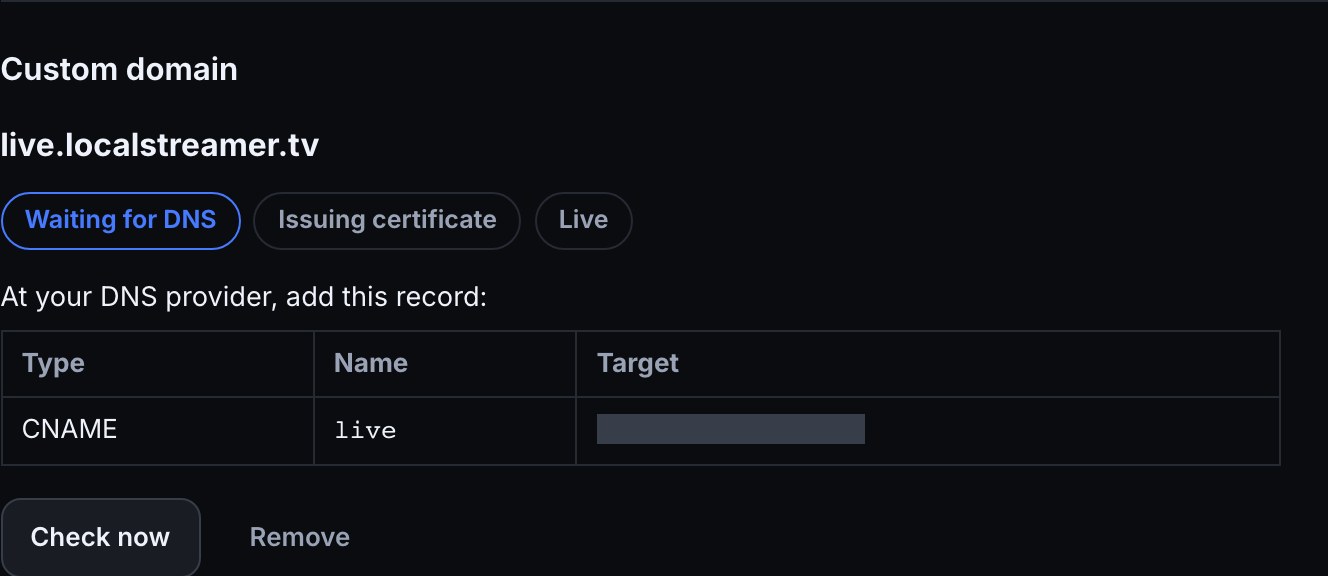
- The card shows the DNS record to add, and its progress at Waiting for DNS.
Add the DNS record
At your DNS provider, add the record the card shows. For live.yoursite.com it is a CNAME record named live that points to domains.bloopbot.com.
Menu names change from time to time. If yours look different, look for your domain’s DNS records settings.
| Provider | Where to add it |
|---|---|
| Cloudflare | DNS, then Records, then Add record. Type CNAME, Name live, Target domains.bloopbot.com, and set the proxy status to DNS only. |
| Namecheap | Domain List, then Manage, then Advanced DNS, then Add New Record. Type CNAME Record, Host live, Value domains.bloopbot.com. |
| GoDaddy | My Products, then DNS next to your domain, then Add New Record. Type CNAME, Name live, Value domains.bloopbot.com. |
For a bare domain like yoursite.com, the card asks for a CNAME, ALIAS or flattened record named @. Cloudflare flattens a CNAME there for you. On Namecheap, choose an ALIAS Record instead of a CNAME. GoDaddy can't point a bare domain at another name, so use a subdomain like live.yoursite.com there.
Leave the record in place for as long as you use the domain.
Wait for it to go live
While it waits, Bloopbot keeps checking your domain and the card updates itself. The progress moves from Waiting for DNS to Issuing certificate, while Bloopbot gets the security certificate that lets your domain open over https://, and then to Live. Many domains are live a few minutes after the DNS change; with some DNS providers it takes a few hours.
Click Check now to check straight away. It checks at most once every 10 seconds, so clicking again sooner shows the same answer.
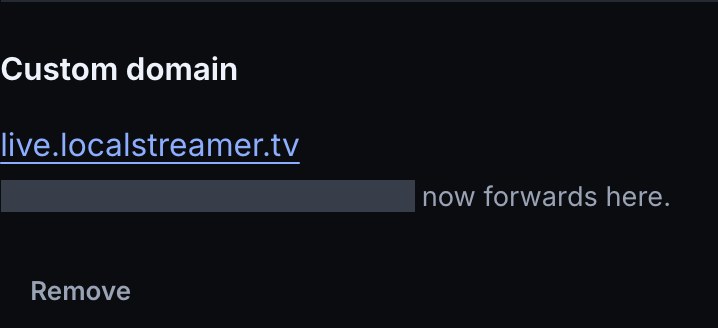
When your domain is live, the card shows it as a link and says your Bloopbot address now forwards there.
What viewers see
- Your home is at your domain's root, like
live.yoursite.com. Giveaways, Store and Your prizes are at/giveaways,/storeand/claim. - Links to
bloopbot.com/c/<your channel>open your domain instead, with the rest of the address kept, so old links and QR codes still work. - Sign in with Twitch takes a viewer to Twitch and straight back to the page they were on, signed in on your domain.
- Being signed in on bloopbot.com doesn't sign a viewer in on your domain; they sign in once there. Signing out on either one signs them out of both.
- The claim links your giveaway messages post,
$(claimurl), use your domain, and so do the links to your page on your dashboard. - Anything that isn't your page, like these guides or your dashboard, opens on bloopbot.com.
If your plan changes
If your plan stops including custom domains while your domain is live, it keeps working for 7 more days. The card shows the date it switches off. After that, visitors to your domain are sent to your bloopbot.com/c/<your channel> page, and the card says the domain is switched off.
A domain that wasn't live yet, or had stopped pointing at Bloopbot, switches off straight away.
Move back to Pro and your domain comes back on its own, usually within a minute or two, as long as you haven’t changed its DNS record. If it has been switched off for more than 30 days, it goes through Waiting for DNS and Issuing certificate again before it is live.
Remove your domain
Click Remove on the card and confirm. Your page goes back to bloopbot.com/c/<your channel> straight away, and links to it no longer forward. You can then delete the DNS record at your provider, and add a different domain if you like.
Troubleshooting
- "Bloopbot is still waiting for your DNS change": the record hasn't been seen yet. DNS changes can take up to a few hours to show up; the card keeps checking on its own.
- "Your DNS record doesn’t point at Bloopbot yet": check that the record's type, name and target match the card exactly. If your domain sits behind Cloudflare's proxy or another CDN, set the record to DNS only so it points straight at
domains.bloopbot.com. - "A CAA record on your domain is blocking the security certificate": your domain limits which companies may issue its certificates. Add CAA records that allow
letsencrypt.organdpki.goog, or remove the CAA records. - "Bloopbot couldn’t reach your domain to check it": the check timed out. There’s nothing to do; the card keeps trying on its own and updates when it gets an answer.
- "This domain can’t be used right now": the domain was refused for your channel. Remove it and add it again. If the message comes back, contact support.
- "That domain is already connected to another channel": a domain can serve one channel. Use a different subdomain, or remove it from the other channel first.
- "Remove your current domain before adding a different one": each channel has one domain. Click Remove, then add the new one.
- "That domain belongs to Bloopbot": enter a domain you own, not a bloopbot.com address.
- "Bloopbot couldn’t set up your domain just now": nothing was added. Wait a minute and click Add again.
- "Custom domains aren’t available yet": custom domains may not be available on your channel yet. Check back soon.
- "Your domain stopped pointing at Bloopbot": the DNS record was changed or deleted, so your page is back on its Bloopbot address for now. Put the record back as the card shows, and the domain goes live again on its own.
- My domain shows "Unknown host": the domain isn't live yet, or it was removed. Open Public page and check the card.
Was this guide helpful?
Thanks. Your answer helps us decide which guides to improve.