
What a prize pool is
A prize pool is a stock of prizes your mods hand out one at a time, whenever they like. Nobody enters and nothing is drawn: a mod types !keydrop @sam, Sam gets a random prize from the pool, the giveaway panel spins a wheel of the prizes on stream, and chat tells Sam where to claim it.
It suits a stream that gives things away as it goes — a key for the best clip of the night, a link for whoever guessed the boss, a thank-you for a raid — rather than one draw at the end.
- A prize pool stocks prizes in the prize vault, which needs a plan that includes it: your plan shows whether your channel holds it, under Prize vault.
- Every award is claimed on your channel's claim page, the same one a claim-page giveaway uses. Winners sign in with Twitch there; nothing secret is ever said in chat.
- Bloopbot connected to your channel, with the bot account as a moderator, so it can read the command and answer in chat — Get started with Bloopbot walks through it.
Set one up
Open Giveaways and press New giveaway. Two choices appear under it.
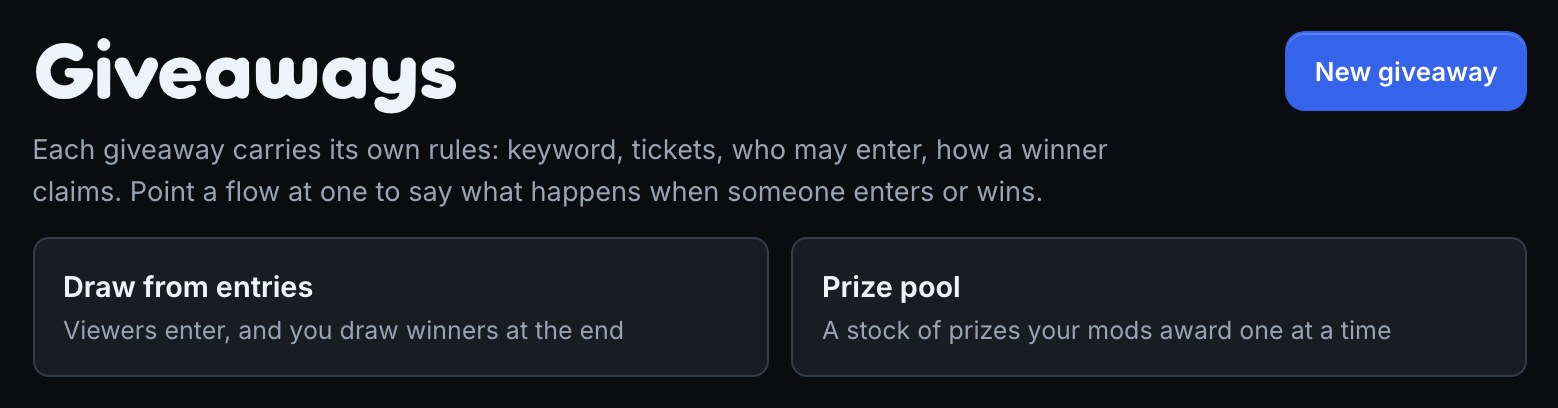
- Choose Prize pool. A new pool opens as a draft called Prize pool, on its Prize step.
- On Prize, under What are you giving away?, give it a name viewers will recognise, such as
Indie key drop. Cover art for the giveaway panel is optional. - Stock it in the Prizes section on the same step: pick a Kind, usually Key (a code) or Link (a gift URL), give the prize a Label (what chat and the wheel show, such as
Bloop Raiders), paste the keys or links one per line, and press Stock prizes. Each line is one prize. Stocking works the same way as for a claim-page giveaway, and you can keep adding prizes while the pool is open. - Press Next. On Claim, under Unclaimed prizes, choose Keep until claimed, or Return to the pool after a number of days. Set Days to claim between 1 and 90; the time starts when the prize is awarded.
- Press Next. On Donations, tick Accept donations if viewers may add their own keys (see Let viewers donate keys); leave it clear otherwise.
- Press Next. Review reads the pool back in one sentence per step, each with Edit. Press Save.
- Add the award command (next section), then press Open on the Run panel.
A pool opens even with nothing in it, and its settings stay editable while it is open: rename it, change how long prizes wait, or switch donations on halfway through a stream.
Add the award command
Mods award prizes with a chat command, and every line chat hears comes from that command's flow — so the wording is yours to change.
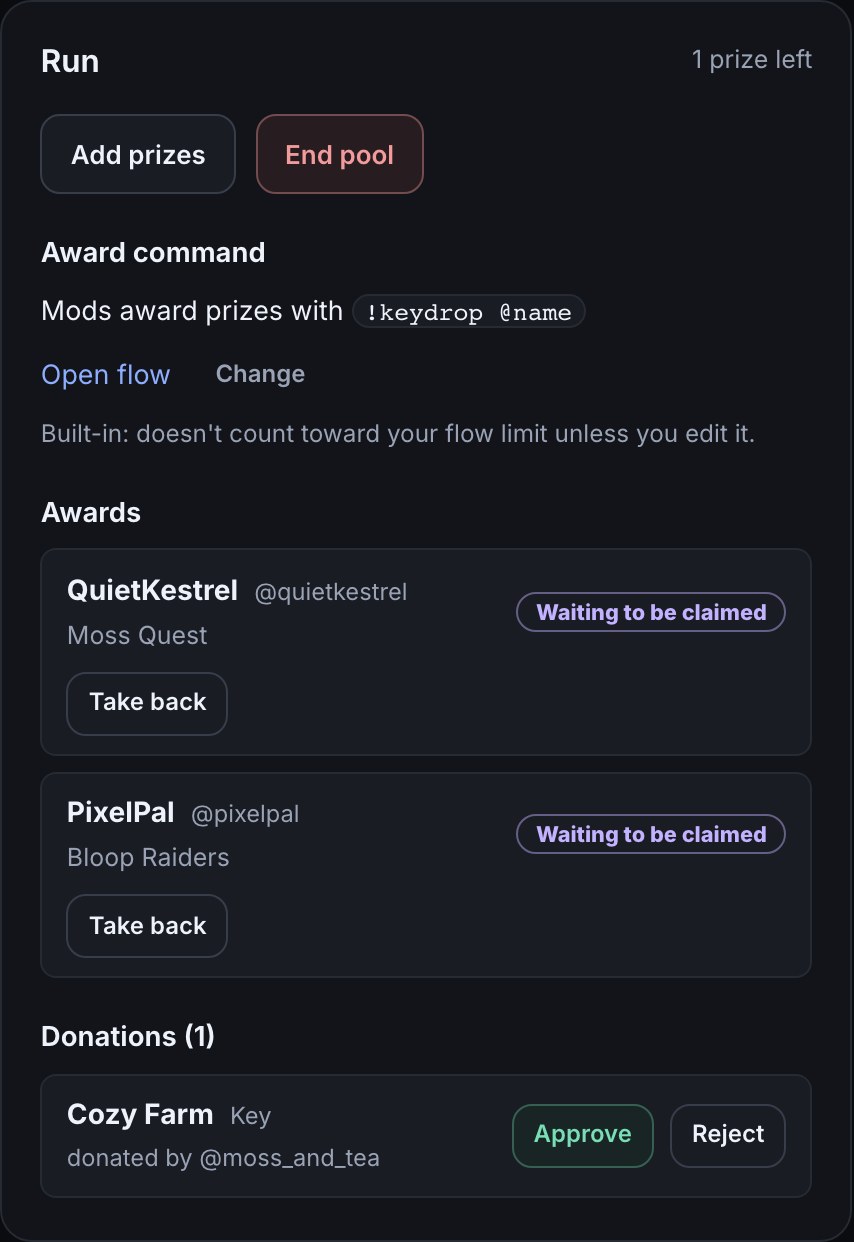
- Open the pool. On the Run panel, under Award command, the Command box starts at
keydrop. Change the word if you like. - Press Add award command. The line changes to Mods award prizes with
!keydrop @name, with Open flow and Change beside it.
The award command is built in: it doesn't count toward your flow limit unless you edit it. Open flow shows what it does — a chat command, a check that the person typing it is a moderator, the Award from a prize pool action pointed at this pool, and a chat message for each outcome. Change swaps the word; Keep it leaves it as it was.
Each pool has its own award command, so two pools running at once need two different words.
Give a prize
With the pool open, a mod (or you) types the command and the viewer's name:
!keydrop @sam- A random prize comes out of the pool for Sam. If Sam donated a prize to this pool, they are never given their own.
- Chat hears
🎁 @sam won Bloop Raiders! Claim it: bloopbot.com/c/<your channel>/claim. When the prize was donated with credit, the line adds who donated it. - The giveaway panel on stream spins a wheel of the prizes and lands on Sam's. The panel always shows how many prizes are left.
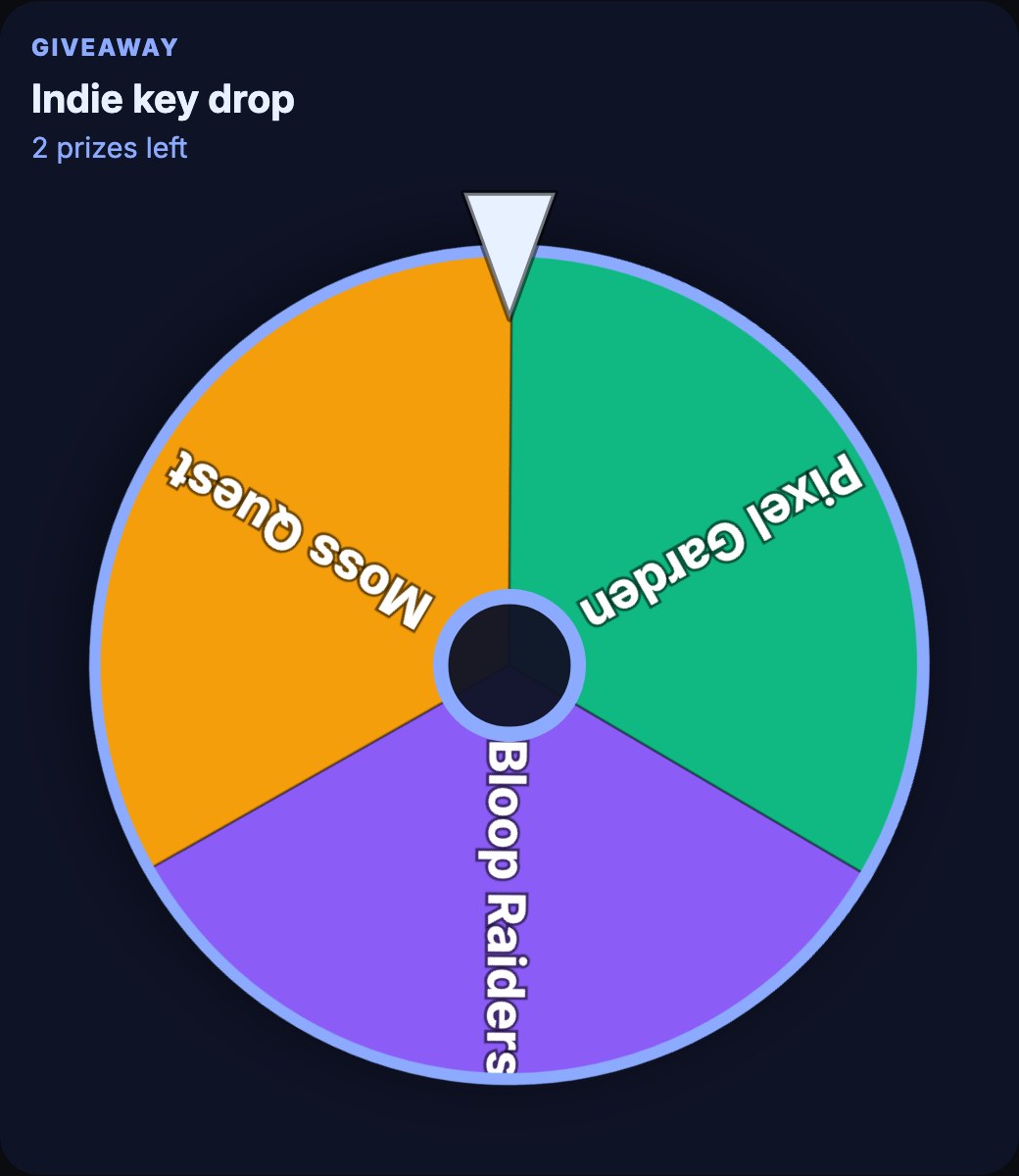
The wheel is the giveaway panel's Wheel draw style. Select the Giveaway layer in the widget editor, open Content and set Draw style to Wheel, then Publish. Put the giveaway panel on stream covers adding the panel to OBS.
Every award appears on the Run panel under Awards, newest first, with the winner, their prize and where it stands: Waiting to be claimed, Claimed, Handed back or Expired. While a prize is still waiting, Take back returns it to the pool — useful when a mod typed the wrong name.
A flow of your own can react to awards too: the Giveaway changes trigger has A prize is awarded from a pool and A pool prize is handed back under When — to play an alert, say, or thank a viewer who passed their prize on.
What the winner sees
The winner opens the link from chat, your channel's claim page, and signs in with Twitch. Their prize waits under Waiting for you, with its label, and the time left to claim when the pool returns unclaimed prizes.
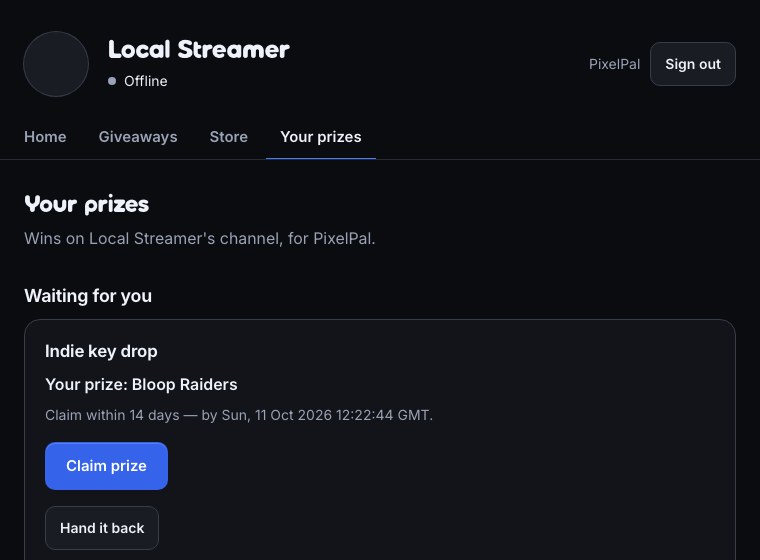
- Claim prize makes it theirs. Then Show my key (or Show my link) reveals it, as often as they like, and only to them.
- Hand it back gives it up before claiming: the prize goes back in the pool for someone else, and the award reads Handed back on your Run panel. Once a prize is claimed, it can't be handed back.
- If the pool returns unclaimed prizes and the winner hasn't claimed in time, the award reads Expired and the prize goes back in the pool. With Keep until claimed, it waits for them however long it takes.
Let viewers donate keys
Viewers can add their own spare keys and links to a pool from a public page.
- On the pool's Donations step, tick Accept donations.
- Choose Approve each donation first (donations wait on the Run panel for you), or Add donations straight to the pool (each can be awarded the moment it arrives).
- Copy the Donation page link with Copy and share it, in chat or in a panel. The page takes donations once the pool is open.
On the donate page a viewer signs in with Twitch, picks Key or Link, gives it a Name (up to 60 characters, shown in chat and on the wheel), pastes it into Key or link, and presses Donate. Credit me by name is ticked to start with, so chat says who donated it when it is won.
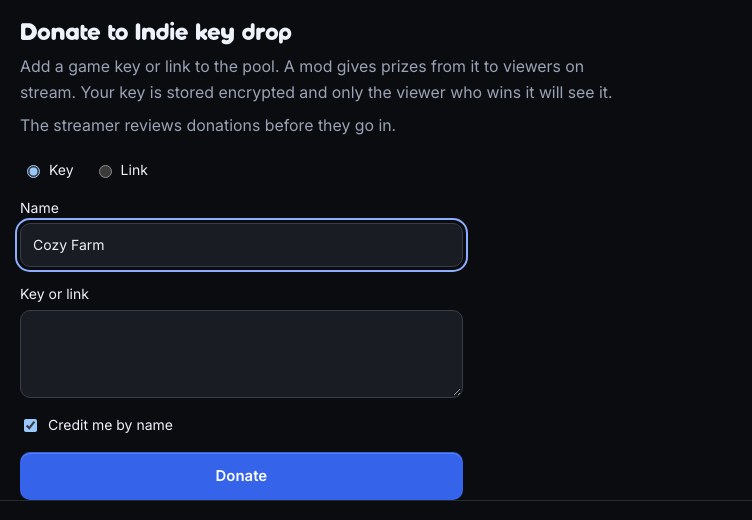
A viewer can have up to five donations waiting for review in one pool at a time. Their own claim page lists their donations under Your donations, each as Waiting for review, In the pool, Given away or Not accepted — never who won it.
Review donations
With Approve each donation first, donations wait on the pool's Run panel under Donations, with a count beside the heading.
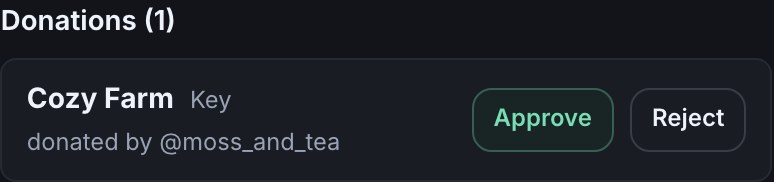
- Approve puts it in the pool, where the next award can pick it.
- Reject turns it away. It is never awarded, and the donor sees Not accepted.
A donation's key or link is never shown to you, only to the viewer who wins it — review the name, and who sent it.
End a pool
Press End pool on the Run panel and confirm. Mods can't award from it any more, and the award command answers that the pool isn't running. Prizes already awarded can still be claimed.
The pool then reads Finished. Press Archive to file it away. Archive waits while a winner still has a prize to claim: press Take back on that award under Awards, or wait for them to claim it. A pool that was never opened can be removed with Call off instead.
Troubleshooting
- The pool is empty. Chat says this when every prize has been awarded or is waiting to be claimed, or when the only prizes left were donated by the viewer being awarded: donors can't win their own. Press Add prizes on the Run panel to stock more, approve a waiting donation, or take back an award nobody will claim.
- No Twitch user called … The name after the command isn't a Twitch account. Check the spelling; the
@is optional. - Say who wins, e.g. !keydrop @name. The command was typed without a name after it.
- The wheel doesn't show. The panel's Draw style is Slot reel, which rolls the prize names instead: set it to Wheel and Publish. If nothing appears at all, no overlay in OBS has a Giveaway layer, or the layer is hidden — see Put the giveaway panel on stream. An award always takes over the panel. When the panel reloads, it shows the giveaway you opened most recently, so run one pool or giveaway at a time.
- Mods can't use the command. The Run panel reads Your award command is paused, so mods can’t award prizes. Press Resume and switch the flow on. If nothing happens at all, check the bot account is a moderator, and that the person typing is one: the command only answers mods and you.
- Chat says the pool is not running. It is still a draft, or it has ended. Press Open on the Run panel, or make a new pool.
- Donations aren't possible. The donate page only takes donations while the pool is open and Accept donations is ticked. A viewer with five donations already waiting is asked to wait for you to review them.
- A pool won't open or save. Prize pools need the prize vault: your plan shows whether your channel holds it.
Was this guide helpful?
Thanks. Your answer helps us decide which guides to improve.