
Before you start
You need permission to add apps to the Discord server and a channel where Bloopbot may post. Bloopbot requests View Channel, Send Messages and Embed Links. A server can belong to one Twitch channel in Bloopbot; you can connect up to three servers to yours.
Your announcement is a flow. You can change its message, pause it, or choose a different connected server and channel later.
Connect a server
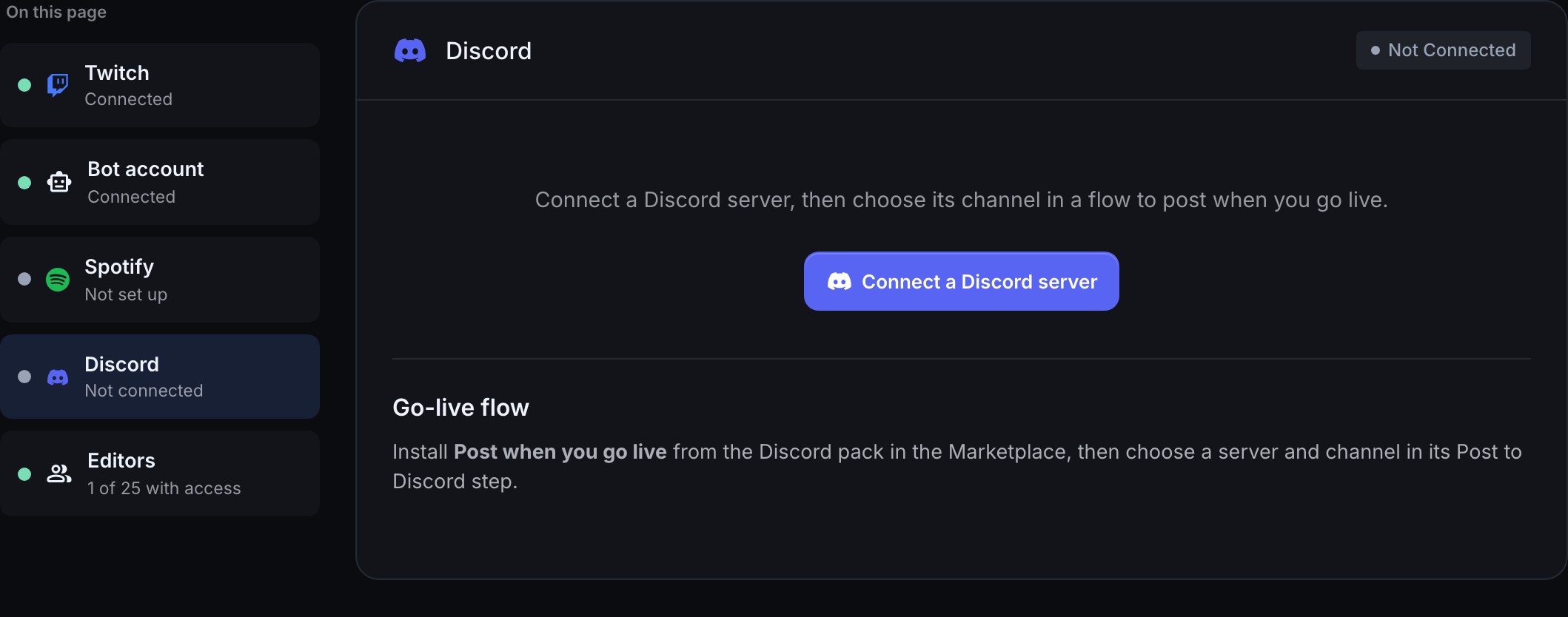
- Open your channel in Bloopbot, choose Connections, then Discord in the list on the left.
- Choose Connect a Discord server.
- In Discord, choose the server, review the permissions and approve. Discord also lists access to your username, avatar and banner: Discord only tells Bloopbot which server you picked when it asks for that. Bloopbot doesn't keep or use it.
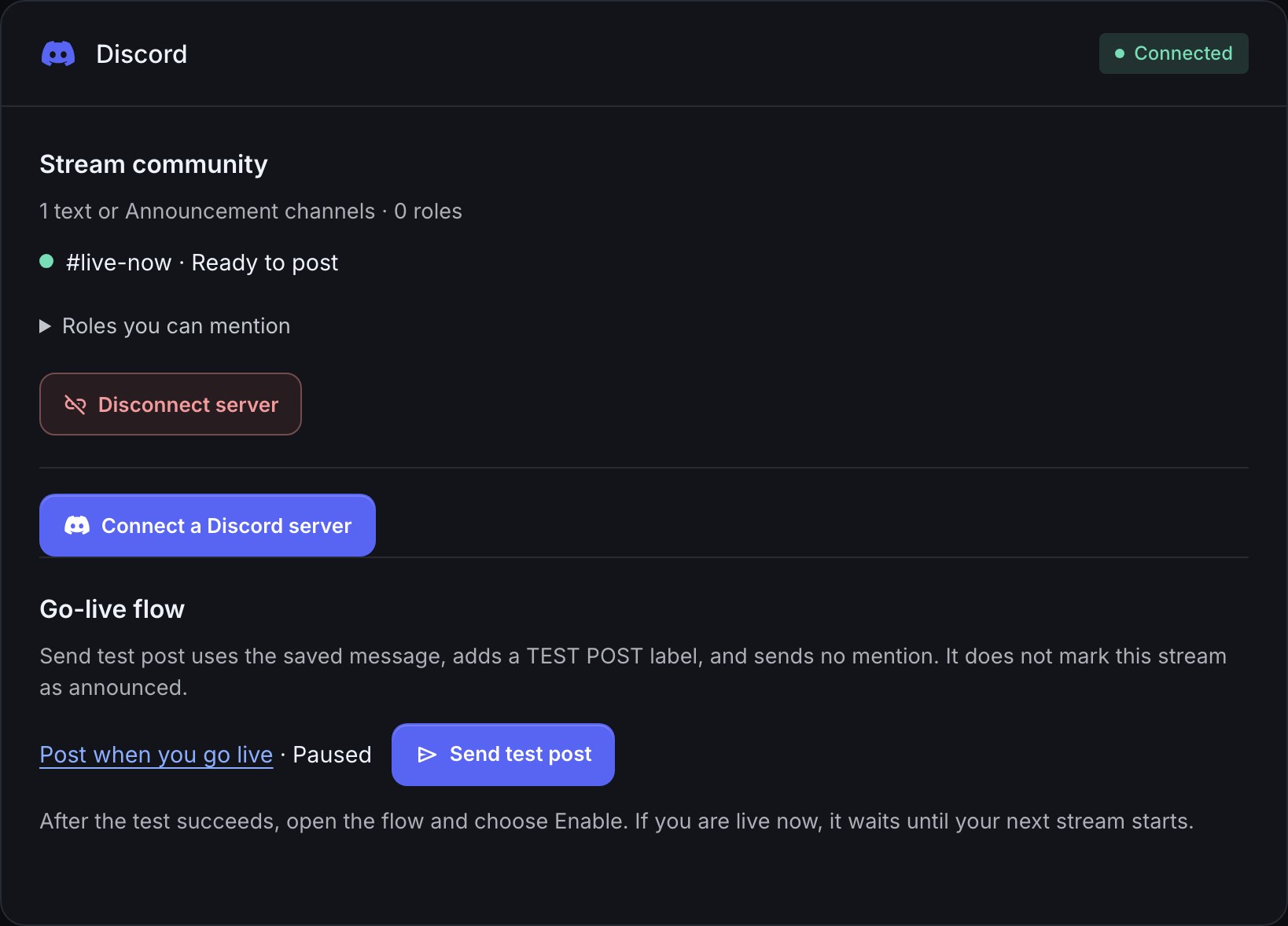
- You return to the Discord card on Connections. Your server and its text and Announcement channels appear there. Check that your intended channel says Ready to post.
If #live-now is the channel you want, make sure Bloopbot can view it, send messages and embed links there. Server permissions can be overridden for an individual channel. An Announcement channel only lets its staff post at first, so give the BloopBot role Send Messages in that channel's permissions.
Set up the go-live flow
- Open the Marketplace, find the Discord pack and install Post when you go live. The pack declares a channel variable for remembering the last announced stream and installs the flow paused.
- Open the flow. In Post to Discord, choose your connected server and #live-now. Edit the message if you like, then save. Keep Twitch channel link in the message or button so people can reach the stream.
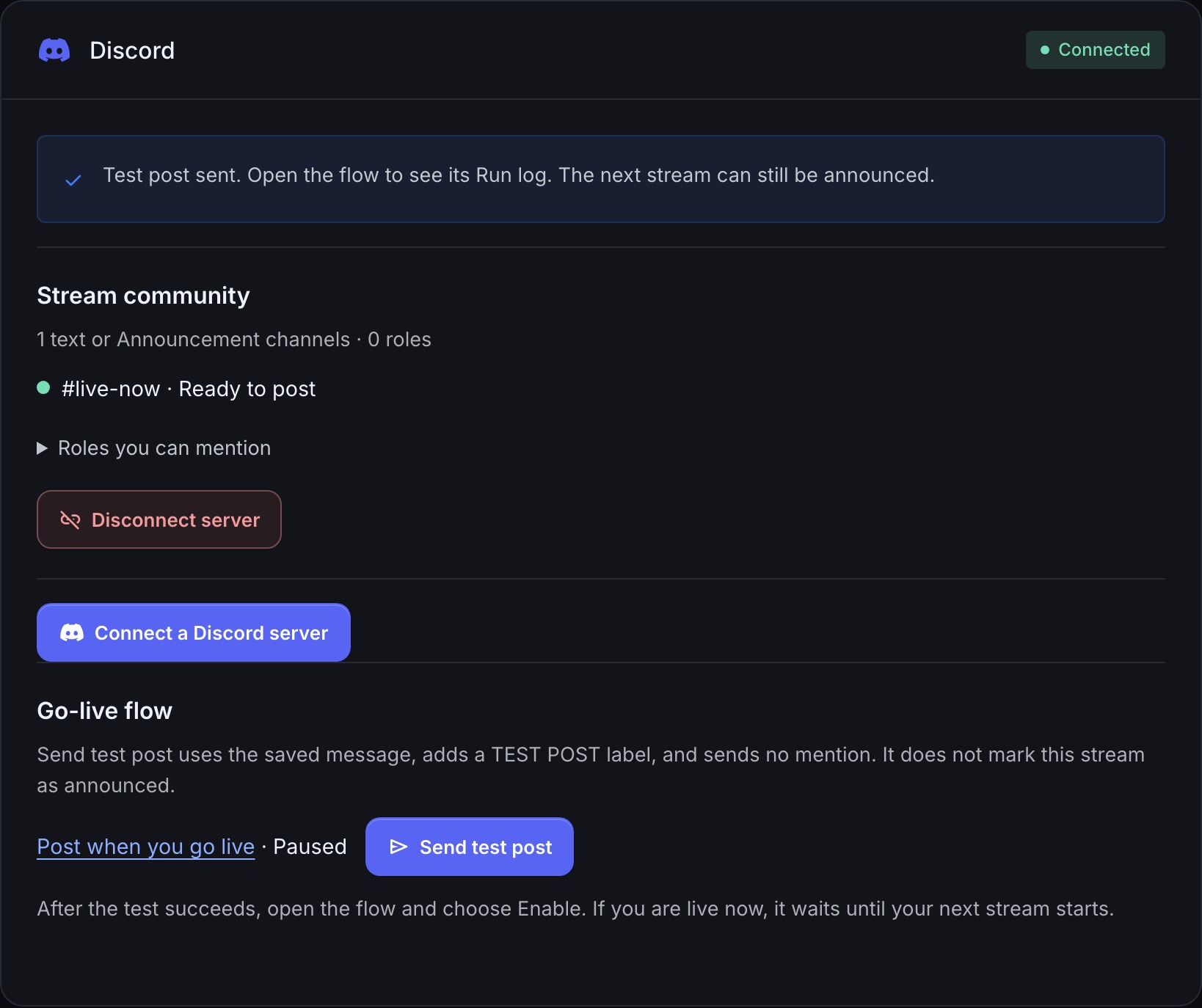
- Return to the Discord card under Connections and choose Send test post beside that flow. Check the actual Discord channel for the message marked TEST POST. This sends a real Discord message, without a mention, and does not mark your current stream as announced. It does not simulate a Twitch go-live event.
- Open the flow and choose Enable. If you are already live, the announcement waits for the next stream start.
For example, the starter message posts We are live! and your Twitch channel link. At the next stream start, the flow checks the stream ID, posts once, then remembers that ID only after Discord confirms the post. The next new stream gets a fresh announcement. A failed post leaves the ID unchanged so a later run can try again. Overlapping runs or an uncertain network retry can still produce a duplicate; check the channel before retrying manually.
The starter also offers a Watch live button. A current stream title and category appear in its embed when available; if they are not available, the link and generic message still work. It does not edit the Discord message if the title or category changes later.
Change the post
Edit Post to Discord in the flow to change the message, embed, button, destination, or mention. No one is the default mention choice. You may opt into @everyone, or choose One role and then pick it in Role to mention, which appears once One role is chosen. For @everyone, Bloopbot needs Mention Everyone in that channel; for a role, the role must be mentionable or Bloopbot must have that permission. Members' Discord notification settings still apply. A test post always suppresses mentions, even when the saved flow uses one.
For an Announcement channel, Also publish to followers is an optional setting. Leave it off when you only want a post in your own channel. It is not available for an ordinary text channel.
You can add Post to Discord to another flow, such as a flow triggered by a command or a Twitch event. Select a connected server and channel in that action. The Discord pack supplies the single go-live starter; you decide the trigger and checks for any other post.
Check posting access
The Discord card under Connections checks each connected server. Ready to post means Bloopbot currently has the requested posting permissions in that channel. A channel Bloopbot can't post in shows Missing posting permission on its own line, which is expected for staff-only channels. The server gets a warning when Bloopbot can't post in a channel one of your flows uses, can't post anywhere, loses access to the server, or a post fails. Open the flow's Run log for the failed step and its reason. Bloopbot makes a few attempts for a temporary Discord failure, for up to about two minutes; it does not keep posting indefinitely.
After changing permissions, return to the Discord card and send another test post. A successful post clears the stored warning.
Disconnect a server
Choose Disconnect server under that server on the Discord card. Bloopbot leaves that Discord server and removes the connection from your Twitch channel. A flow aimed at it cannot post again until you reconnect it and choose a valid destination.
Troubleshooting
- The server is connected to another Twitch channel: disconnect it there before connecting it to this channel.
- You already have three servers: disconnect one before adding another.
- A channel says Missing posting permission: allow Bloopbot to view the channel, send messages and embed links in that channel, including any channel-specific overrides.
- The test post fails: open the flow's Run log, check the warning on the Discord card, correct the destination or permissions, and send a new test post. A test post never sends a mention.
- The flow cannot be enabled: select a connected server and channel in Post to Discord and make sure its channel variable was declared when the pack was installed.
- The connection does not finish: try Connect a Discord server again. If it keeps failing, check that the server still allows you to add apps.
Was this guide helpful?
Thanks. Your answer helps us decide which guides to improve.