
Before you start
You need an overlay in OBS. A Stream Boss is one layer on that overlay. The Stream Boss flow pack controls the fight; the layer reads its three variables and draws the result. The layer never awards damage by itself.
The pack starts with The Boss at 1,000 / 1,000 HP. Each bit cheered takes one HP, a new subscription takes 100 HP, a gifted-sub event takes 100 HP, and each raider takes one HP. You can change any damage amount by editing that pack member in Flows.
1. Install the Stream Boss flows
- Open Flows → Explore packs, choose the Community category pill for built-in packs and press Use pack on the Stream Boss card.
- Review the three proposed channel variables —
boss_name,boss_hp,boss_max_hp— and confirm the install. Keep their scope as channel; the layer reads one shared boss for everyone. - On your Flows page, open the pack to see its five members. New members start paused, so switch on the ones you want to run. Boss: damage from cheers, subscriptions, gifted subs and raids each do one job. Boss: new challenger starts with the Boss defeated trigger and crowns the viewer whose damage first takes HP to zero or below; keep that member on for the fight to continue.
2. Add the Stream Boss layer
- Open Widgets and the overlay you want to show during the fight.
- Choose Add on the left, then drag Stream Boss from Goals & games onto the canvas, or click the card to place it in the middle.
- In Content → Settings, optionally choose a Portrait image and a transparent Boss frame from your media library. With no portrait image, the circle shows the current boss’s first letter. The chosen portrait image stays in place when the boss changes; change it here whenever you want different art.
- Choose whether to Show HP numbers. The bar itself always shows the remaining fraction.
- Press Publish. The live layer then follows the pack’s variables as viewers take part.
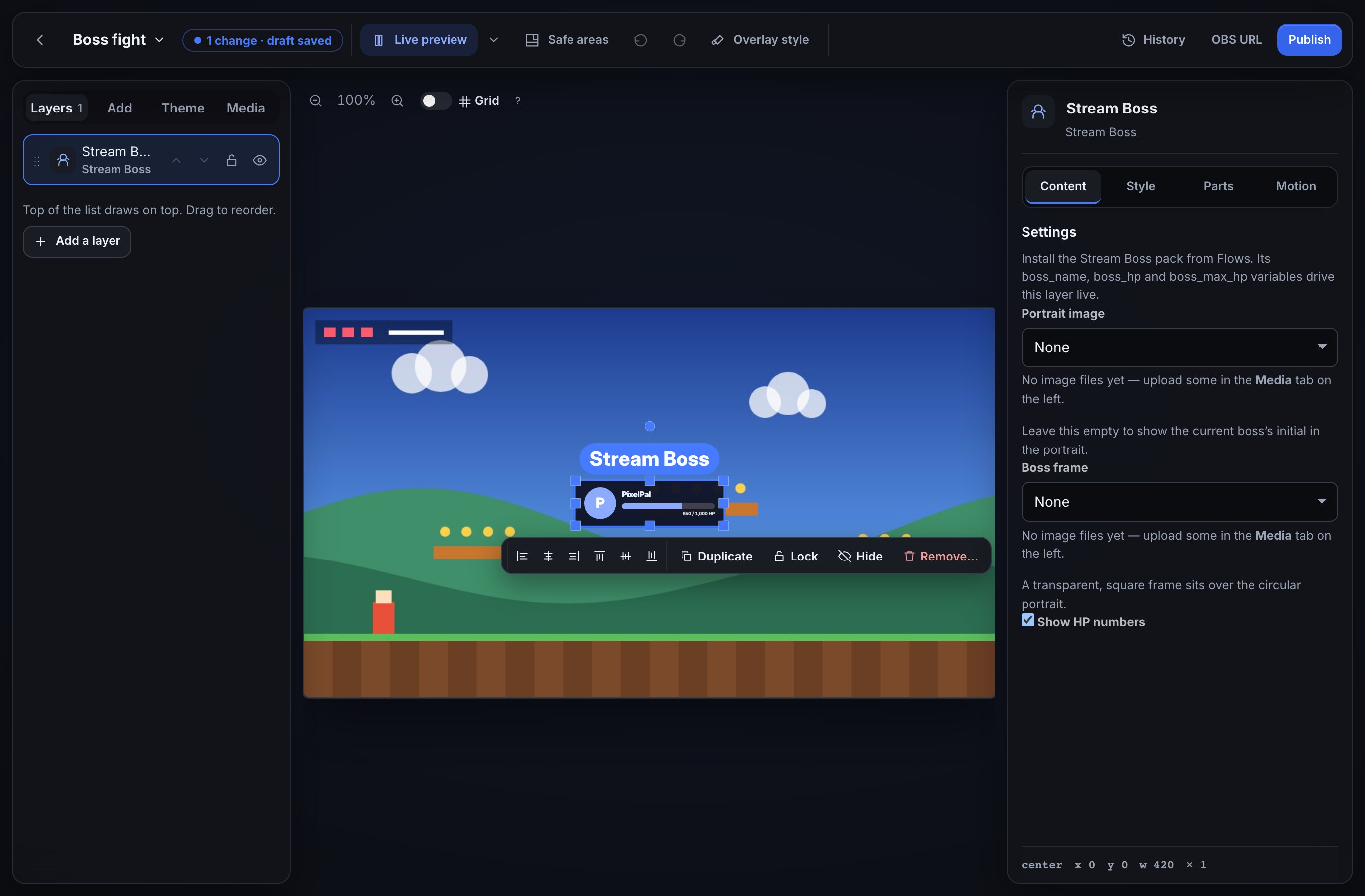
The editor’s preview shows PixelPal at 650 / 1,000 HP so you can place the layer even before the first real fight. This sample does not change your variables or reach Twitch. The published overlay shows your channel’s actual values.
3. Try a knockout
During a stream, a 250-bit cheer takes a default boss from 1,000 to 750 HP. Four such cheers take it to zero; the fourth cheerer becomes the new boss. Their HP refills and the maximum grows to 1,100. Later knockouts add another 100 to the maximum each time.
The bar flashes briefly when HP falls. The boss name and HP update as the variables change; you do not need to refresh OBS. The pack handles cheers, new subscriptions, gifted-sub events and incoming raids. A gifted-sub event takes 100 HP by default even if several subscriptions were gifted together.
React to a knockout
Boss defeated is a trigger in the flow editor’s node library, under Overlay. It runs once each time the boss’s HP reaches zero or below: the hit that takes it from above zero, never the hits that land on a boss already down. The pack’s Boss: new challenger uses it, and you can start your own flows from it too.
Its tokens:
$(user)— the viewer who landed the knockout. It is blank when nobody can be named, for example an anonymous gift.$(boss)— the name of the boss that was defeated, before the new challenger takes over.$(maxhp)— that boss’s maximum HP.
For example, to celebrate in chat:
- In Flows, create a flow and pick Boss defeated as its trigger.
- Add Chat message after it with
$(user) defeated $(boss) and all $(maxhp) HP! - Save and switch the flow on.
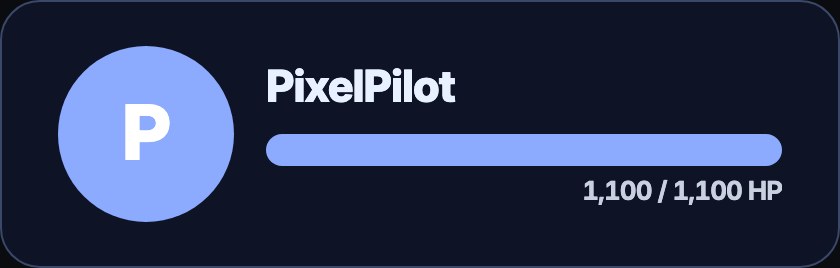
When a 250-bit cheer from PixelPilot knocks out a 1,000 HP The Boss, chat reads PixelPilot defeated The Boss and all 1000 HP! Use Test fire in the flow editor to try it on a sample knockout: it is a dry run, so nothing reaches chat or Twitch and no variable changes.
Boss defeated needs the pack’s boss_hp variable, and only a flow’s damage can land a knockout. Setting boss_hp to zero yourself under Variables does not run it.
Style the layer
Use Parts to style the Panel, Portrait, Boss name, HP track, HP fill and HP numbers separately (Style one part at a time). Your overlay’s custom CSS can also use .w-boss-panel, .w-boss-portrait, .w-boss-name, .w-boss-track, .w-boss-fill and .w-boss-readout.
If something looks wrong
- The live layer says No boss yet: install the Stream Boss pack and check that its
boss_name,boss_hpandboss_max_hpvariables are declared for the channel. - A cheer does not move the bar: check that Boss: damage from cheers is on in Flows, and that the published overlay is the one you added the layer to.
- A Boss defeated flow did not run: check it is switched on, and that HP went from above zero to zero or below through a damage flow. A boss already at zero has to be refilled before it can be defeated again.
- The new boss says Anonymous: the knockout came from an anonymous gift, so there is no viewer name to show. You can set
boss_nameunder Variables if you want a different name. - The bar stays empty or full: check that
boss_max_hpis a positive number andboss_hpis a number. If you changed their starting values, reset or set the current values too. - The portrait does not change with the name: the portrait file is artwork you picked in Content → Settings. Leave it empty for an initial that follows the name.
Was this guide helpful?
Thanks. Your answer helps us decide which guides to improve.