
What a collection is
A collection is a named set of items that each viewer holds, or that your channel holds once. Every entry is an item with a count: "Pixel Pup ×3". Use one for trading cards a viewer opens from packs, an inventory of potions, or a list of achievements (an achievement is an item held once).
A collection is not a variable. A variable holds one value; a collection holds many items and lets a flow add one, remove one, check for one or read them all back. You make collections on the Collections page under Build, next to Variables, and flows use them through six steps: Give an item, Take an item, Has an item, Read a collection, Pick from a catalogue and Update a catalogue.
This guide builds a card-pack opener: viewers type !pack to open a pack, and !cards to see what they own.
1. Make the collection
- Open Collections and press New collection.
- Type a Name,
Cards. - Under Who holds the items, choose Each viewer has their own. Choose One set for the channel instead for something shared, like a stream-wide loot pile.
- Leave Only items from a catalogue ticked, then press Make the collection.
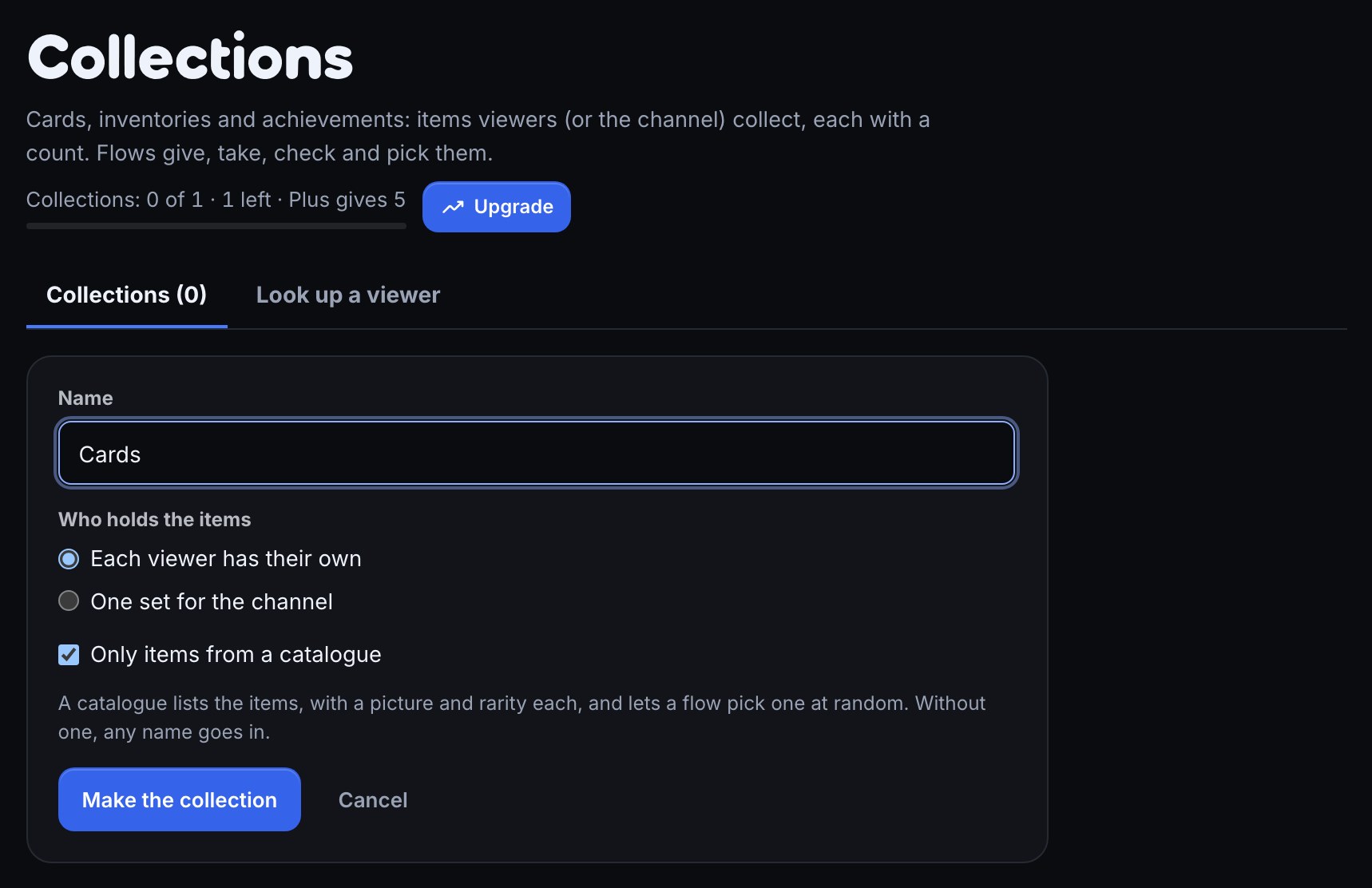
Expected result: the page confirms Made the Cards collection and opens it, with an empty catalogue.
2. Fill the catalogue
A catalogue lists every item the collection accepts. Each item has a name, an optional picture from your media library, an optional rarity and a weight: how often a weighted pick lands on it. With a catalogue on, a Give an item step can only hand out items from it, so a typo is refused instead of making a new item.
Add items one at a time with Add item, or in bulk:
- Open the collection and press Import CSV in the Catalogue section.
- Paste one item per line as
name, picture, rarity, weight. A header row can name the columns in any order, and the picture is a media-library file name. For the example, paste:
name,rarity,weight
Pixel Pup,Common,10
Moss Mouse,Common,10
Cozy Cat,Uncommon,4
Neon Newt,Rare,1- Read the preview. It lists each line as New, Changes, No change or Problem, and nothing has changed yet. A blank cell leaves that field as it is. You can also press Choose a CSV file to load one.
- Press Apply 4 changes.
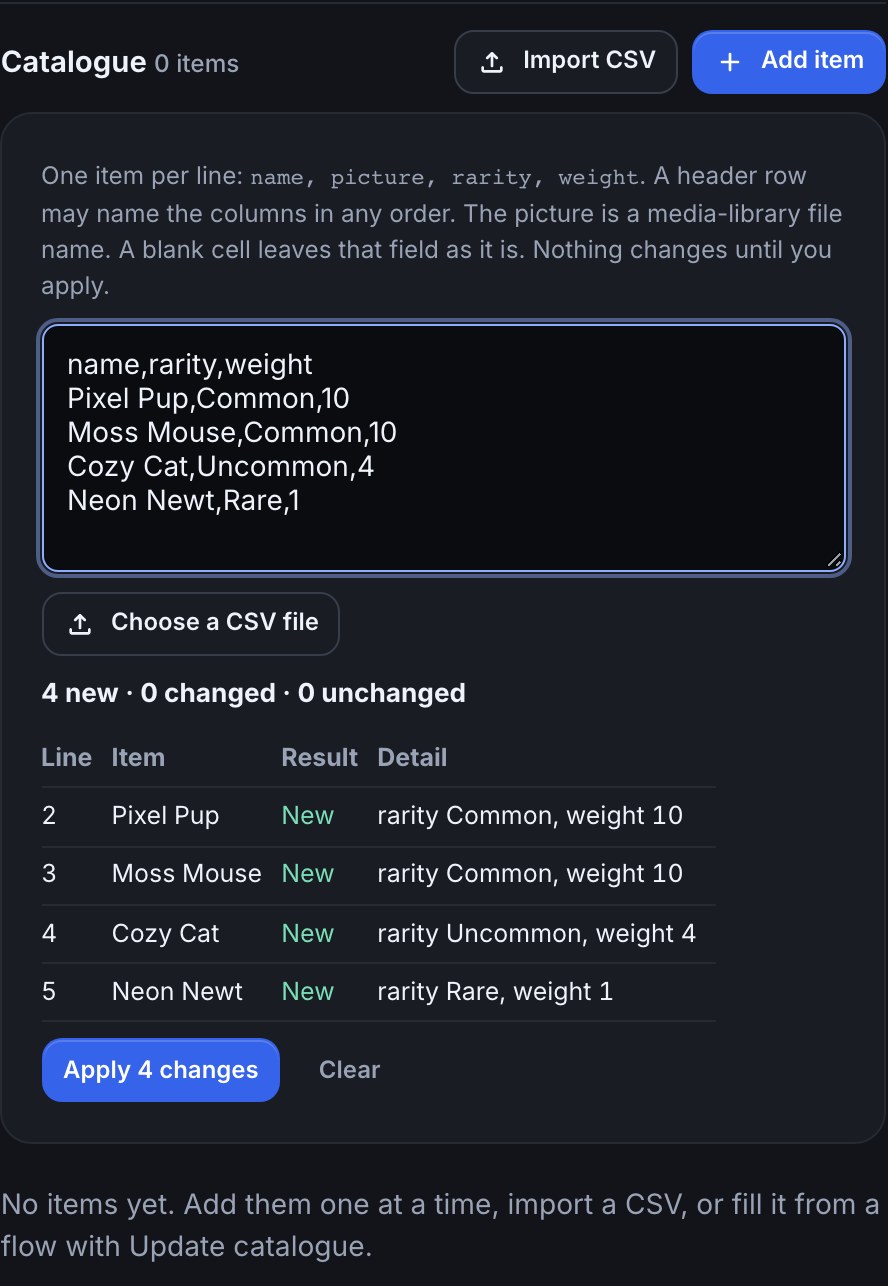
Expected result: Catalogue updated: 4 added, 0 changed. and a list of four items. Pasting a changed CSV later updates existing items by name.
Weights are relative. With weights 10, 10, 4 and 1, Neon Newt turns up in 1 pack in 25. A weight of 0 never comes up. Removing an item from the catalogue (the trash icon on its row) only stops flows giving or picking it: viewers who already hold it keep it.
A flow can fill a catalogue too with Update a catalogue, for example from a Read JSON step. It adds and changes items but never removes them.
3. Build the !pack command
Make a flow with a Chat command trigger named pack, then add three steps in this order. Start from your first command if you have not built one.
- Pick from a catalogue: choose Cards and leave Use each item's weight on. It picks one card at random but gives nothing yet.
- Give an item: choose Cards, and set Item to
$(from.pick.name). Leave Whose collection blank, which means the viewer who typed the command, and How many blank for 1. - Chat message:
@$(user) opened $(from.pick.name) ($(from.pick.rarity))!Use Insert… to pick the values instead of typing them: the picked card's The item and Its rarity are listed under the Pick from a catalogue step. Save the flow and switch it on.
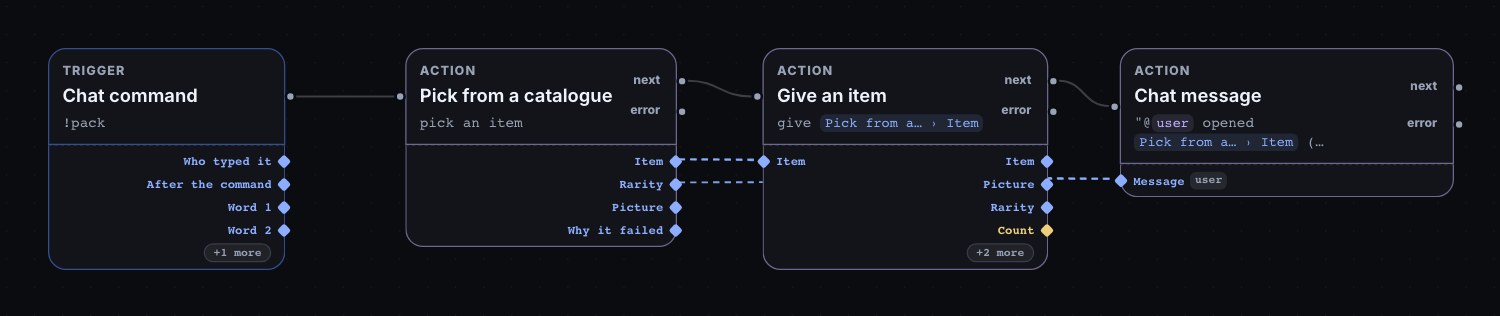
Expected result: when a viewer types !pack, chat says something like @PixelPal opened Cozy Cat (Uncommon)! and the card is in their collection. Each pack adds one to the count, so a second Cozy Cat becomes ×2.
To open only rare cards, fill Only this rarity on the pick step with Rare. To react when the viewer already had the card, put a Has an item step before Give an item.
4. Build the !cards command
Make a second flow with a Chat command trigger named cards and a Chat message:
@$(user) your cards: $(collection.cards.text)The Insert… menu lists each collection with four values you can drop into any message, so there is nothing to look up:
| Value | Shows |
|---|---|
$(collection.cards.text) | The collection as one line: Pixel Pup ×2, Cozy Cat, Neon Newt |
$(collection.cards.count) | How many items in all, counting repeats |
$(collection.cards.distinct) | How many different items |
$(collection.cards.has.pixel_pup) | true or false |
The key (cards) is the collection's name in lower case, with accents dropped and every other run of characters written as _: "Gold Stars" becomes gold_stars. If you rename a collection, update the messages that use its values. A long list is cut to fit Twitch's 500 characters and ends with "…and 12 more". To go through items one by one, use Read a collection with a For each step.
Expected result: typing !cards answers @PixelPal your cards: Pixel Pup, Cozy Cat, Neon Newt, Moss Mouse, with a count after any card held more than once.
5. Look up, give and take for a viewer
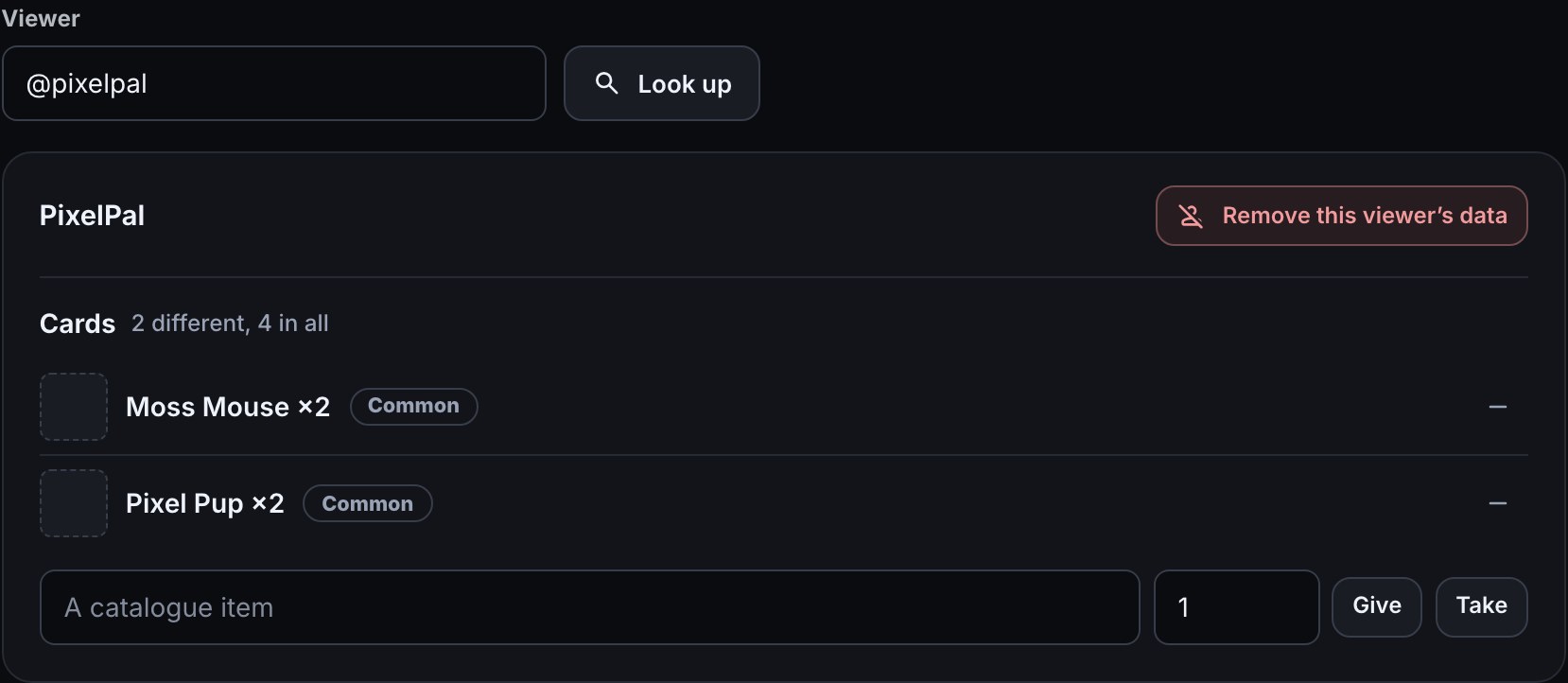
Open the Look up a viewer tab and type a viewer's Twitch name. You see what they hold in every viewer collection, with Give and Take beside a box for the item and a count. Use it to fix a mistake or reward someone by hand. A viewer must have chatted in your channel before they can be found.
6. Turn a text variable into a collection
If you have been keeping a list in a text variable, such as Pixel Pup, Cozy Cat, Pixel Pup, you can convert it:
- Open Variables and find the text variable.
- Press its Convert to a collection icon on the row.
- Choose what separates the items: commas, new lines, semicolons, bars, spaces or something else.
- Read the preview, which splits a few viewers' values the way the conversion will. Repeats are counted, so "A, A, B" becomes A ×2 and B.
- Name the collection and press Make the collection.
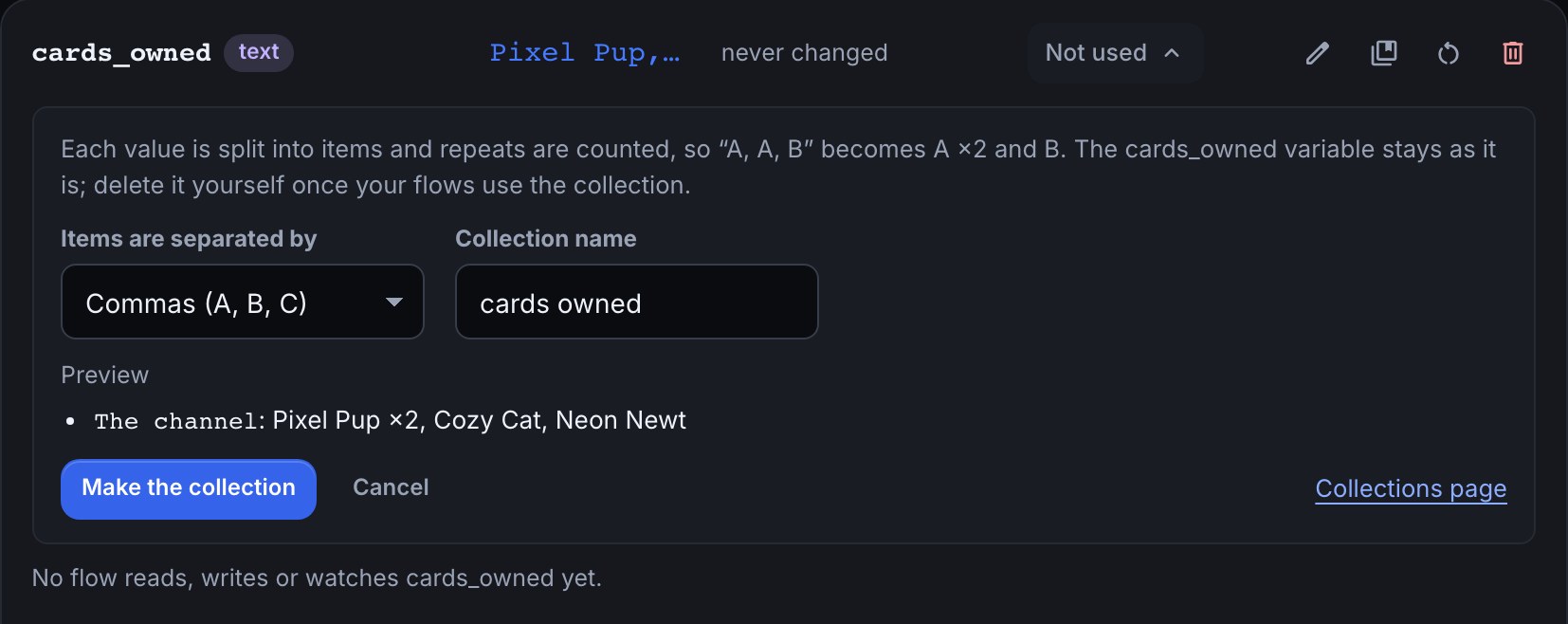
The collection takes the variable's scope: a per-viewer variable makes a viewer collection. The variable stays exactly as it was, so no flow breaks. Change your flows to use the collection's steps, then delete the variable yourself. The conversion makes a collection without a catalogue, so any name is accepted.
7. Remove a viewer's data
When a viewer asks you to forget them, open Look up a viewer, find them and press Remove this viewer's data. After you confirm, everything they hold in every collection and every value your per-viewer variables keep for them is deleted, and it cannot be brought back. Their loyalty points stay: change those on the Loyalty page.
Otherwise, viewers' items are kept for as long as your channel exists, like loyalty balances.
8. What your plan holds
| Free | Plus | Pro | |
|---|---|---|---|
| Collections | 1 | 5 | Unlimited |
| Items one viewer can hold in one collection | 200 | 1,000 | 5,000 |
| Items in one catalogue | 250 | 2,000 | 10,000 |
Free is enough to run the card opener above end to end. The Collections page shows how many collections you have against your plan, and Plan & billing shows all your limits together.
Reaching a limit never deletes anything. A Give an item to a viewer who is already full follows its error path, and the reason is available as $(from.<step>.message) for a chat line such as "your collection is full". If your channel has more collections than its plan holds, for example after a plan ends, the newest ones become Read-only: flows can still read them and chat can still show them, but nothing can be added or changed until you delete an older collection or upgrade.
Share a collection in a pack
When you share flows that use a collection, as a download or in a pack, the collection goes with them: its name, whether it is per viewer or for the channel, and its catalogue with pictures, rarities and weights. What your viewers hold never goes with it.
When someone adds the pack, a collection with the same name in their channel is used and its catalogue is topped up: new items are added and the pack's details win for items they both have. Nothing is removed. Names that differ only in capitals, accents or spacing count as the same collection. If their collection with that name is the other kind (per viewer instead of for the channel), the pack is not added until they rename theirs.
A pack can bring up to 2,000 catalogue pictures. With more, or with very large pictures, the download refuses and names the collection: take pictures off some items or use smaller pictures.
Troubleshooting
- A step says the item is not in the catalogue. The collection only accepts catalogue items, and the name must match one. Copy the name from the catalogue, or use
$(from.pick.name)from a Pick from a catalogue step. !packdoes nothing. Check the flow is switched on and that Pick from a catalogue names the right collection. A pick fails on a collection with no catalogue or an empty one.!cardsis blank. The viewer holds nothing yet, or the message uses a key from an older collection name. Re-pick the value from Insert….- A collection is read-only. You have more collections than your plan holds. Delete an older one or upgrade.
- The preview says a line has a problem. The line has no name, or a picture file that is not in your media library. Problem lines are left out when you apply.
- A viewer is not found. They have not chatted in your channel yet.
Was this guide helpful?
Thanks. Your answer helps us decide which guides to improve.