
What you can do
When chat is busy, a viewer’s question scrolls away before you see it. Catch viewer questions keeps them for you: when someone asks you a real question in chat, it lands on your Questions page and waits there until you answer it or dismiss it.
From that page you can put one question on your overlay while you answer it, so viewers can see what you are talking about, then mark it answered to take it off again. Your moderators can run the page for you.
Only genuine questions to you are kept: “what game is this?” and “how long have you been streaming?” are, while “lol why” or a viewer replying to someone else are not. Nothing is said in chat.
Before you start
- Catch viewer questions uses the AI: chat means… trigger to tell a real question from chatter. It may not be available on your channel yet; What your plan includes shows whether it is. Without it, use a
!qcommand instead: Build your own question flows shows how. - To show questions on stream you need an overlay in OBS. Add an overlay to OBS shows how to add one as a Browser Source.
1. Add Catch viewer questions
- In the dashboard sidebar, open Live → Questions.
- A Question catcher row under the page title says Questions from chat don’t reach this page yet. Press Add on it to open the review on the right, then press its button to add Catch viewer questions, paused.
- Press Switch on on the row. It goes away once the flow is on.
You can also open Flows, press Marketplace, and add Catch viewer questions on its own; it is in the AI helpers pack.
2. Answer questions on the Questions page
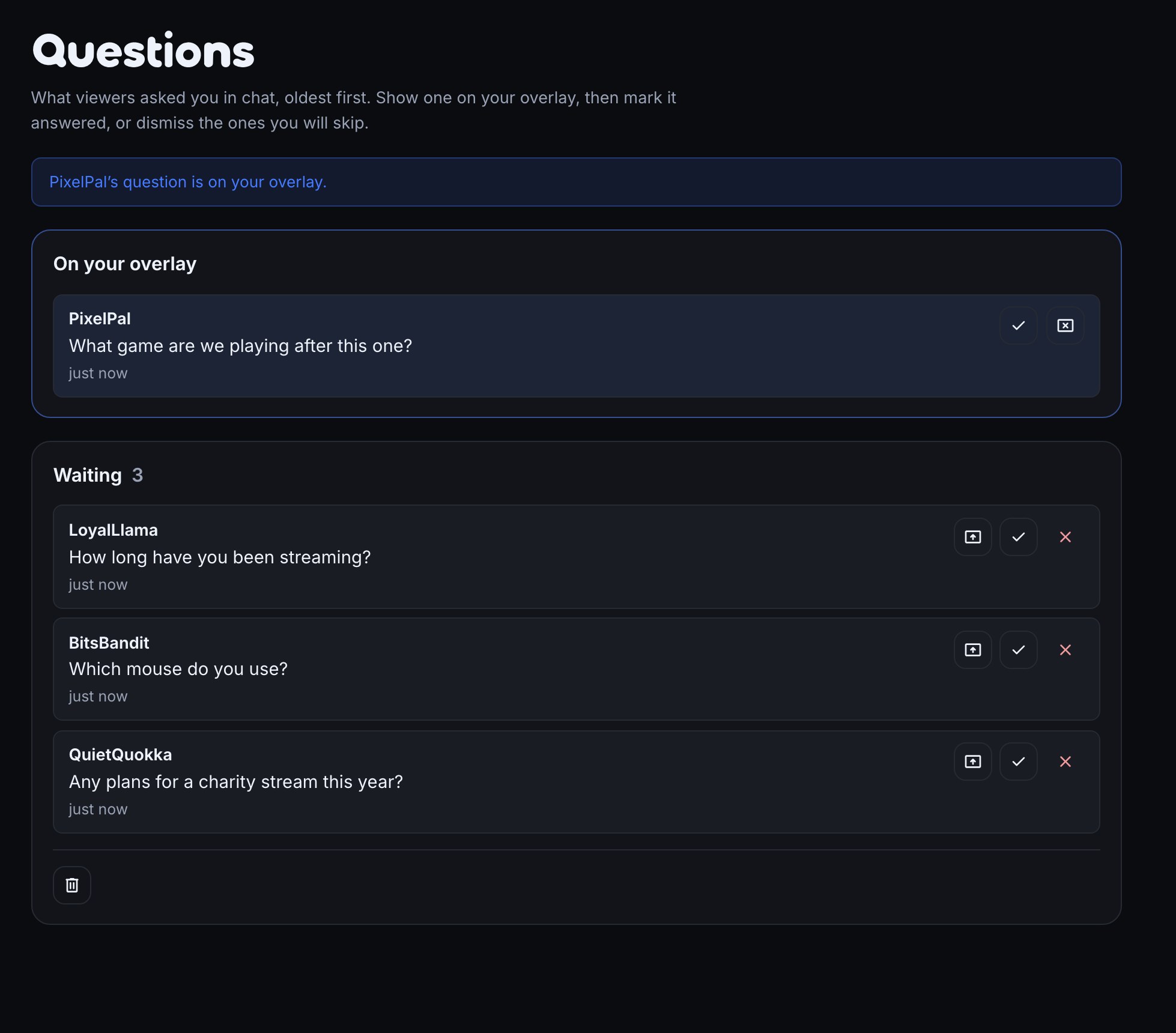
The Questions page shows the question on your overlay at the top, under On your overlay, and every other question under Waiting, oldest first. New questions appear on their own as viewers ask them.
Each waiting question has three buttons; hover one to see its name:
- Show on your overlay (the screen with an arrow) puts it on your overlay, in place of the one shown before.
- Answered (the tick) marks it answered and takes it off the page.
- Dismiss (the cross) takes it off without answering, for a question you will skip.
The question on your overlay has Answered and Take it off your overlay; taking it off leaves it waiting in the list. The bin icon at the bottom (Clear all questions…) deletes every question once you confirm.
A moderator you have let in on Team can do all of this. Up to 200 questions wait at once; when one more arrives, the oldest that is not on your overlay is dismissed to make room. Each viewer can have 3 questions waiting at a time, and if a viewer asks the very same question twice, it is kept once.
3. Show the question on your overlay
- Open Overlays and open the overlay the questions should appear on.
- Press Add on the left and choose Viewer questions under Chat & info.
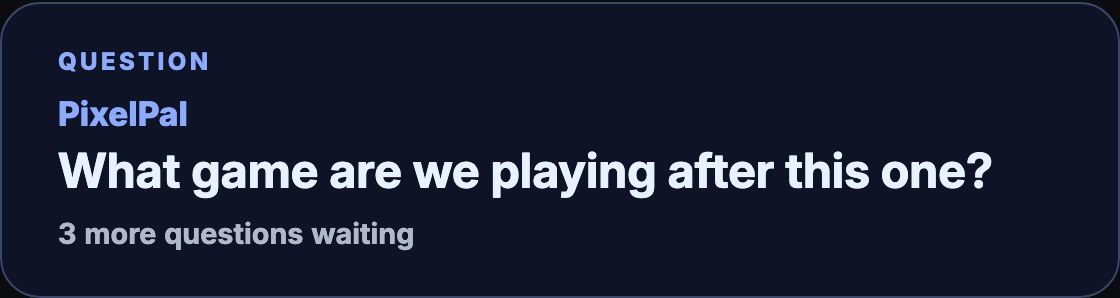
- Select the layer. Title is the small line above the question (
QUESTIONto start with; leave it empty for none). Waiting questions to list shows that many of the next questions under it, from 0 to 10. Say how many more are waiting adds a line such as 3 more questions waiting. - Size and place it like any other layer — Arrange your overlay covers placement — and press Publish.
The layer shows who asked the question and what they asked. With nothing on your overlay, it shows nothing at all, so it can stay in your scene. It takes your overlay theme, and its panel, title, name, question and rows can each be styled from the theme’s parts. To see it with a made-up question, open Simulate in the top bar and press Test question; after a few seconds it returns to your real one.
4. Build your own question flows
Five steps in the node library, under Questions, do everything the page does:
- Add a viewer question saves the viewer’s question. The question is
$(message), the whole chat message, to start with. It follows ok, or rejected when there is no text, the viewer already asked the same thing or already has 3 questions waiting, with a line for chat in$(from.<step>.message). - Mark question answered marks the question on your overlay answered, or the oldest when none is shown.
- Feature a question puts the oldest question not already shown on your overlay. It hands on who asked it,
$(from.<step>.user), and the question,$(from.<step>.text). - Take question off screen takes it off your overlay; it stays waiting.
- Clear all questions deletes them all.
Mark question answered and Feature a question can also name one question by its id, under Which question: Add a viewer question hands its id on as $(from.<step>.id).
Some flows worth building:
- A
!qcommand: a Chat command trigger forq, then Add a viewer question with The question set to$(query), everything after the command. This needs no AI, so it works on every channel. - Next question from a Stream Deck: a Stream Deck button trigger, then Mark question answered, then Feature a question. One press answers the question on screen and shows the next one.
- Read it out in chat: after Feature a question, a Chat message that names who asked and what. Pick both from the Insert… menu, under that step.
To catch more or fewer questions, open the Catch viewer questions flow and change its trigger: raise Probability needed from 0.7 to keep only the clearest questions, or edit Fires when… to say what should not count. Wake a flow when chat means something explains each setting.
A worked example: a Q&A stream
- Add Catch viewer questions from the Questions page and switch it on.
- Add a Viewer questions layer to your main overlay, set Waiting questions to list to
0, keep the count line on, and publish. - PixelPal types what game are we playing after this one? It appears on the Questions page under Waiting. LoyalLlama types lol same; nothing is saved.
- Two more viewers ask questions. You press Show on your overlay on PixelPal’s. Your overlay shows PixelPal and the question, with 2 more questions waiting under it.
- You answer it on stream and press Answered. The layer disappears until you show the next one.
What you should see
- Real questions from chat appearing on the Questions page within a few seconds, with nothing said in chat.
- The question you show appearing on your overlay within a moment, and staying there when you refresh or re-open the Browser Source.
- Answered, dismissed and cleared questions leaving the page and the overlay at once, wherever the page is open.
Troubleshooting
- No questions arrive: the Catch viewer questions flow is paused, or the AI trigger is not available on your channel. Switch the flow on in Flows, check What your plan includes, or add a
!qcommand as shown in Build your own question flows. - Chatter is saved as questions: raise Probability needed on the flow’s trigger, or say in Fires when… what should not count.
- A real question was missed: it has to look like a question, with a question mark or starting with a word such as what or how, and be at least 8 characters, and each viewer is heard at most once every 30 seconds. Lower Probability needed a little, or shorten Per viewer cooldown.
- The layer shows nothing: no question is on your overlay. Press Show on your overlay on one, and make sure the overlay is published.
- A moderator cannot see the Questions page: tick them on Team; Editors and moderators shows how.
Was this guide helpful?
Thanks. Your answer helps us decide which guides to improve.