
Where to find it
Open Flows and press Your plan, at the end of the page bar beside + New flow. It opens a read-only panel: nothing on it can be bought, granted or switched off from there. The readout to the left of those buttons is the same count in miniature — how many flows are yours, and how many installed ones are still free.

How to read the panel
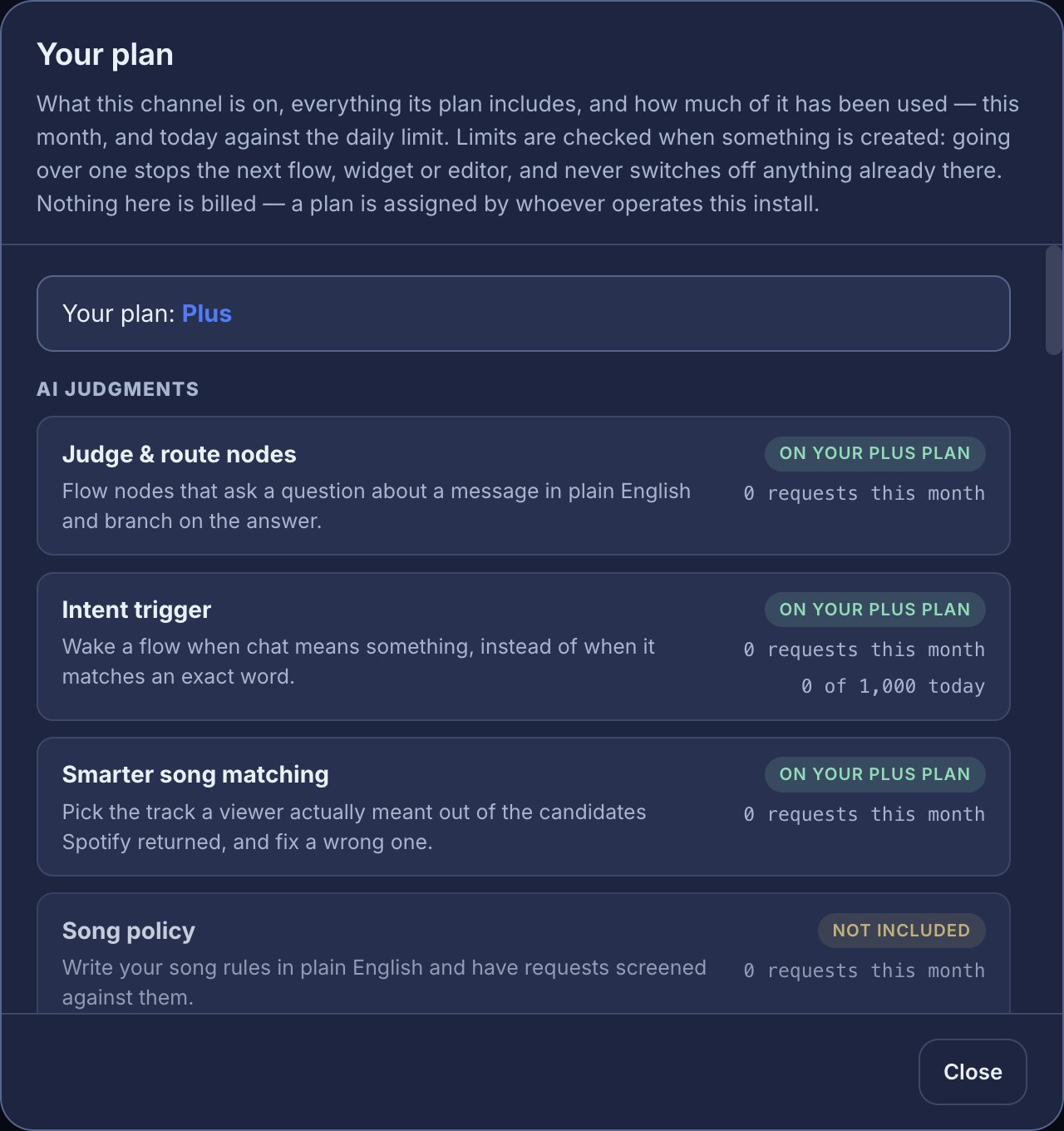
The first line names the plan your channel is on. Under it, every capability Bloopbot has is listed — grouped by the part of the product it belongs to — and each one carries the reason it resolves the way it does:
- On your Plus plan (or whichever plan you are on) — that plan includes it. When the plan has an end date the badge says so, for example On your Plus plan, until 3 Jan.
- Included by default — it is included for every channel on Bloopbot, plan or no plan.
- Granted — this capability is switched on for your channel specifically. Switched off for this channel is its opposite: a capability that is available here, but switched off for you.
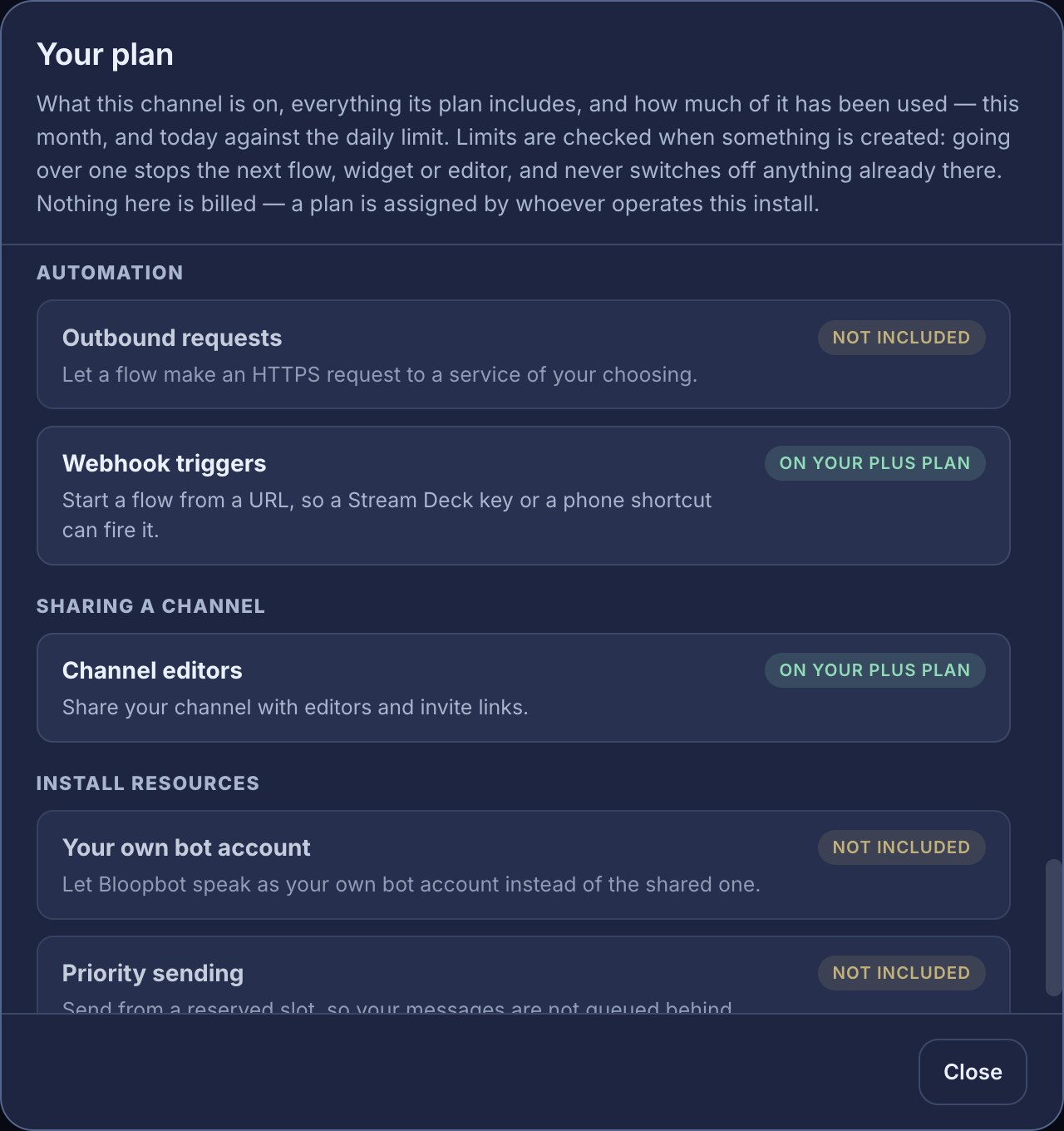
- Not included — your channel does not hold it. That is a neutral state, not an error, and nothing is broken.
The AI capabilities also report how much they have been used: requests this month, and today against the daily limit that would refuse the next one.
What each group means
Capabilities are grouped the way the product is, so you can find the thing you are looking for by where you would go to use it:
| Group | What lives there |
|---|---|
| AI judgments | The steps that ask an AI judge a plain-English question: routing and picking things out, the intent trigger, song matching and policy, AI moderation, text screening, and the describe-a-flow builder. |
| Hosted widgets | The widgets Bloopbot builds and serves for OBS — label, goal bar, event stack, alerts and chat widgets — and the media library behind them. On-screen alerts, and the Show alert, Play media and Alert queue steps that drive them, come with every channel. So does a media library: every channel can upload 25 MB of images, sounds and videos for its widgets and alerts, and paid plans hold more — the Media storage line under Limits shows yours. |
| Spotify and song requests | Everything from !sr and the queue to channel-point requests and your own Spotify app. |
| Twitch | The richer Twitch surfaces a flow can drive: polls and predictions, hype trains, creator goals, ad breaks, VOD markers and channel controls. |
| Moderation | Moderation beyond the six deterministic filters, such as nukes. |
| Automation | Reaching outside Bloopbot: outbound web requests and webhook triggers. |
| Sharing a channel | Editors and invite links. |
| Install resources | The resources your channel draws on: your own bot account and priority sending. |
When something is not included
The capability stays visible everywhere it normally appears — it is never hidden from you — and it cannot be added or switched on:
- In the flow editor it still appears in the node library, in ⌘K search, while you drag a connection and in the sidebar’s suggestions: dimmed, with a small lock badge reading Not included in your plan. Clicking or dragging it explains why instead of adding it.
- A flow built before a capability stopped being included keeps running. Its nodes stay editable, and the step simply takes the path it takes when it has no answer. Nothing is deleted, and nothing stops.
- Nothing behaves “half-way”. A capability you do not hold is a step that does not act, not one that acts unpredictably — your commands, filters, song requests and overlays carry on exactly as they did.
That is what the neutral wording is for. A missing capability should read as “that step is not mine today”, never as a broken flow or a channel-wide problem; the AI features guide takes the same idea through the AI steps in detail.
When you reach a limit
Some capabilities are numbers rather than yes or no: how many flows you can keep, how many people you can share your channel with, how much media you can upload. The Limits section at the bottom of the panel lists each one as what you have against what you get — 5 of 20 flows, say — or Unlimited when nothing caps it.
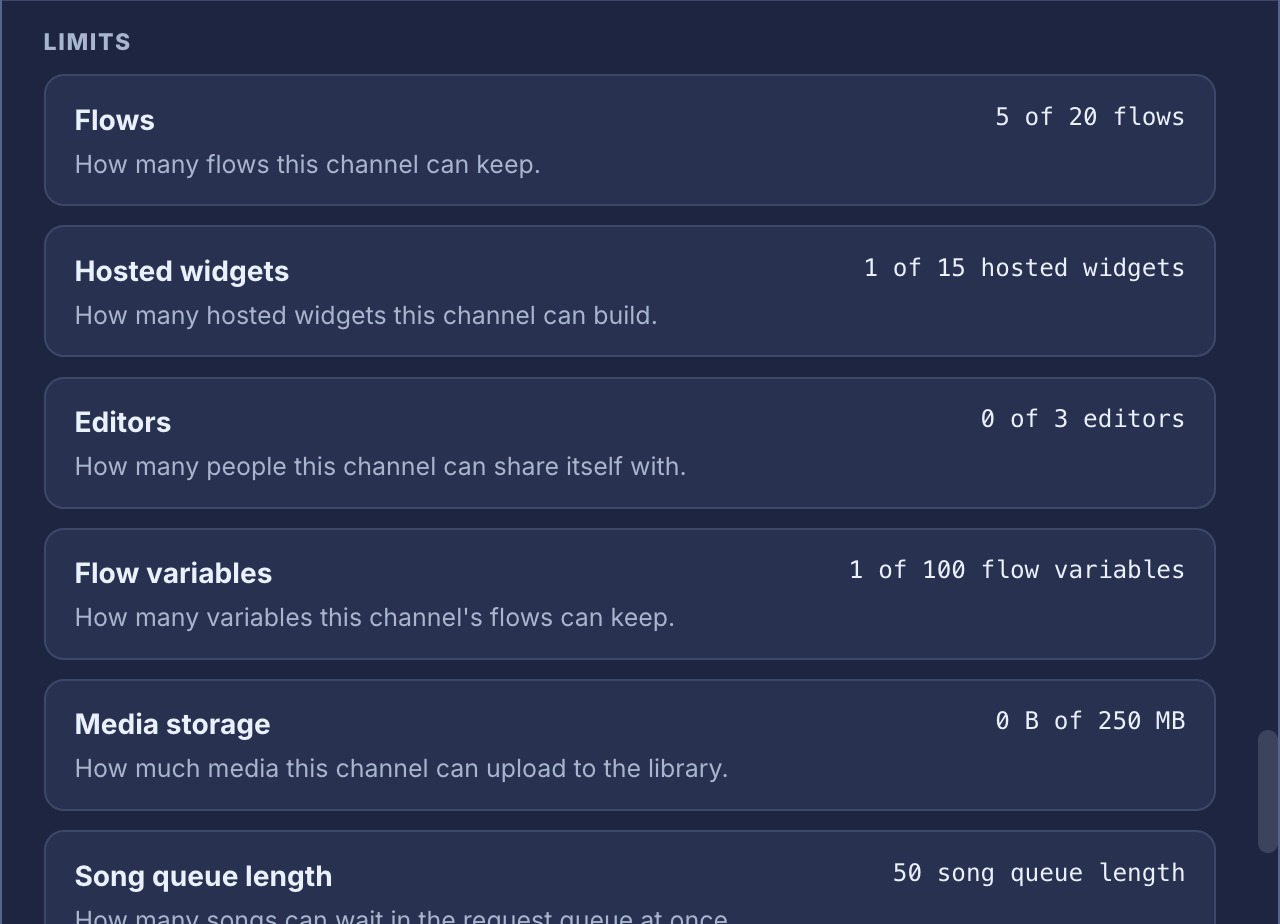
The flow number is the one to read carefully, because it is not the number of flows you can see on the Flows page. It counts your flows: the ones you built, and the ones you changed.
- Installing a pack is free. Its flows arrive as your own copies, paused, for you to look over — and none of them counts until you change one.
- Change what a flow actually does — add a step, rewire one, edit one of its settings — and that flow becomes one of yours and counts from then on. Renaming it, describing it, enabling or pausing it does not.
- A single template installed from the marketplace counts the same way: free while you leave it as it came, yours once you change it.
- The Flows page carries the same running total in its bar, with the installed flows you have left alone counted beside it, and marks each of your flows with a Customized chip in the list.

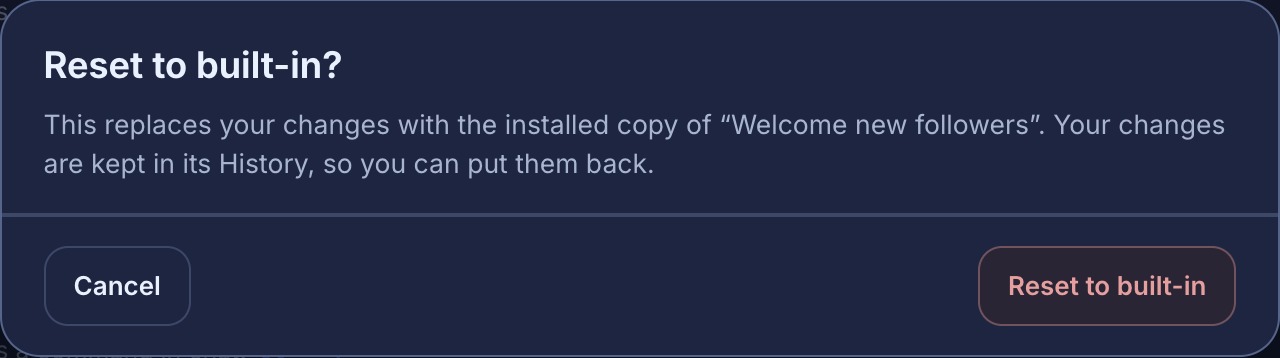
Reset to built-in replaces a changed flow with its source version and clears its count, so it goes back to being free. For a pack member, this takes the latest available pack version; your earlier graph stays in History. It sits in the row’s ⋯ menu on any flow that came from a pack or a template; a flow you built yourself has nothing to reset to and does not offer it.
- Limits are checked when you create the next thing. At the limit, the next flow, widget, editor or upload is refused with a message naming the limit. Everything that already exists keeps working.
- Nothing is ever deleted, disabled, stopped or trimmed retroactively to fit a limit. Reaching the flow count never switches off a flow you already have — a channel that is already over one keeps everything it has, and is simply refused the next thing.
- Because they are only checked at creation, a limit cannot interrupt a stream: no flow stops mid-run, no widget stops serving and no overlay disappears.
A worked example
Say your channel is on the Plus plan and you want a flow that wakes when chat means something rather than when it matches a word.
- Open Flows and press Your plan. The top line names your plan, and under AI judgments you look for Intent trigger.
- If it reads On your Plus plan — or Included by default, or Granted — add the AI: chat means… trigger to a flow, following the intent trigger guide.
- If it reads Not included, the trigger stays locked in the node library. Nothing about your channel changes and no flow of yours breaks, and the AI features guide covers exactly what a locked step does.
The result: within a few seconds you know whether the capability is yours, why, and — when it is — which step to add.
When no plan is assigned
Not every channel is on a plan, and none of this is required to use Bloopbot. When no plan is assigned, the panel still lists every capability Bloopbot has: each one reads Included by default and every limit reads Unlimited, so the panel is a plain list of what Bloopbot can do.
A channel that predates plans keeps everything it already had. When a plan is assigned, its name appears on the first line of the panel and every capability says how it resolved.
Troubleshooting
- A step is greyed out in the library? Your channel does not currently include it. The panel says which plan or default answered, and the AI features guide explains the locked-node behaviour for the AI steps.
- A flow that used to work does nothing now? Check the panel for the capability that flow depends on. A step you do not hold takes its “no answer” path: nothing is broken, but it cannot act.
- The next flow (or widget, or editor) will not save? You have reached that limit — the message names it, and the Limits section shows the count against the ceiling. Delete something you no longer need; the panel shows the ceiling and what your channel is using.
- The plan line says “none assigned”? No plan is assigned to your channel, so nothing is capped or withheld: everything Bloopbot can do is listed under the groups as Included by default.
- You cannot change anything from the panel? Correct, and deliberate — it is read-only. It reports what your channel holds; there is nothing to buy, grant or switch off there.
Was this guide helpful?
Thanks. Your answer helps us decide which guides to improve.